- Prerequisites
- Step 1. Install Java 17 (OpenJDK)
- Step 2. SENTIENT Edge Service Installation
- Step 3. Configure SENTIENT Edge Database
- Step 4. The Queue Service
- Step 5. [Optional] Memory Update for Slow Machines
- Step 6. Run Installation Script
- Step 7. Restart SENTIENT Edge Service
- Step 8. Open SENTIENT Edge UI
- Troubleshooting
- Next Steps

Version Compatibility Rules - Read before proceeding
Before installing SENTIENT Edge, ensure that SENTIENT Server is installed and updated to the latest version.
Additionally, verify that the SENTIENT Edge and SENTIENT Server versions are compatible.
Compatibility rules:
- SENTIENT Edge version X.Y.Z works with SENTIENT Server version X.Y.Z and the next two versions.
- Example: SENTIENT Edge 3.8.0 works with SENTIENT Server 3.8.0 and two later versions (3.9.0 and 3.9.1). View the SENTIENT Server Release Notes here.
- SENTIENT Edge version X.Y.Z does not work with older SENTIENT Server versions.
- Example: SENTIENT Edge 3.9.1 does not support SENTIENT Server 3.8.0 or earlier versions. The SENTIENT Server must be upgraded to the latest version first.
Note: If you run an older version of SENTIENT Edge (e.g., version 3.6.0), the SENTIENT team cannot guarantee the availability or proper functioning of all features.
This guide provides step-by-step instructions for installing SENTIENT Edge on RaspberryPi.
Prerequisites
To start running SENTIENT Community Edition Edge, you will need an active SENTIENT Community Edition account that supports Edge functionality.
You can install the SENTIENT local server. For this, please refer to the SENTIENT installation guide.
The local server can be accessed via http://localhost:8080. Throughout this tutorial, we will refer to this URL as SERVER_URL. Log in with:
- Username: tenant@sentient.org
- Password: tenant
Edge Hardware Requirements
The hardware requirements for SENTIENT Edge are determined by the number of connected devices and the intensity of interactions with the platform interface. To ensure optimal performance, we recommend the following:
- At least 1GB of RAM (Light workload): It is suitable for minimal interactions with the platform interface, such as dashboards and device management, and fewer than 100 connected devices.
- At least 4GB of RAM (Heavy workload): This configuration is suitable for intense platform interactions and 100+ devices connected to a single machine.
Deploying a New Edge Instance
To create a new Edge:
-
Sign in to your SENTIENT instance and navigate to the Edge Management > Instances section. Click the ”+” icon in the top right corner and select the “Add new edge” option.
-
Enter a name for the Edge you are creating. For example, “My New Edge”. Click the “Add” button to confirm the addition of the Edge instance.
-
Your new Edge is created and will appear at the top of the list, as entries are sorted by creation time by default.
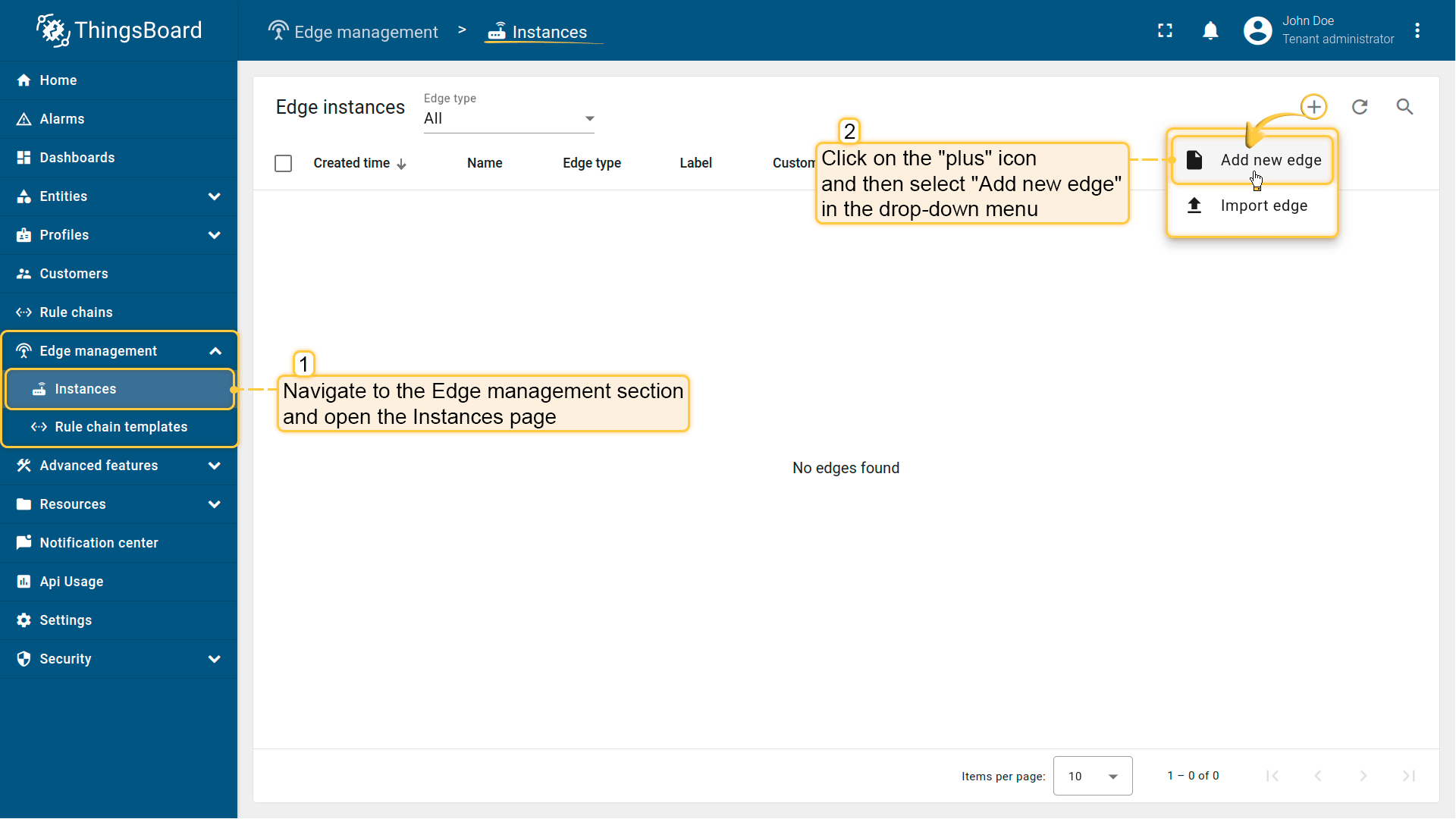
Sign in to your SENTIENT instance and navigate to the Edge Management > Instances section. Click the ”+” icon in the top right corner and select the “Add new edge” option.
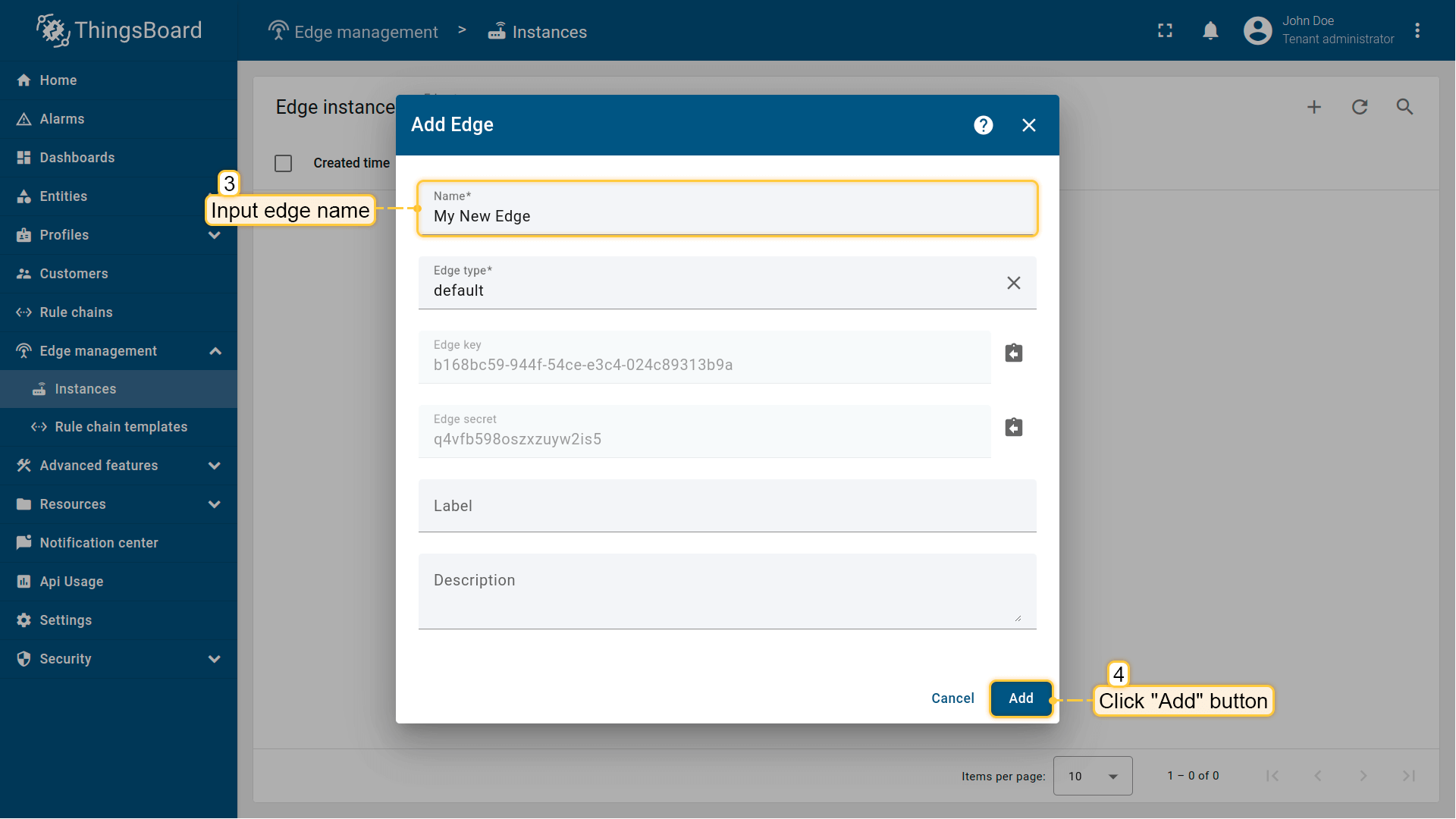
Enter a name for the Edge you are creating. For example, “My New Edge”. Click the “Add” button to confirm the addition of the Edge instance.
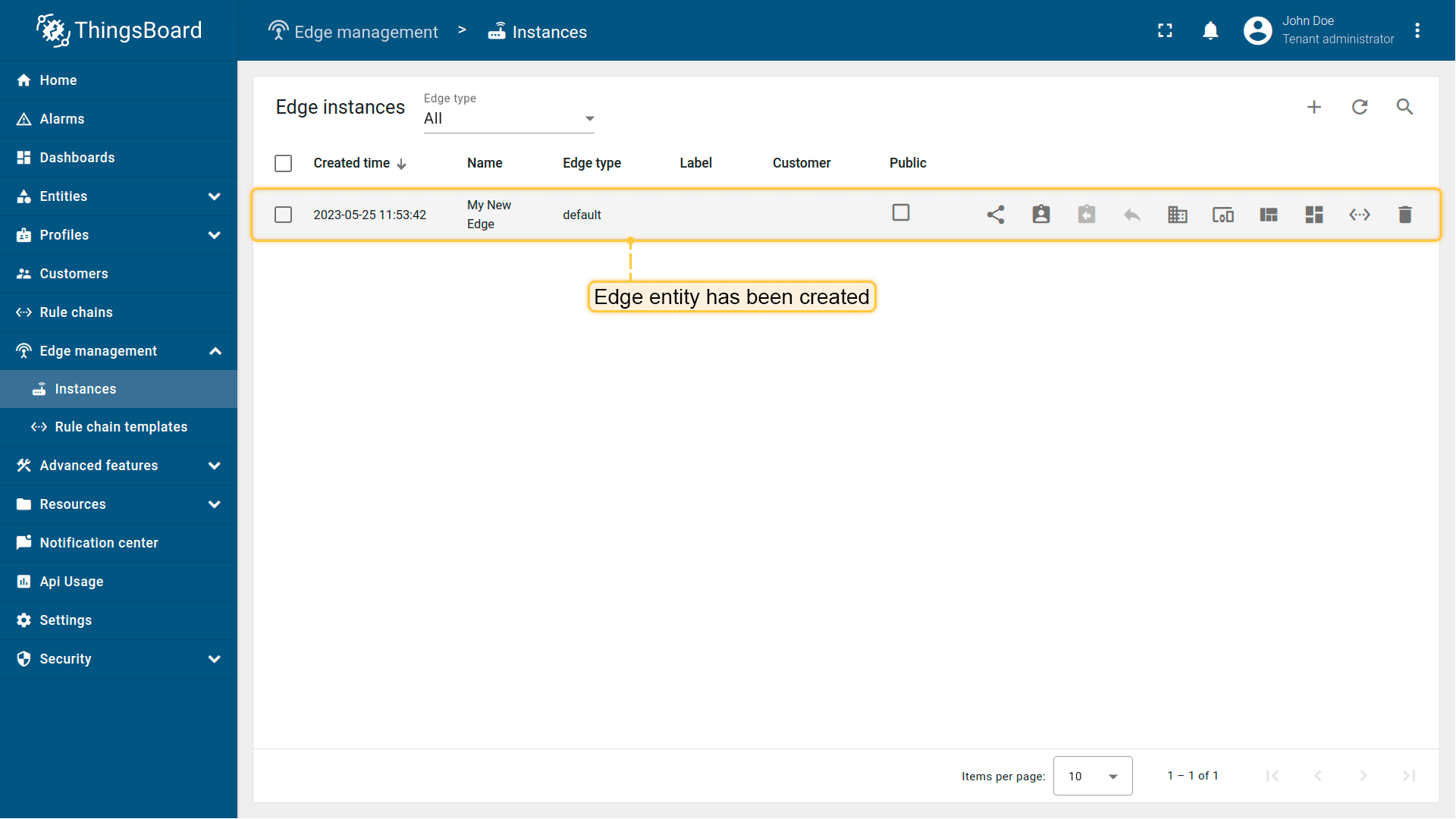
Your new Edge is created and will appear at the top of the list, as entries are sorted by creation time by default.
Step 1. Install Java 17 (OpenJDK)
SENTIENT service is running on Java 17. To install OpenJDK 17, follow these instructions
1
sudo apt update && sudo apt install openjdk-17-jdk-headless
Configure your operating system to use OpenJDK 17 by default. You can configure the default version by running the following command:
1
sudo update-alternatives --config java
To check the installed Java version on your system, use the following command:
1
java -version
The expected result is:
1
2
3
openjdk version "17.x.xx"
OpenJDK Runtime Environment (...)
OpenJDK 64-Bit Server VM (...)
Step 2. SENTIENT Edge Service Installation
Download the installation package.
1
wget https://github.com/sentient/sentient-gateway/releases/download/v4.3.1.1/tb-edge-4.3.1.1.deb
Go to the download repository and install SENTIENT Edge service
1
sudo dpkg -i tb-edge-4.3.1.1.deb
Step 3. Configure SENTIENT Edge Database

The SENTIENT team recommends using PostgreSQL for development and production environments with moderate load (less than 5000 msg/sec). Many cloud providers offer managed PostgreSQL services, making it a cost-effective solution for most SENTIENT deployments.
SENTIENT Edge uses PostgreSQL database as a local storage.
Instructions listed below will help you to install PostgreSQL.
1
2
3
4
5
6
7
8
9
10
11
12
13
# install **wget** if not already installed:
sudo apt install -y wget

# import the repository signing key:
wget --quiet -O - https://www.postgresql.org/media/keys/ACCC4CF8.asc | sudo apt-key add -

# add repository contents to your system:
echo "deb https://apt.postgresql.org/pub/repos/apt/ $(lsb_release -cs)-pgdg main" | sudo tee  /etc/apt/sources.list.d/pgdg.list

# install and launch the postgresql service:
sudo apt update
sudo apt -y install postgresql
sudo service postgresql start
Once PostgreSQL is installed, it is recommended to set the password for the PostgreSQL main user.
The following command will switch the current user to the PostgreSQL user and set the password directly in PostgreSQL.
1
sudo -u postgres psql -c "\password"
Then, enter and confirm the password.
Finally, create a new PostgreSQL database named tb_edge by running the following command:
1
echo "CREATE DATABASE tb_edge;" | psql -U postgres -d postgres -h 127.0.0.1 -W
SENTIENT Configuration
Edit SENTIENT Edge configuration file:
1
2
3
4
5
sudo bash -c 'echo "export DATABASE_TS_TYPE=sql
export SPRING_DATASOURCE_URL=jdbc:postgresql://localhost:5432/sentient
export SPRING_DATASOURCE_USERNAME=postgres
export SPRING_DATASOURCE_PASSWORD=PUT_YOUR_POSTGRESQL_PASSWORD_HERE
export SQL_POSTGRES_TS_KV_PARTITIONING=MONTHS" >> /etc/tb-edge/conf/tb-edge.conf'
- PUT_YOUR_POSTGRESQL_PASSWORD_HERE: Replace with your actual PostgreSQL password.
- SQL_POSTGRES_TS_KV_PARTITIONING: Specify partitioning size for timestamp key-value storage. Allowed values: DAYS, MONTHS, YEARS, INDEFINITE.
Step 4. The Queue Service
By default, SENTIENT Edge uses the built-in queue implementation, which requires no additional configuration.
It is useful for development or proof-of-concept (PoC) environments, but is not recommended for production or any type of clustered deployment due to limited scalability.
Step 5. [Optional] Memory Update for Slow Machines
Edit the SENTIENT Edge configuration file by running this command:
1
echo 'export JAVA_OPTS="$JAVA_OPTS -Xms512M -Xmx1G"' | sudo tee -a /etc/tb-edge/conf/tb-edge.conf
This sets (or updates) the environment variable JAVA_OPTS by appending two options to its current value:
- Xms512M: Sets the initial heap size of the Java Virtual Machine (JVM) to 512 Megabytes.
- Xmx1G: Sets the maximum heap size that the JVM is allowed to use to 1 Gigabyte.
We recommend that you adjust these parameters according to your server resources. It should be set to at least 2G (gigabytes) and increased accordingly if additional RAM is available. Typically, you should set it to 1/2 of your total RAM if you are not running any other memory-intensive processes (e.g. Cassandra), or 1/3 otherwise.
Step 6. Run Installation Script
Once SENTIENT Edge is installed and configured please execute the following installation script:
1
sudo /usr/share/tb-edge/bin/install/install.sh
Make sure you run this script from the root. To change the current directory to the root directory, run the command cd /.
Step 7. Restart SENTIENT Edge Service
1
sudo service tb-edge restart
Step 8. Open SENTIENT Edge UI
Once the Edge service is started, open the Edge UI at http://localhost:8080.
If the Edge HTTP bind port was changed to 18080 during Edge installation, access the SENTIENT Edge instance at http://localhost:18080.
Please use your tenant credentials from SENTIENT Server to log in to the SENTIENT Edge.
- Or replace localhost with your actual Raspberry Pi’s local IP
Troubleshooting
SENTIENT Edge logs stored in the following directory:
1
/var/log/tb-edge
You can issue the following command in order to check if there are any errors on the service side:
1
cat /var/log/tb-edge/tb-edge.log | grep ERROR
Start the SENTIENT Edge service:
1
sudo service tb-edge start
Stop the SENTIENT Edge service:
1
sudo service tb-edge stop
Restart the SENTIENT Edge service:
1
sudo service tb-edge restart
Check the status of the SENTIENT Edge service:
1
sudo service tb-edge status
Next Steps
Congratulations! You have successfully provisioned, installed and connected SENTIENT Edge to SENTIENT server.
You can continue with Getting started guide to get the basic knowledge of SENTIENT Edge or you can jump directly to more advanced topics:
-
Getting started guide - Provide quick overview of main SENTIENT Edge features. Designed to be completed in 15-30 minutes:
-
Edge Rule Engine:
-
Rule Chain Templates - Learn how to use SENTIENT Edge Rule Chain Templates.
-
Provision Rule Chains from cloud to edge - Learn how to provision edge rule chains from cloud to edge.
-
- Security:
- gRPC over SSL/TLS - Learn how to configure gRPC over SSL/TLS for communication between edge and cloud.
-
Features:
-
Edge Status - Learn about Edge Status page on SENTIENT Edge.
-
Cloud Events - Learn about Cloud Events page on SENTIENT Edge.
-
-
Use cases:
-
Manage alarms and RPC requests on edge devices - This guide will show how to generate local alarms on the edge and send RPC requests to devices connected to edge:
-
Data filtering and traffic reduce - This guide will show how to send to cloud from edge only filterd amount of device data:
-
- Roadmap - SENTIENT Edge roadmap.