- Data Flow Overview
- Prerequisites
- Create SENTIENT Integration
- Create ST-RMQTT HTTP Integration
- Sending an Uplink Message
ST-RMQTT HTTP Integration provides a simple and efficient way to forward MQTT messages from devices to an external system using the HTTP protocol. It acts as a bridge between ST-RMQTT and external applications, ensuring seamless and reliable data exchange.
Data Flow Overview
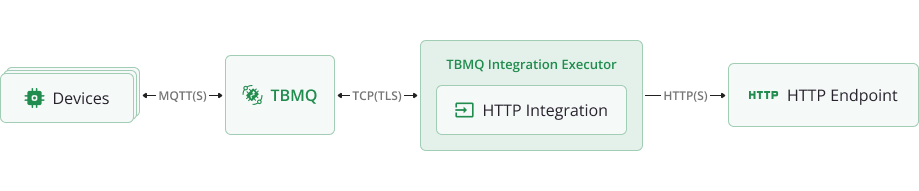
ST-RMQTT HTTP Integration enables forwarding MQTT messages to an external HTTP service:
- Device (client) publishes an MQTT message to a topic that matches the Integration’s Topic Filters.
- ST-RMQTT broker receives the message and forwards to ST-RMQTT Integration Executor.
- ST-RMQTT Integration Executor processes the message, formats it as an HTTP request, and forwards it to the external service.
- External service receives the request and processes the data accordingly.
Prerequisites
Before setting up the integration, ensure the following:
- A running ST-RMQTT instance.
- An external service ready to receive HTTP requests (e.g., SENTIENT Cloud).
- A client capable of publishing MQTT messages (e.g., ST-RMQTT WebSocket Client).
Create SENTIENT Integration
In this tutorial, we use SENTIENT as the external service receiving HTTP requests from ST-RMQTT. However, any other HTTP-compatible service can be used.
Follow the official SENTIENT HTTP Integration Guide to create an integration on SENTIENT Cloud.
Once the HTTP Integration is created:
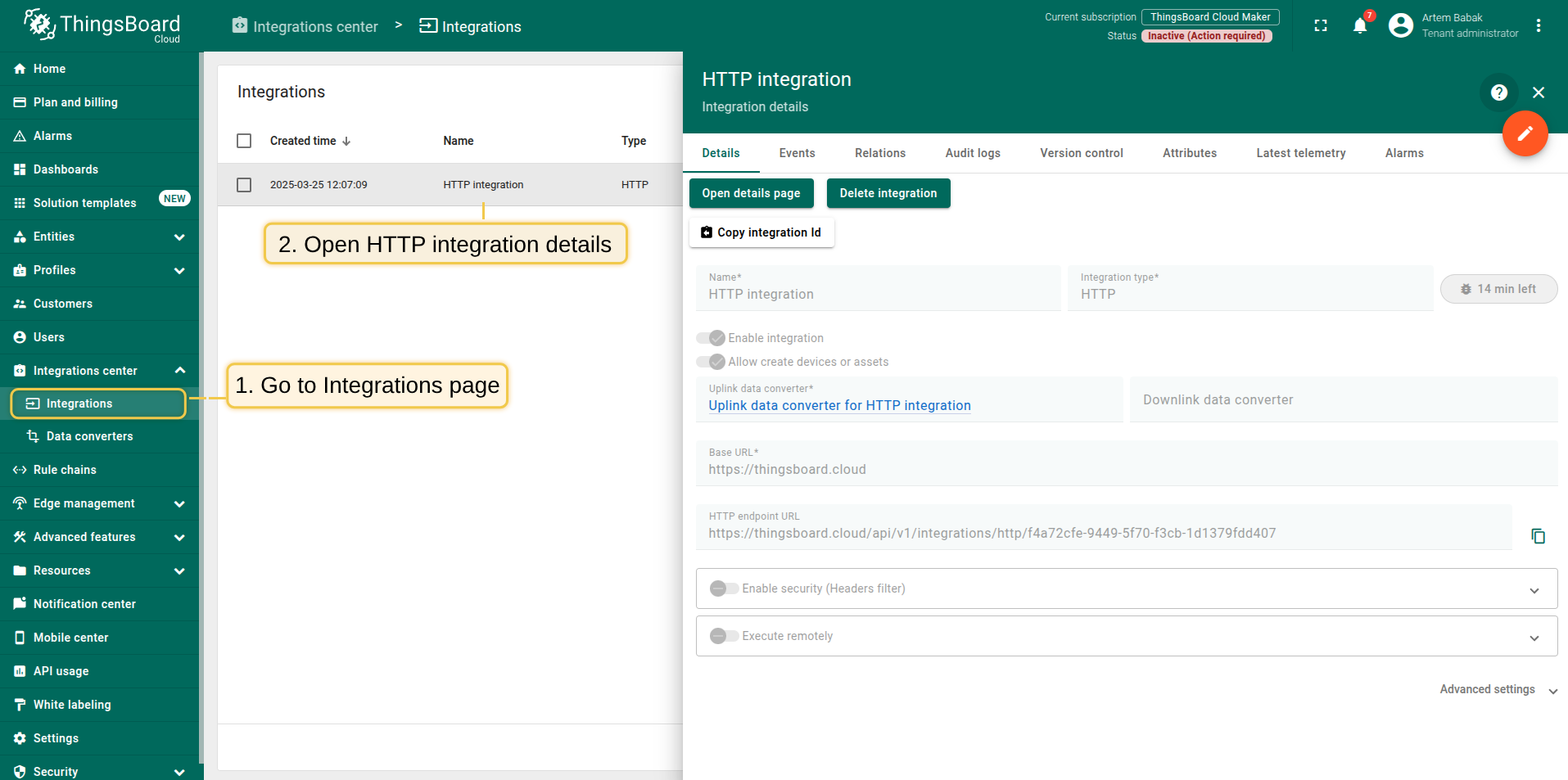
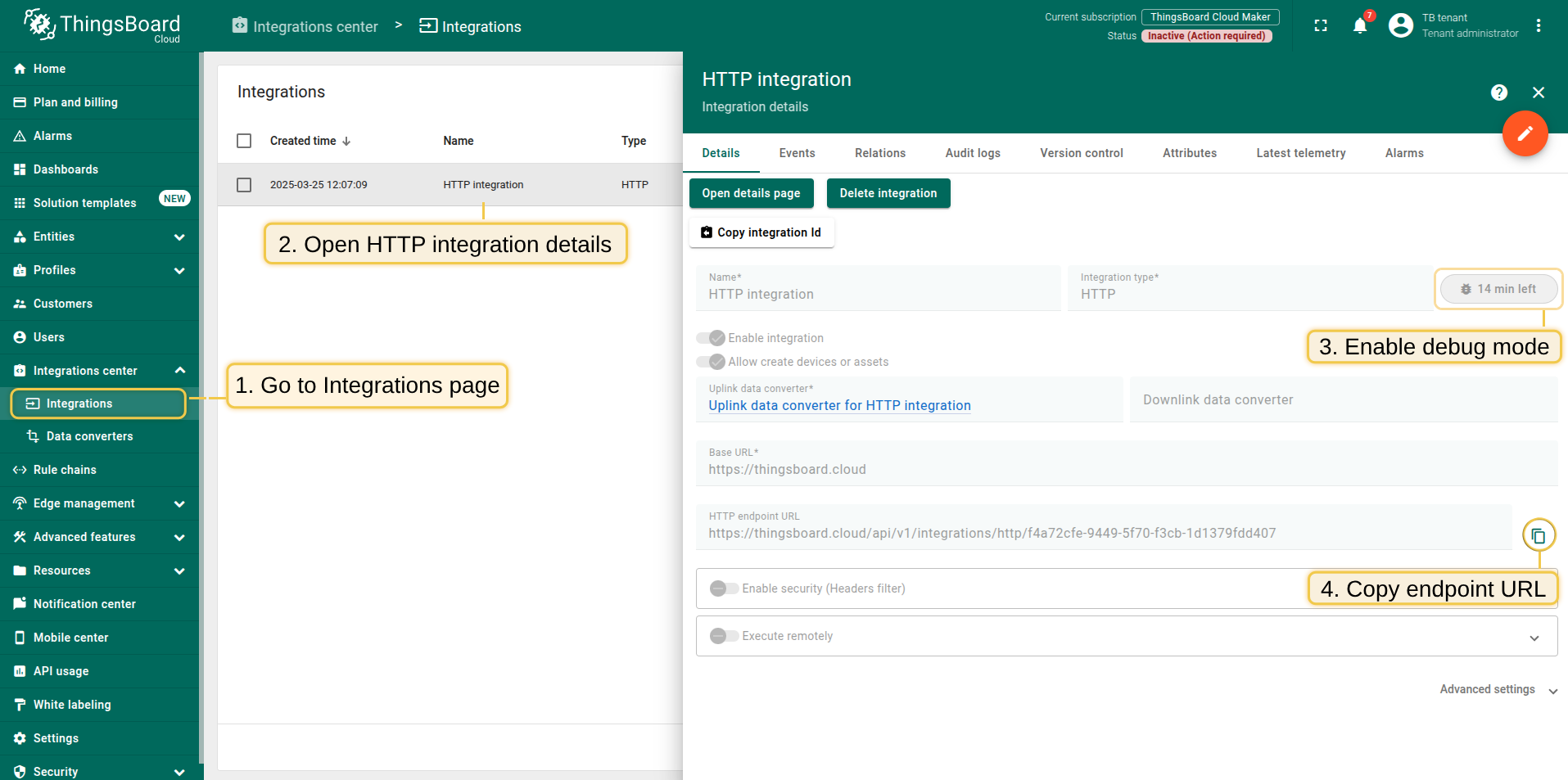
- Open the details page and enable debug mode to verify data reception.
- Copy the HTTP endpoint URL, as this will be needed in the next step.
Create ST-RMQTT HTTP Integration
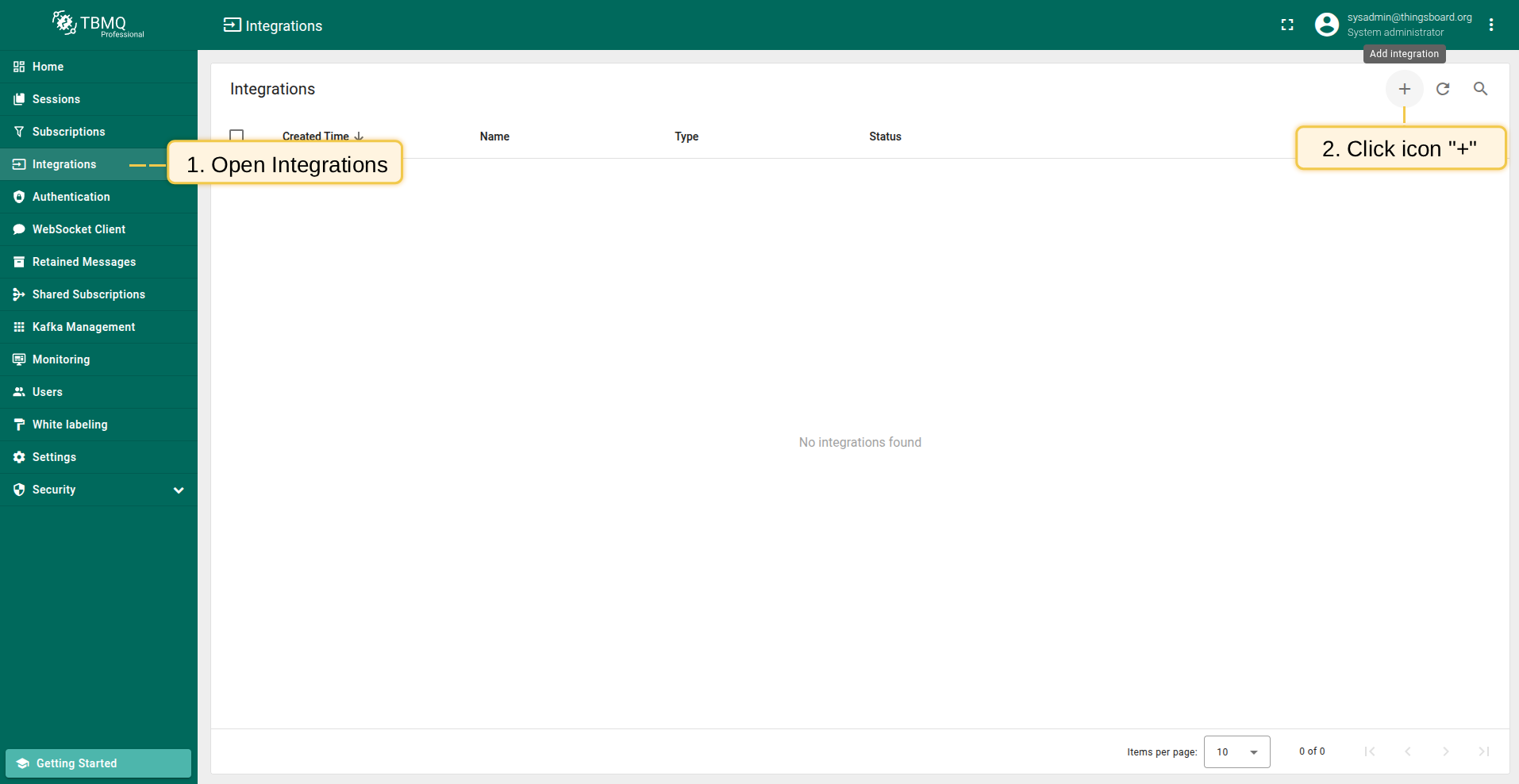
- Go to the Integrations page and click the “+” button to create a new integration.
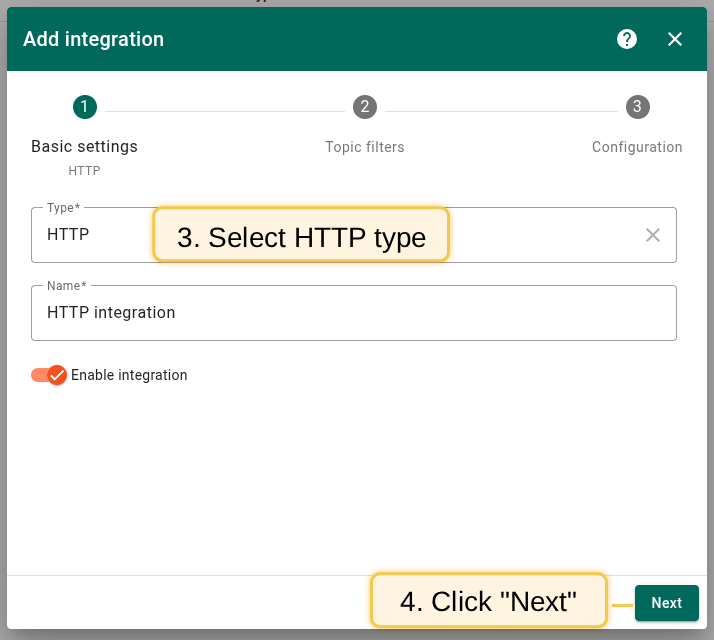
- Select HTTP as the integration type and click Next.
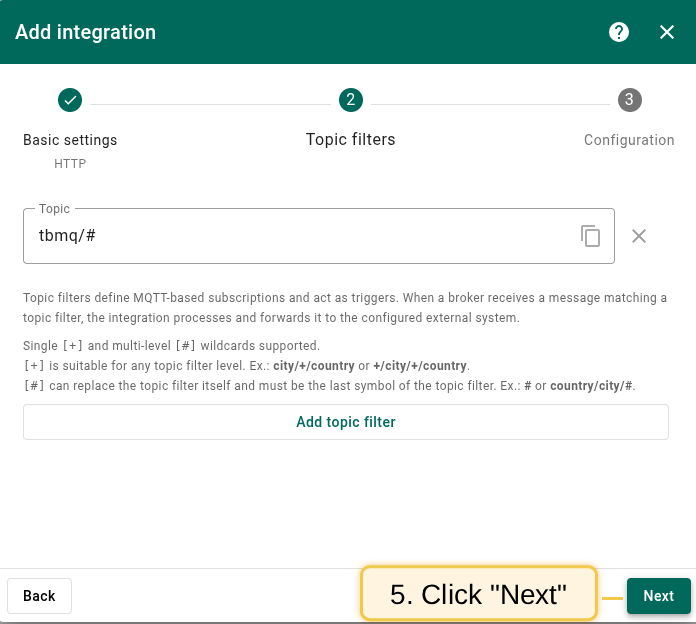
- On the Topic Filters page click Next to subscribe to the default topic
st-rmqtt/#. - In the Configuration step, paste the Endpoint URL from the SENTIENT Integration.
- Open Advanced settings and set Payload content type to
JSON. - Click Add to save the integration.
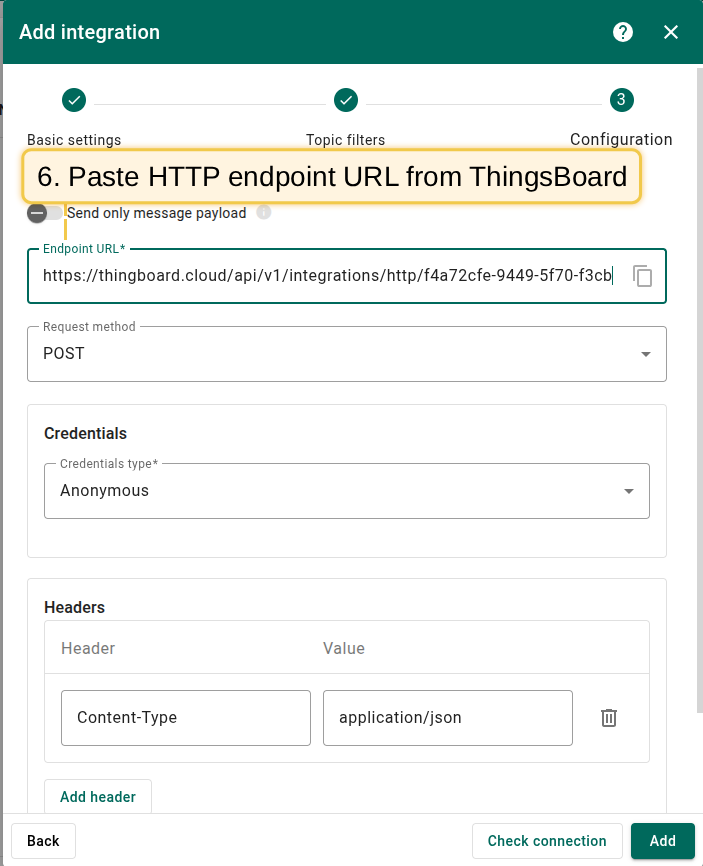
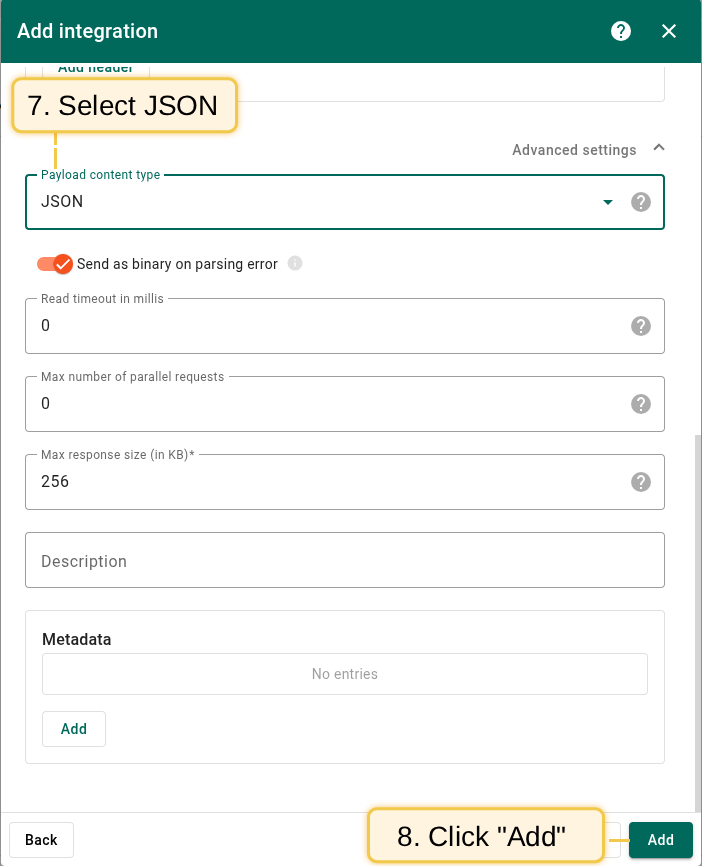
You can test the connectivity to the configured HTTP endpoint by sending a HEAD request using the ‘Check connection’ button.
Topic Filters
Topic filters define MQTT-based subscriptions and act as triggers for ST-RMQTT HTTP Integration. When the broker receives a message matching configured topic filters, the integration processes it and forwards the data to the specified external system.
If the integration is configured with the topic filter:
1
st-rmqtt/devices/+/status
Then, any message matching this pattern will trigger the integration, including:
1
2
st-rmqtt/devices/device-01/status
st-rmqtt/devices/gateway-01/status
Configuration
| Field | Description |
|---|---|
| Send only message payload | If enabled, the incoming message’s payload is forwarded as is. If disabled, a JSON object with the payload and other properties is sent. |
| Endpoint URL | The external service URL where HTTP requests are sent. |
| Request Method | Defines how the request is made. Supported methods: GET, POST, PUT, DELETE. |
| Credentials | Supported authentication options: |
| Anonymous – No authentication. | |
Basic Authentication – Uses Username and Password for authentication. |
|
| PEM-based authentication – Uses PEM certificate to authenticate. | |
| Headers | A collection of key-value pairs added to the HTTP request headers. |
| Payload Content Type | Defines the format of the request body. Supported: JSON, Text, Binary (Base64). |
| Send as binary on parsing error | If enabled, messages with a failed JSON or Text parsing attempt will be sent as a binary payload. If disabled, failed messages will not be sent. |
| Read Timeout | Maximum time the request waits for a response before timing out. |
| Max Parallel Requests | Limits the number of concurrent HTTP requests. |
| Max Response Size | Defines the maximum allowed size for incoming responses. |
| Metadata | Custom metadata that can be used for additional processing. |
Events
ST-RMQTT provides logging for integration-related events, allowing users to debug and troubleshoot integration behavior. Below are three ‘Event’ types:
-
Lifecycle Events – Logs events such as
Started,Created,Updated,Stopped, etc. -
Statistics – Provides insights into integration performance, including the number of processed messages and occured errors.
-
Errors – Captures failures related to authentication, timeouts, payload formatting, or connectivity issues with the external service.
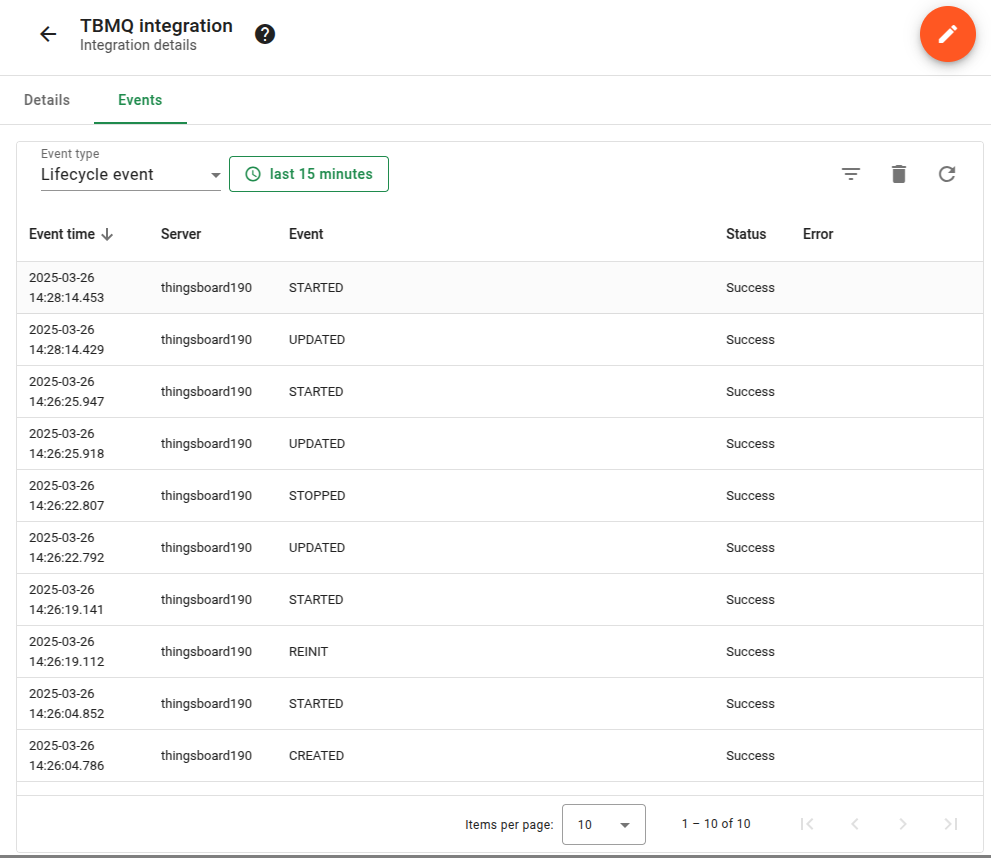
Lifecycle Events – Logs events such as Started, Created, Updated, Stopped, etc.
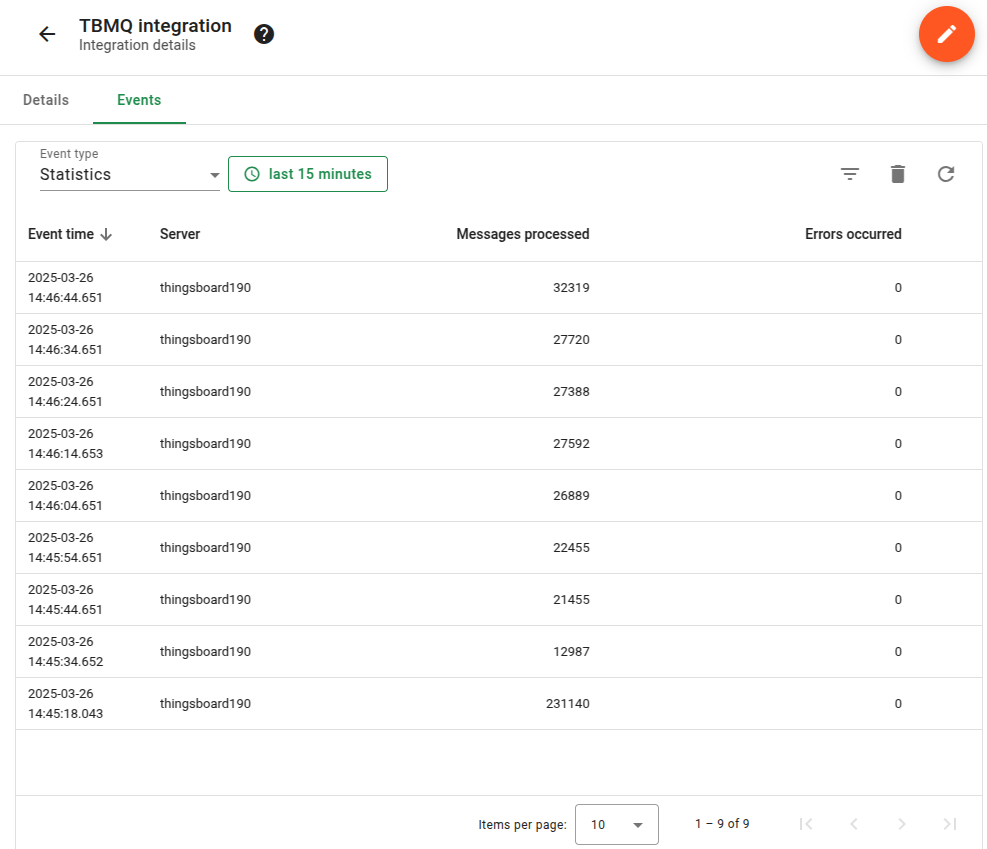
Statistics – Provides insights into integration performance, including the number of processed messages and occured errors.
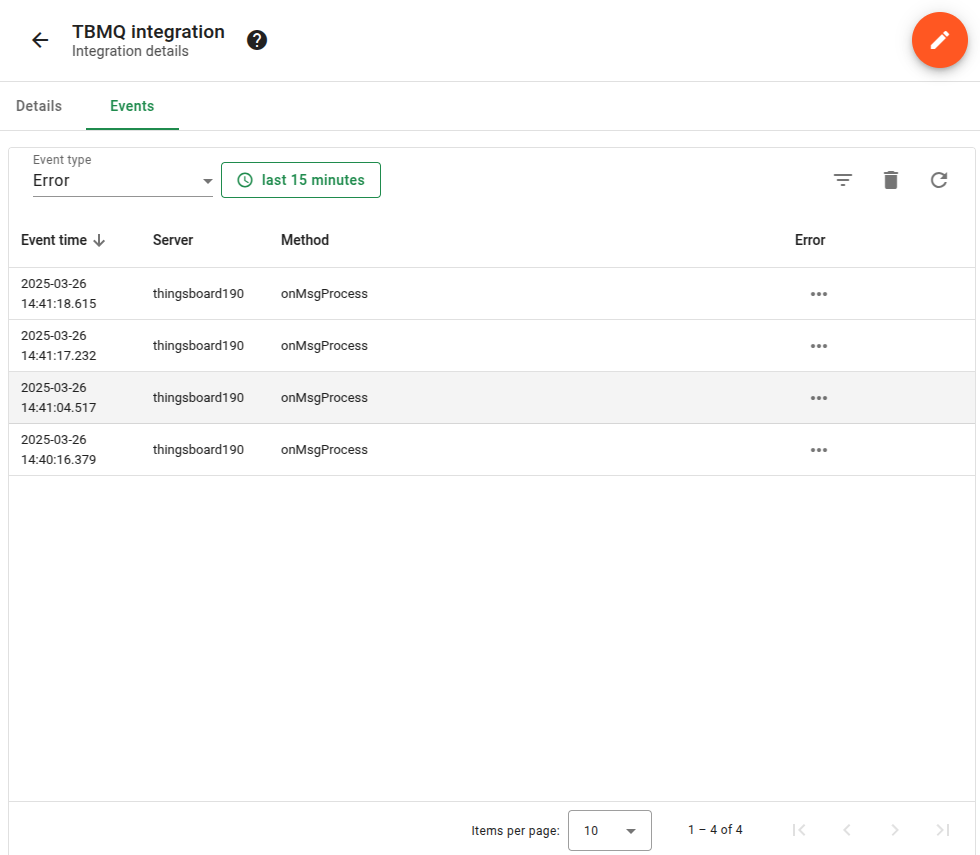
Errors – Captures failures related to authentication, timeouts, payload formatting, or connectivity issues with the external service.
Sending an Uplink Message
To send a message, follow these steps:
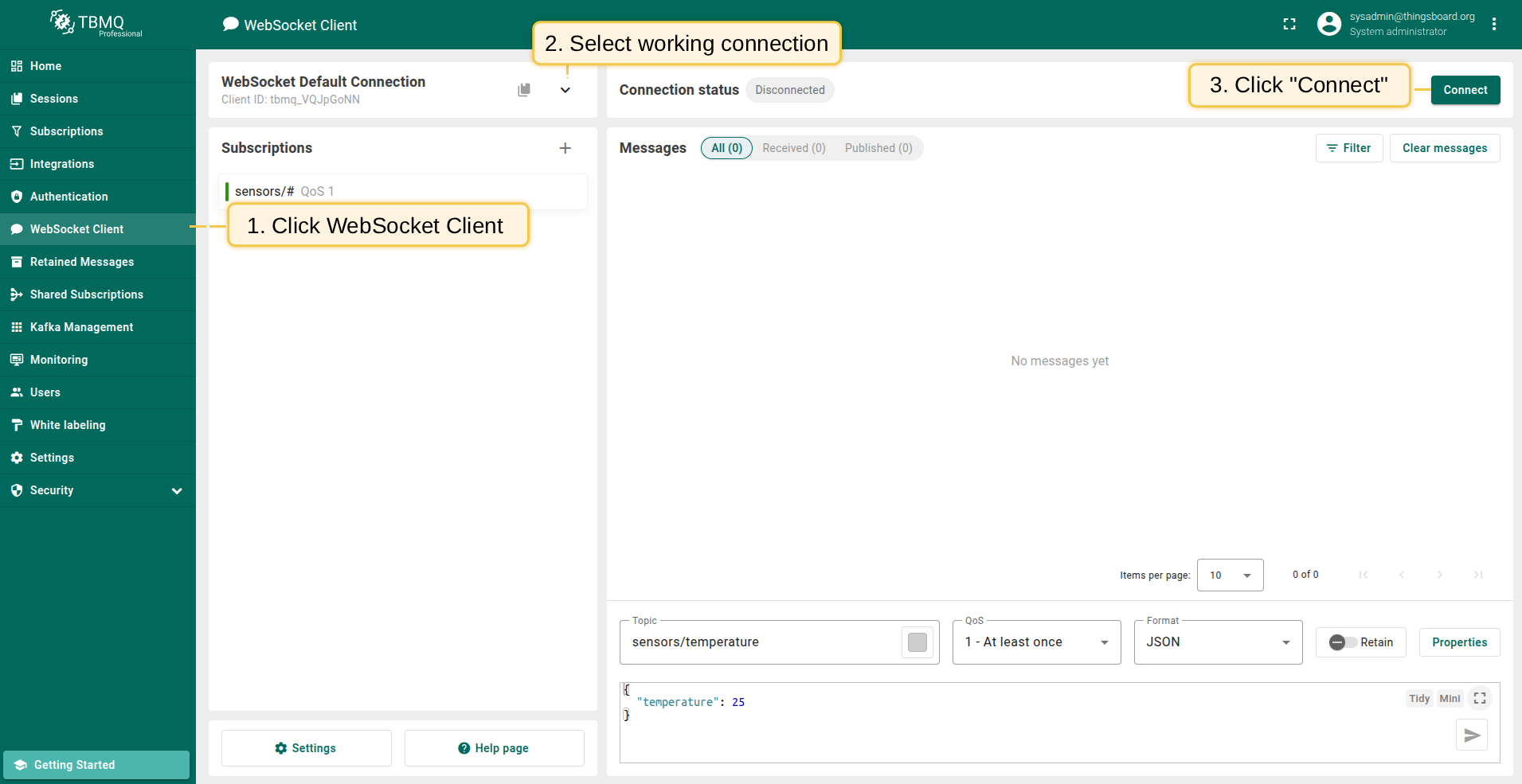
- Navigate to the WebSocket Client page.
- Select ‘WebSocket Default Connection’ or any other available working connection, then click Connect. Make sure the ‘Connection status’ is shown as
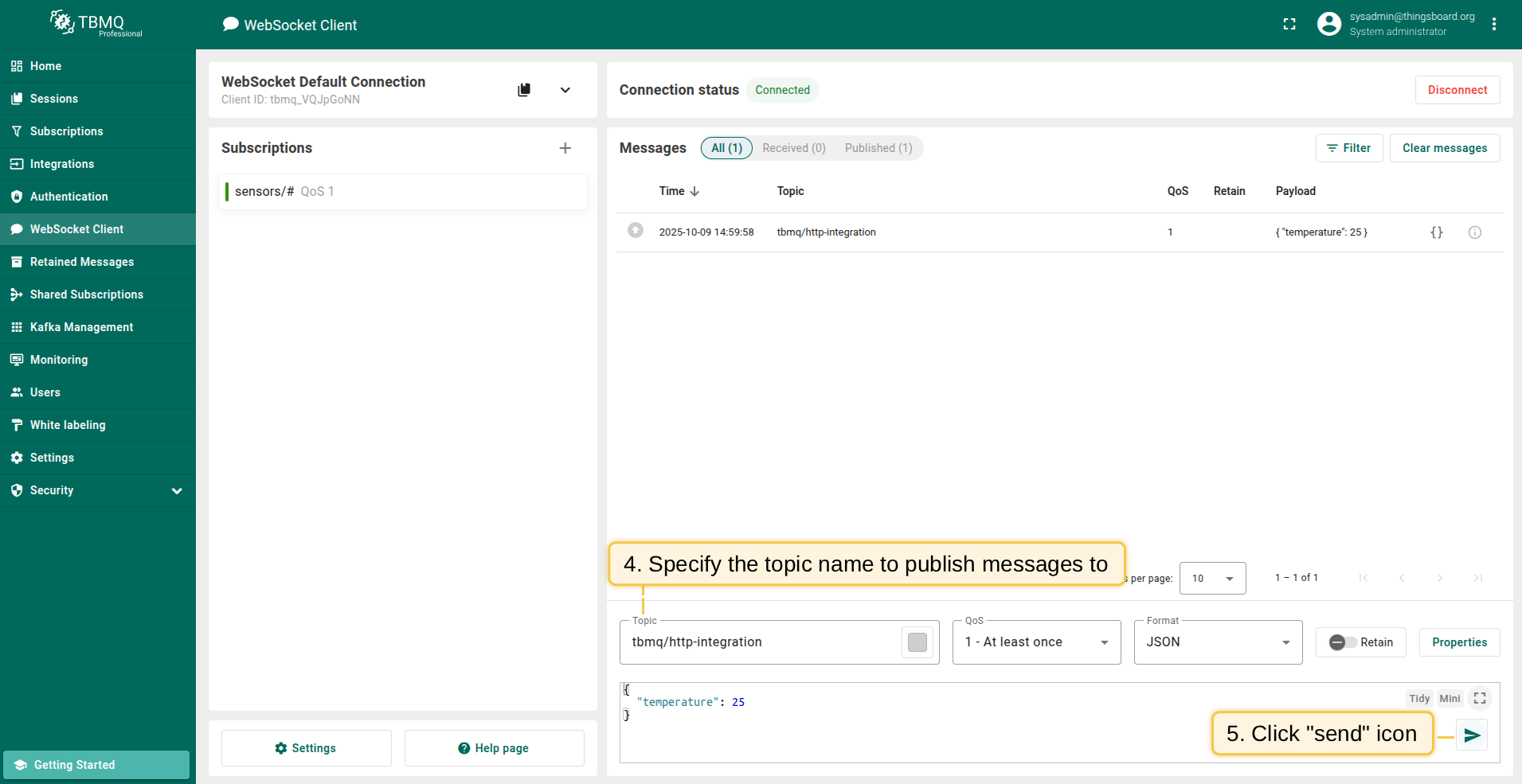
Connected. - Set the ‘Topic’ field to
st-rmqtt/http-integrationto match the Integration’s ‘Topic Filter’st-rmqtt/#. - Click the Send icon to publish the message.
- If successfull, the message should appear in the ‘Messages’ table.
Once the message is published:
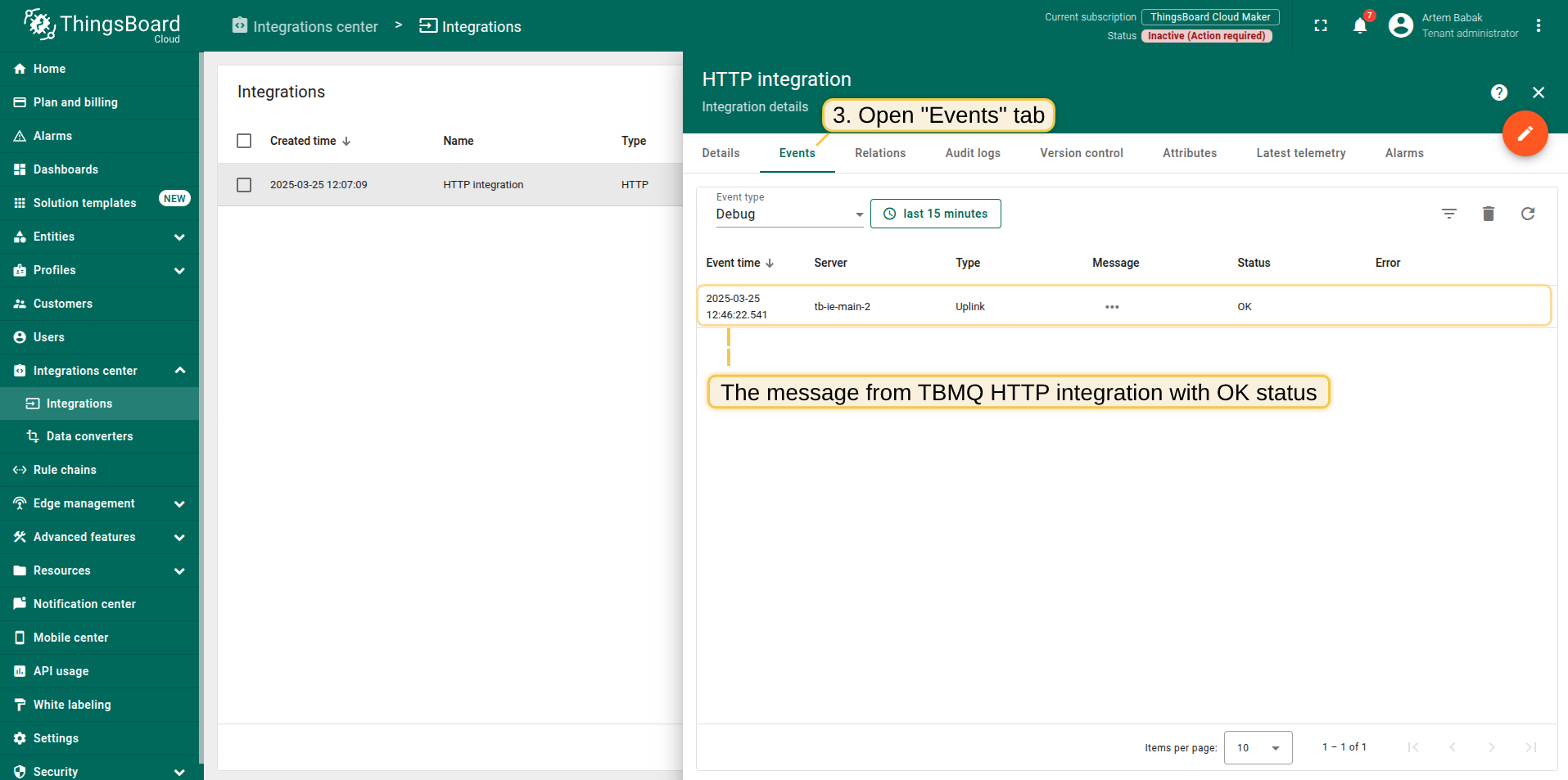
- In the SENTIENT Cloud open the HTTP Integration details.
- Go to the Events tab.
- If the setup is correct, you should see an event with the status ‘OK’ and a message payload similar to:
1
2
3
4
5
6
7
8
9
10
11
12
13
14
15
16
17
{
    "payload": {
        "temperature": 25
    },
    "topicName": "st-rmqtt/http-integration",
    "clientId": "st-rmqtt_7QUvZzow",
    "eventType": "PUBLISH_MSG",
    "qos": 1,
    "retain": false,
    "st-rmqttIeNode": "st-rmqtt_ie_node",
    "st-rmqttNode": "st-rmqtt_node",
    "ts": 1742553324248,
    "props": {},
    "metadata": {
        "integrationName": "HTTP integration"
    }
}
Message description:
- payload: Content of the MQTT message.
- topicName: The MQTT topic to which the message was published.
- clientId: The ID of the MQTT client that published the message.
- eventType: Type of MQTT event, here it’s a published message (the only supported type for now).
- qos: Quality of Service level used for the incoming message.
- retain: Indicates if the message is a retained MQTT message.
- st-rmqttIeNode: Node ID of the Integration Executor service that handled the message.
- st-rmqttNode: Node ID of the ST-RMQTT broker that received the message.
- ts: Timestamp (in milliseconds) when the message was received.
- props: MQTT 5.0 user properties or other MQTT properties.
- metadata: Additional metadata added from integration configuration, e.g., the name of the integration that handled the message, added by default.