- Prerequisites
- Guided Installation Using SENTIENT Server Pre-configured Instructions
- Manual Installation and Configuration
- Troubleshooting
- Next Steps

Version Compatibility Rules - Read before proceeding
Before installing SENTIENT Edge, ensure that SENTIENT Server is installed and updated to the latest version.
Additionally, verify that the SENTIENT Edge and SENTIENT Server versions are compatible.
Compatibility rules:
- SENTIENT Edge version X.Y.Z works with SENTIENT Server version X.Y.Z and the next two versions.
- Example: SENTIENT Edge 3.8.0 works with SENTIENT Server 3.8.0 and two later versions (3.9.0 and 3.9.1). View the SENTIENT Server Release Notes here.
- SENTIENT Edge version X.Y.Z does not work with older SENTIENT Server versions.
- Example: SENTIENT Edge 3.9.1 does not support SENTIENT Server 3.8.0 or earlier versions. The SENTIENT Server must be upgraded to the latest version first.
Note: If you run an older version of SENTIENT Edge (e.g., version 3.6.0), the SENTIENT team cannot guarantee the availability or proper functioning of all features.
This guide provides step-by-step instructions for running SENTIENT Edge on Linux or Mac OS using Docker.
Prerequisites
To start running SENTIENT Professional Edition Edge, you will need an active SENTIENT Professional Edition account that supports Edge functionality.
Sign up for a SENTIENT Cloud account, which is the easiest way to get started. Throughout the rest of this tutorial, this URL will be referred to as SERVER_URL Log in using your SENTIENT Cloud tenant credentials. |
|
You can install the SENTIENT Professional Edition local server. For this, please refer to the SENTIENT installation guide. The local server can be accessed via http://localhost:8080. Throughout this tutorial, we will refer to this URL as SERVER_URL. Log in with:
|
Edge Hardware Requirements
The hardware requirements for SENTIENT Edge are determined by the number of connected devices and the intensity of interactions with the platform interface. To ensure optimal performance, we recommend the following:
- At least 1GB of RAM (Light workload): It is suitable for minimal interactions with the platform interface, such as dashboards and device management, and fewer than 100 connected devices.
- At least 4GB of RAM (Heavy workload): This configuration is suitable for intense platform interactions and 100+ devices connected to a single machine.
Deploying a New Edge Instance
To create a new Edge:
-
Sign in to your SENTIENT Professional Edition instance and navigate to the Edge Management > Instances section. Click the ”+” icon in the top right corner and select the “Add new edge” option.
-
Enter a name for the Edge you are creating. For example, “My New Edge”. If needed, update the cloud endpoint.
- If the Edge runs in a Docker container, do not use “localhost” as the endpoint. Instead, use the IP address of the machine where SENTIENT Professional Edition is hosted and accessible by the Edge container. For example, http://10.7.2.143:8080.
- If you are using the SENTIENT Cloud, there’s no need to change this setting — keep it as is.
- Click the “Add” button to confirm the addition of the Edge instance.
-
Your new Edge is created and will appear at the top of the list, as entries are sorted by creation time by default.
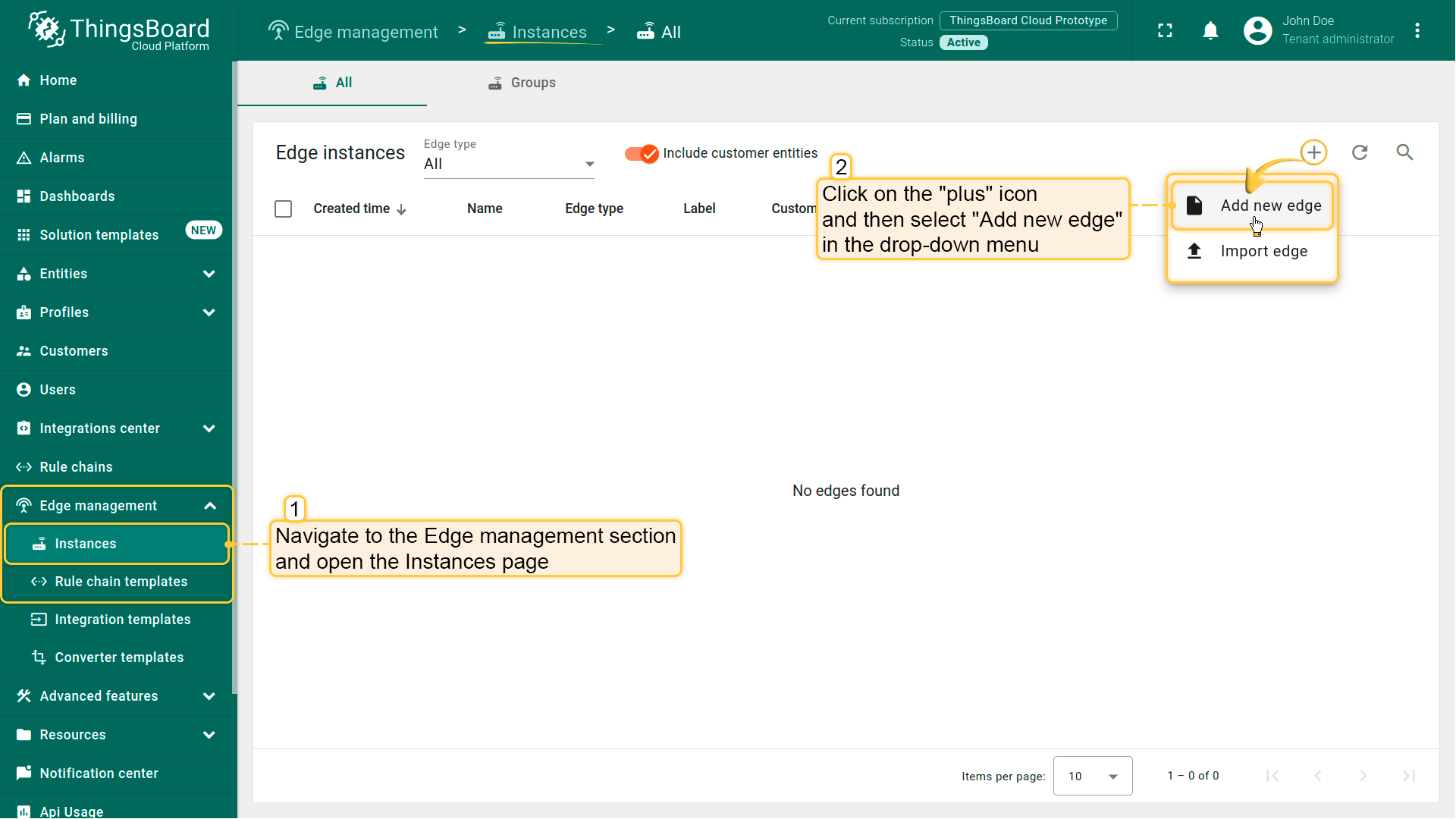
Sign in to your SENTIENT Professional Edition instance and navigate to the Edge Management > Instances section. Click the ”+” icon in the top right corner and select the “Add new edge” option.
{:target="_blank"}, do not use “localhost” as the endpoint. Instead, use the IP address of the machine where SENTIENT Professional Edition is hosted and accessible by the Edge container. For example, http://10.7.2.143:8080.
If you are using the SENTIENT Cloud, there’s no need to change this setting — keep it as is.
Click the "Add" button to confirm the addition of the Edge instance.](/images/pe/edge/installation-add-edge-item-2.png)
Enter a name for the Edge you are creating. For example, “My New Edge”. If needed, update the cloud endpoint.
- If the Edge runs in a Docker container, do not use “localhost” as the endpoint. Instead, use the IP address of the machine where SENTIENT Professional Edition is hosted and accessible by the Edge container. For example, http://10.7.2.143:8080.
- If you are using the SENTIENT Cloud, there’s no need to change this setting — keep it as is.
- Click the “Add” button to confirm the addition of the Edge instance.
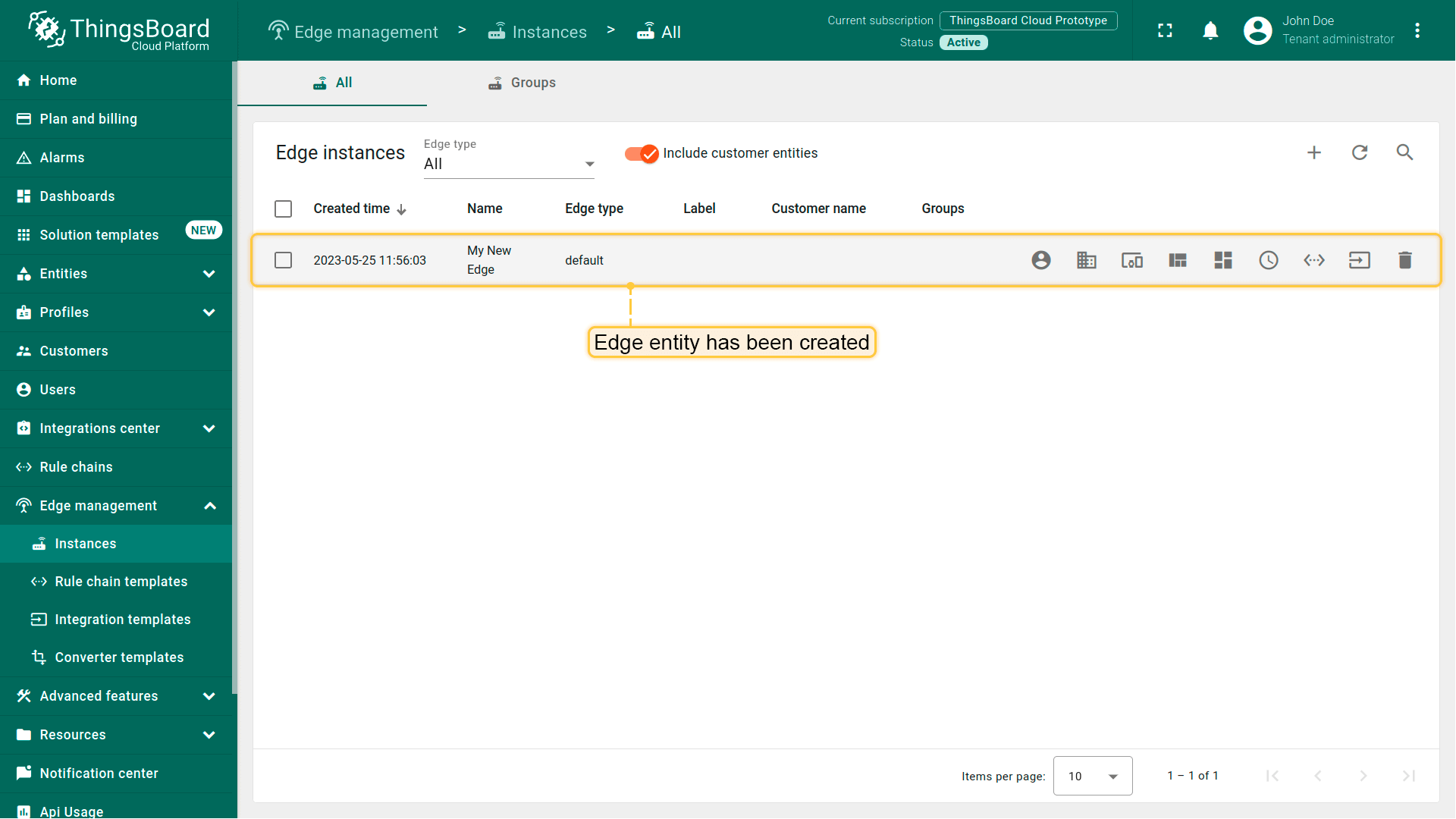
Your new Edge is created and will appear at the top of the list, as entries are sorted by creation time by default.
Docker Installation

SENTIENT supports Docker Compose V2 (Docker Desktop or Compose plugin) starting from 3.4.2 release.
We strongly recommend upgrading to and using Docker Compose V2, as Docker no longer supports docker-compose as a standalone setup.
Don’t forget to add your linux user to the docker group. See Manage Docker as a non-root user.
Guided Installation Using SENTIENT Server Pre-configured Instructions
Once the Edge instance has been created, the installation instructions will be available for use. Each Edge has preset configurations that contain important credentials, such as Edge Secret, Edge Key, etc. To access these configurations:
-
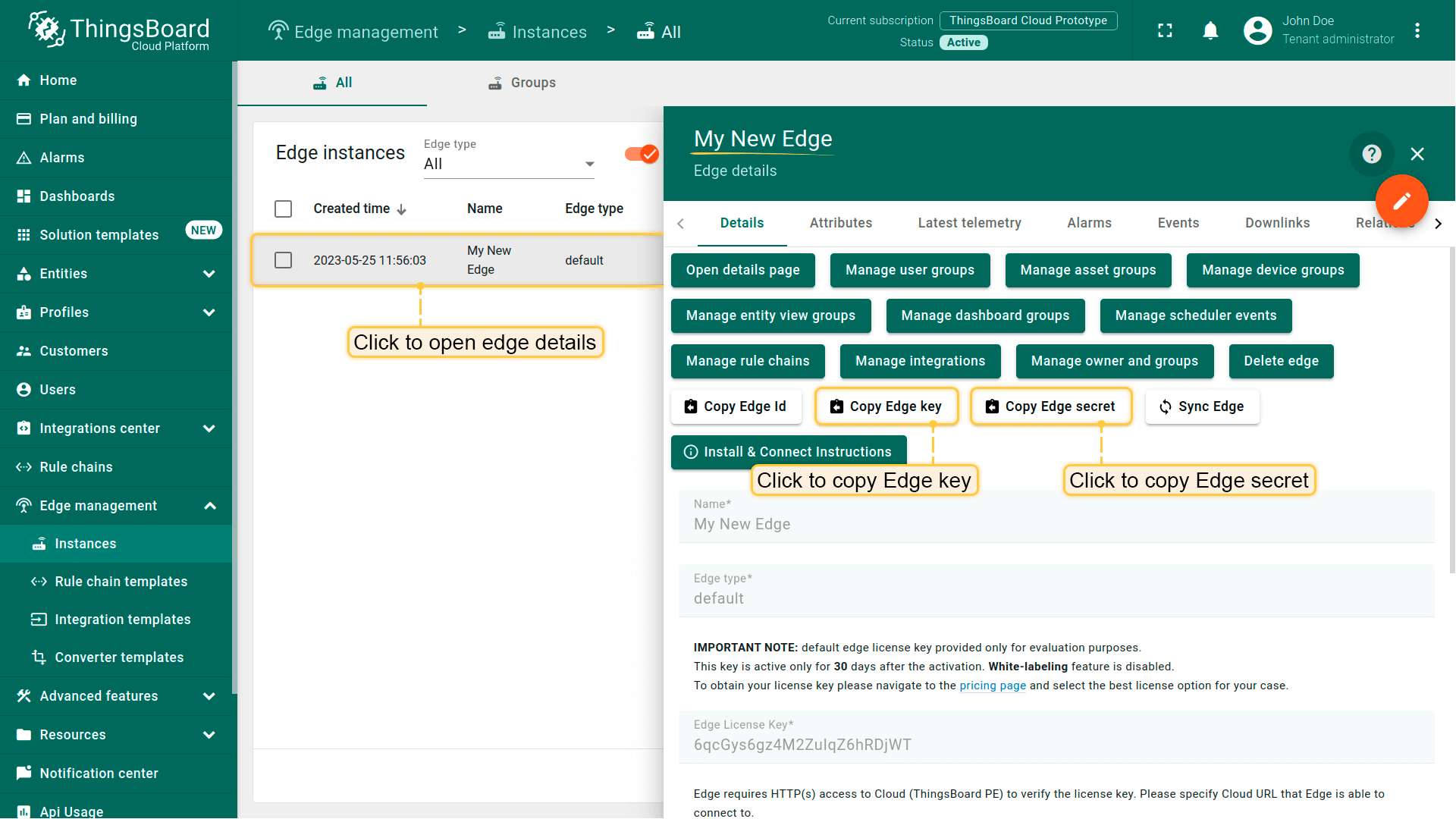
Click on the Edge entity to open its details.
-
Click the “Install & Connection Instructions” button.
-
Follow the instructions to install Edge and connect it to the server.
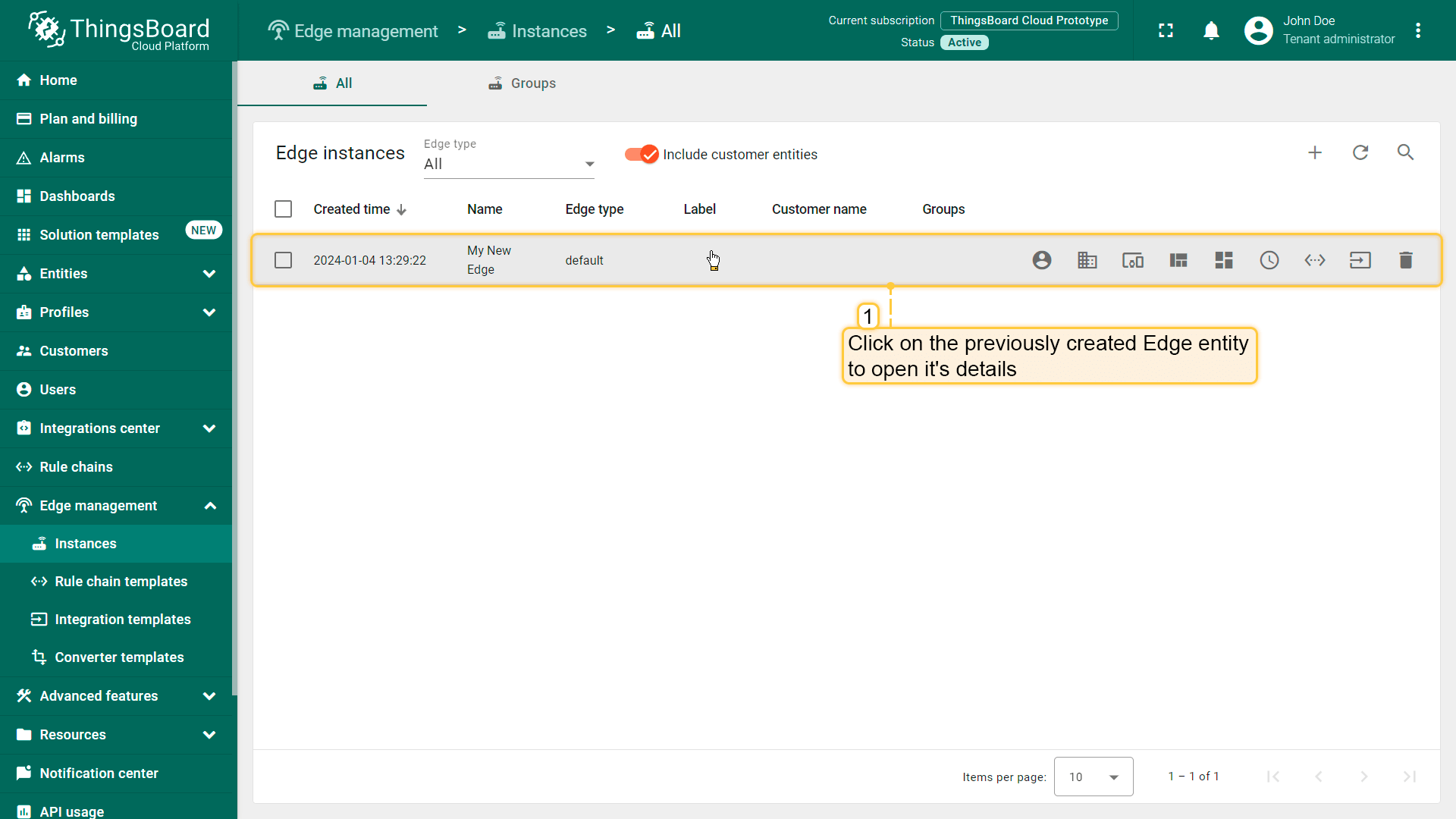
Click on the Edge entity to open its details.
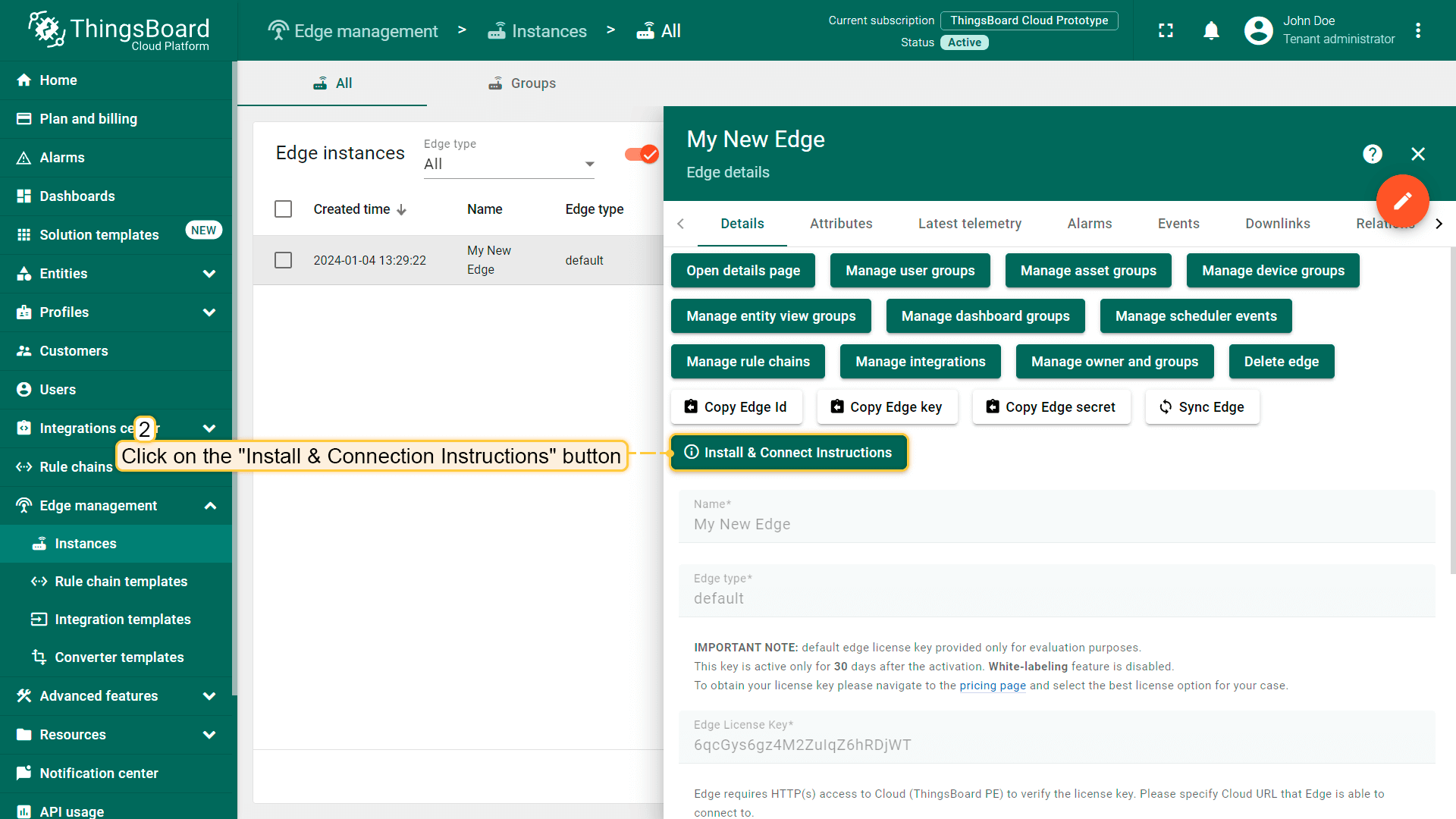
Click the “Install & Connection Instructions” button.
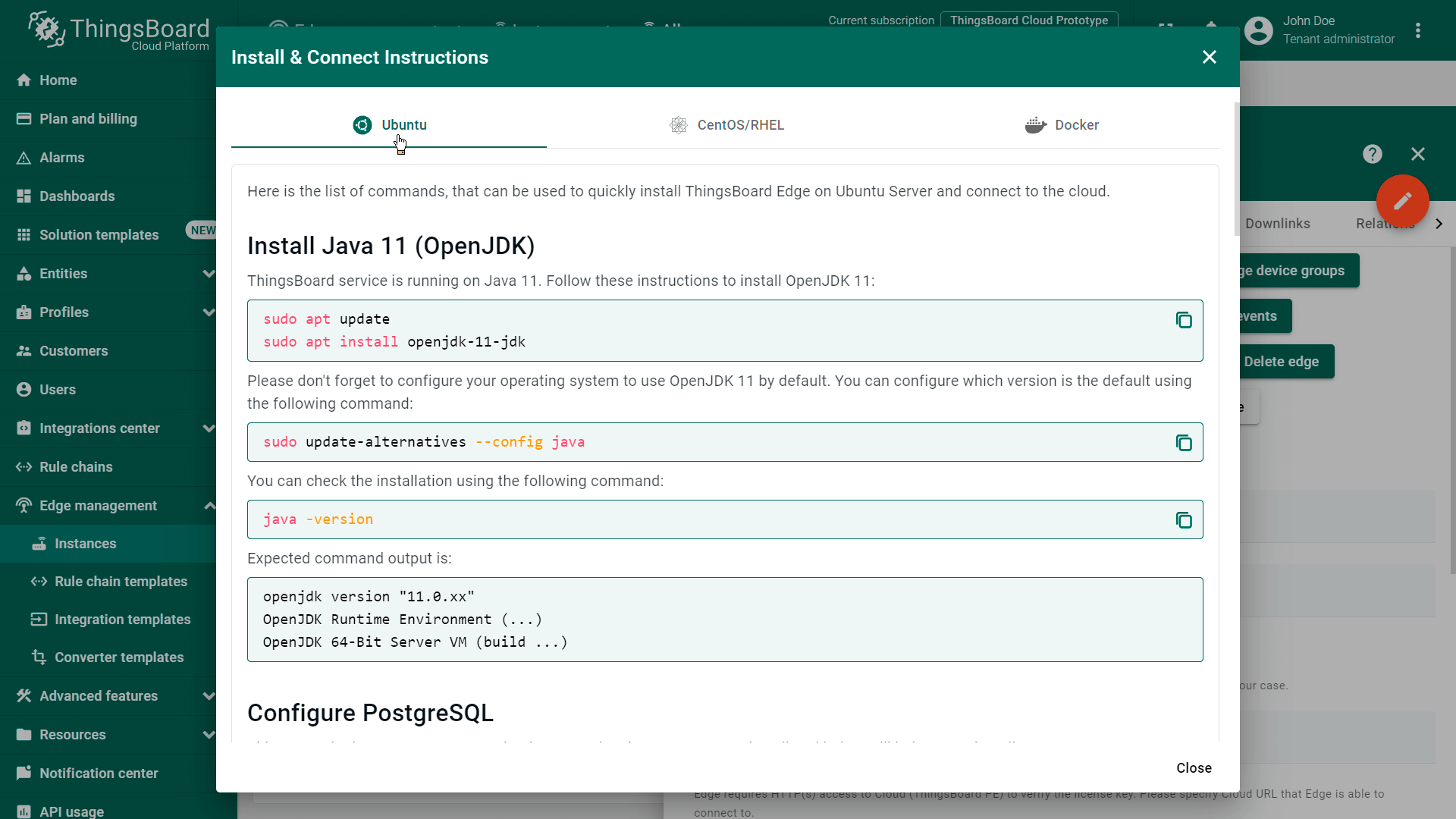
Follow the instructions to install Edge and connect it to the server.
Manual Installation and Configuration
If for any reason you are unable to use the prepared SENTIENT Server Instructions above, please follow the steps below. These steps will guide you through installing and configuring the Edge by yourself.
Step 1. Running SENTIENT Edge
Here you can find SENTIENT Edge docker image:
Click on Copy Edge Key and Copy Edge Secret in the edge details section. This will copy your edge credentials to your clipboard. Be sure to store them in a secure location, as these values will be needed in the following steps.
Step 2. Choose Queue and/or Database Services
SENTIENT Edge is able to use different messaging systems/brokers for storing the messages and communication between SENTIENT services. How to choose the right queue implementation?
-
In Memory queue implementation is built-in and default. It is useful for development (PoC) environments and is not suitable for production deployments or any sort of cluster deployments.
-
Kafka is recommended for production deployments. This queue is used on most of the SENTIENT production environments now.
-
Hybrid implementation combines PostgreSQL and Cassandra databases with Kafka queue service. It is recommended if you plan to manage 1M+ devices in production or handle high data ingestion rate (more than 5000 msg/sec).
Create a docker compose file for the SENTIENT Edge service:
For SENTIENT Edge service, create a docker compose file: Add the following configuration lines to the yml file: Where:
Please set CLOUD_RPC_HOST with an IP address of the machine where SENTIENT Professional Edition version is running:
NOTE: sentient.cloud uses SSL protocol for edge communication. Please change CLOUD_RPC_SSL_ENABLED to true as well.
If SENTIENT Edge is set to run on the same machine where the SENTIENT Professional Edition server is operating, you need to update port configuration to prevent port collision between the SENTIENT server and SENTIENT Edge. Ensure that the ports 18080, 11883, 15683-15688 are not used by any other application. To update the port configuration in the docker-compose.yml file, run: Set the terminal in the directory which contains the |
|
Apache Kafka is an open source stream processing software platform. Create the docker compose file Add the following configuration lines to the file: Where:
Please set CLOUD_RPC_HOST with an IP address of the machine where SENTIENT Professional Edition version is running:
NOTE: sentient.cloud uses SSL protocol for edge communication. Please change CLOUD_RPC_SSL_ENABLED to true as well.
If SENTIENT Edge is set to run on the same machine where the SENTIENT Professional Edition server is operating, you need to update port configuration to prevent port collision between the SENTIENT server and SENTIENT Edge. Ensure that the ports 18080, 11883, 15683-15688 are not used by any other application. To update the port configuration in the docker-compose.yml file, run: Set the terminal in the directory which contains the |
Apache Cassandra is an open source NoSQL database designed to manage massive amounts of data. Apache Kafka is an open source stream processing software platform. Create the docker compose file: Add the following configuration lines to the yml file: Where:
Please set CLOUD_RPC_HOST with an IP address of the machine where SENTIENT Professional Edition version is running:
NOTE: sentient.cloud uses SSL protocol for edge communication. Please change CLOUD_RPC_SSL_ENABLED to true as well.
If SENTIENT Edge is set to run on the same machine where the SENTIENT Professional Edition server is operating, you need to update port configuration to prevent port collision between the SENTIENT server and SENTIENT Edge. Ensure that the ports 18080, 11883, 15683-15688 are not used by any other application. To update the port configuration in the docker-compose.yml file, run: Set the terminal in the directory which contains the |
Step 3. Open SENTIENT Edge UI
Once the Edge service is started, open the Edge UI at http://localhost:8080.
If the Edge HTTP bind port was changed to 18080 during Edge installation, access the SENTIENT Edge instance at http://localhost:18080.
Please use your tenant credentials from SENTIENT Server or SENTIENT Cloud{: target=to log in to the SENTIENT Edge.
Step 4. Detaching, Stop and Start Commands
You can detach from the session terminal using the key sequence Ctrl+p following by Ctrl+q. The container will keep running in the background.
In case of any issues, you can examine service logs for errors. For example, to see the SENTIENT Edge container logs, execute the following command:
1
docker compose logs -f mytbedge
To stop the container, run:
1
docker compose stop mytbedge
To start the container, run:
1
docker compose start mytbedge
To stop and clean up the docker compose environment, and delete all related data, run:
1
docker compose down -v
To recreate the containers, volumes, and network, run:
1
docker compose up -d
Troubleshooting
DNS issues
NOTE If you observe errors related to DNS issues, for example
1
127.0.1.1:53: cannot unmarshal DNS message
You may configure your system to use Google public DNS servers. See corresponding Linux and Mac OS instructions.
Next Steps
Congratulations! You have successfully provisioned, installed and connected SENTIENT Edge to SENTIENT server.
You can continue with Getting started guide to get the basic knowledge of SENTIENT Edge or you can jump directly to more advanced topics:
-
Getting started guide - Provide quick overview of main SENTIENT Edge features. Designed to be completed in 15-30 minutes:
-
Edge Rule Engine:
-
Rule Chain Templates - Learn how to use SENTIENT Edge Rule Chain Templates.
-
Provision Rule Chains from cloud to edge - Learn how to provision edge rule chains from cloud to edge.
-
- Security:
- gRPC over SSL/TLS - Learn how to configure gRPC over SSL/TLS for communication between edge and cloud.
-
Features:
-
Edge Status - Learn about Edge Status page on SENTIENT Edge.
-
Cloud Events - Learn about Cloud Events page on SENTIENT Edge.
-
-
Use cases:
-
Manage alarms and RPC requests on edge devices - This guide will show how to generate local alarms on the edge and send RPC requests to devices connected to edge:
-
Data filtering and traffic reduce - This guide will show how to send to cloud from edge only filterd amount of device data:
-
- Roadmap - SENTIENT Edge roadmap.