- SENTIENT Widgets Integration with SENTIENT ANALYTICS AI
- SENTIENT ANALYTICS Widgets
- Next Steps
AI Widget Summary is a dashboard control that turns live SENTIENT telemetry into an immediate, human-readable answer. When pressed, it collects telemetries and attributes you specify, fills a chosen prompt (from the built-in library or your own), and calls the connected LLM provider. The returned output appears in the widget, giving operators a quick status digest, anomaly explanation, recommended next steps, or any other insight the prompt defines.
Several ways are available for integrating AI summaries with different types of widgets.
SENTIENT Widgets Integration with SENTIENT ANALYTICS AI
You can easily integrate SENTIENT ANALYTICS AI prompts into your SENTIENT widgets to generate data summaries directly within the widget header.
Available since: SENTIENT Professional Edition v3.6+
SENTIENT ANALYTICS Summary JavaScript Module
To enable SENTIENT ANALYTICS AI features in SENTIENT widget headers, connect the SENTIENT ANALYTICS AI Summary Module. The setup process varies slightly depending on your SENTIENT version.
SENTIENT v3.9 and Higher
Starting from v3.9, SENTIENT supports JS Modules directly in widget actions, simplifying the configuration.
Steps:
- Open the Settings page in the SENTIENT ANALYTICS app.
- Click Upload Module.
- Confirm the module appears in the list after upload.
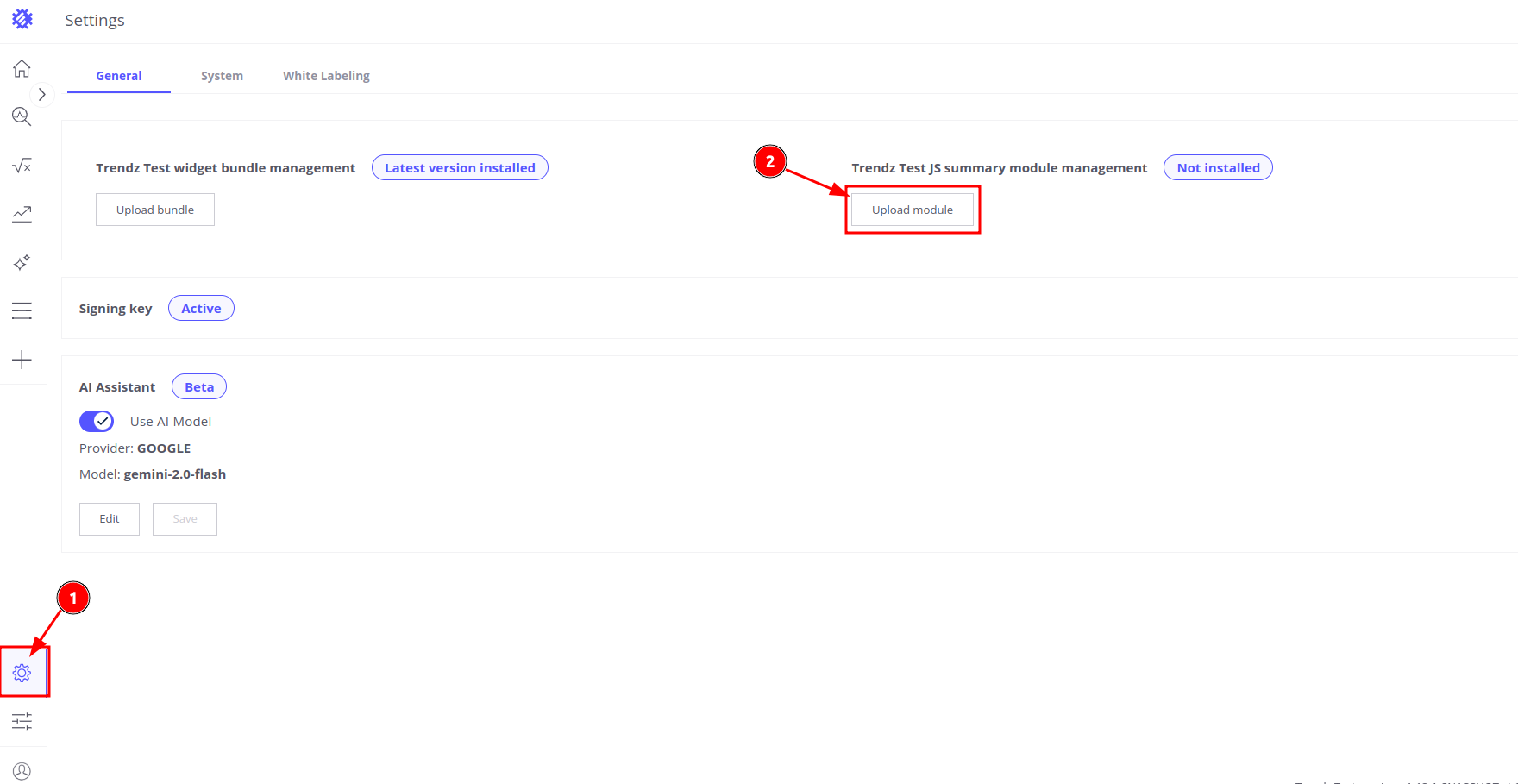
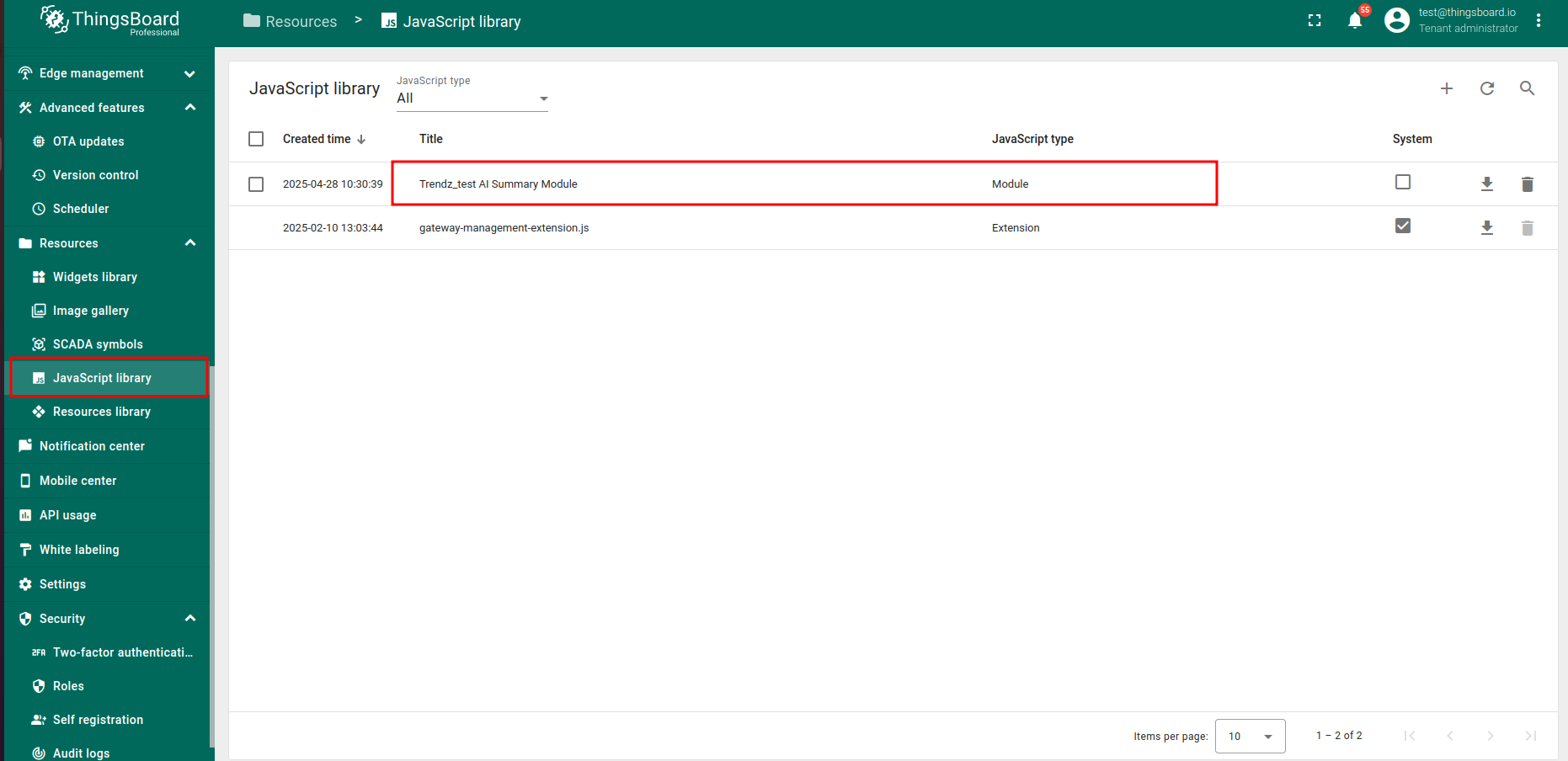
Once uploaded, you can reference the module in your widget’s Actions configuration.
SENTIENT v3.6–v3.8
For older versions, JS Modules cannot be used directly. You’ll need to manually include the provided JavaScript code in your widget action.
Download the custom module:
1
http://<your-sentient-analytics-host:port>/apiSENTIENT ANALYTICS/publicApi/download/custom-action-ai-summary.js
Replace <your-sentient-analytics-host:port> with your own SENTIENT ANALYTICS instance URL.
Configure a Custom Action for Telemetry Summary
- Open the dashboard containing your widget.
- Switch to Edit mode.
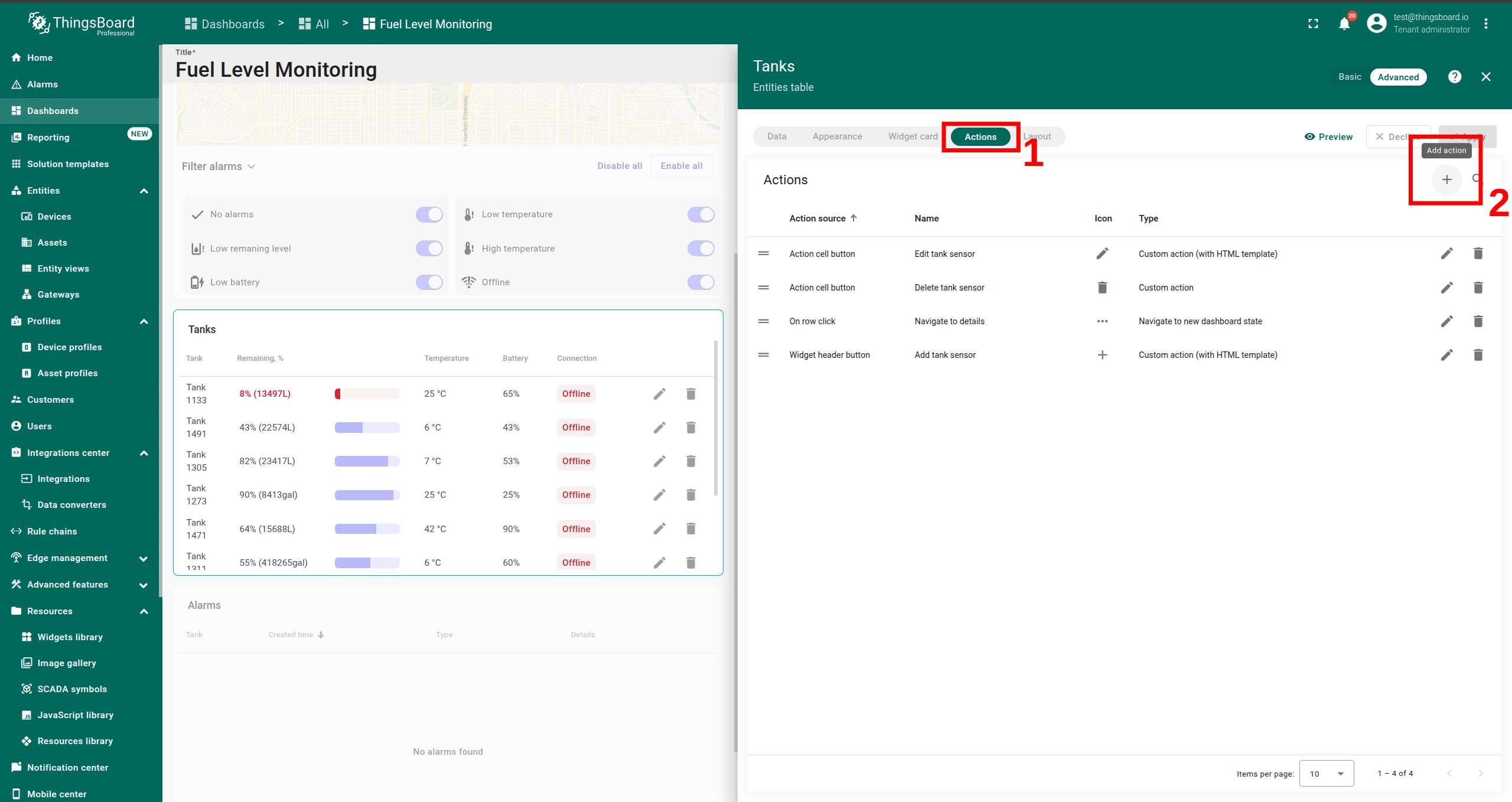
- Click Edit Widget on widget you want to add custom AI summary action.
- Go to the Actions tab.
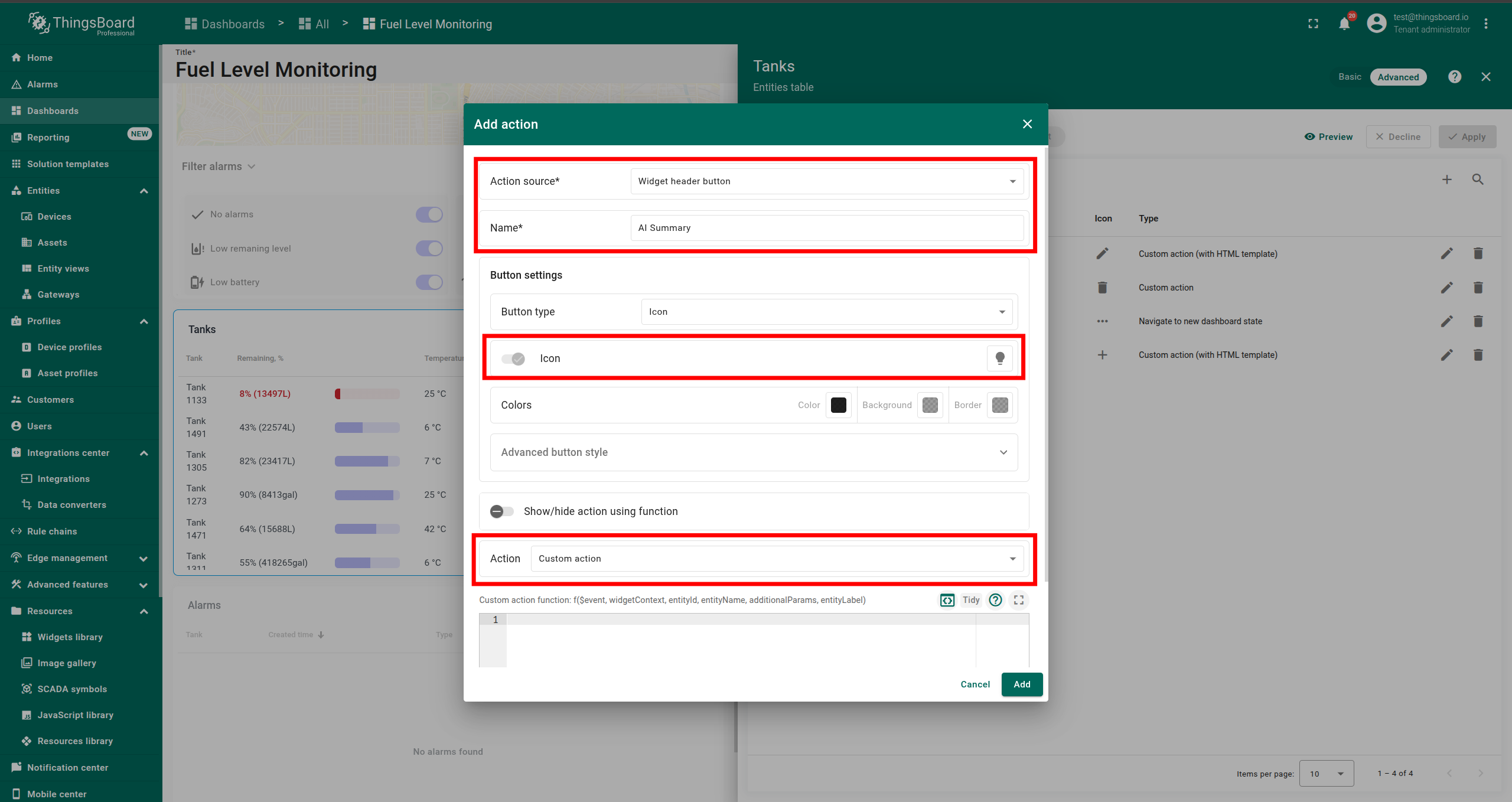
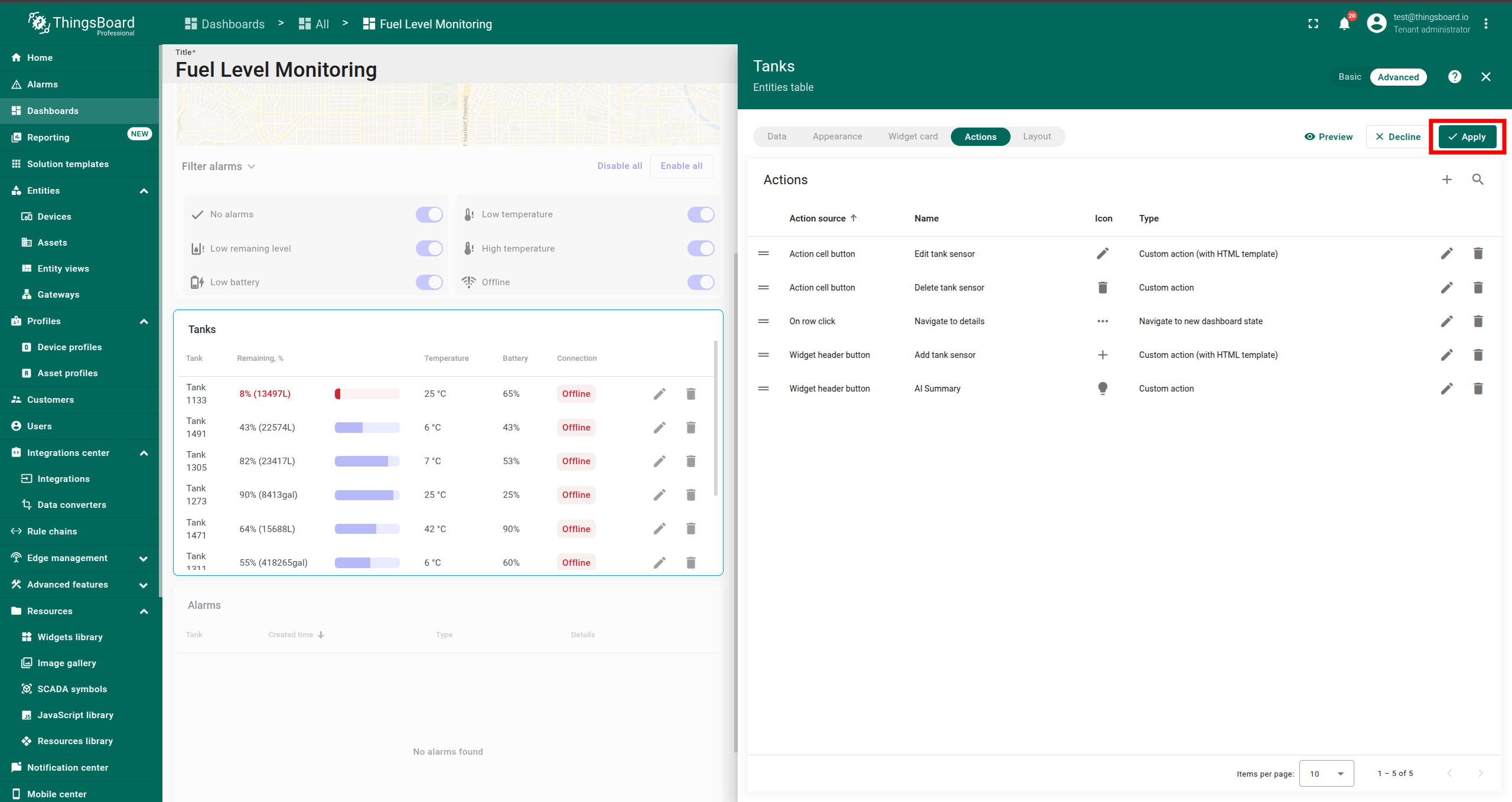
- Click Add action and configure:
- Action source: Widget header button
- Name: Any (e.g.,
AI Summary) - Button icon: Choose any (default:
⋯) - Action: Custom action
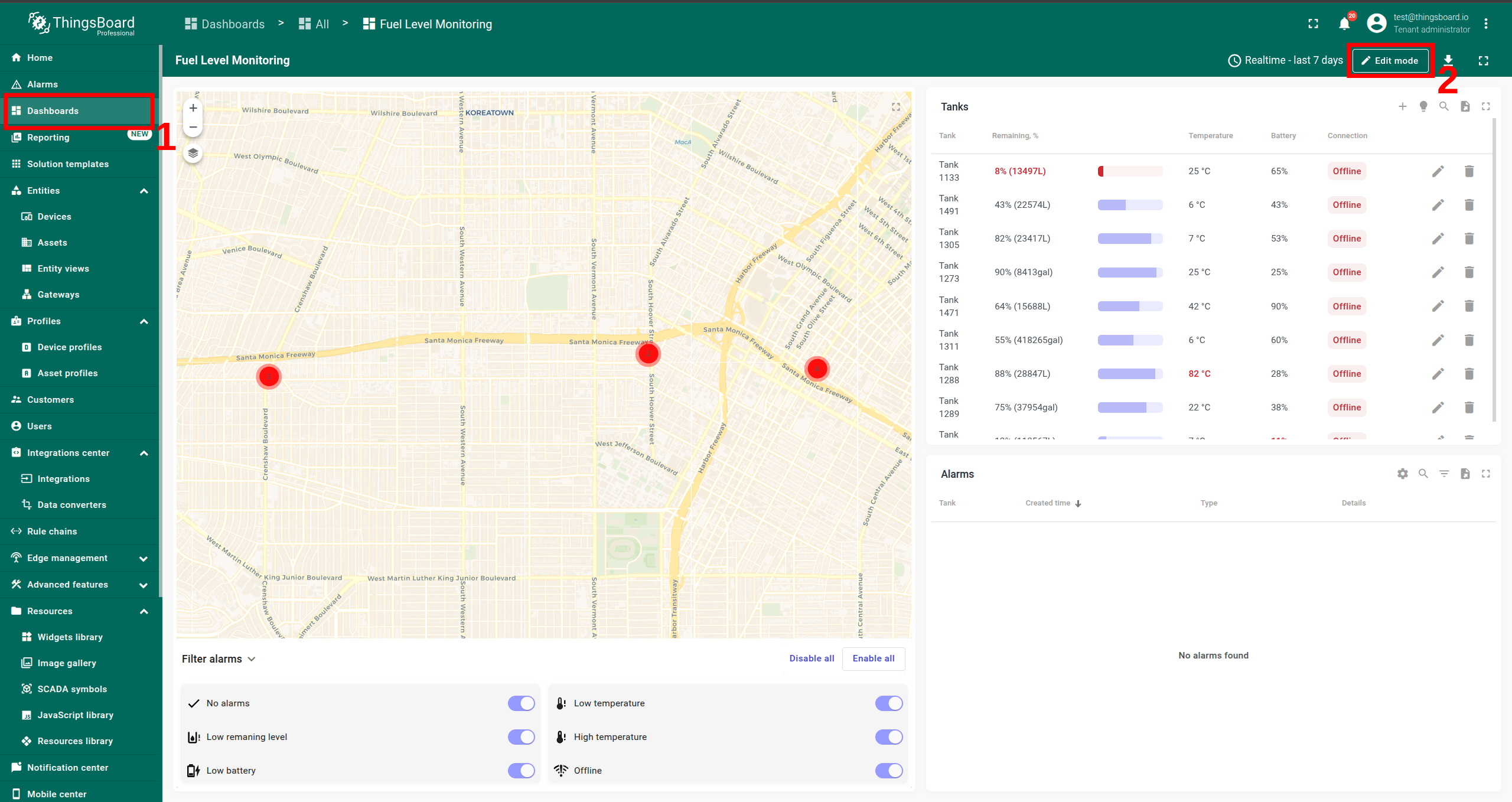
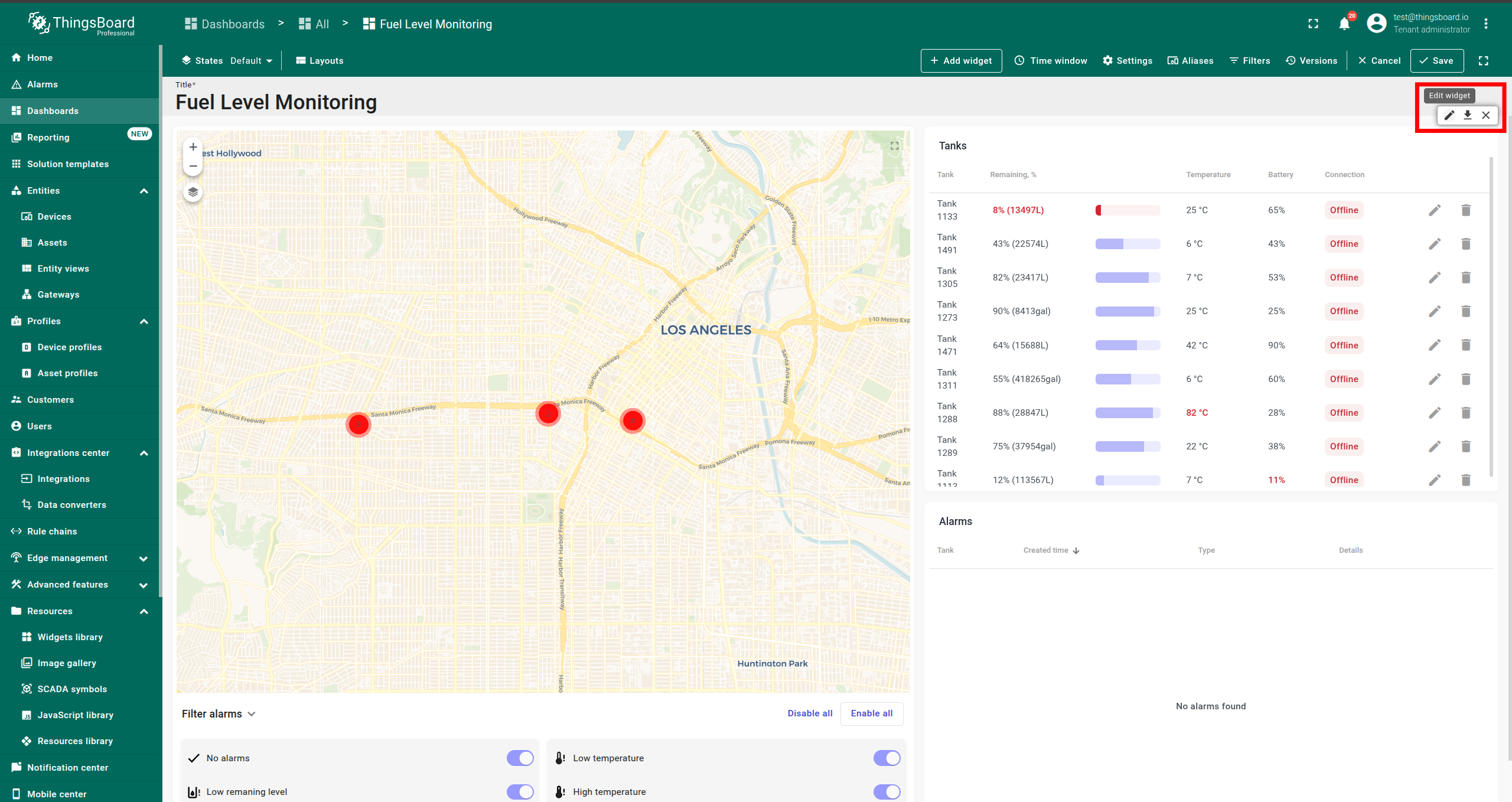
SENTIENT v3.9 and Higher
You can use the JS module directly in the custom action:
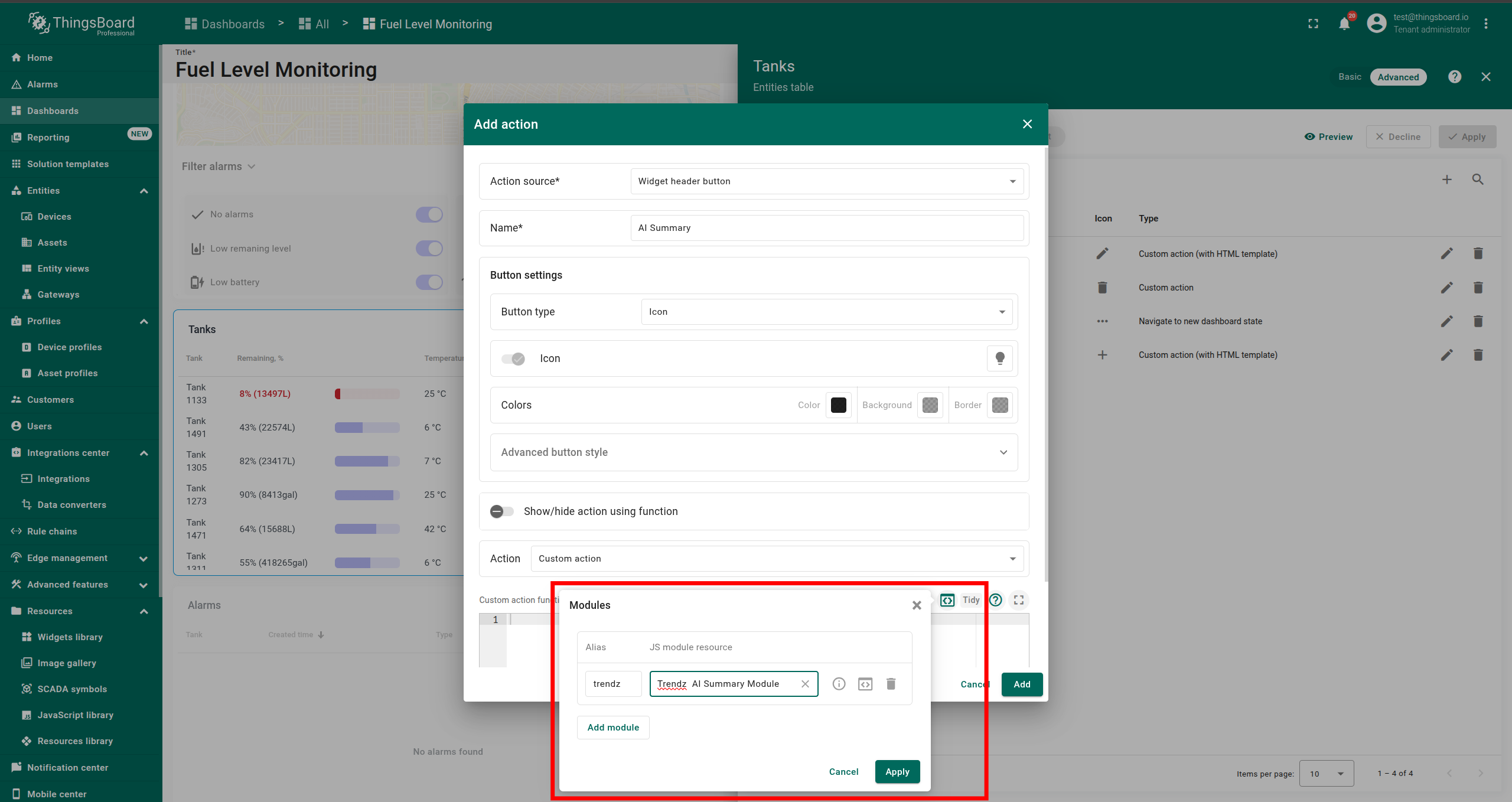
- Click Modules → Add module.
- Set the following:
- Alias:
sentient-analytics - JS module resource:
SENTIENT ANALYTICS AI Summary Module(The name may vary in whitelabeled versions.)
- Alias:
- Click Apply.
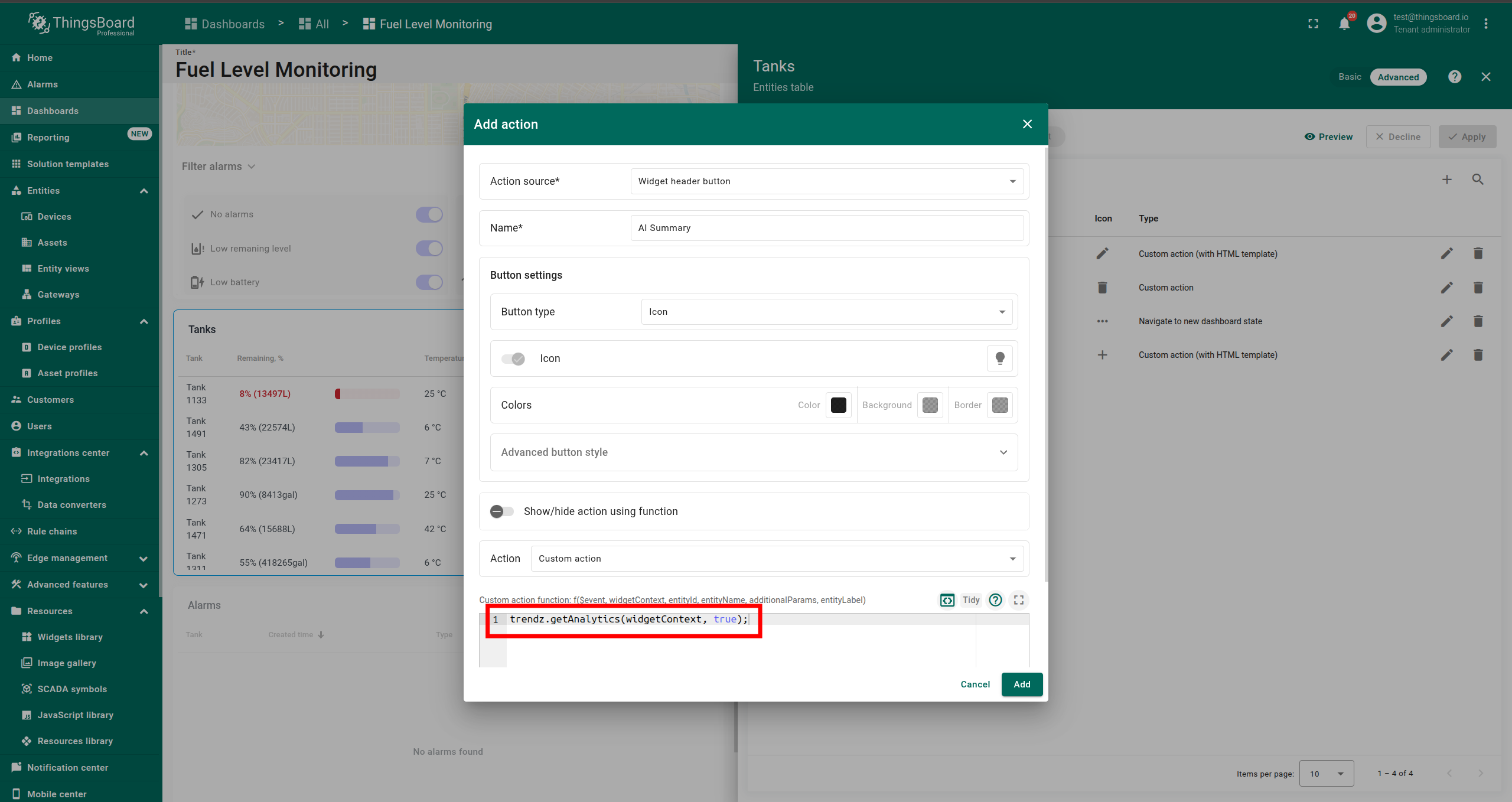
- In the custom action code field, add:
1
sentient-analytics.getAnalytics(widgetContext, true);
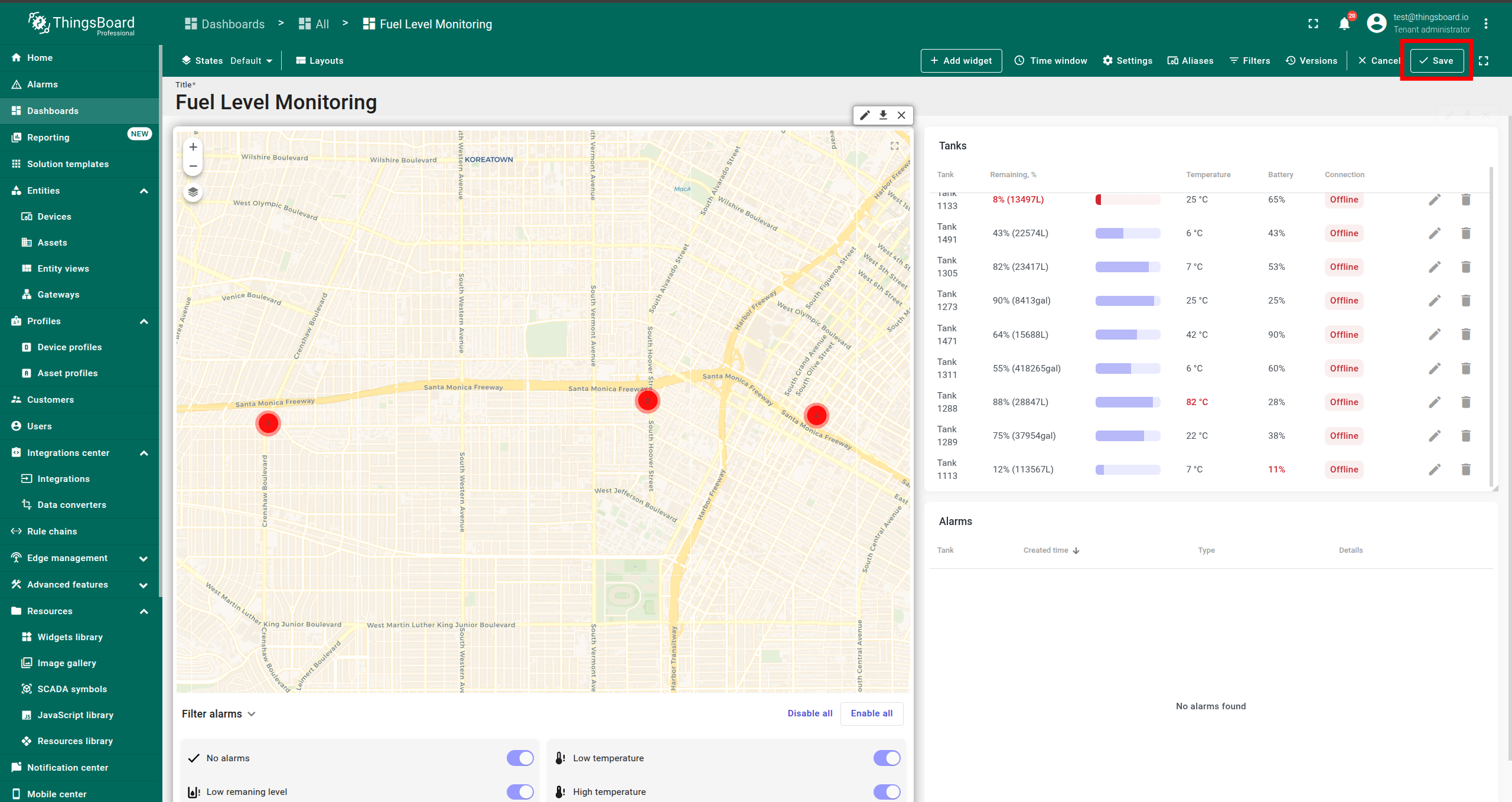
- Click Add, then Apply, and finally Save widget.
SENTIENT v3.6–v3.8
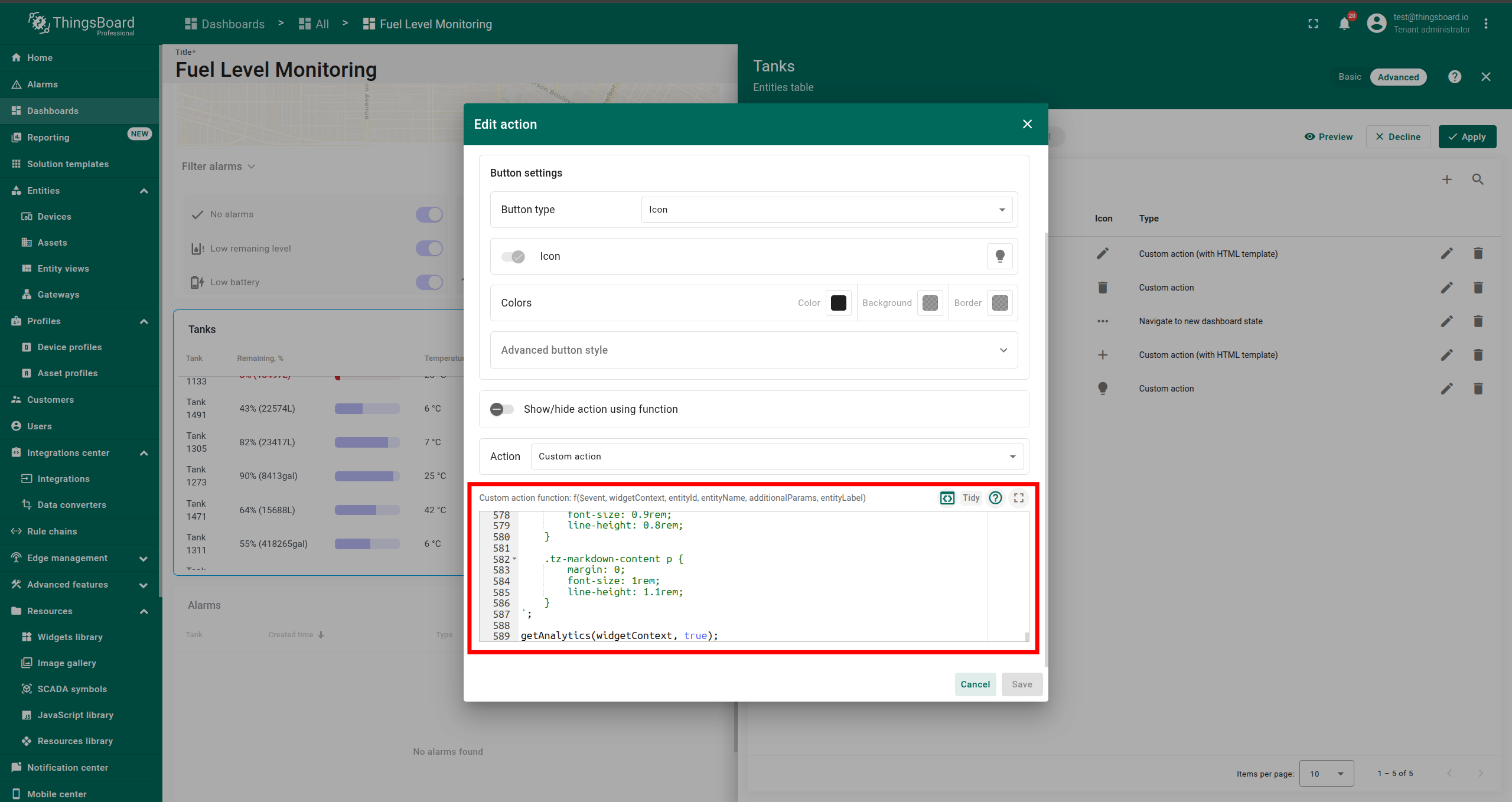
- Manually copy the full JavaScript code from
custom-action-ai-summary.jsinto your custom action field. -
At the end of the custom action code field, add:
1
sentient-analytics.getAnalytics(widgetContext, true);
- Click Add, then Apply, and finally Save widget.
Using the Custom Action
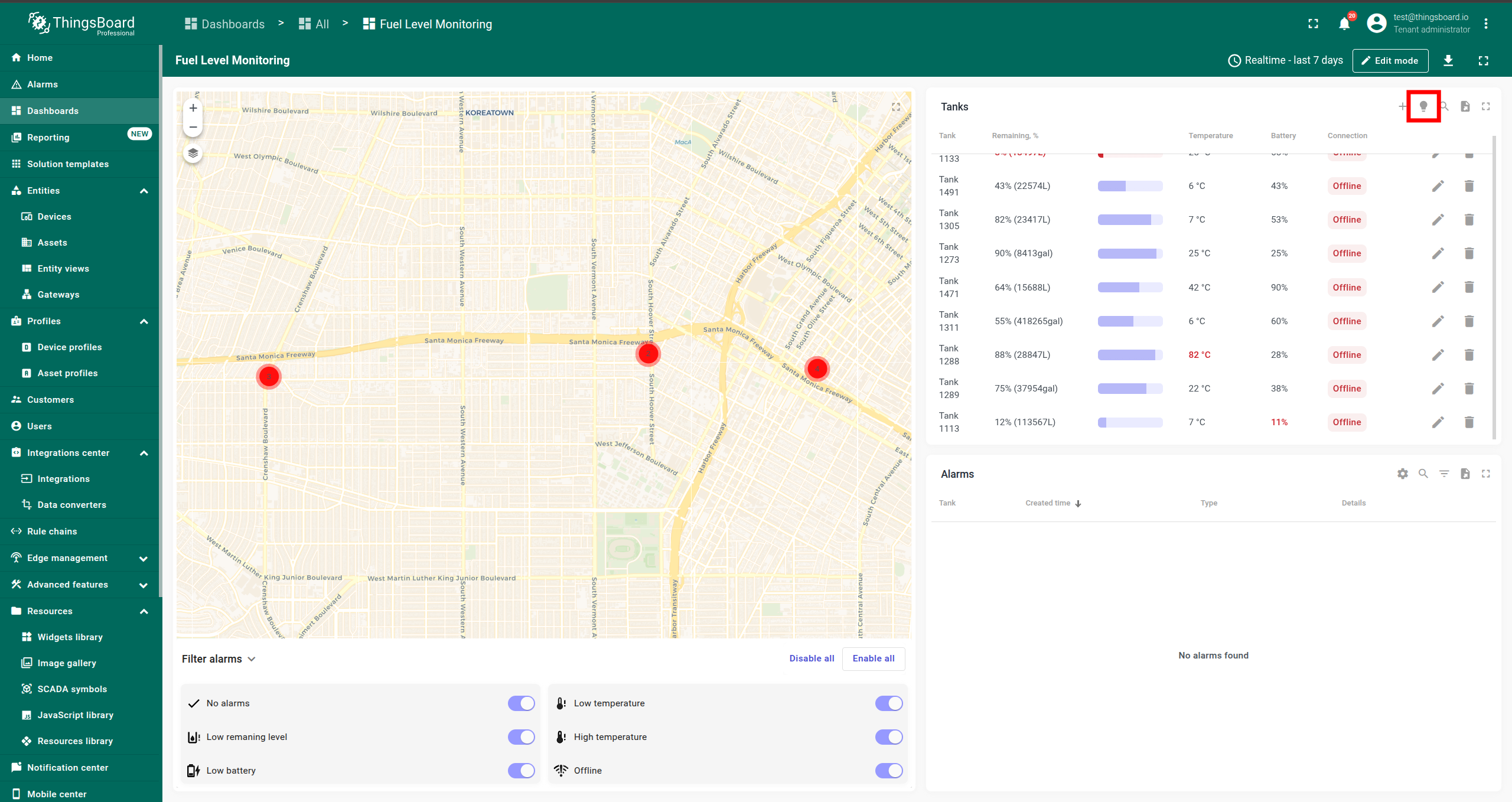
After configuration, a new button appears in your widget header. Clicking it opens a dialog showing a summary generated by SENTIENT ANALYTICS AI based on your widget’s data and prompt settings.
You can improve text quolity that are generated with AI summary functionality, adding your custom instructions or additional business knowladges about your data using getAnalytics() advanced parameters.
Advanced Usage of getAnalytics()
The getAnalytics() method supports three usage modes:
1. Default Prompt from SENTIENT ANALYTICS
Uses the system default prompt (SENTIENT ANALYTICS System Default Summary Prompt):
1
getAnalytics(widgetContext, true);
2. Custom Inline Text
Use SENTIENT ANALYTICS only as the LLM model and provide your own text prompt:
1
getAnalytics(widgetContext, false, 'Identify which tanks require additional attention and explain why.');
3. Saved Prompt by ID
Use a saved prompt from SENTIENT ANALYTICS by specifying its ID:
1
getAnalytics(widgetContext, false, 'ef348780-a034-4ea9-9225-8b6ad112c451');
Recommendation: Use the Prompt ID from SENTIENT ANALYTICS for easier management and updates.
Learn more about managing prompts in SENTIENT ANALYTICS AI Prompts Overview.
SENTIENT ANALYTICS Widgets
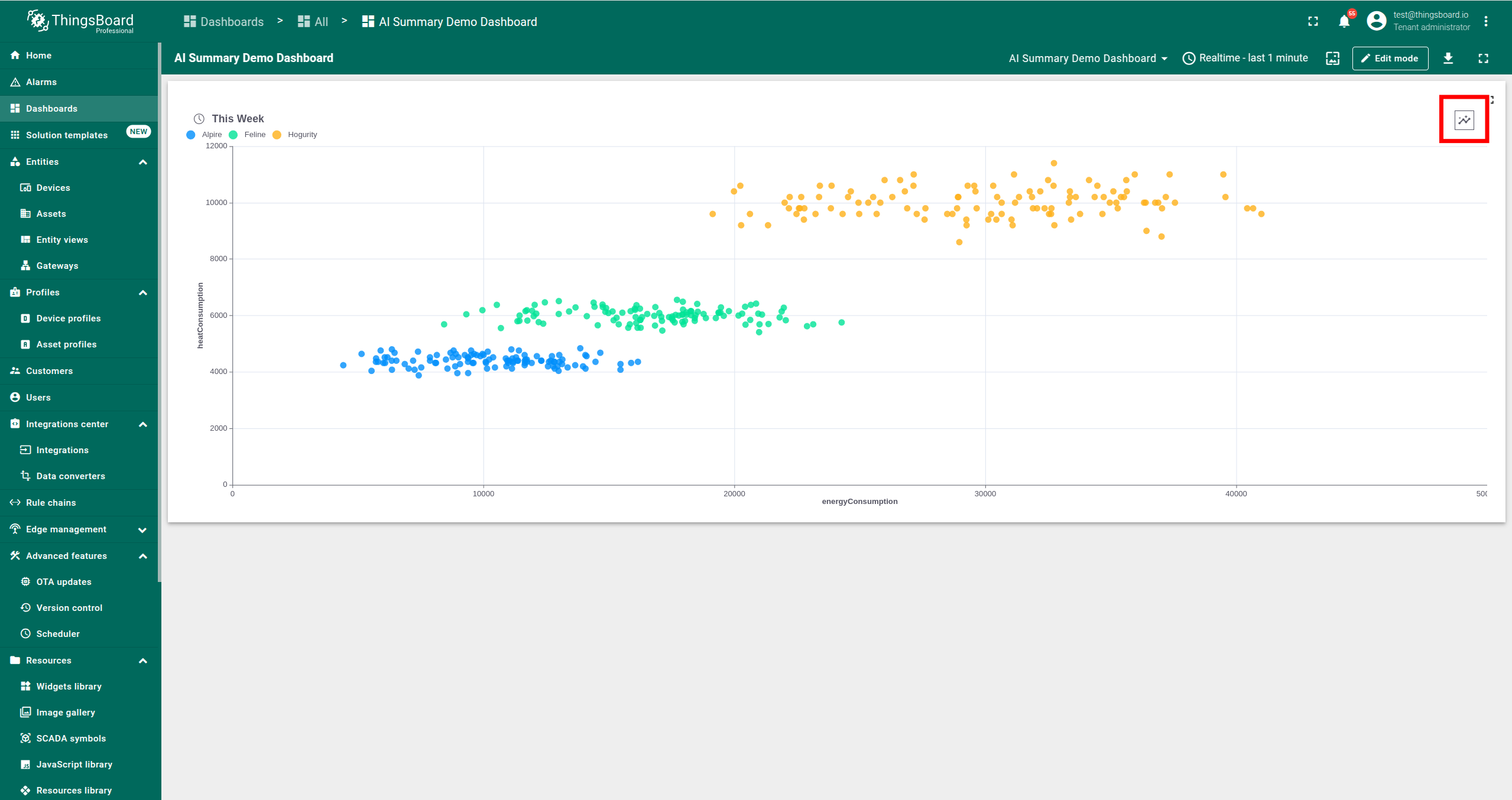
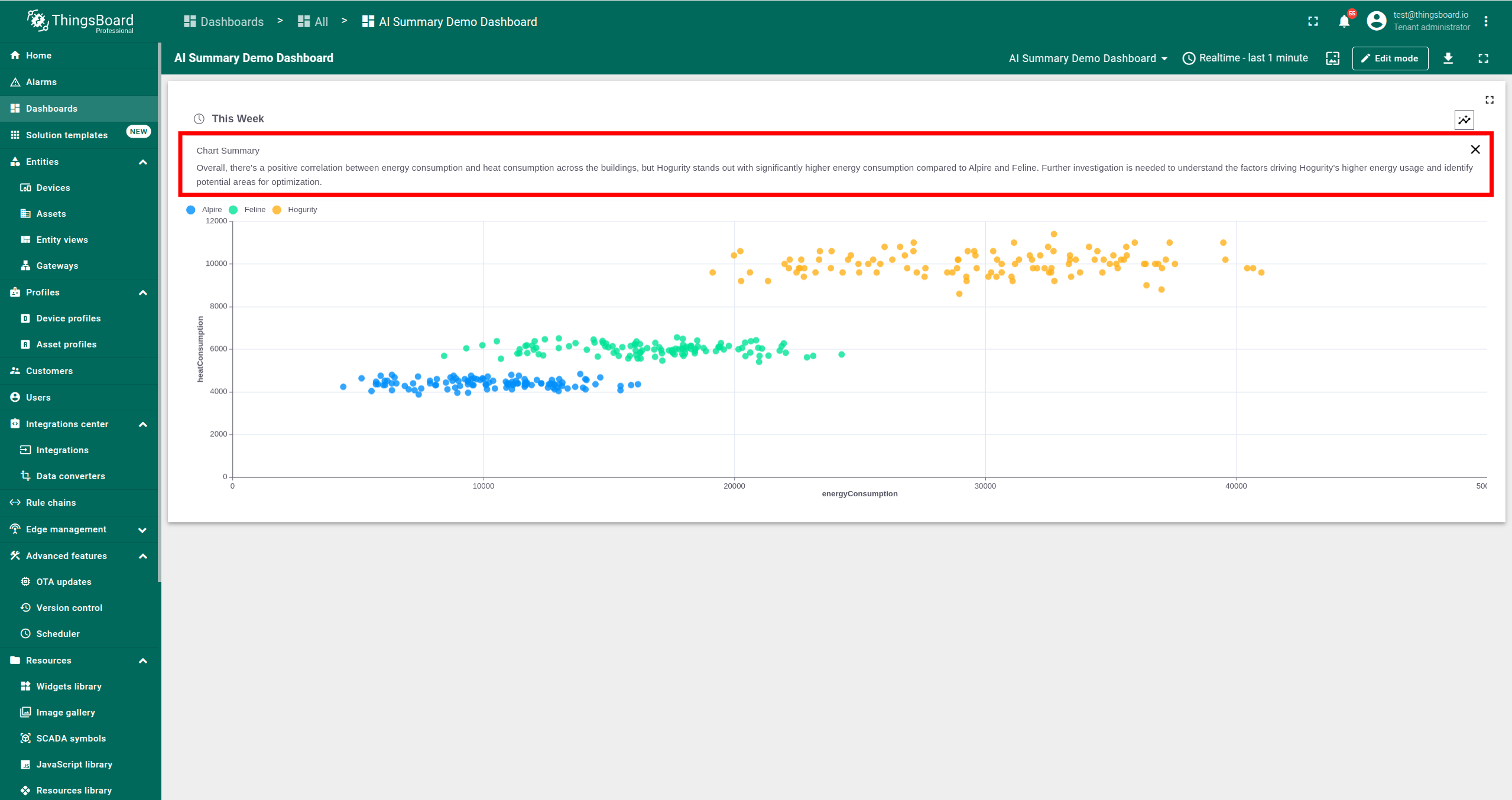
AI summary is already integrated into the SENTIENT ANALYTICS Widgets. To retrieve the AI summary for a SENTIENT ANALYTICS widget, press the AI summary button in the upper corner of the screen. After that, you will be able to view the AI summary at the top of the SENTIENT ANALYTICS widget.
Enable AI Summary Button
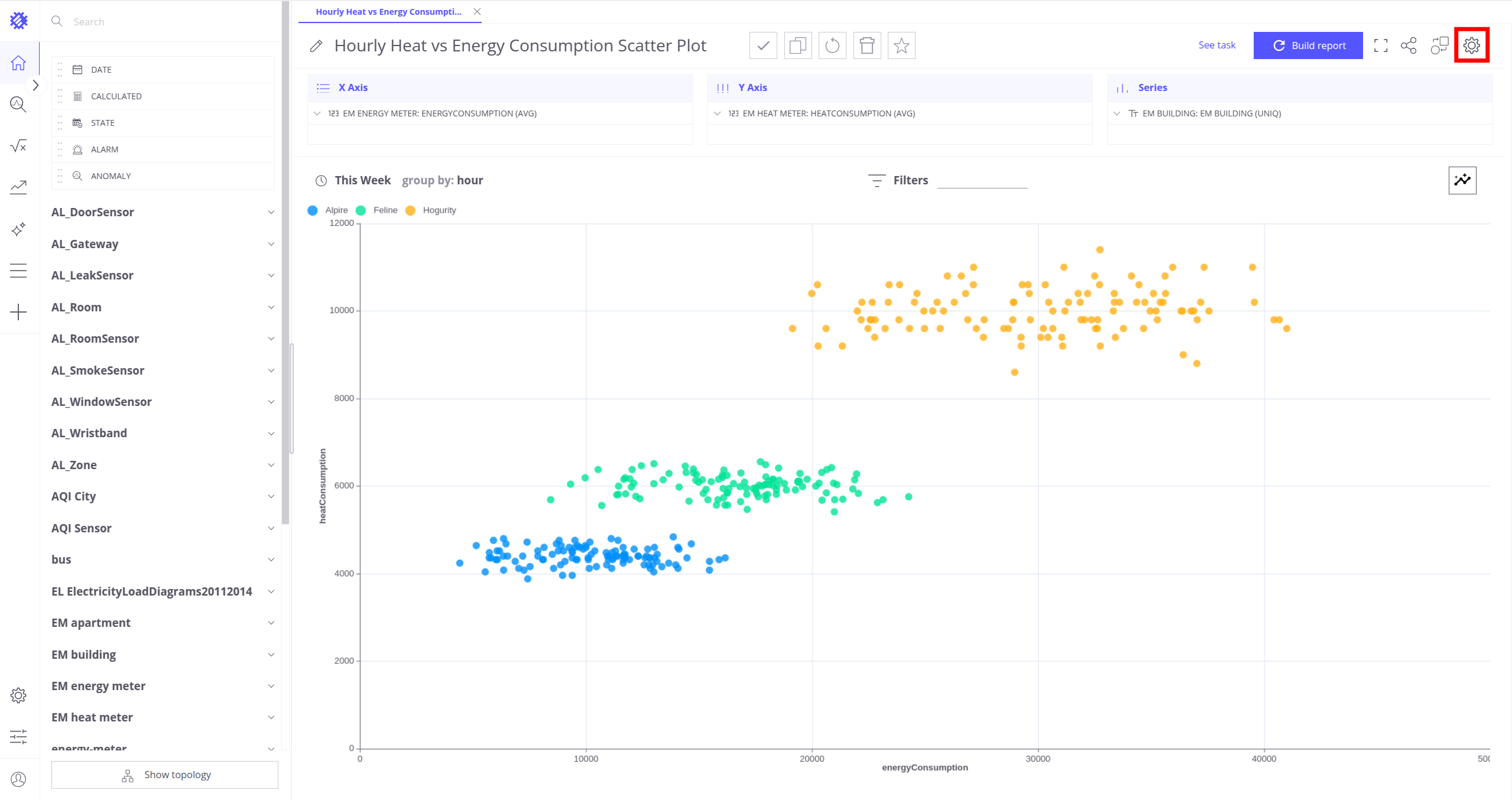
By default, the AI summary button is disabled on dashboards for views created before SENTIENT ANALYTICS 1.13.1 and for views created during the period when the AI Assistant Use AI Model flag was disabled for self-hosted users (Find out more about how to set up the AI Assistant module for self-hosted users here).
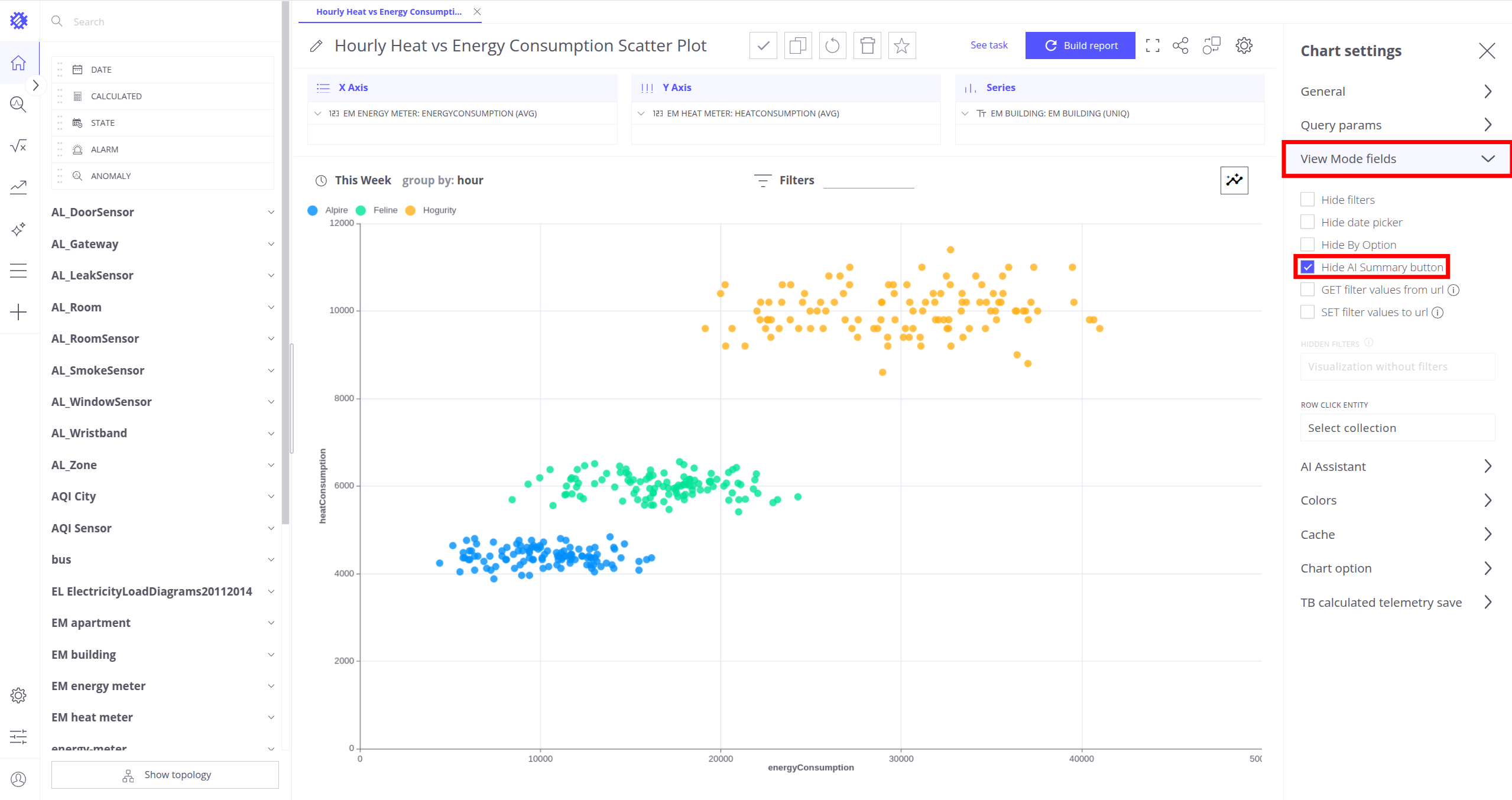
To enable/disable the AI summary button, follow these steps:
- Open the desired view.
- Go to View Settings.
- Go to the View Mode Fields section.
- Choose the preferred mode to show or hide the AI Summary button.
- Save the changes in view.
Note: button in SENTIENT ANALYTICS application will always be shown (even with checkbox )
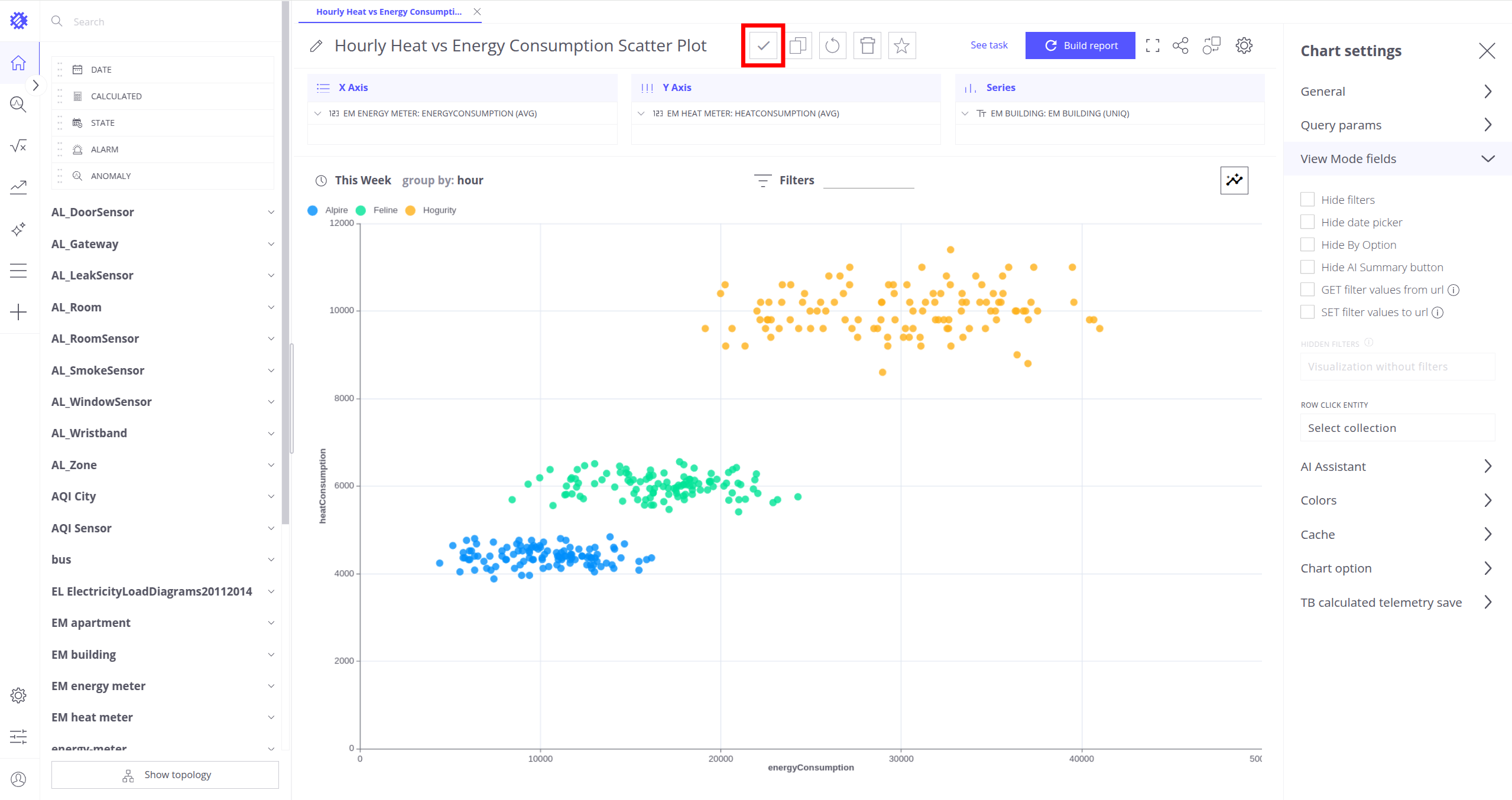
Set Up AI Summary Prompt
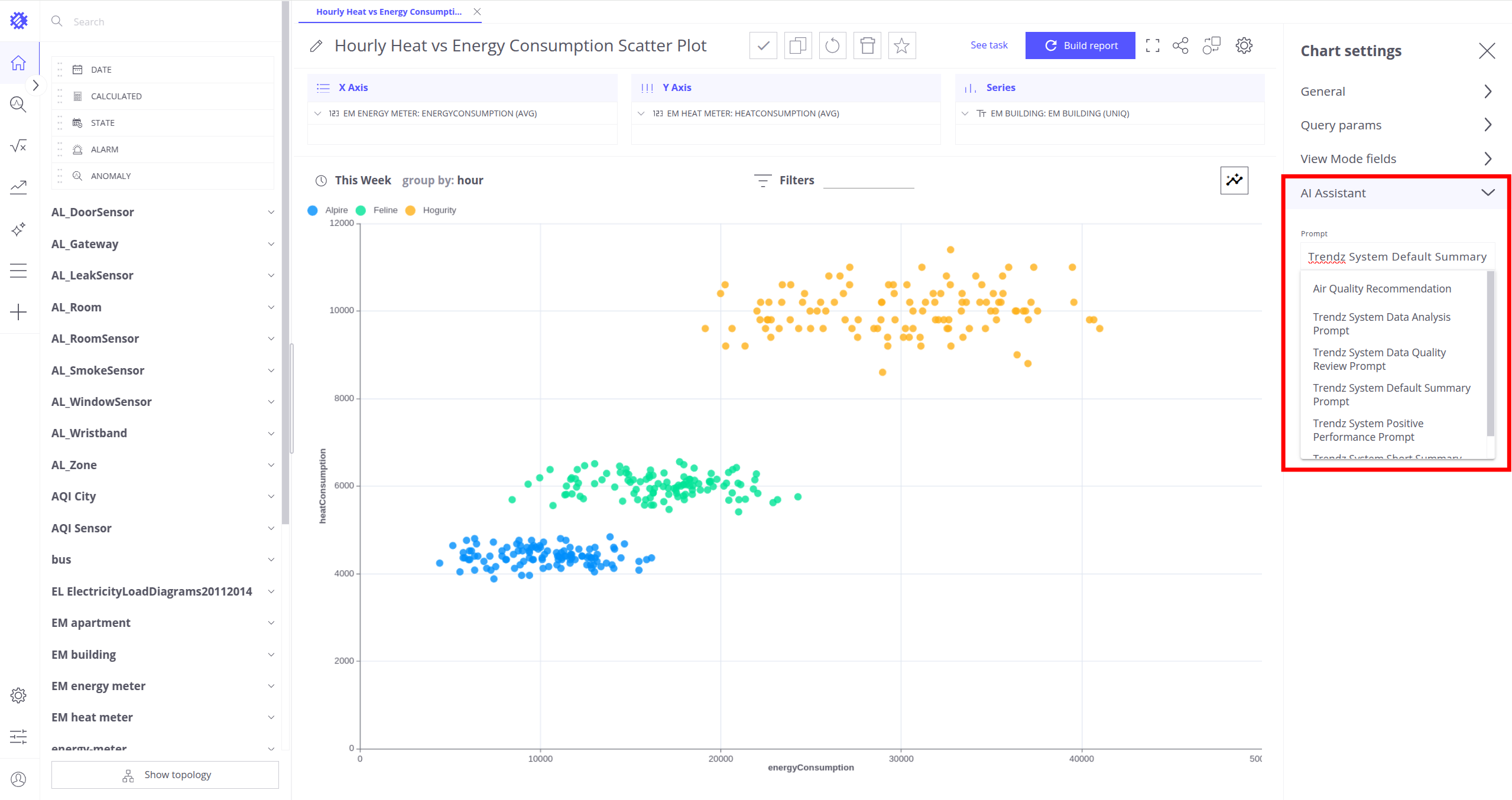
Additionally, it is possible to choose a prompt that can be used to generate the AI summary.
To set up the AI summary prompt:
- Open the desired view.
- Go to View Settings.
- Go to the AI Assistant section.
- Choose the preferred prompt from the dropdown menu.
- Save the changes.
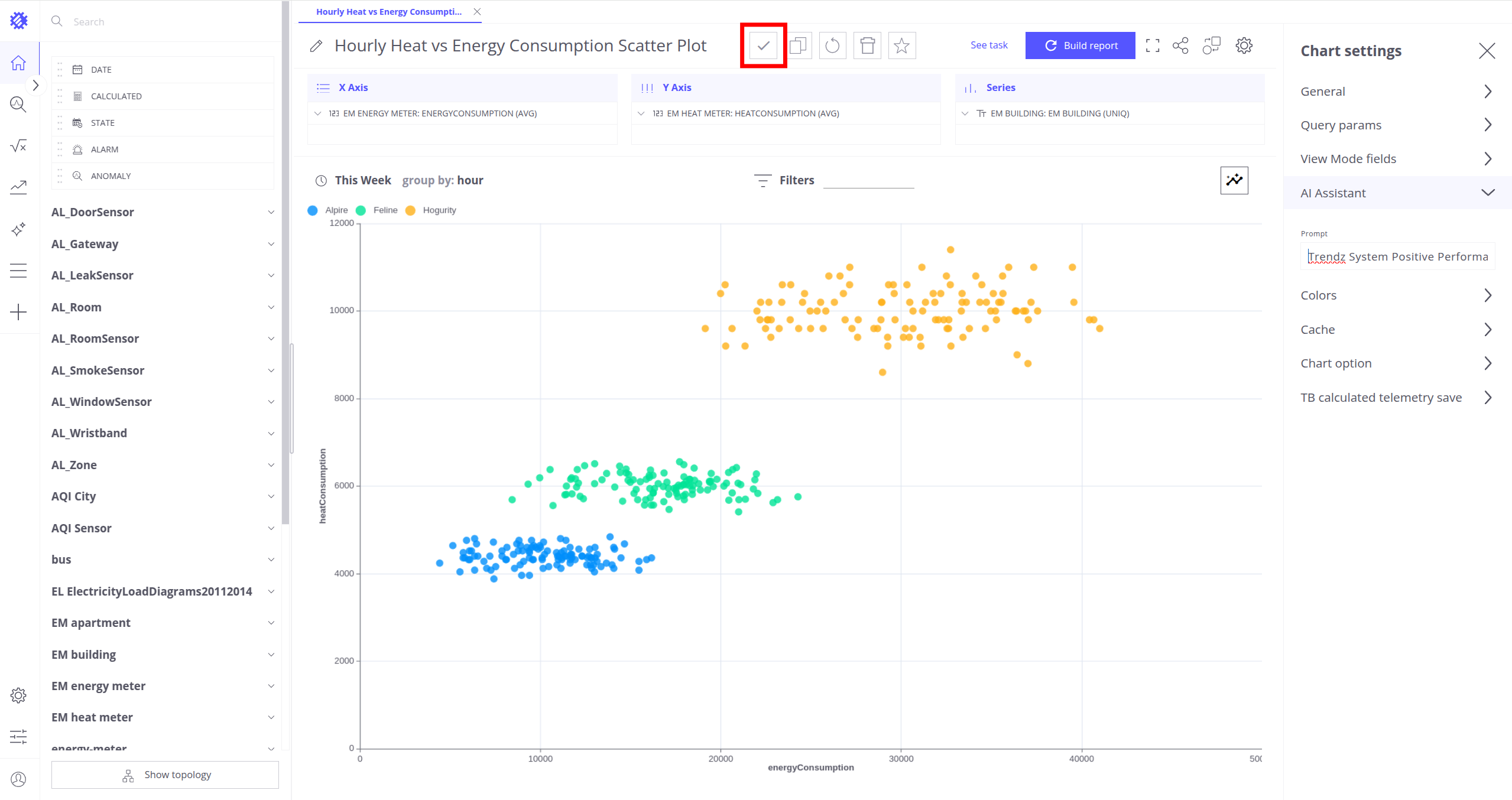
Find out more about creating your own prompts that perfectly fit your task here.
⚠️ Note: Temporary you can use AI Summary for all the views in SENTIENT ANALYTICS, except Anomaly View.
Next Steps
-
Getting started guide - These guide provide quick overview of main SENTIENT ANALYTICS features.
-
Installation guides - Learn how to setup SENTIENT on various available operating systems.
-
Metric Explorer - Learn how to explore and create new metrics with SENTIENT ANALYTICS Metric Explorer.
-
Anomaly Detection - Learn how to identify anomalies in the data.
-
Calculated Fields - Learn about Calculated fields and how to use them.
-
States - Learn how to define and analyse states for assets based on raw telemetry.
-
Prediction - Learn how to make forecasts and predict telemetry behavior.
-
Filters - Learn how filter dataset during analysis.
-
Available Visualizations - Learn about visualization widgets available in SENTIENT ANALYTICS and how to configure them.
-
Share and embed Visualizations - Learn how to add SENTIENT ANALYTICS visualizations on SENTIENT dashboard or 3rd party web pages.