In this guide we will describe how to connect standard SENTIENT widgets located on the dashboard with SENTIENT ANALYTICS View. You can do this using SENTIENT dashboard aliases and SENTIENT ANALYTICS View Latest from SENTIENT ANALYTICS widget Bundle.
Example: we have 10 Machine devices in SENTIENT. We want to create a dashboard that will show all Machine devices in a list and once device selected - other widget on the dashboard should show details about selected device. In total we will have 2 widgets on the dashboard:
- Entity List - will show list of devices
- SENTIENT ANALYTICS view - line chart that will show temperature of selected device
On SENTIENT side we setup a dashboard and add 2 widgets. Detailed instruction how to do this is not part of this tutorial, so here are brief steps:
- Create all_devices alias that resolves all devices with type Machine
- Create selected_device alias with type entity form dashboard state - this alias hold reference to selected device
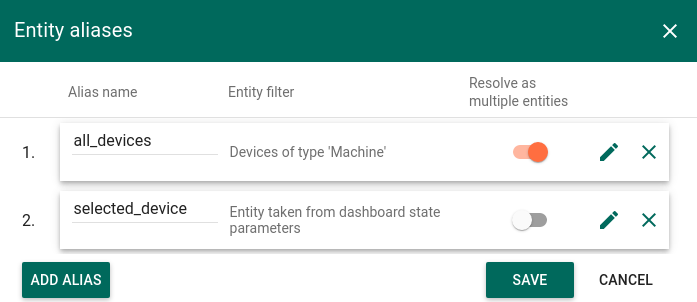
- Add Entity List widget and use all_devices alias as a datasource
- Configure On row click action that will save selected device to selected_device alias
- Save dashboard
On SENTIENT ANALYTICS View side:
- Open view in SENTIENT ANALYTICS
- Add Machine field to filter section - it will allow us to filter Machines by name
- Save View
- Copy Link to this view
Return to SENTIENT Dashboard:
- Edit dashboard
- Add SENTIENT ANALYTICS View Latest from SENTIENT ANALYTICS widget Bundle to the dashboard
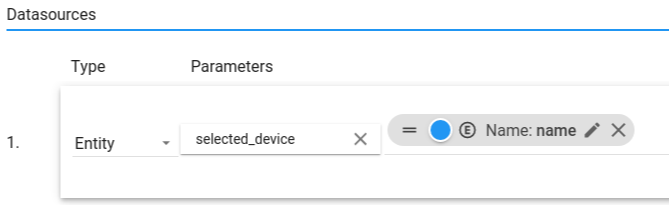
- Set selected_device as a datasource for SENTIENT ANALYTICS View
- Use name as a key from alias
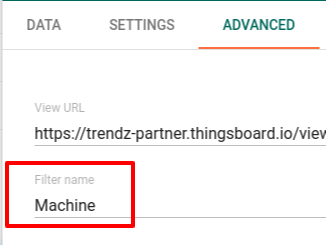
- Switch to Advanced tab
- Insert link to view into View URL
- Insert Machine into Filter Name - content of this field should be the same as it typed in SENTIENT ANALYTICS View Filter
- Save Dashboard
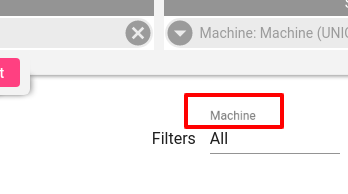
Now, every time when selected_device alias updated, value if its Entity Name would be inserted into SENTIENT ANALYTICS View filter.
If multiple filters configured in SENTIENT ANALYTICS View - system will match required filter by name.
Next Steps
-
Getting started guide - These guide provide quick overview of main SENTIENT ANALYTICS features.
-
Installation guides - Learn how to setup SENTIENT on various available operating systems.
-
Metric Explorer - Learn how to explore and create new metrics with SENTIENT ANALYTICS Metric Explorer.
-
Anomaly Detection - Learn how to identify anomalies in the data.
-
Calculated Fields - Learn about Calculated fields and how to use them.
-
States - Learn how to define and analyse states for assets based on raw telemetry.
-
Prediction - Learn how to make forecasts and predict telemetry behavior.
-
Filters - Learn how filter dataset during analysis.
-
Available Visualizations - Learn about visualization widgets available in SENTIENT ANALYTICS and how to configure them.
-
AI Assistant - Learn how to utilize SENTIENT ANALYTICS AI capabilities.