The SENTIENT ANALYTICS Metric Explorer is a feature that allows users to validate which telemetries have data, review statistics, analyze time patterns, and explore general telemetry behavior. It also enables the generation of new metrics from existing ones using AI Assistance or AI Suggestions. All generated metrics can be fully integrated into the SENTIENT ANALYTICS ecosystem and used within SENTIENT.
You can find details how to use SENTIENT ANALYTICS to explore metrics here:
Interface
You can access the Metric Explorer by clicking the  icon.
icon.
The interface consists of three main sections:
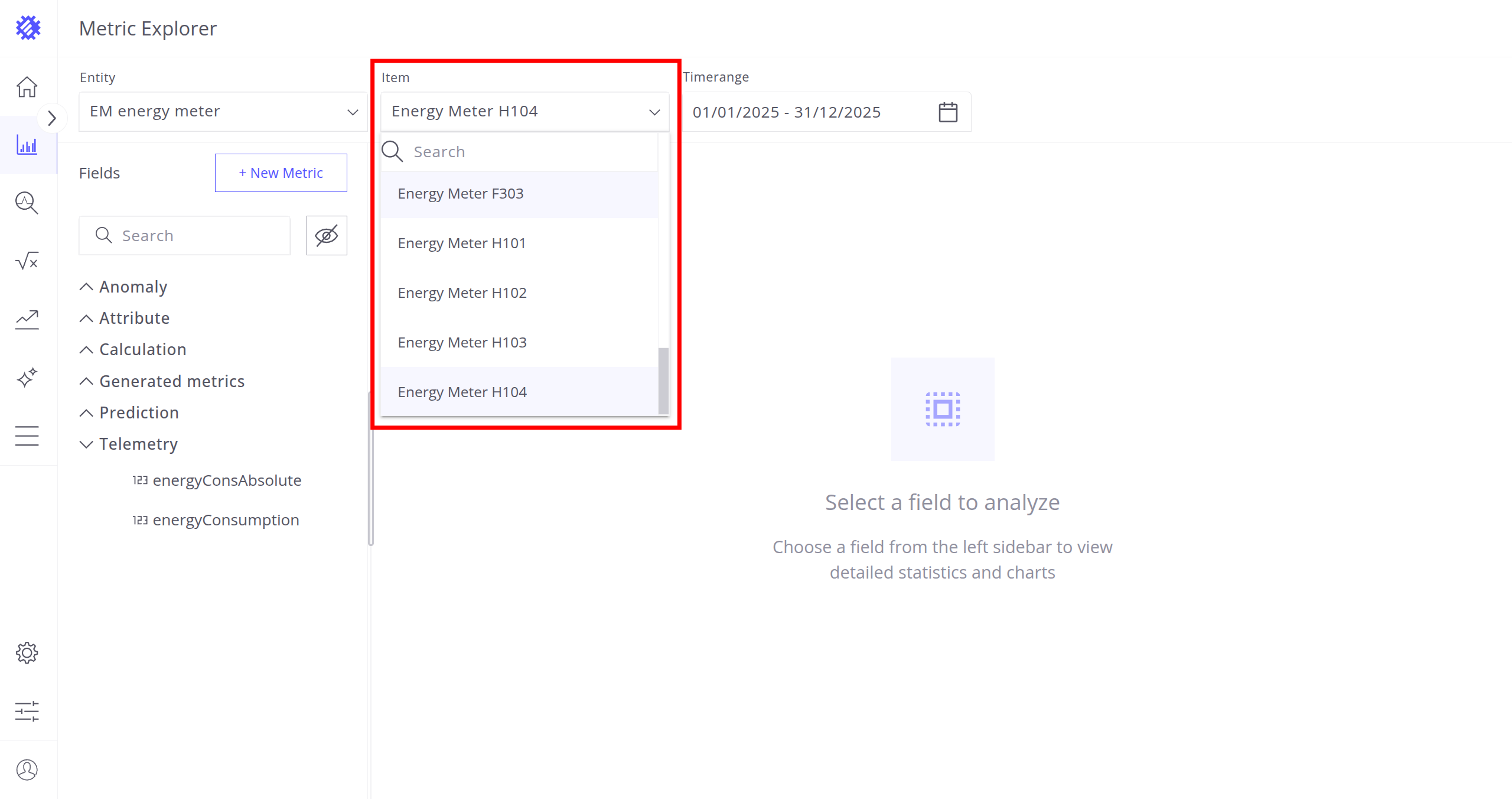
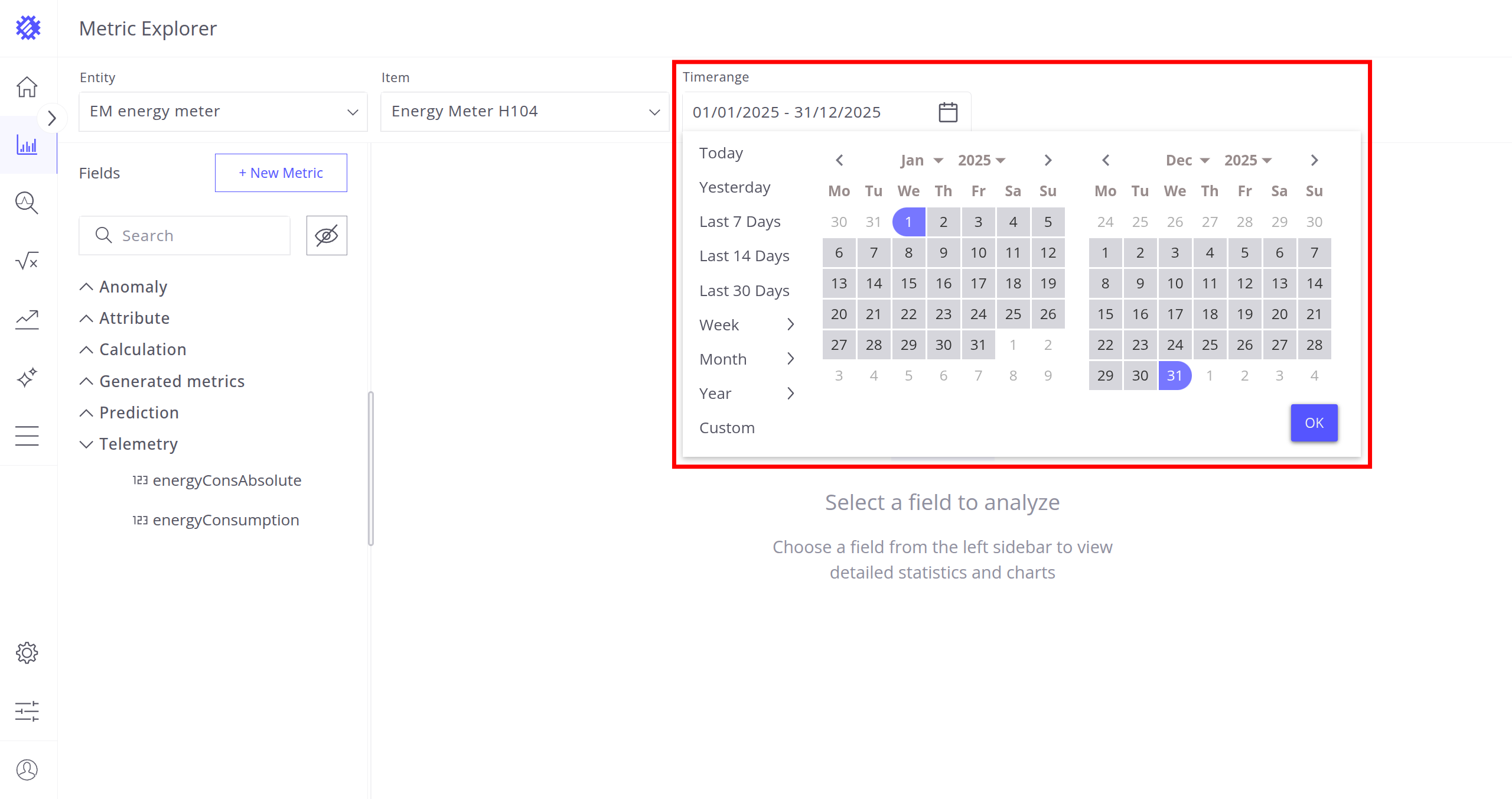
- Header - Entity, Item, and Timerange selection.
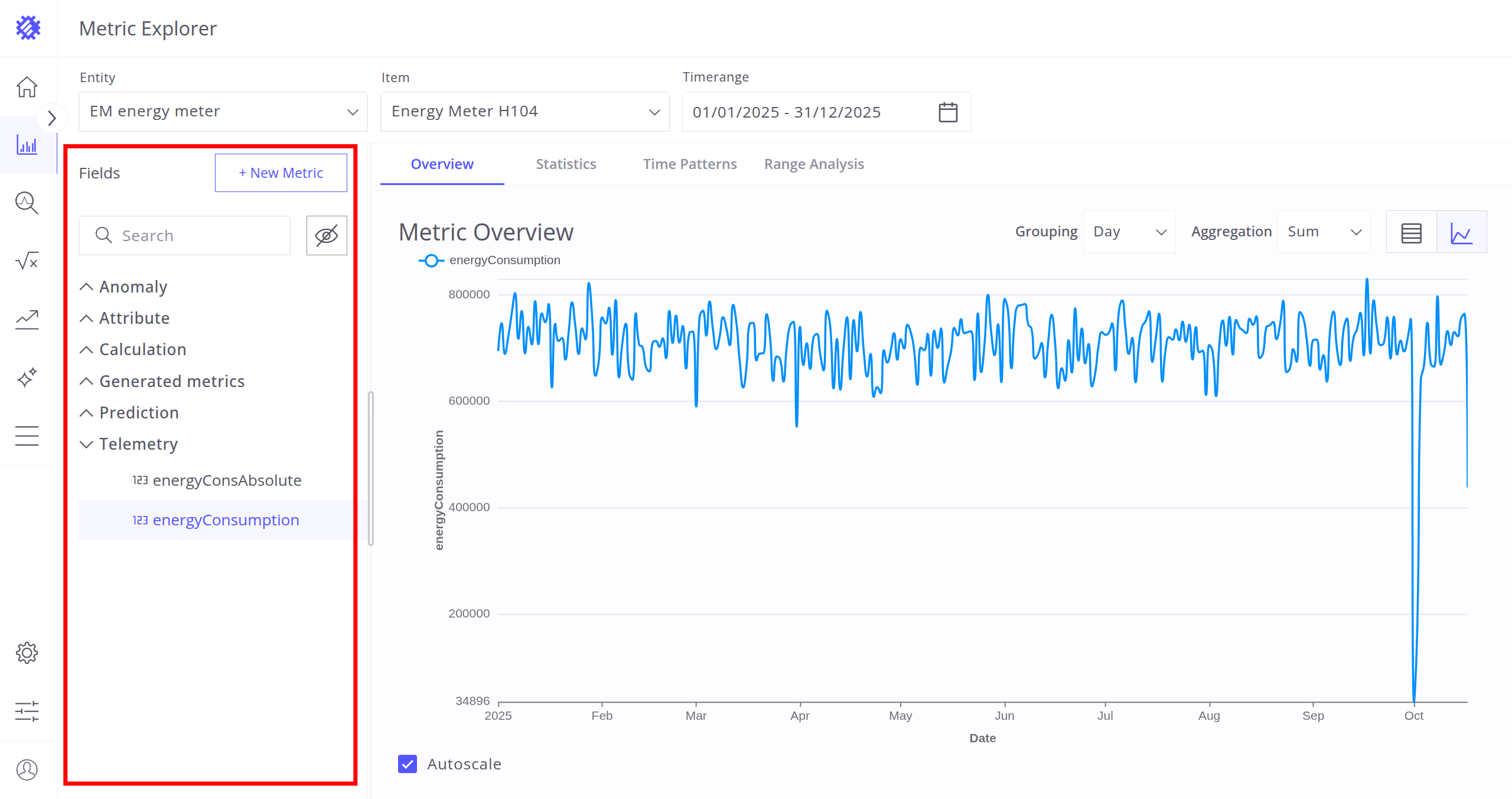
- Fields Section - Telemetries and attributes grouped by category.
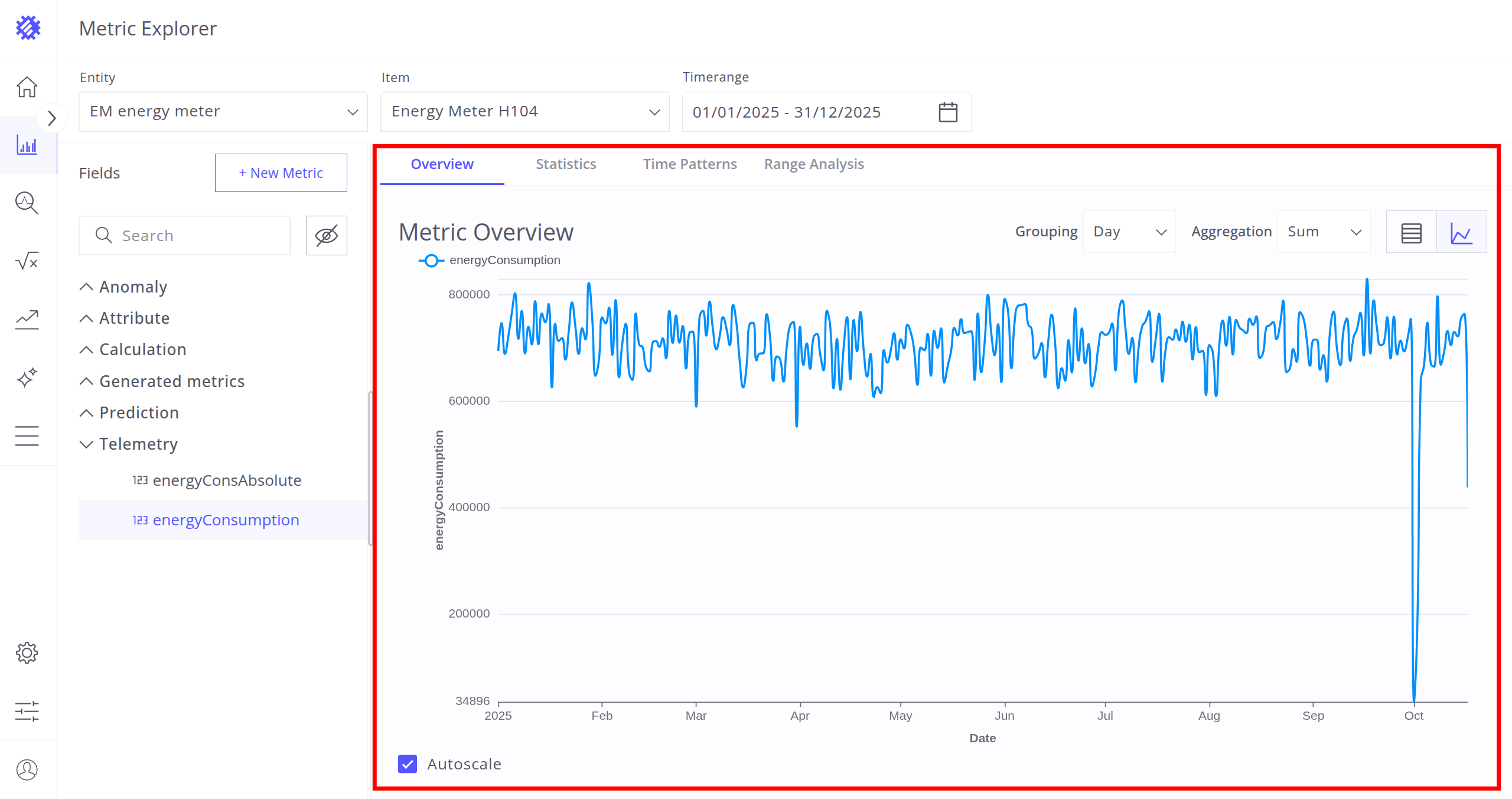
- Tabs Section - Data analysis and visualization tools.
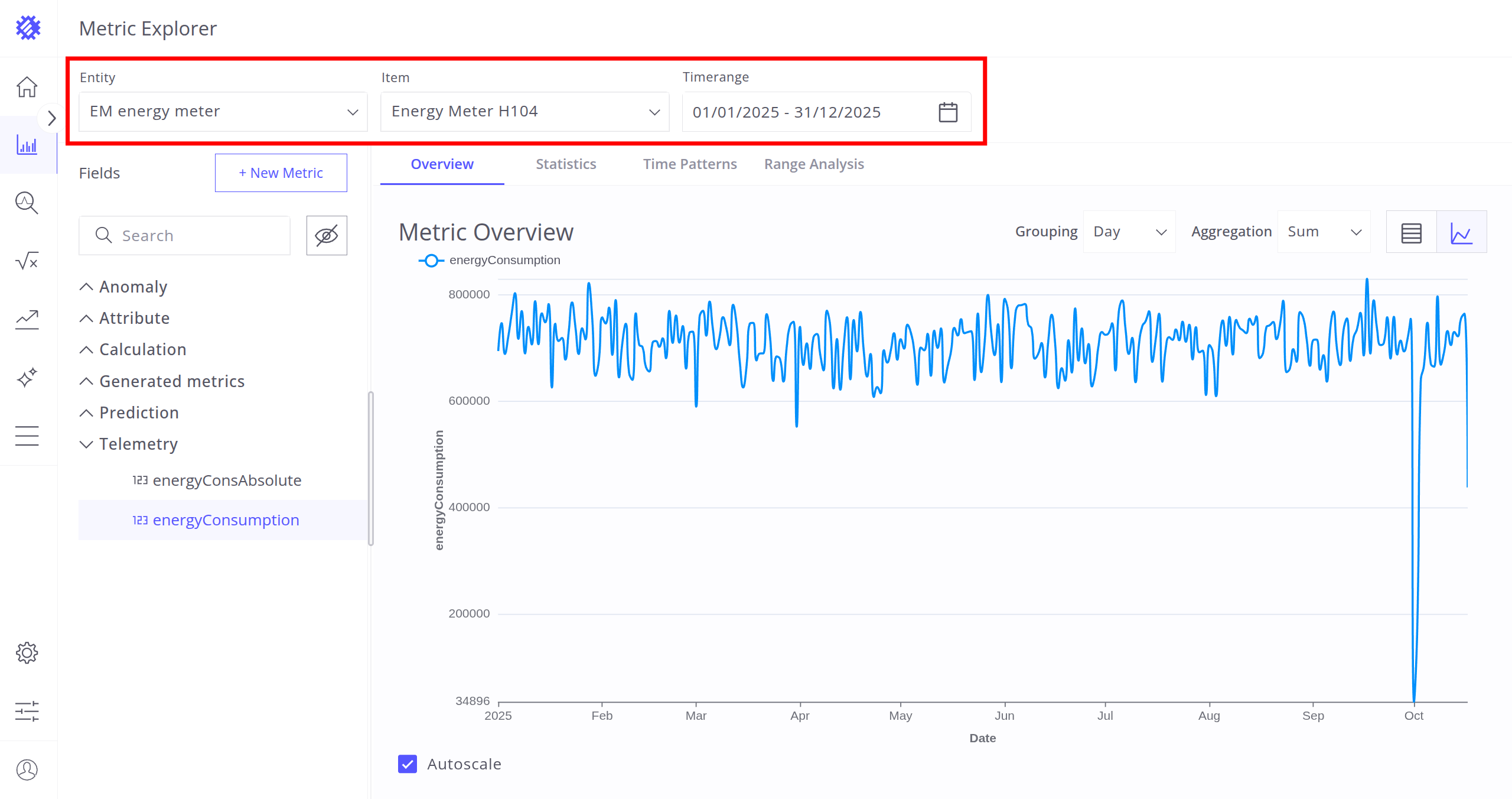
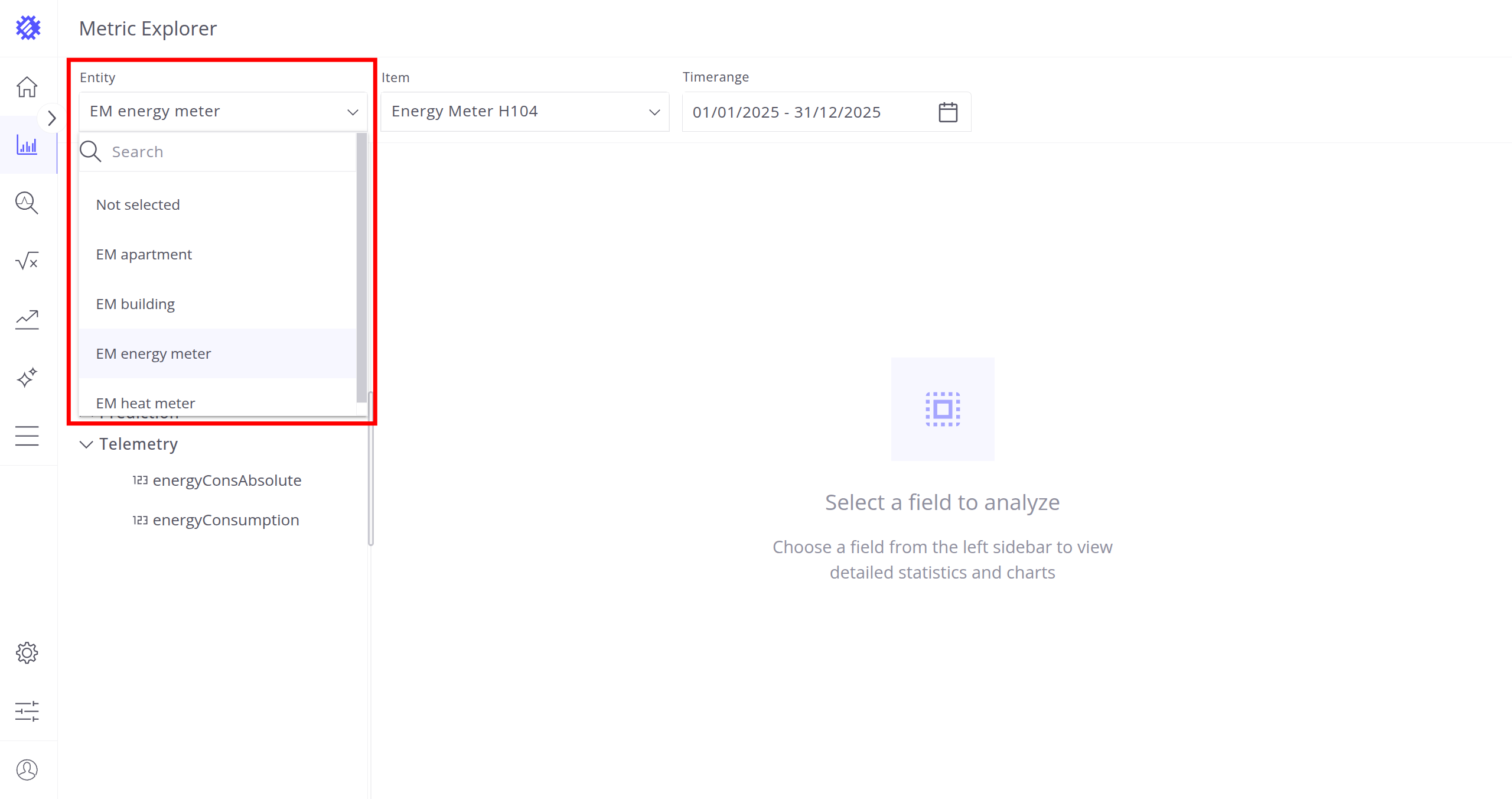
To begin, select an Entity (Device or Asset profile), an Item (Device or Asset) you want to explore and specify the timerange for the analysis - you can change these settings at any time during exploring.
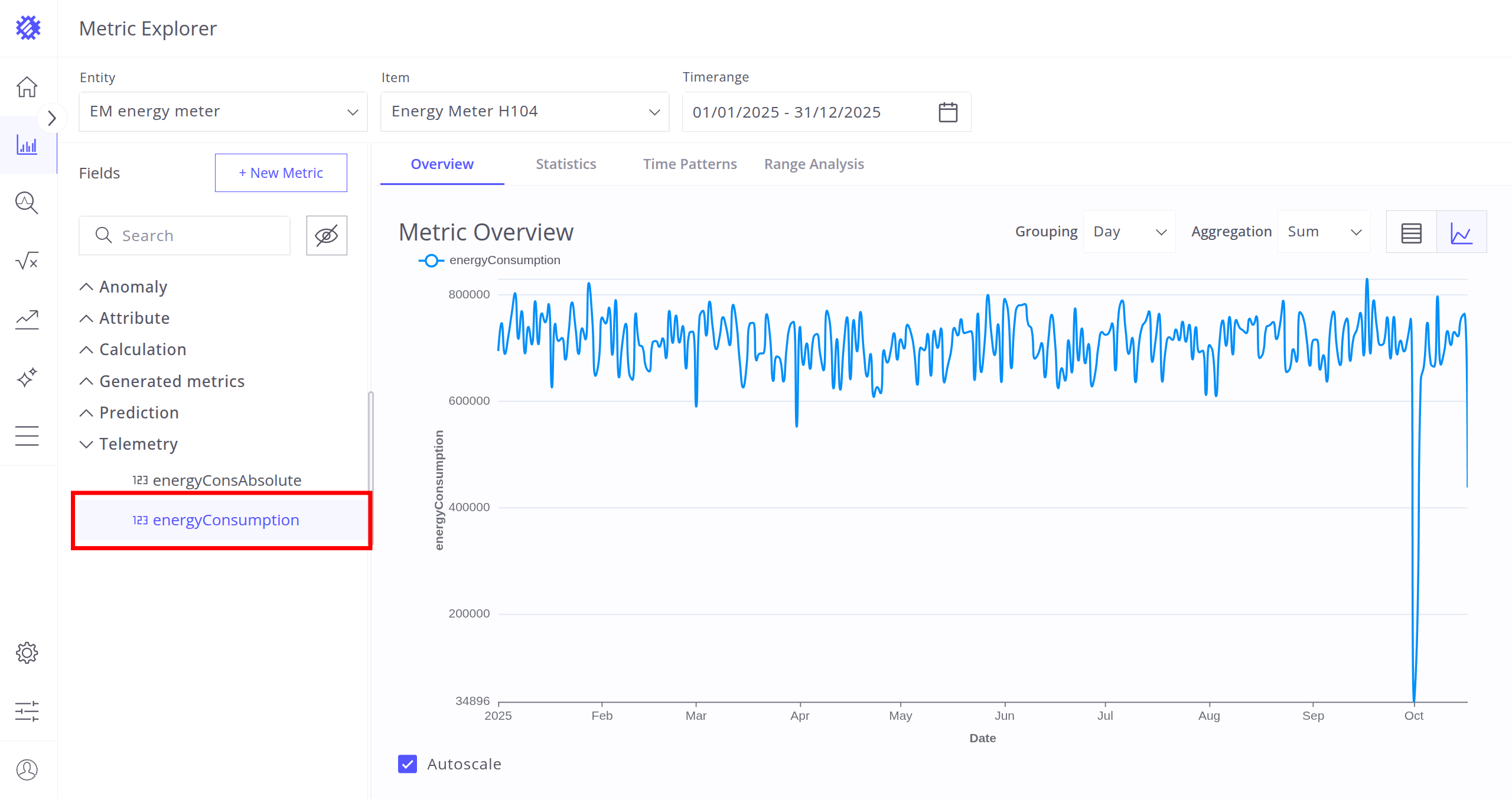
After selecting the entity, item, and timerange, choose a metric (telemetry or attribute) for analysis. Interaction with metrics is described in the next section.
Fields Section
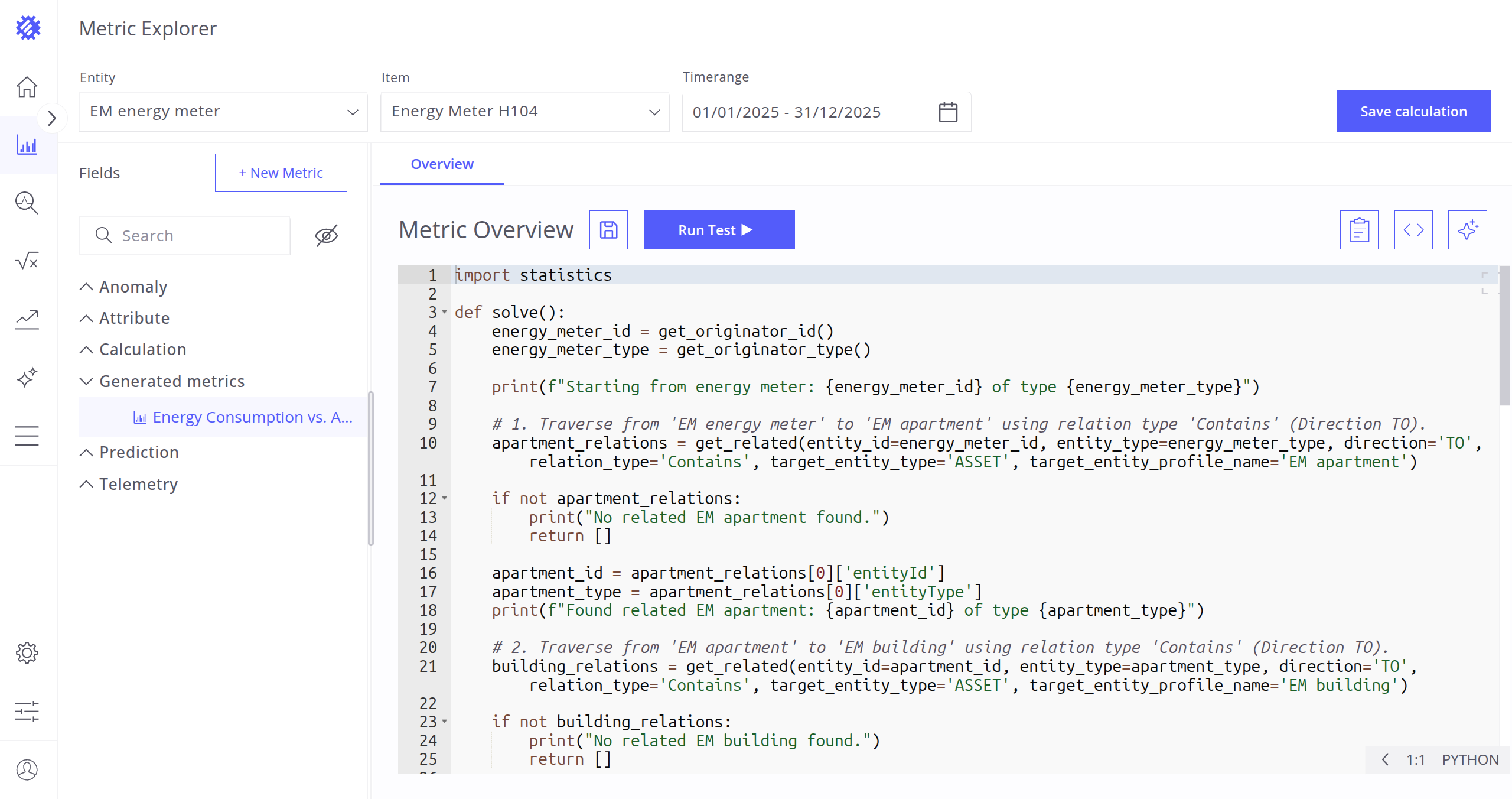
This section displays all telemetries and attributes available in both SENTIENT and SENTIENT ANALYTICS.
Telemetries and attributes are divided into up to six groups:
- Anomaly - Anomalies (Anomaly Score or Anomaly Score Index) detected by SENTIENT ANALYTICS Anomaly Models and saved to SENTIENT.
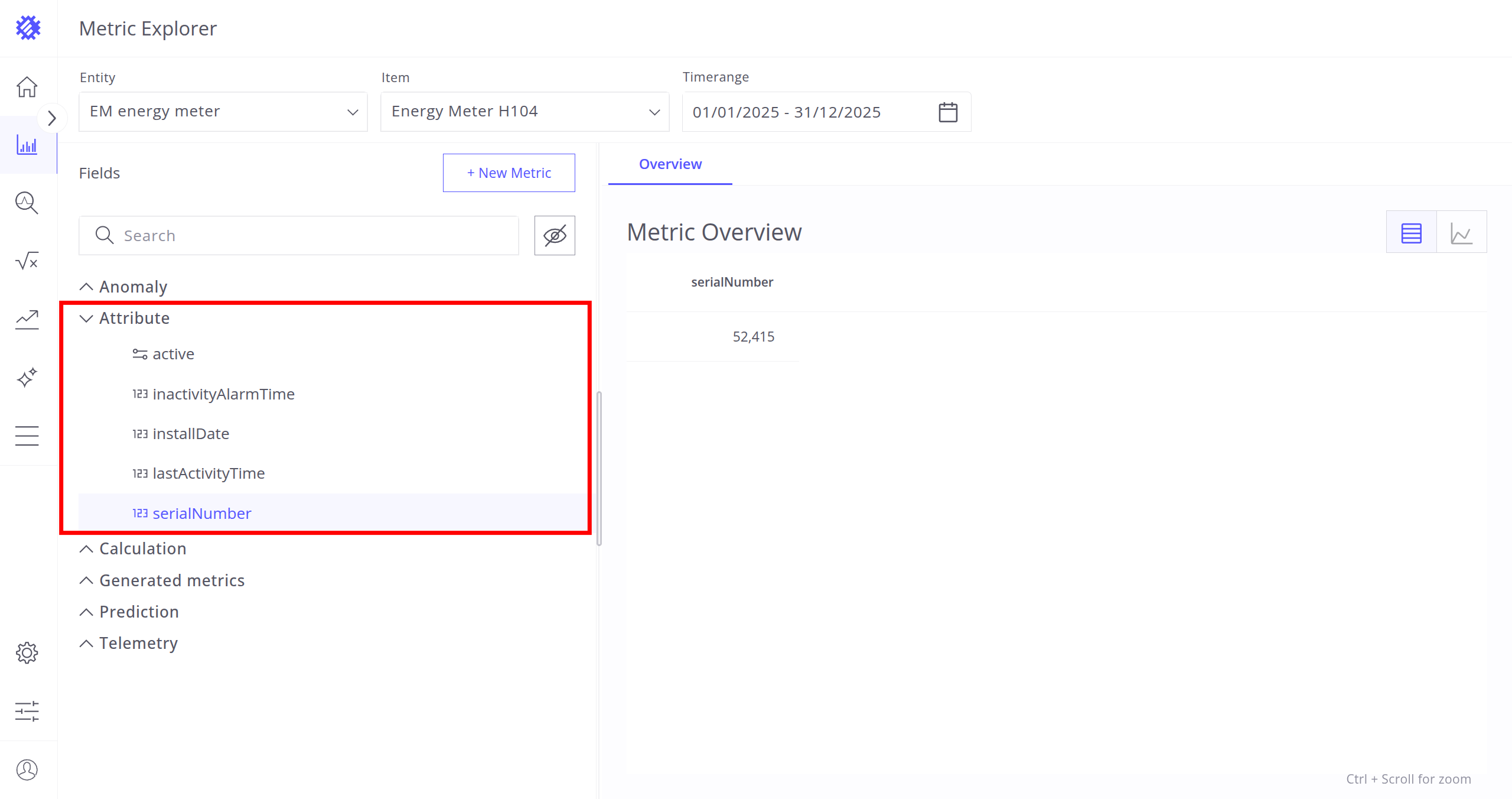
- Attribute - Attributes from SENTIENT.
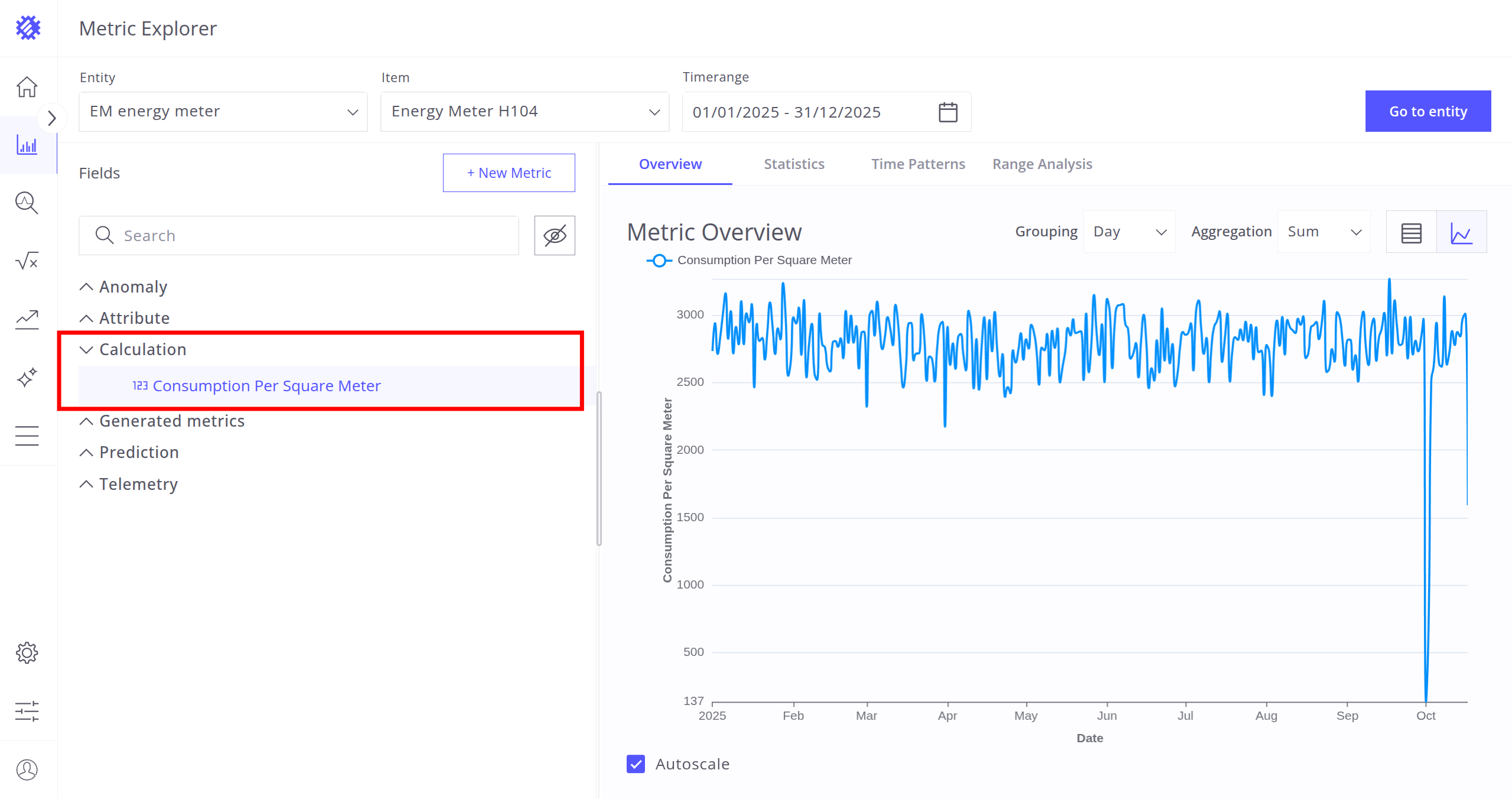
- Calculation - Calculations saved by SENTIENT ANALYTICS Calculation Fields to SENTIENT.
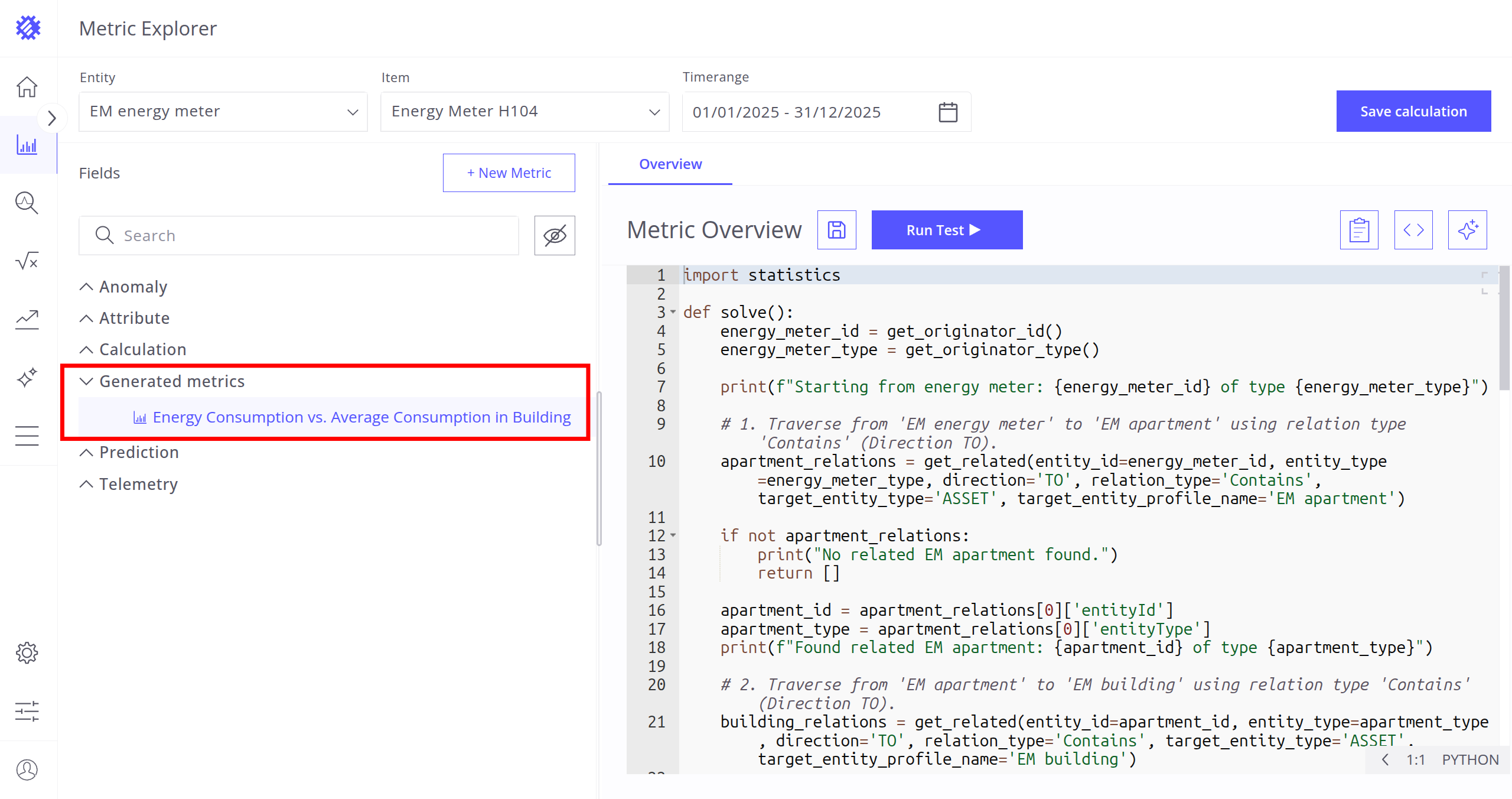
- Generated Metrics - Metrics created by the Metric Explorer.
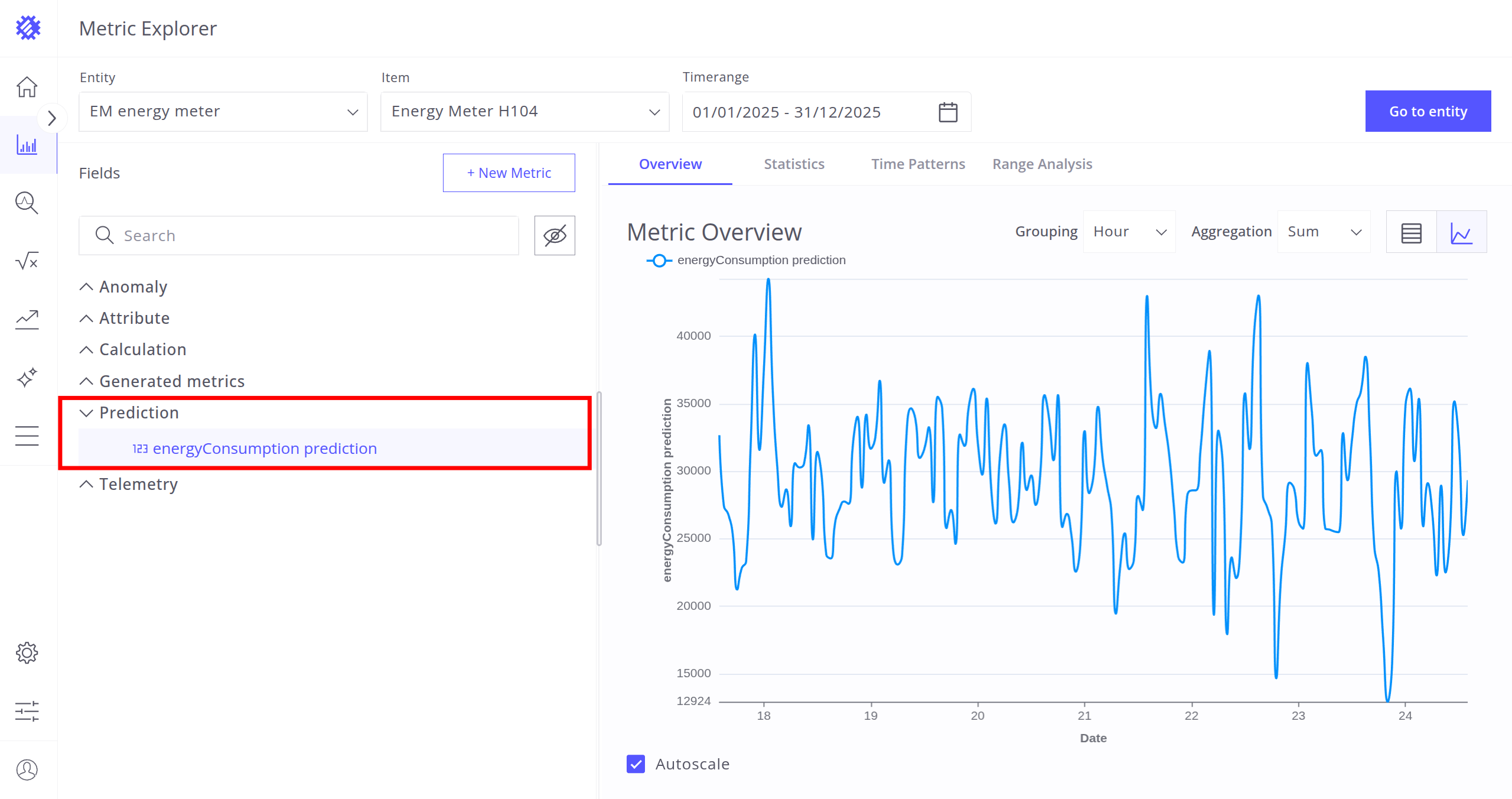
- Prediction - Predictions generated by SENTIENT ANALYTICS Prediction Models and saved to SENTIENT.
- Telemetry - Raw telemetries from SENTIENT.
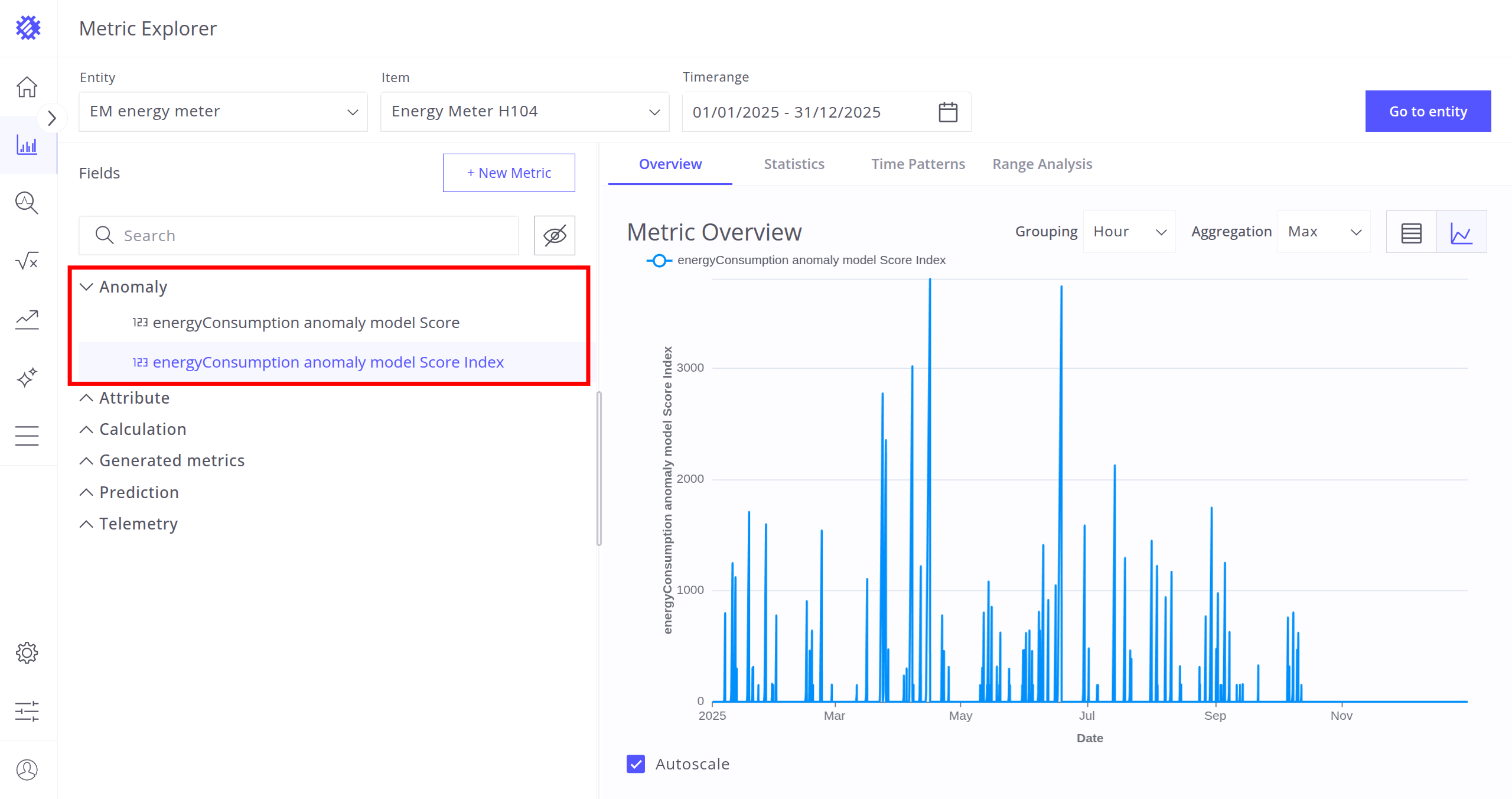
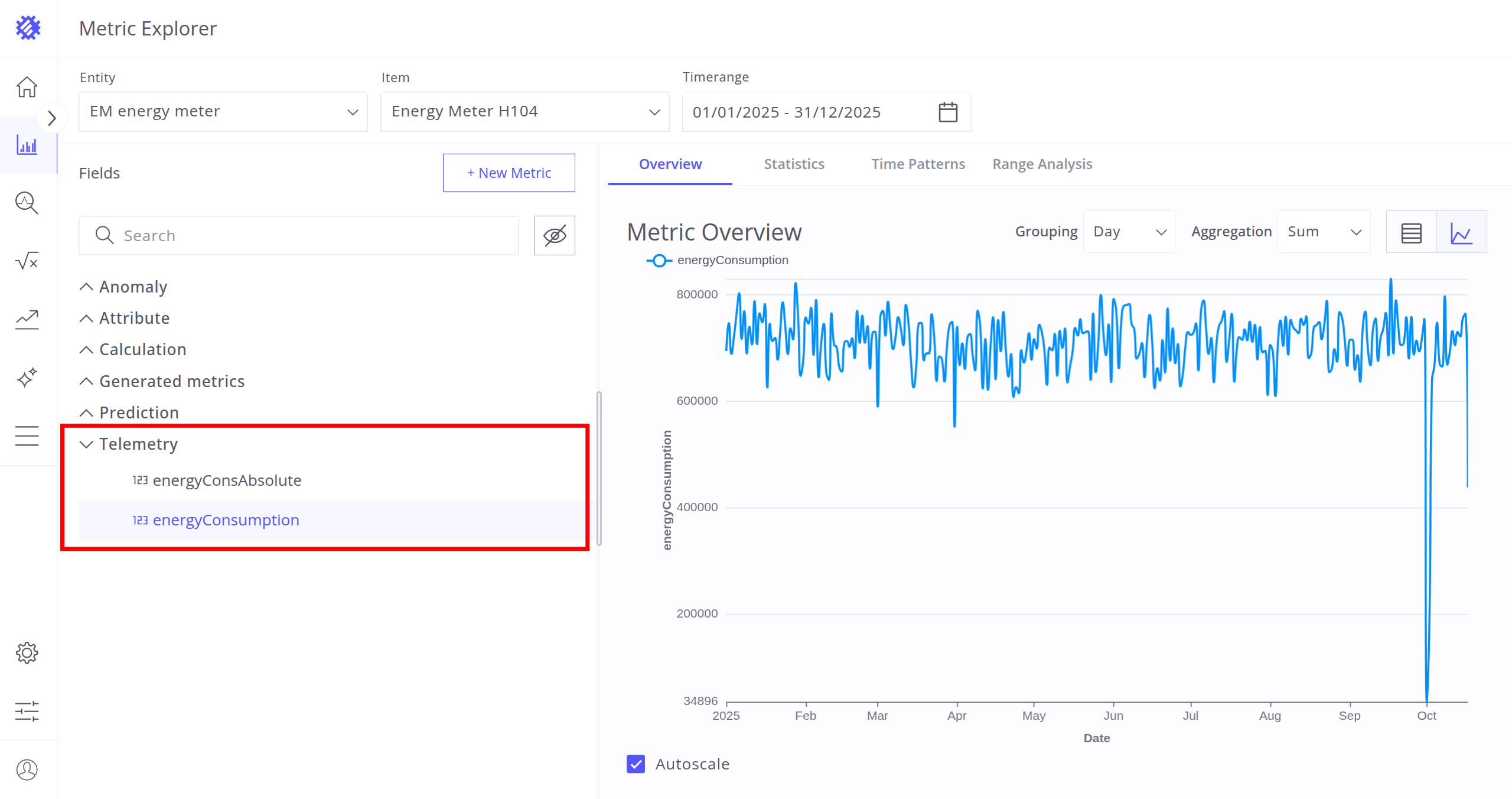
Note: Groups are only shown if the item contains telemetries in that category.
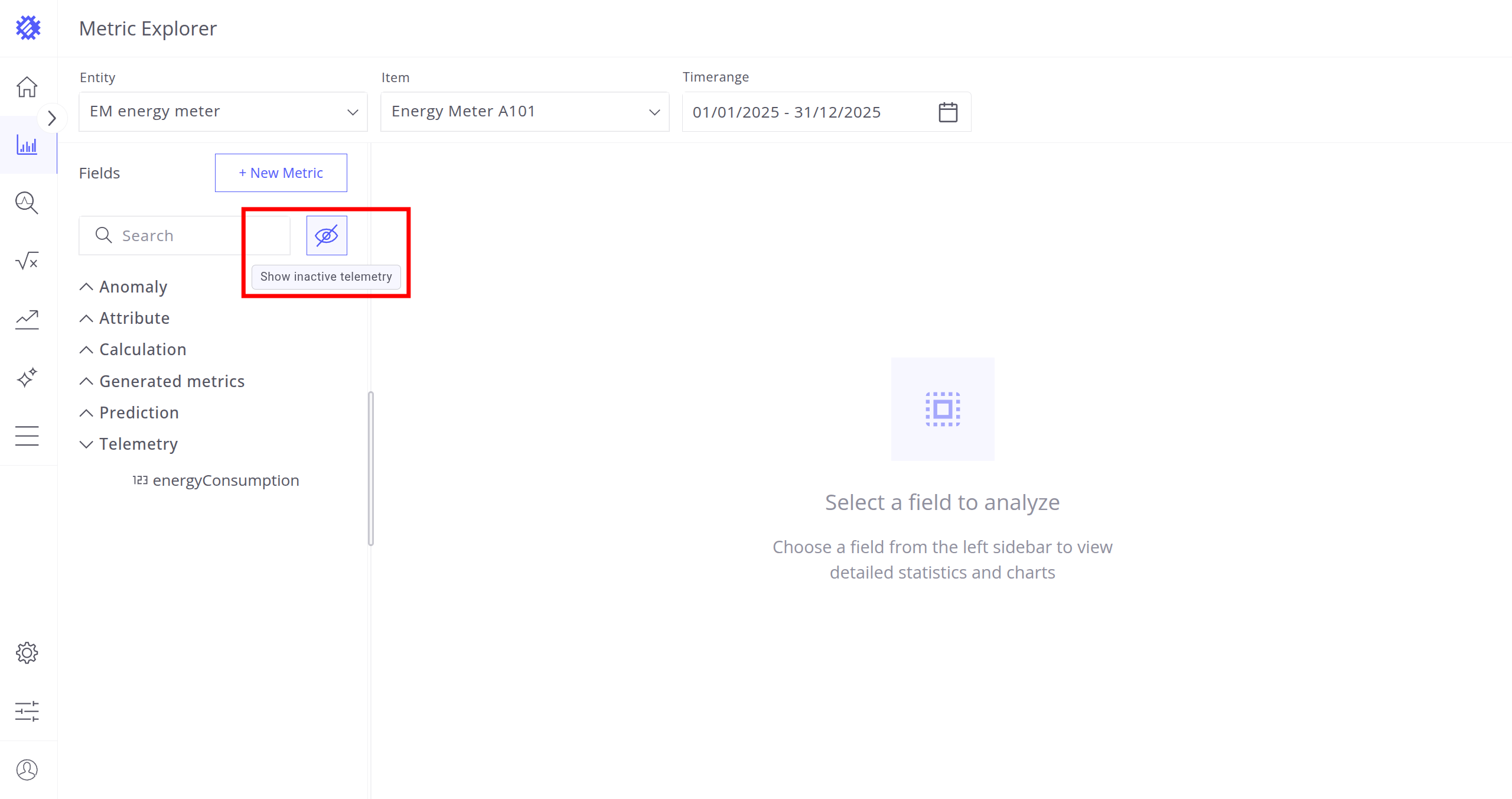
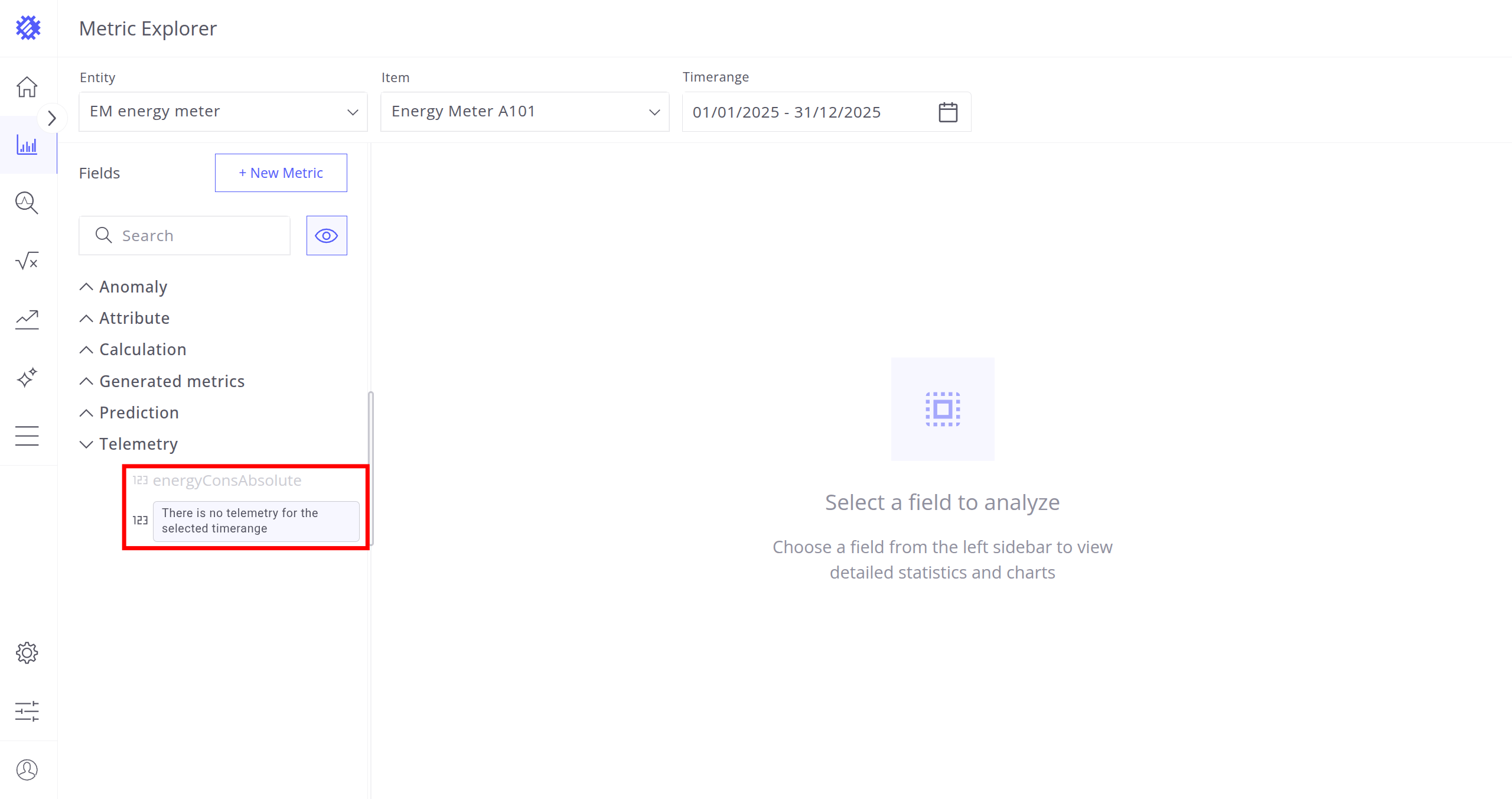
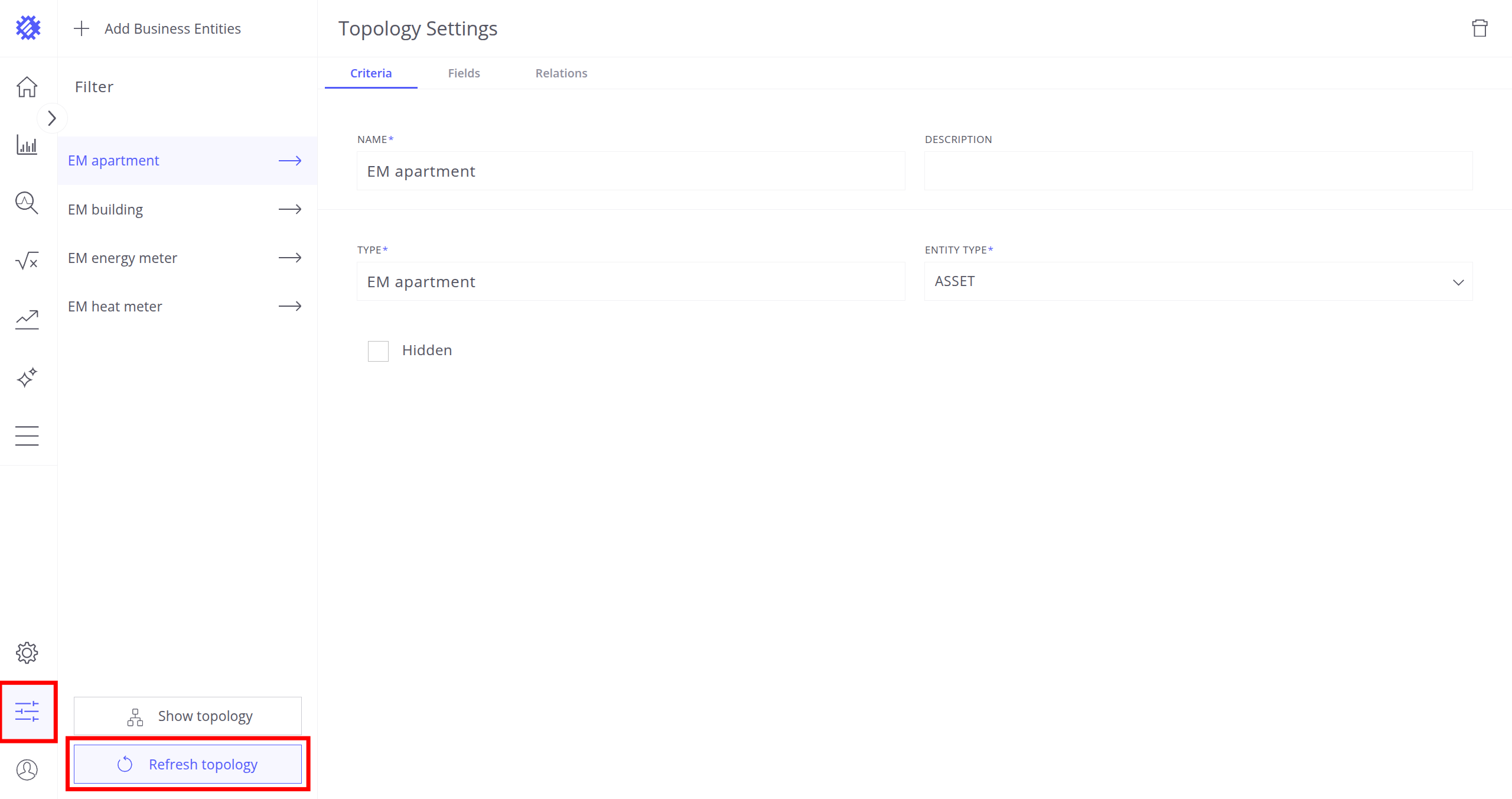
Each group lists all available telemetries. If a telemetry you are interested in is missing, click the Show Inactive Telemetries button to display telemetries that exist for the item but have no data in the selected timerange. If it still does not appear, perform a topology discovery to sync the latest SENTIENT structure with SENTIENT ANALYTICS.
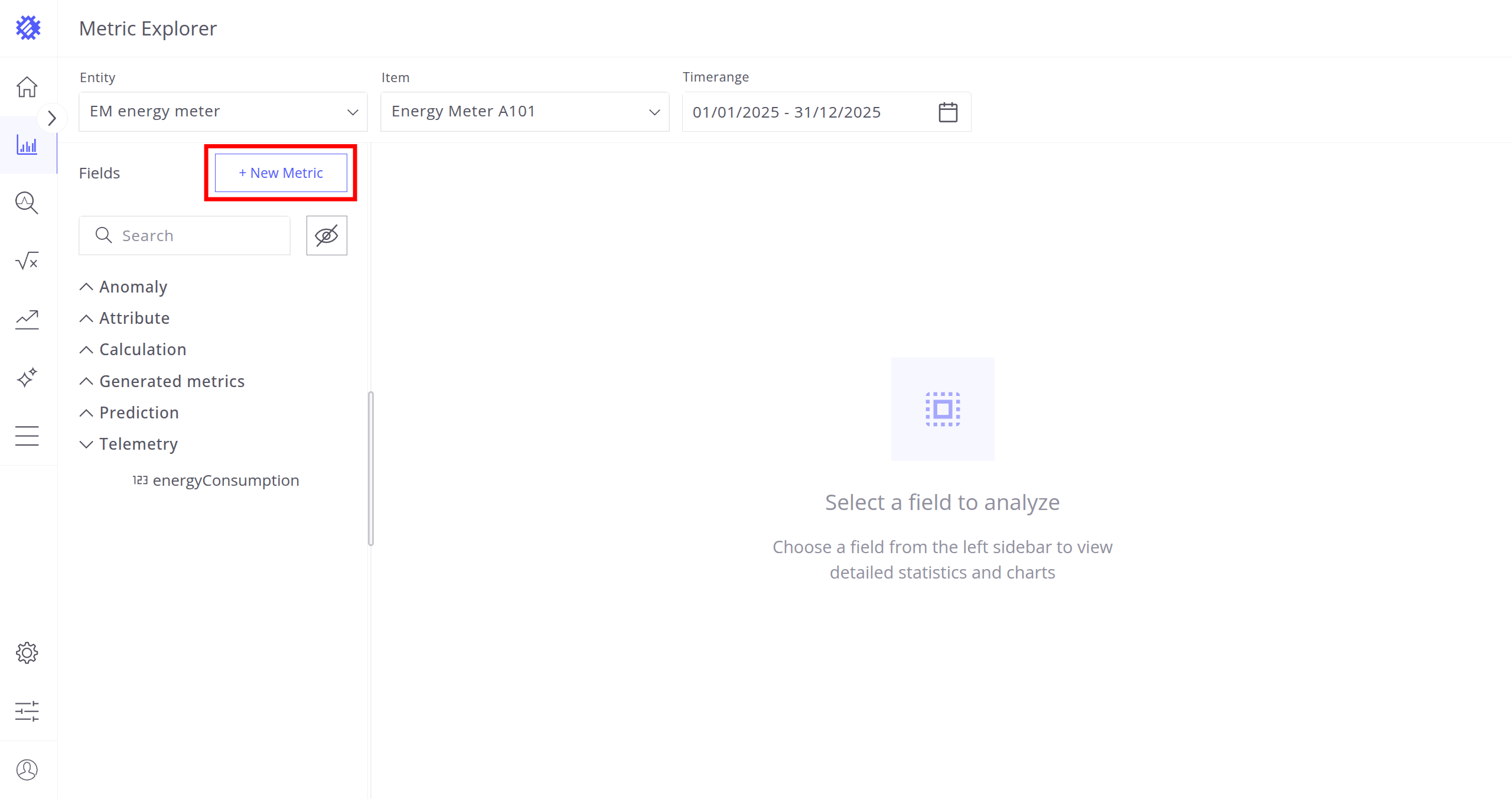
You can also use the + New Metric button to create new metrics from existing ones. This functionality is described here.
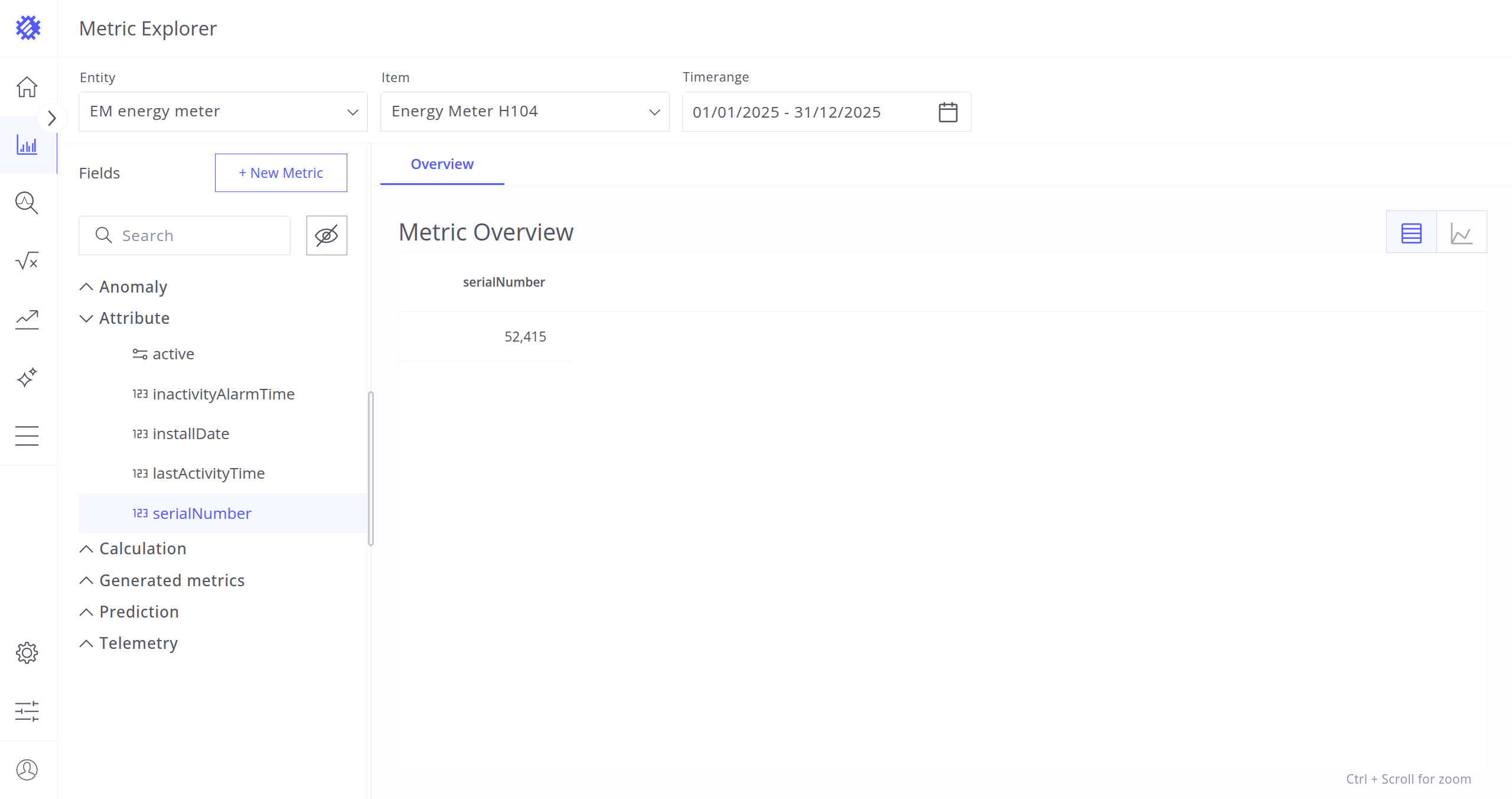
Attributes
Lists all attributes of the selected item with their corresponding SENTIENT ANALYTICS business entity fields. Clicking an attribute displays its value.
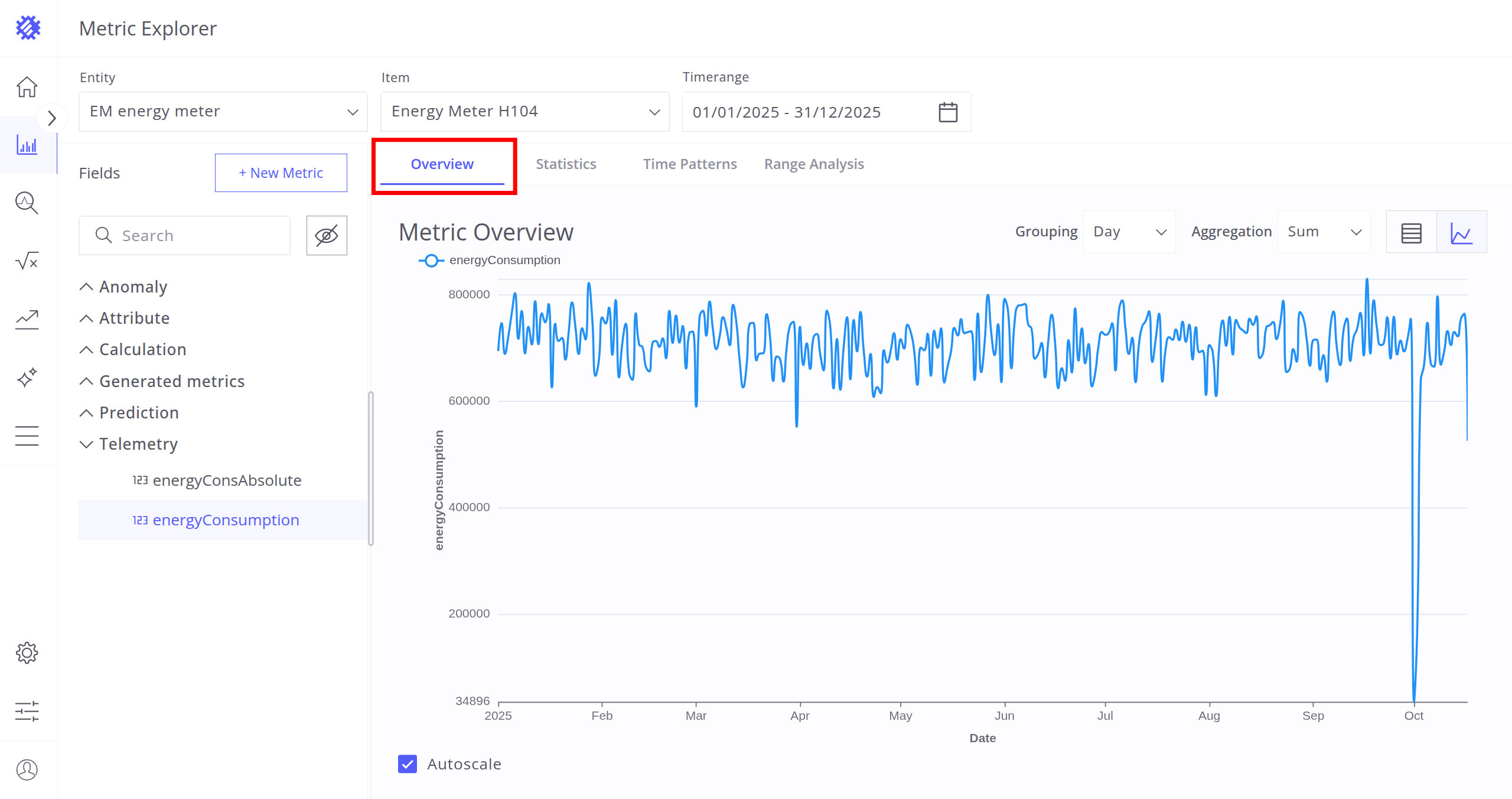
Telemetries
Displays all telemetries of the selected item that have at least one data point within the timerange.
Each telemetry offers four tabs:
- Overview - Line chart or table view of telemetry values.
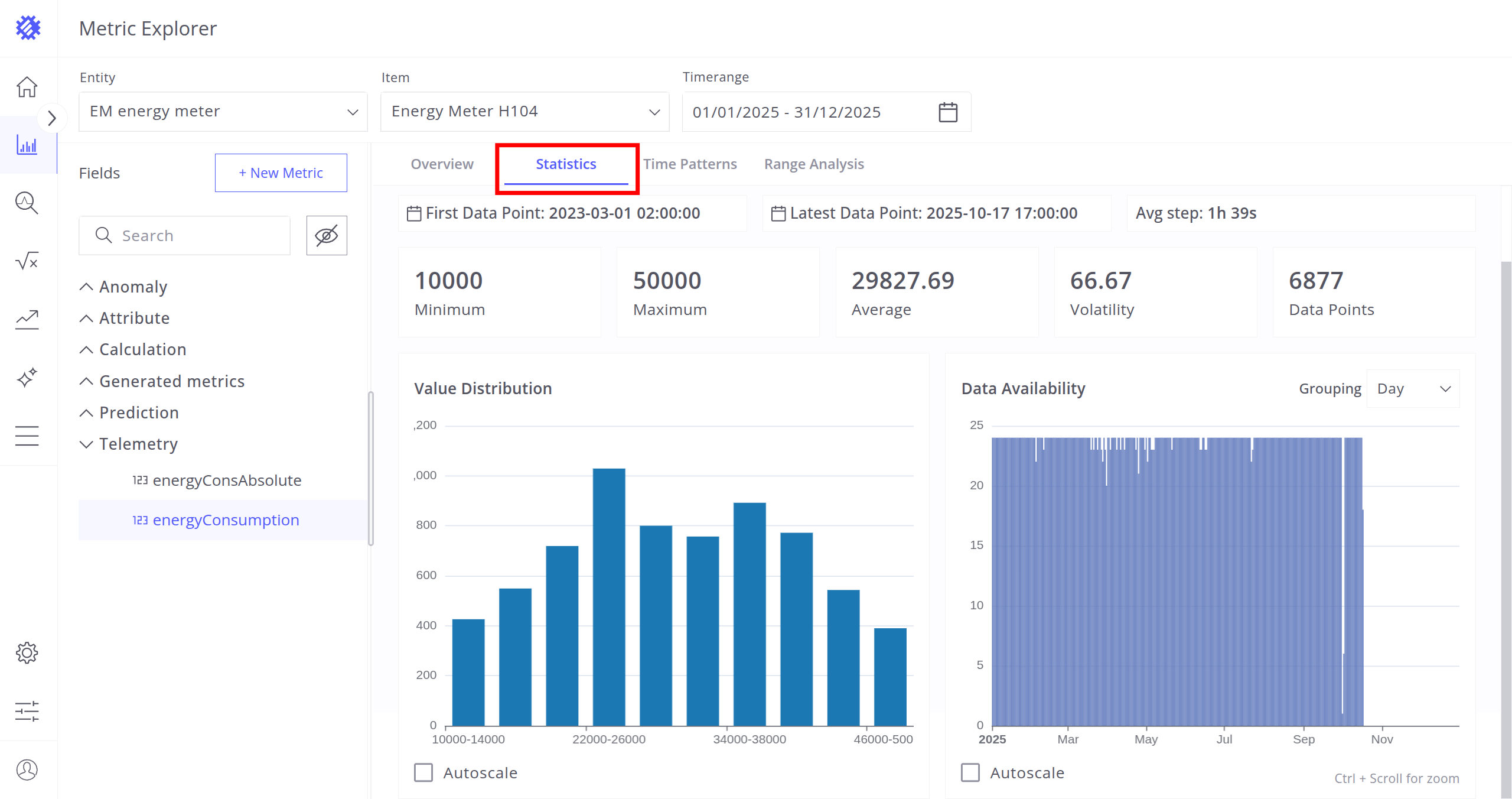
- Statistics - Basic statistical summary for the selected timerange.
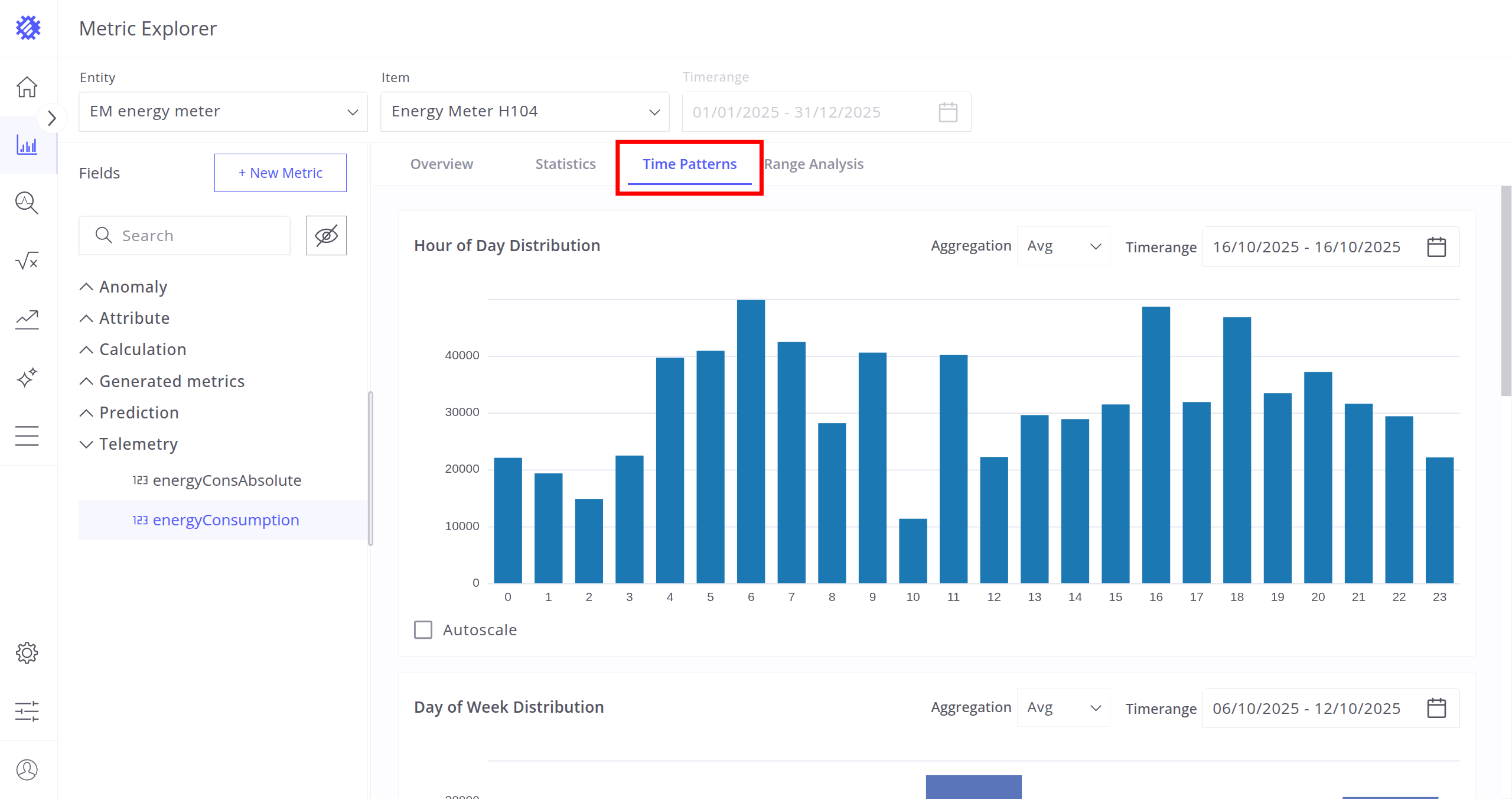
- Time Patterns - Behavioral patterns across time units.
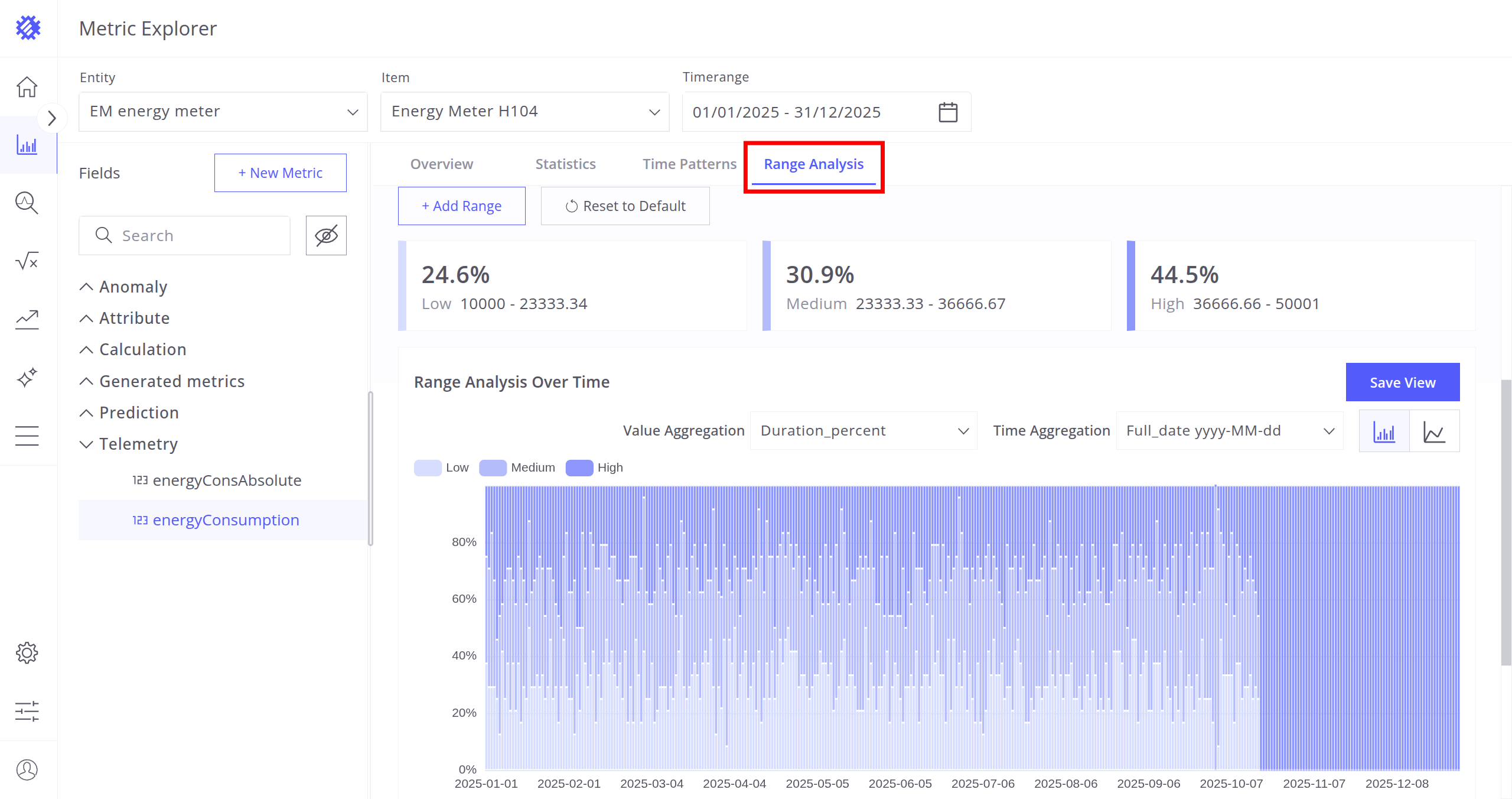
- Range Analysis - Distribution of telemetry values over time and range intervals.
Interaction with tabs is described in details in the Tabs Section.
Calculations, Predictions, and Anomalies
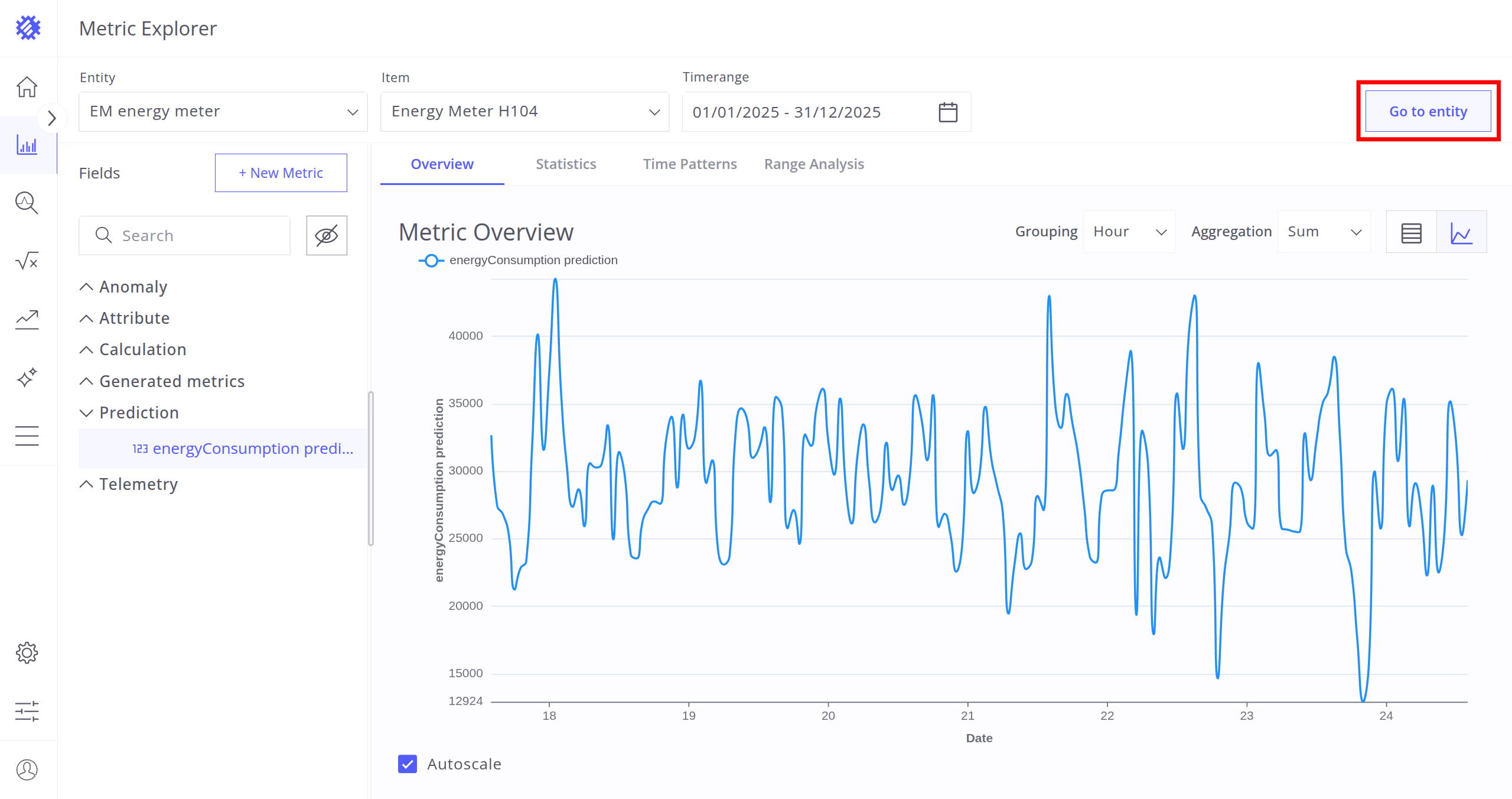
Telemetries generated by SENTIENT ANALYTICS entities (Calculation Fields, Prediction Models, or Anomaly Models). These have the same tab structure as regular telemetries, with an additional Go to Entity button for quick navigation to the related SENTIENT ANALYTICS entity.
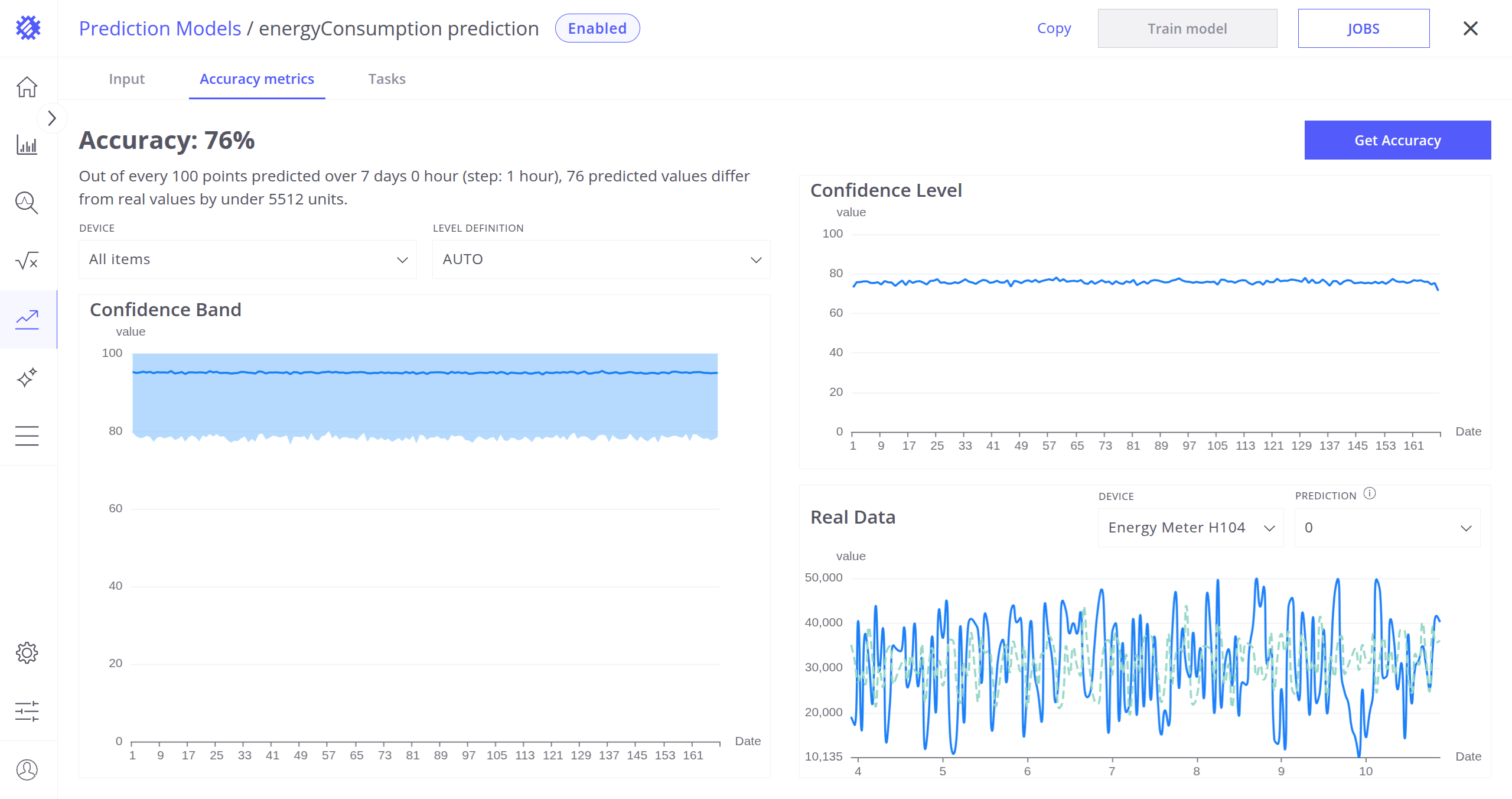
If the field you are interested in does not appear in an appropriate folder, ensure the entity is saving telemetry to SENTIENT. Refer to the respective guides to set up jobs to save telemetry to SENTIENT:
Generated Metrics
Displays metrics generated directly within the Metric Explorer. Read more about generated metrics here.
Tabs Section
When a telemetry is selected, the Tabs Section displays analytical views useful for exploration.
You can zoom any chart in any tab, using Ctrl + Mouse Scroll.
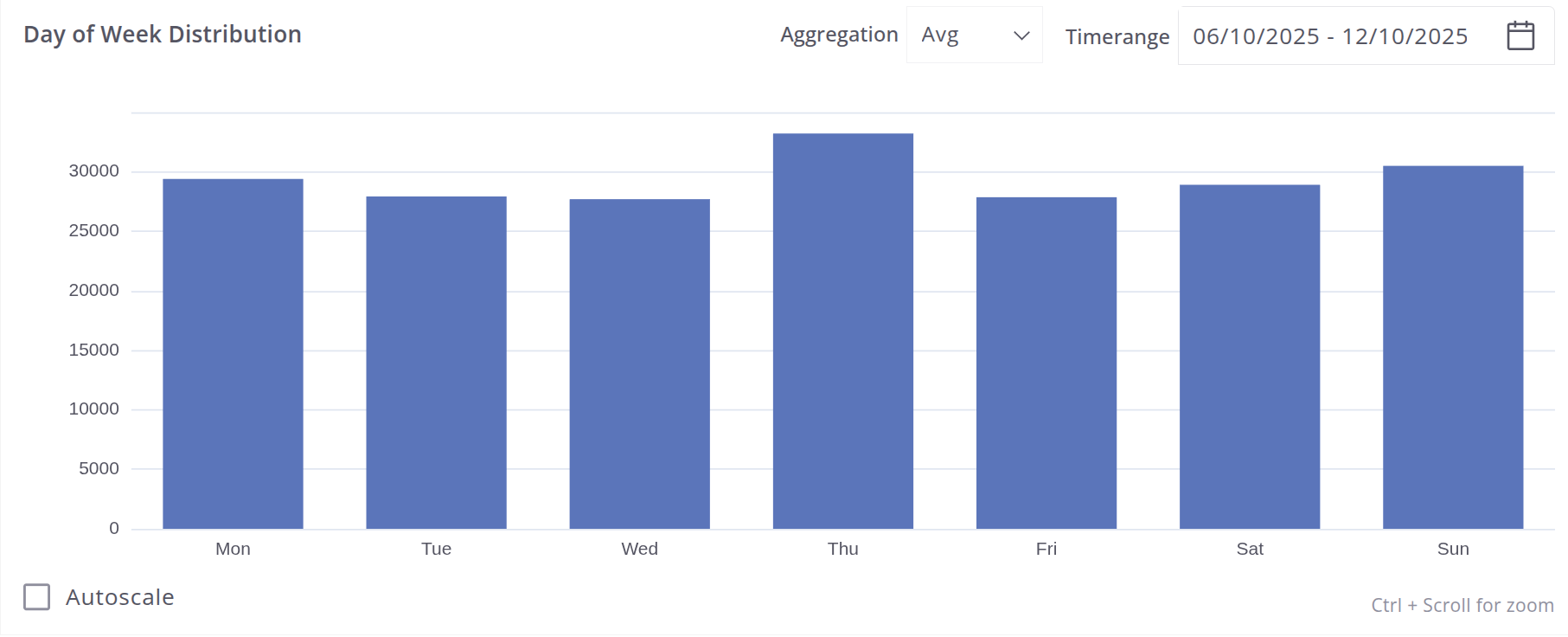
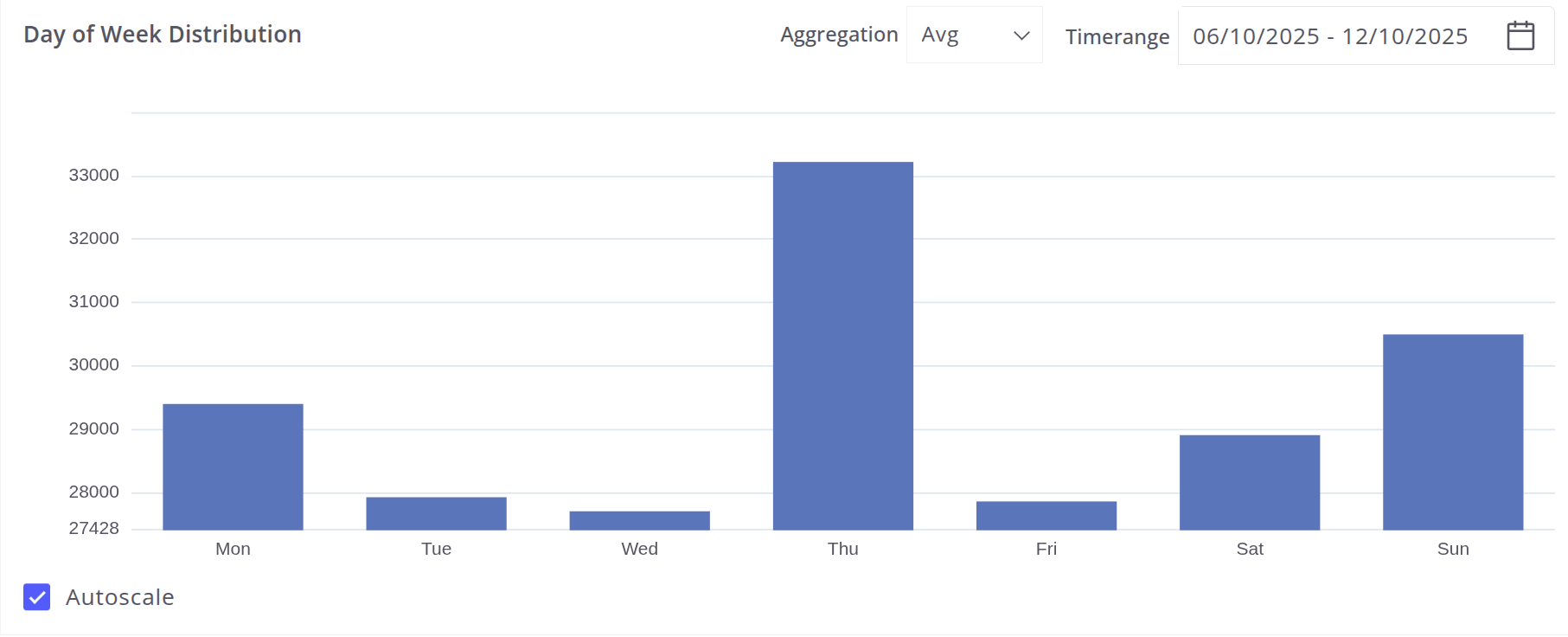
You can enable or disable autoscale for any chart in any tab. When autoscale is disabled, the chart’s Y-axis range starts at 0 and ends at the maximum value. When autoscale is enabled, the Y-axis range starts at the minimum value and ends at the maximum value.
Overview Tab
Shows the historical trend of the telemetry within the selected timerange.
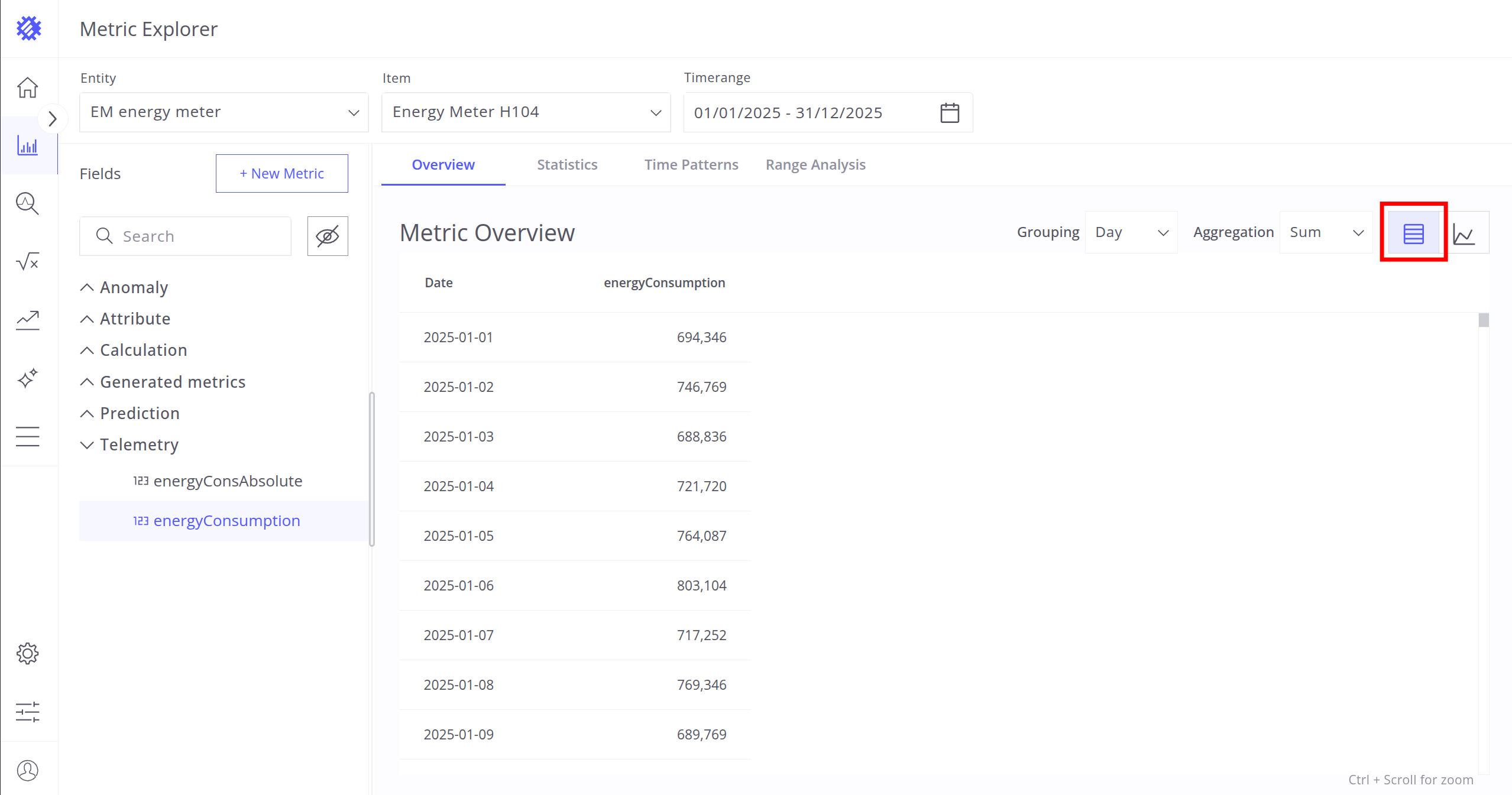
- Switch between Table and Line Chart views.
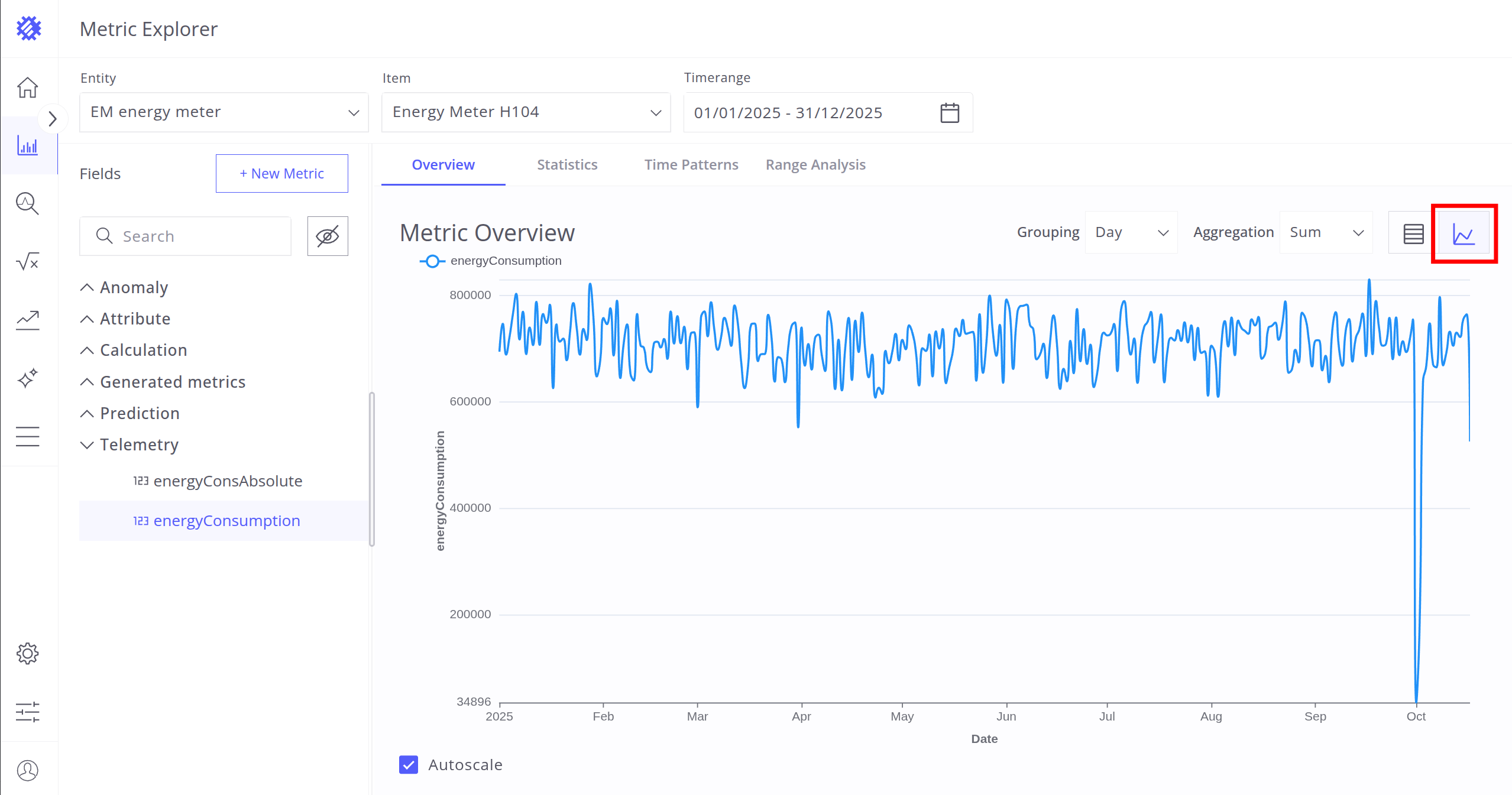
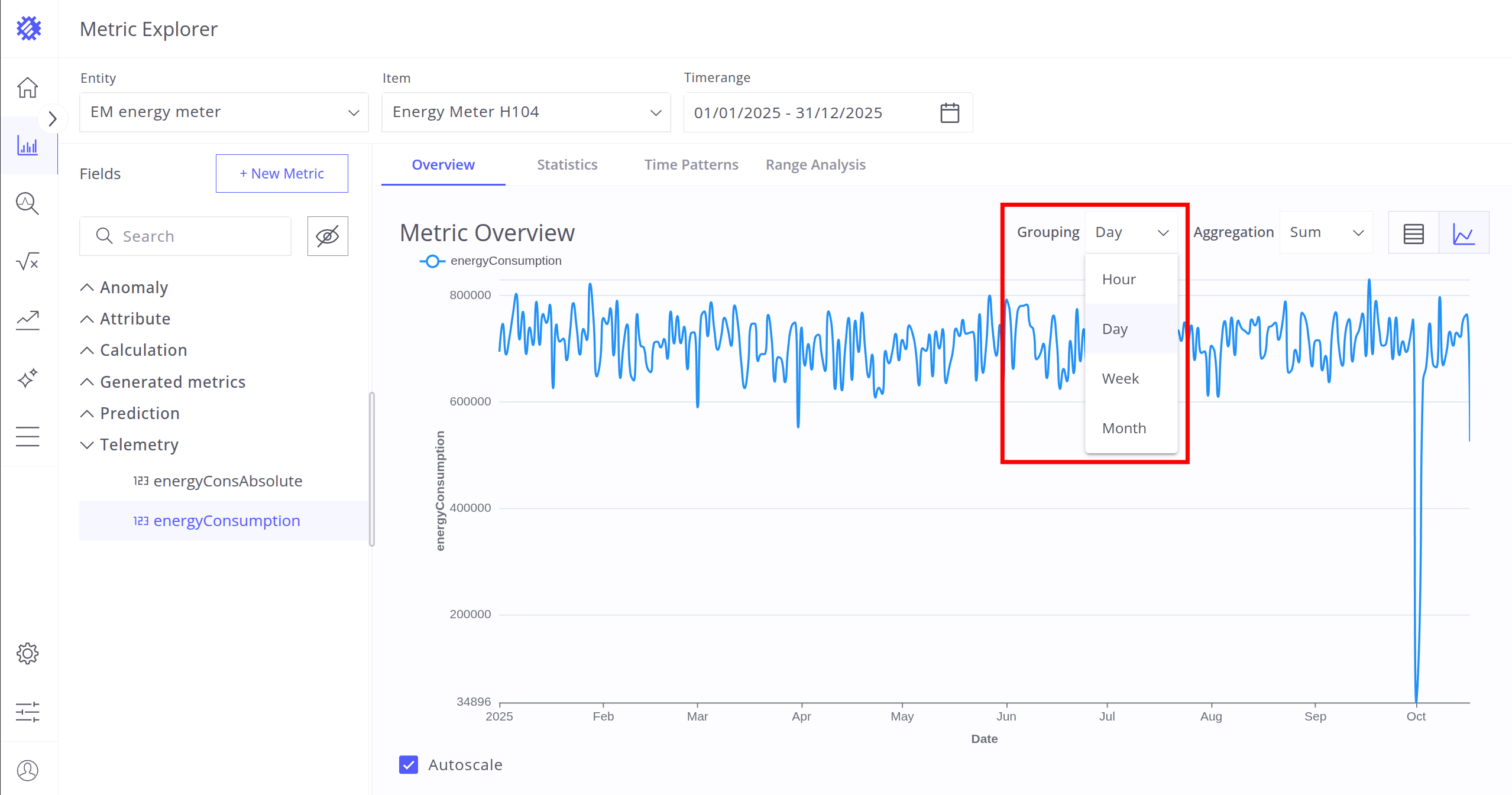
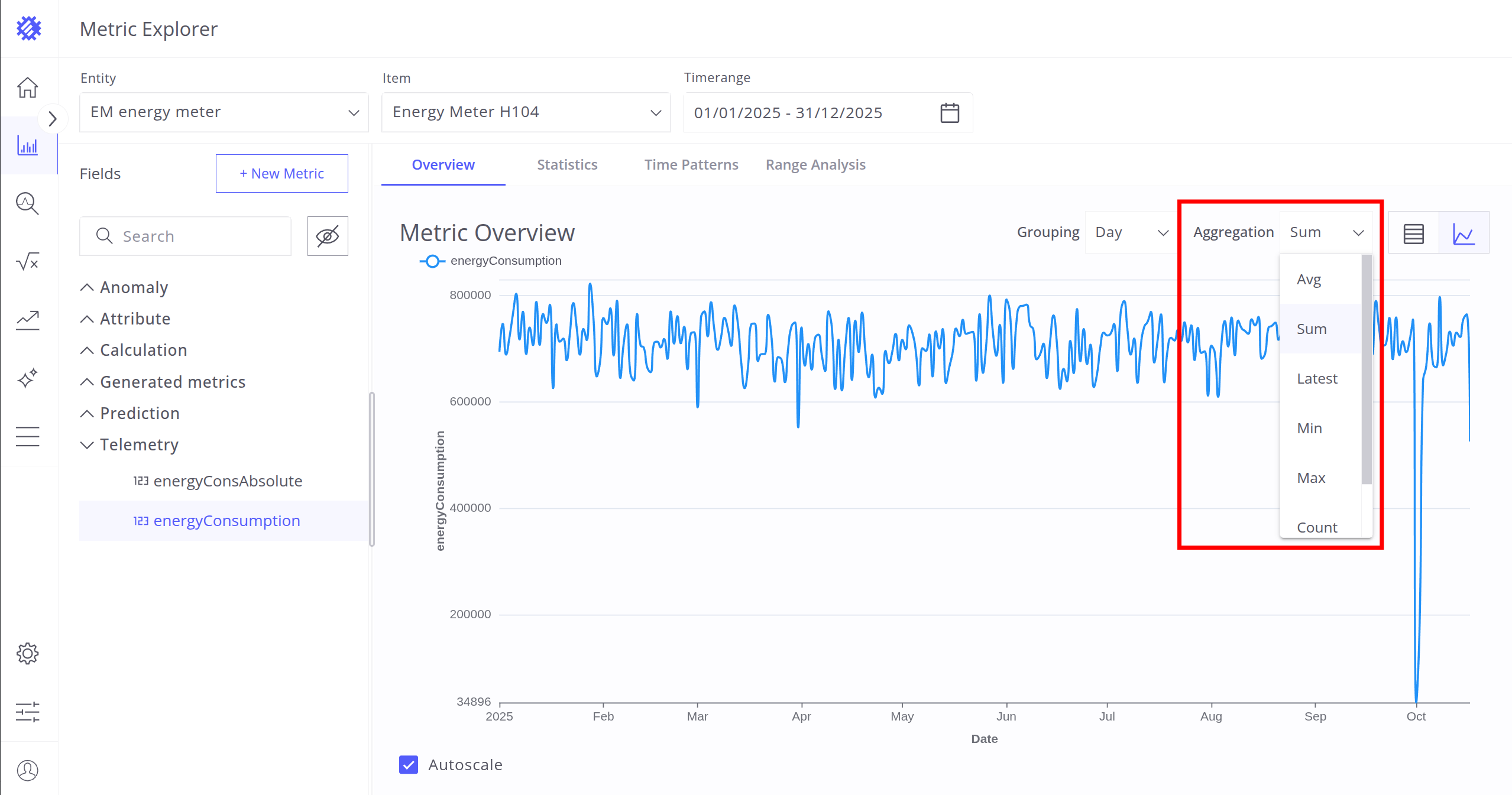
- Configure grouping units and aggregation methods.
Statistics Tab
Displays fundamental statistics for the telemetry within the selected timerange:
- First Data Point - Earliest available record.
- Latest Data Point - Most recent record.
- Avg Step - Average time gap between points.
- Minimum, Maximum, Average - Basic numeric summaries.
- Volatility - Frequency of telemetry changes.
- Value Distribution - Histogram showing value spread.
- Data Availability - Histogram showing temporal distribution of points.
Time Patterns Tab
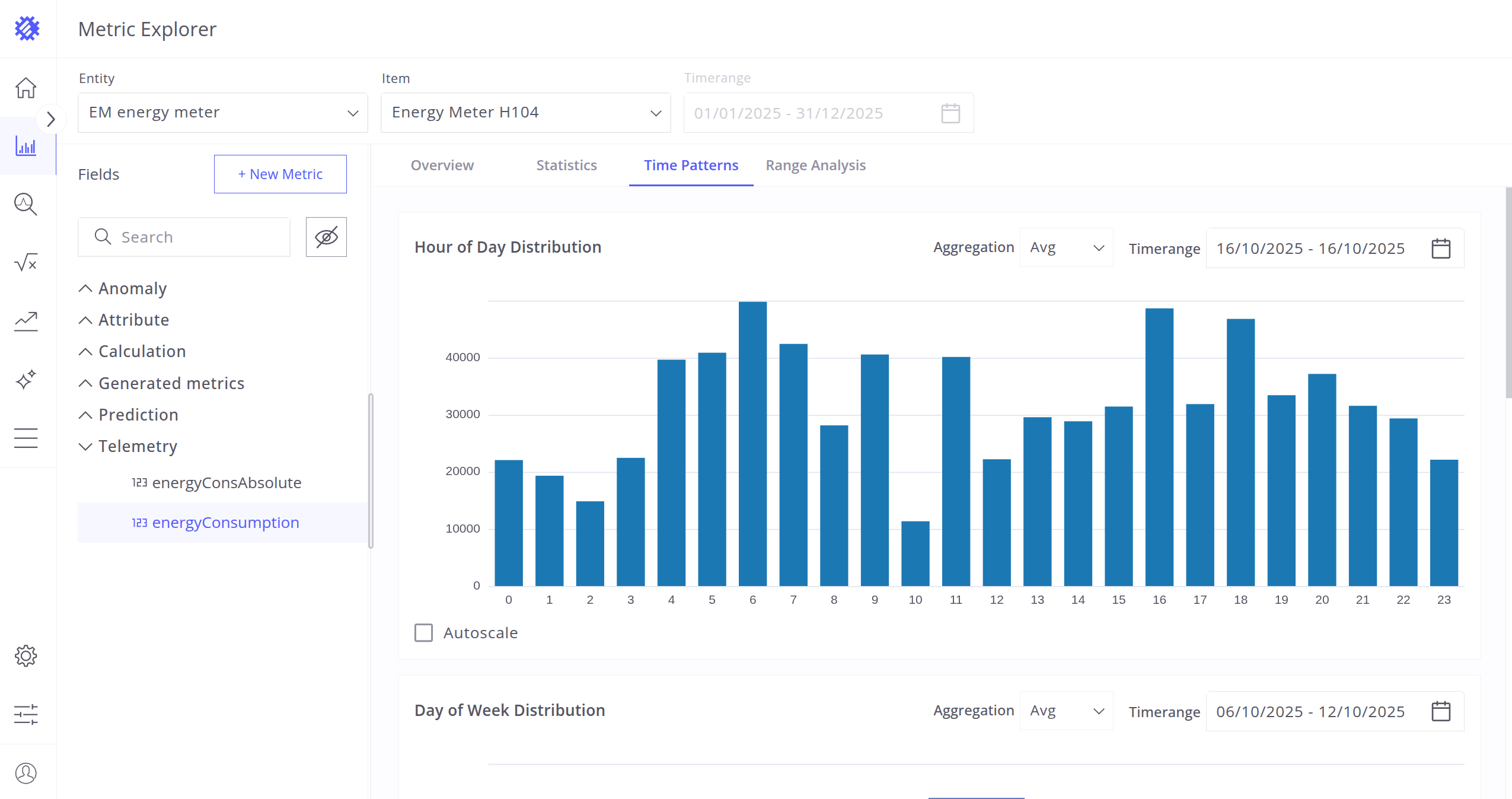
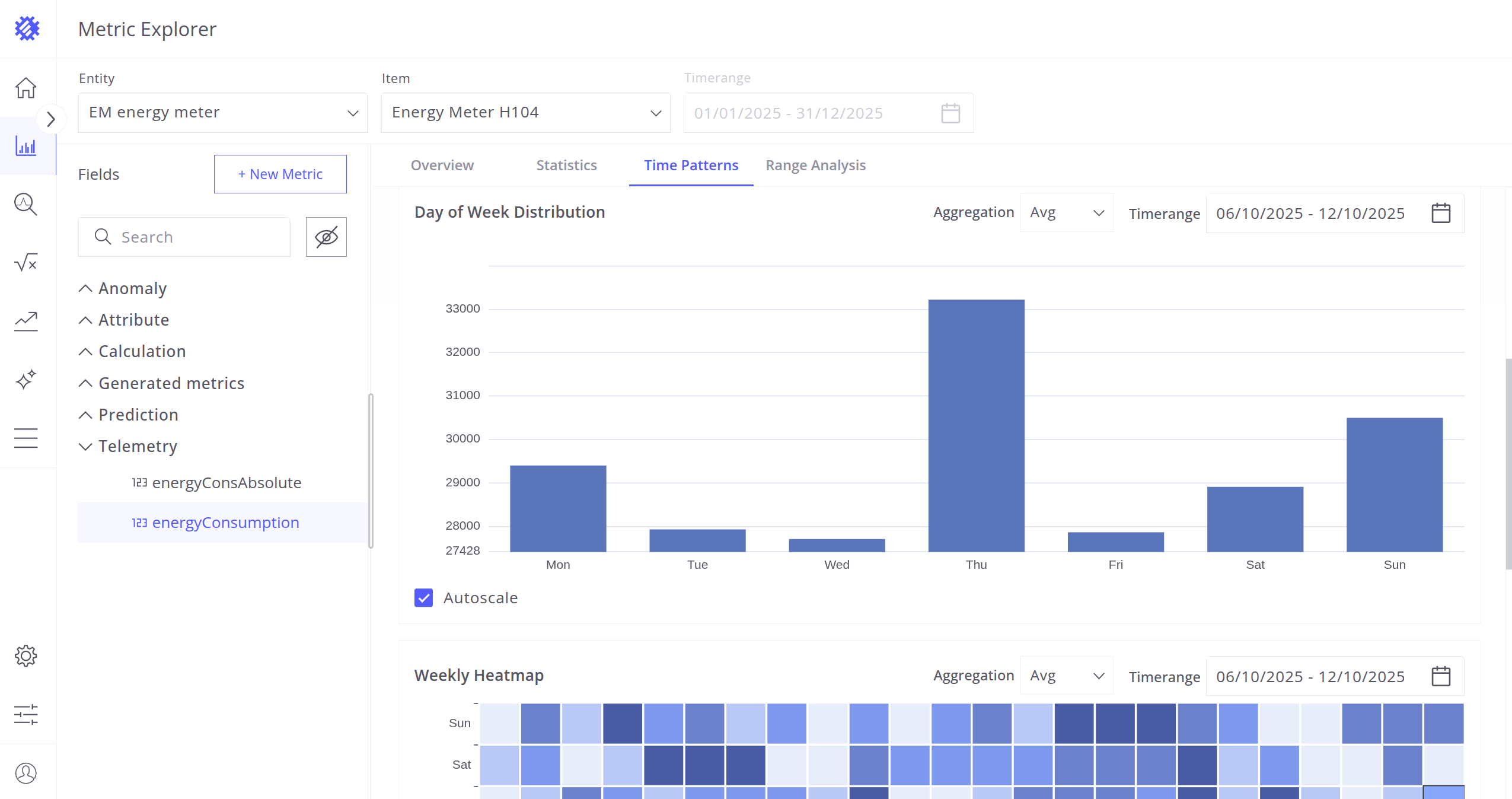
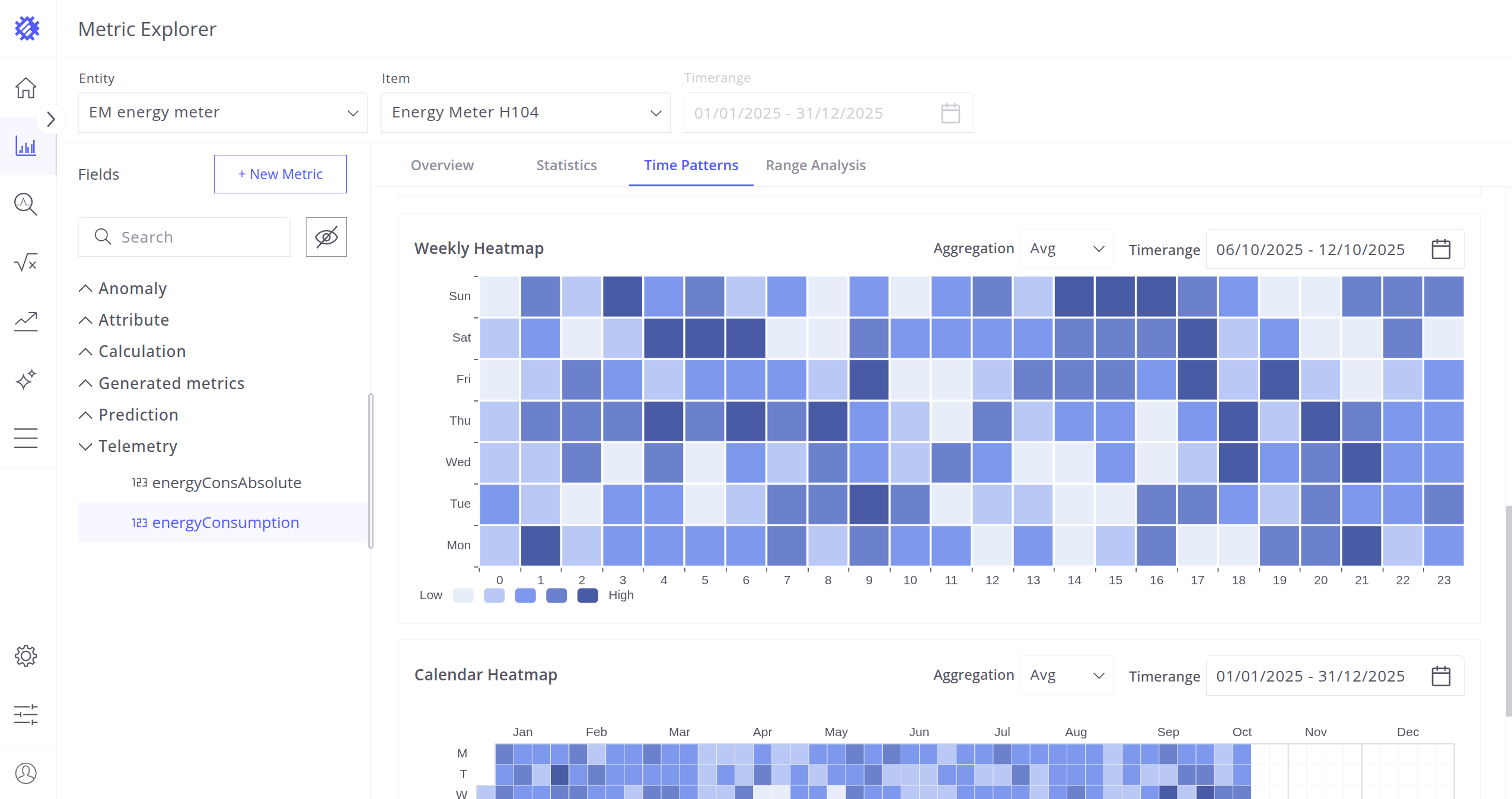
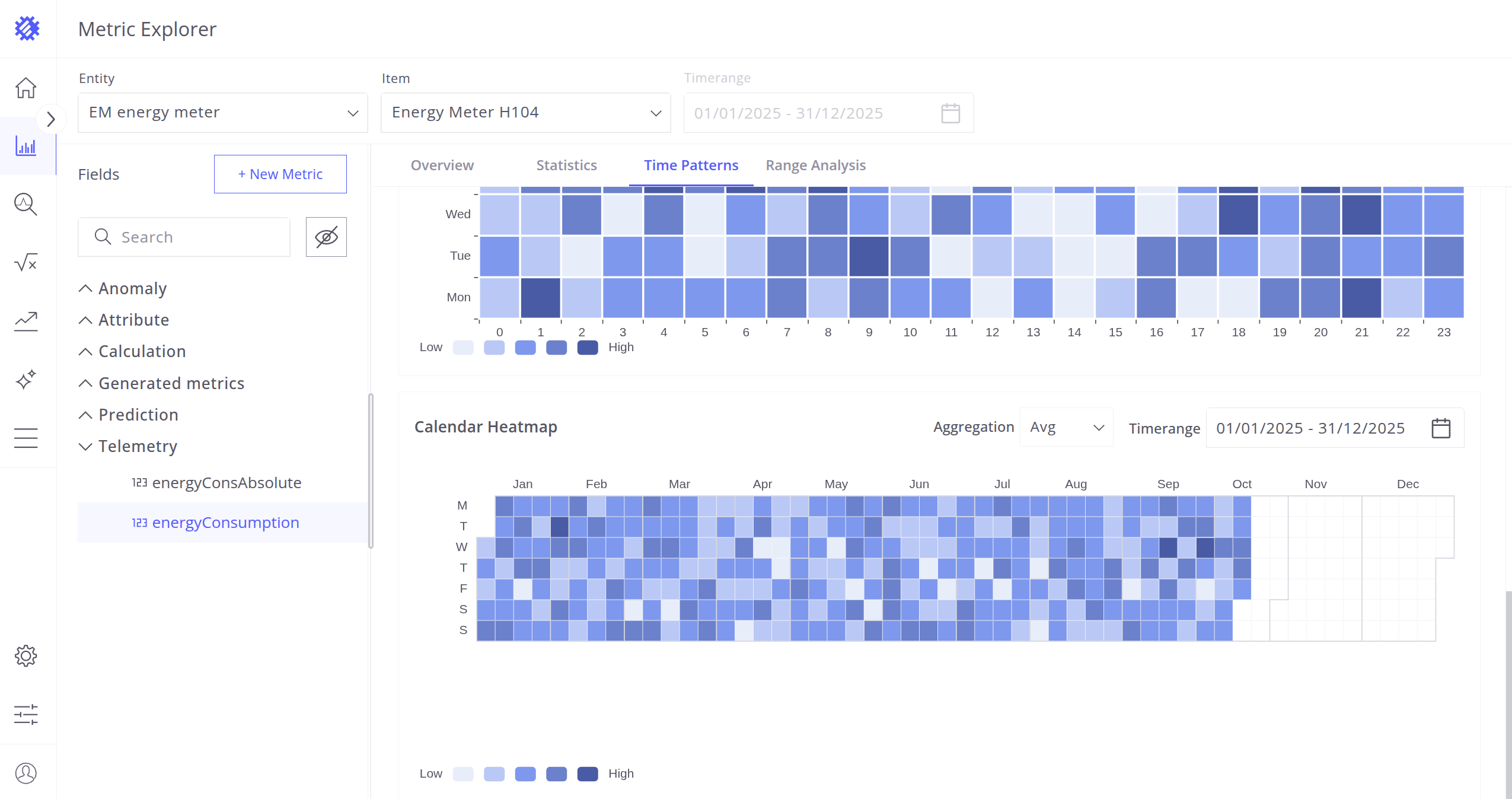
Analyzes telemetry behavior across time-based aggregations. Independent timeranges and aggregations can be set per chart.
Charts include:
- Hour of Day Distribution - Aggregation by hour of day.
- Day of Week Distribution - Aggregation by day of week.
- Weekly Heatmap - Aggregation by hour and weekday.
- Calendar Heatmap - Aggregation by calendar days.
Range Analysis Tab
Explores telemetry state durations and distributions.
You can:
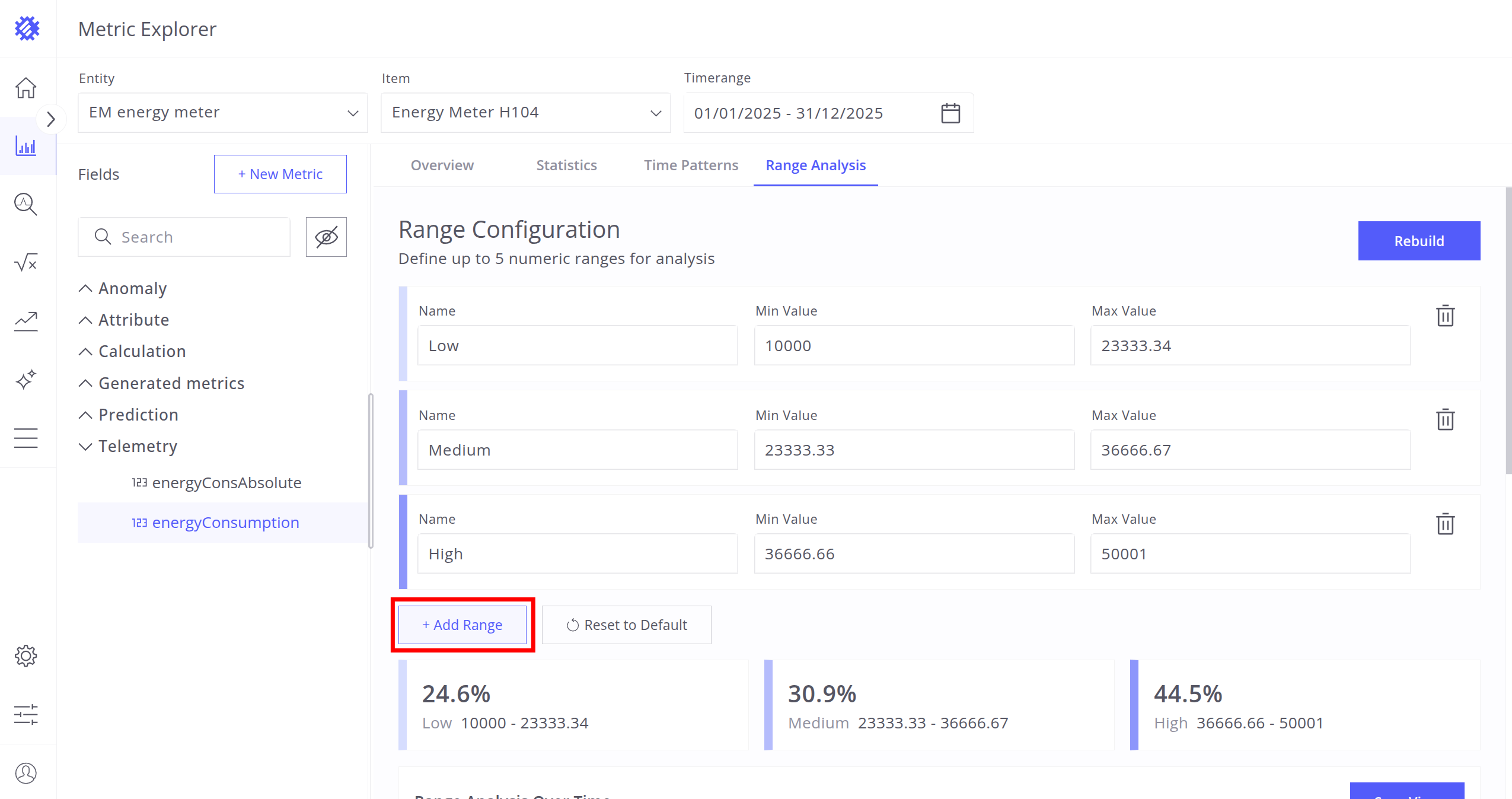
- Configure ranges with colors, names, and value limits.
- Add or remove ranges.
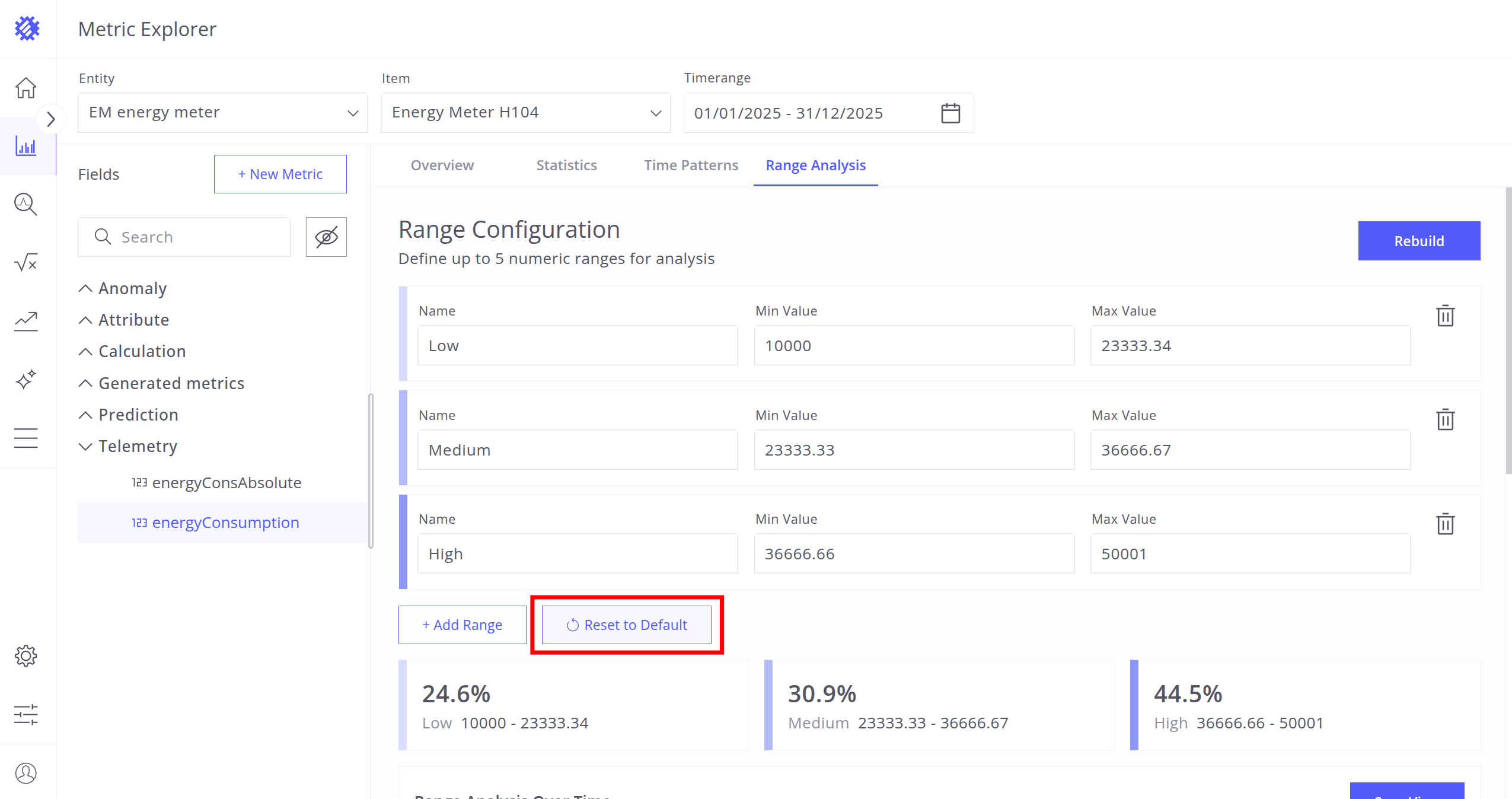
- Reset to default (three automatically calculated ranges).
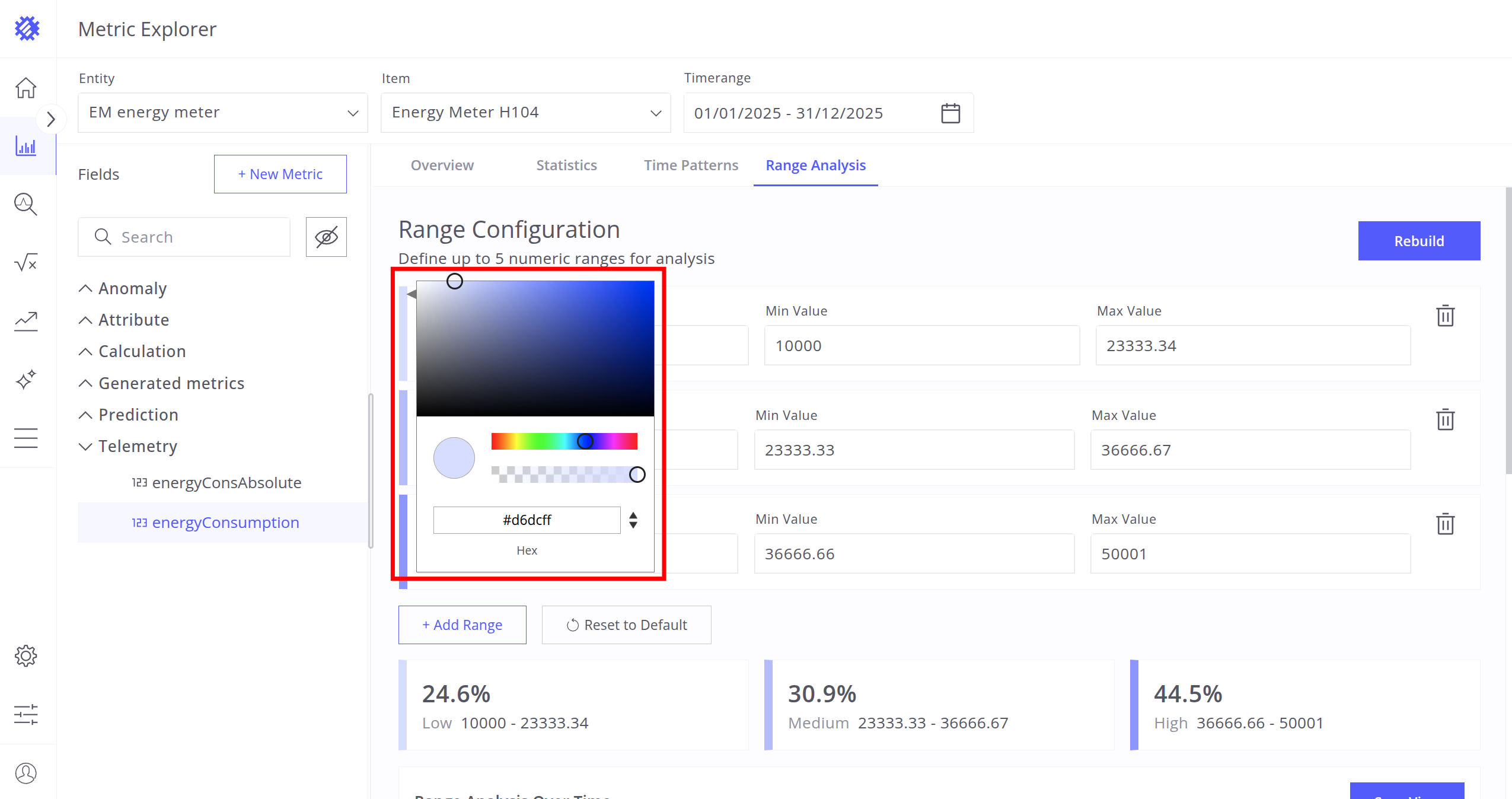
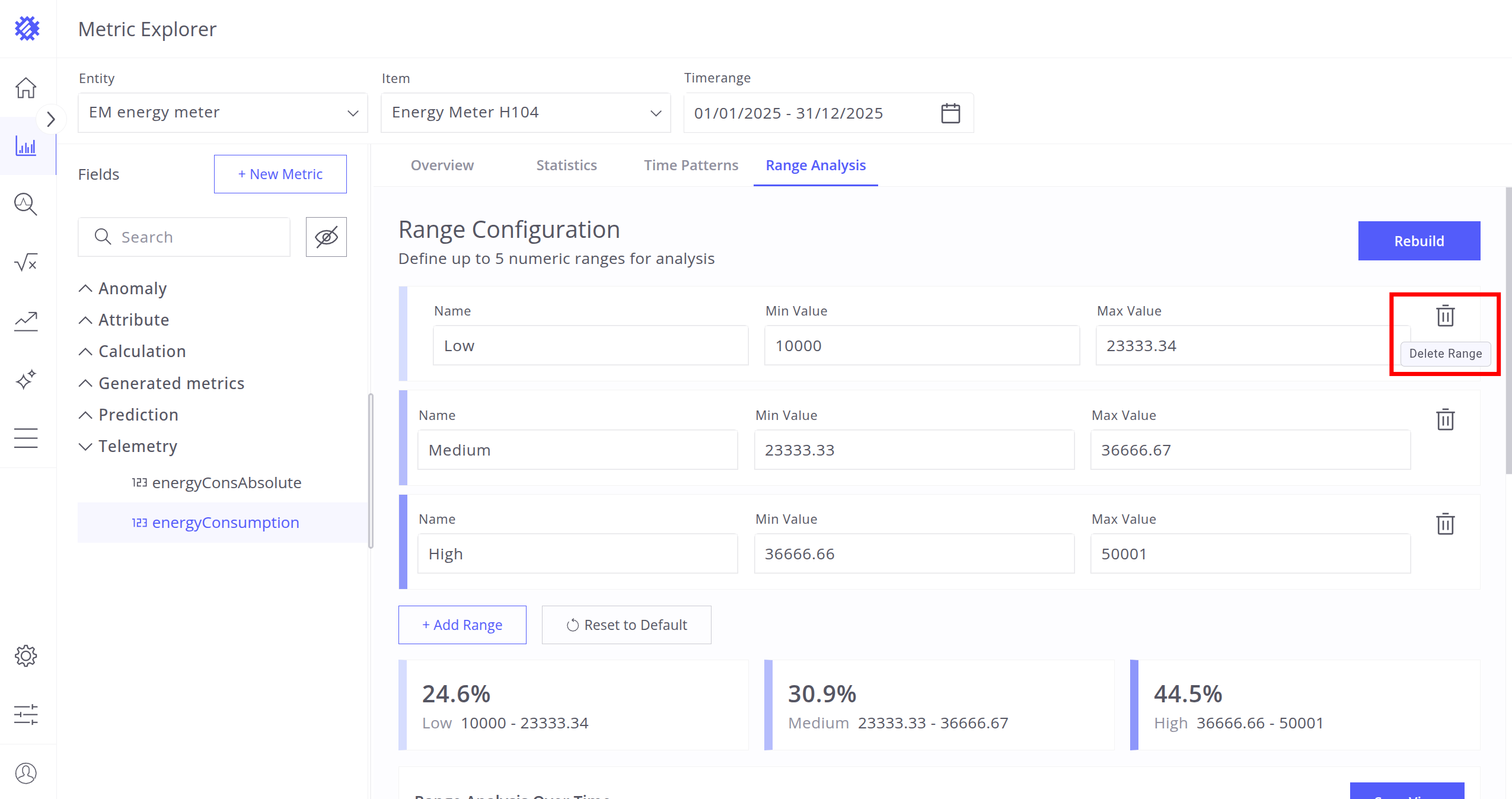
After configuration, click Rebuild to view:
- Summary Cards - Total duration or percentage.
- Charts - Duration or percentage grouped by time.
- Range Summary - Most frequent range and analysis period.
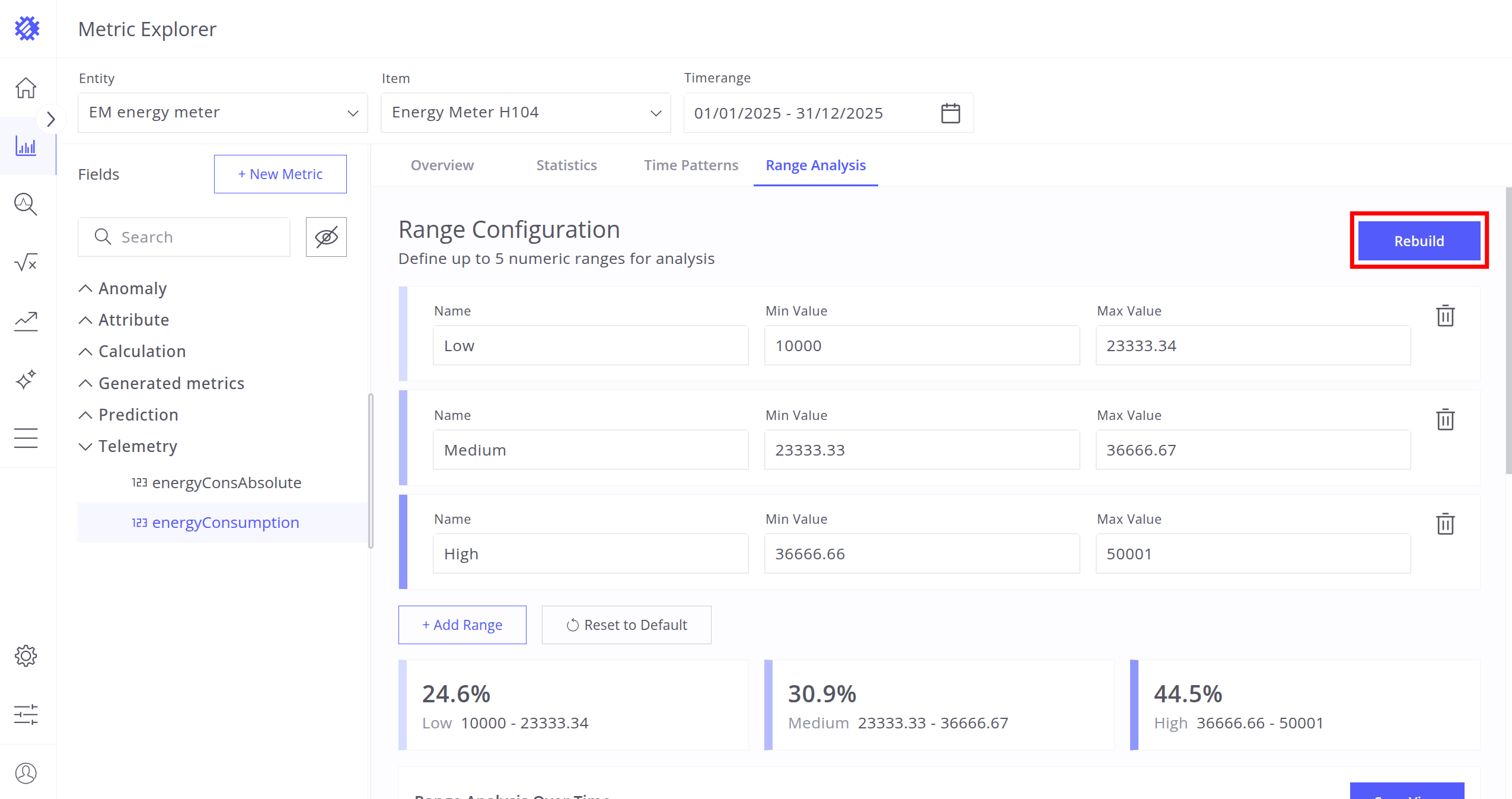
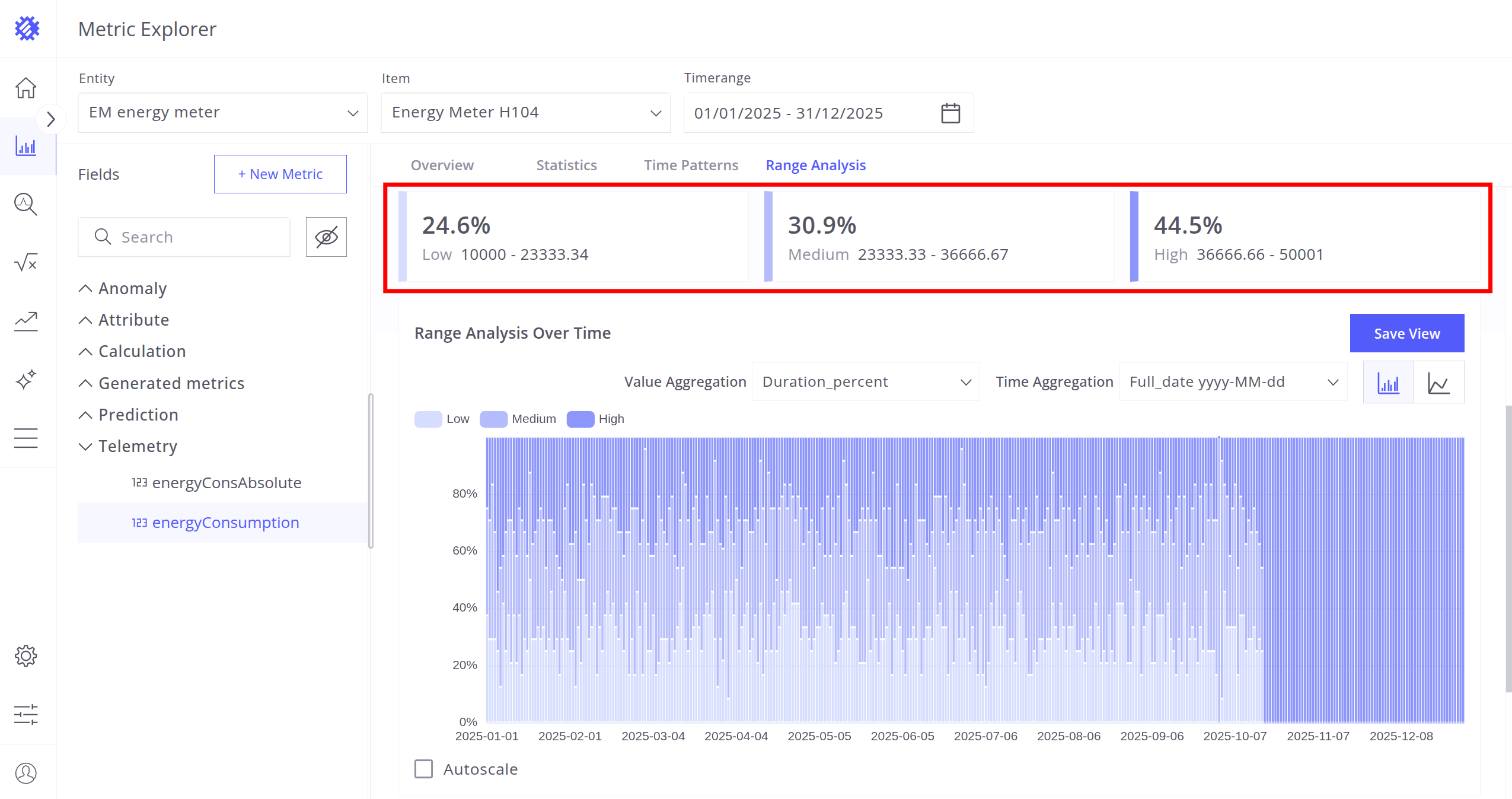
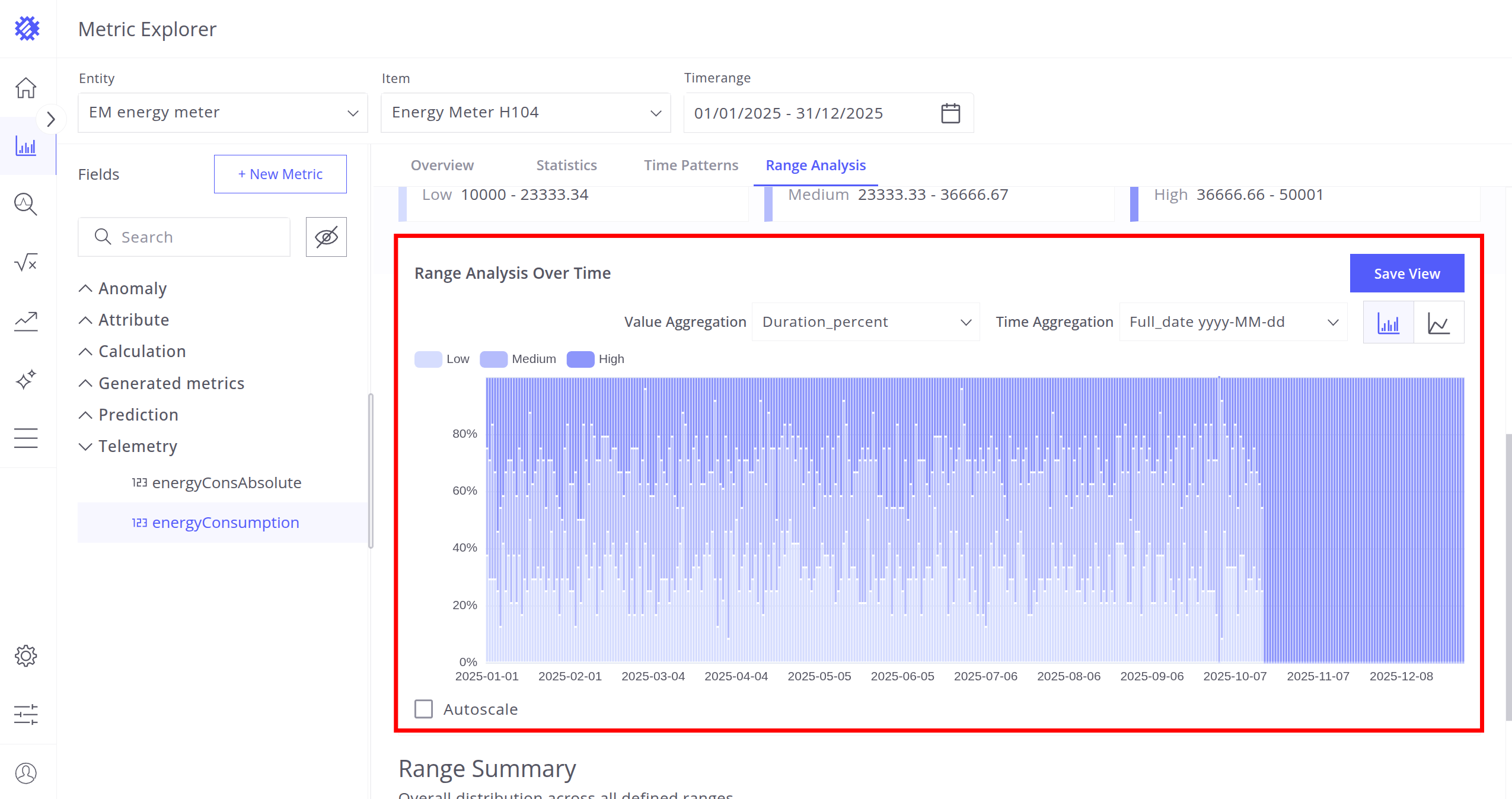
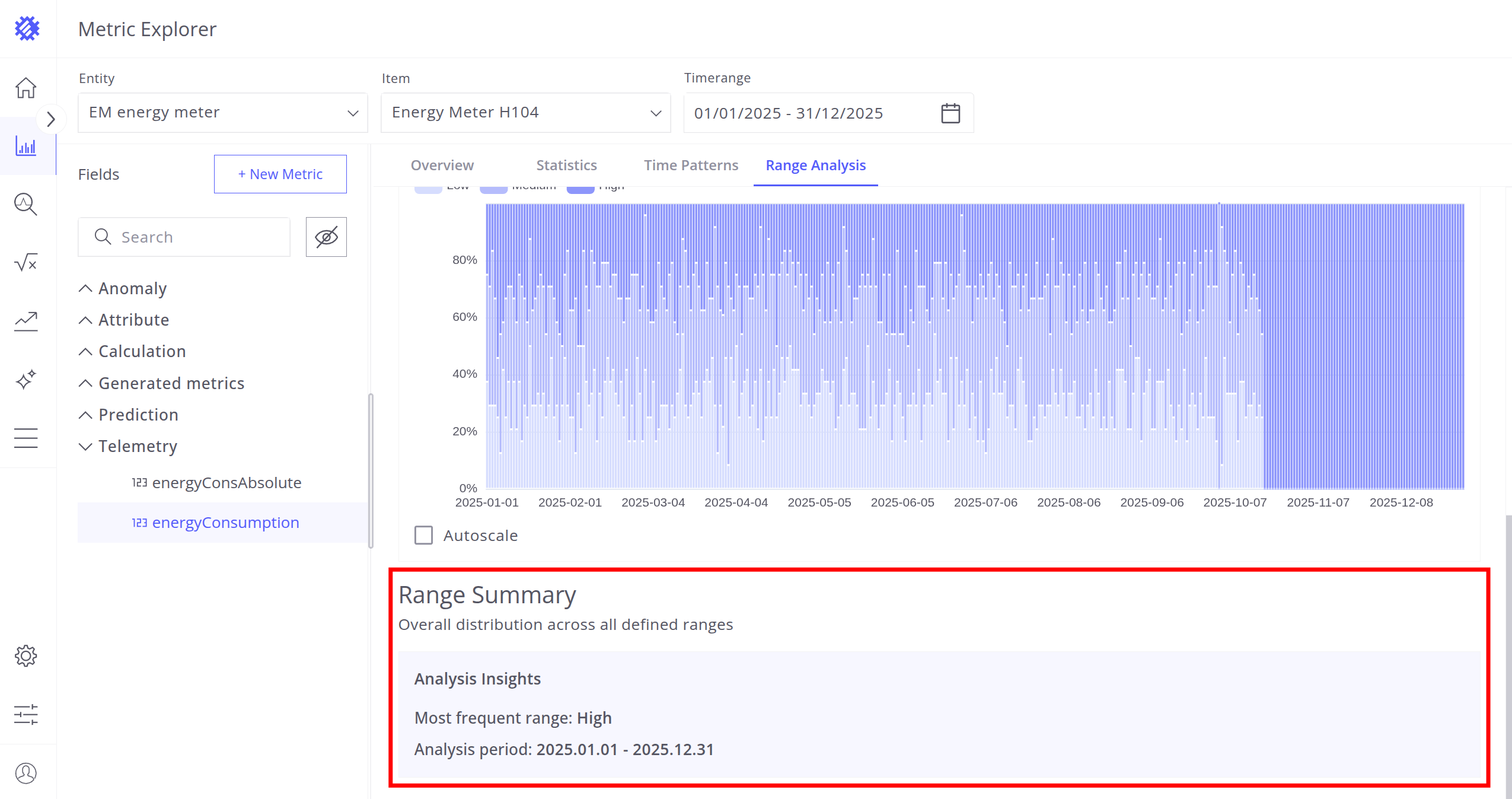
Chart customization options:
- Value Aggregation - Duration or duration percent.
- Time Aggregation - Select time unit.
- Chart Type - Stacked Bar or Line Chart.
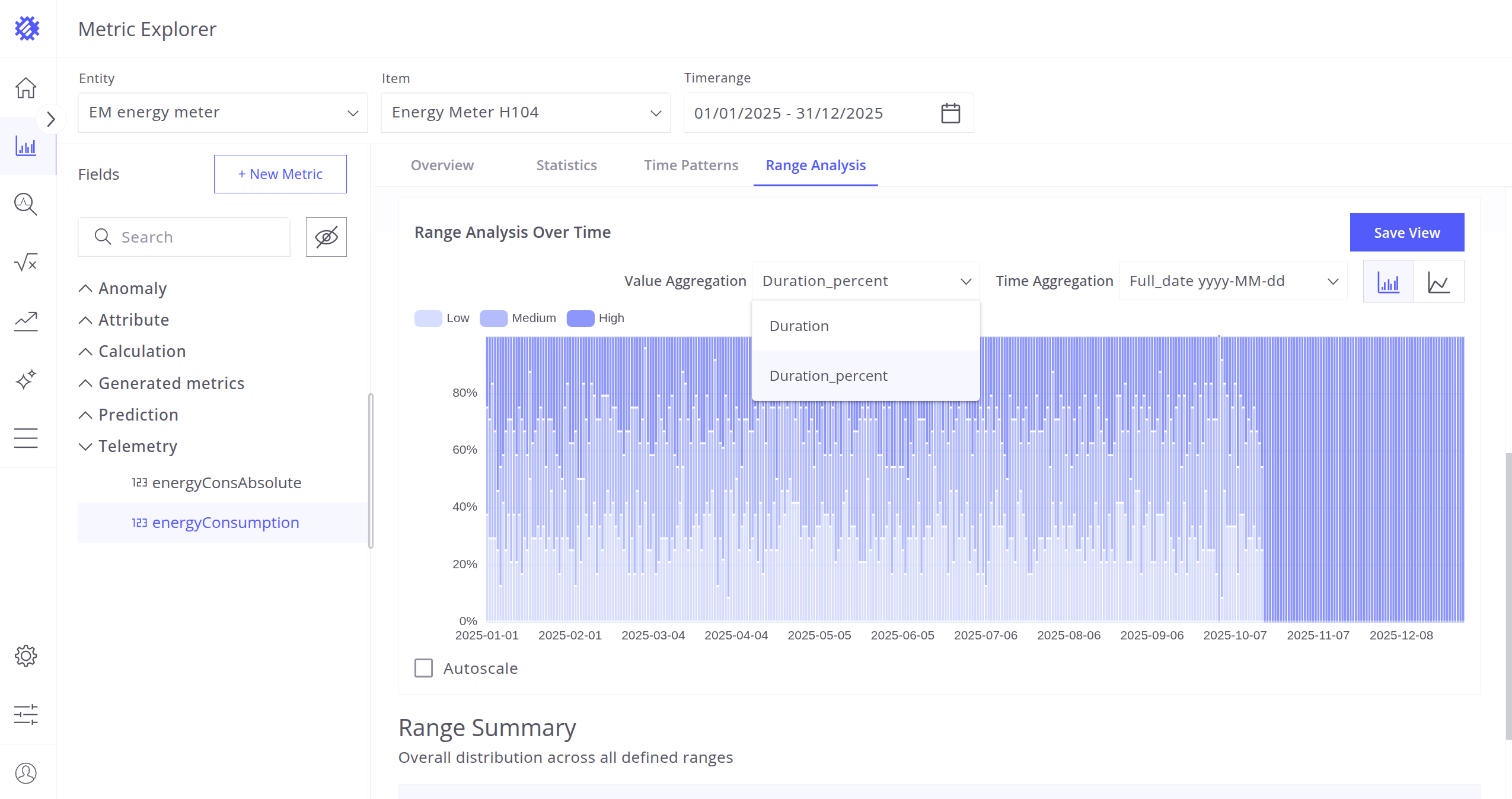
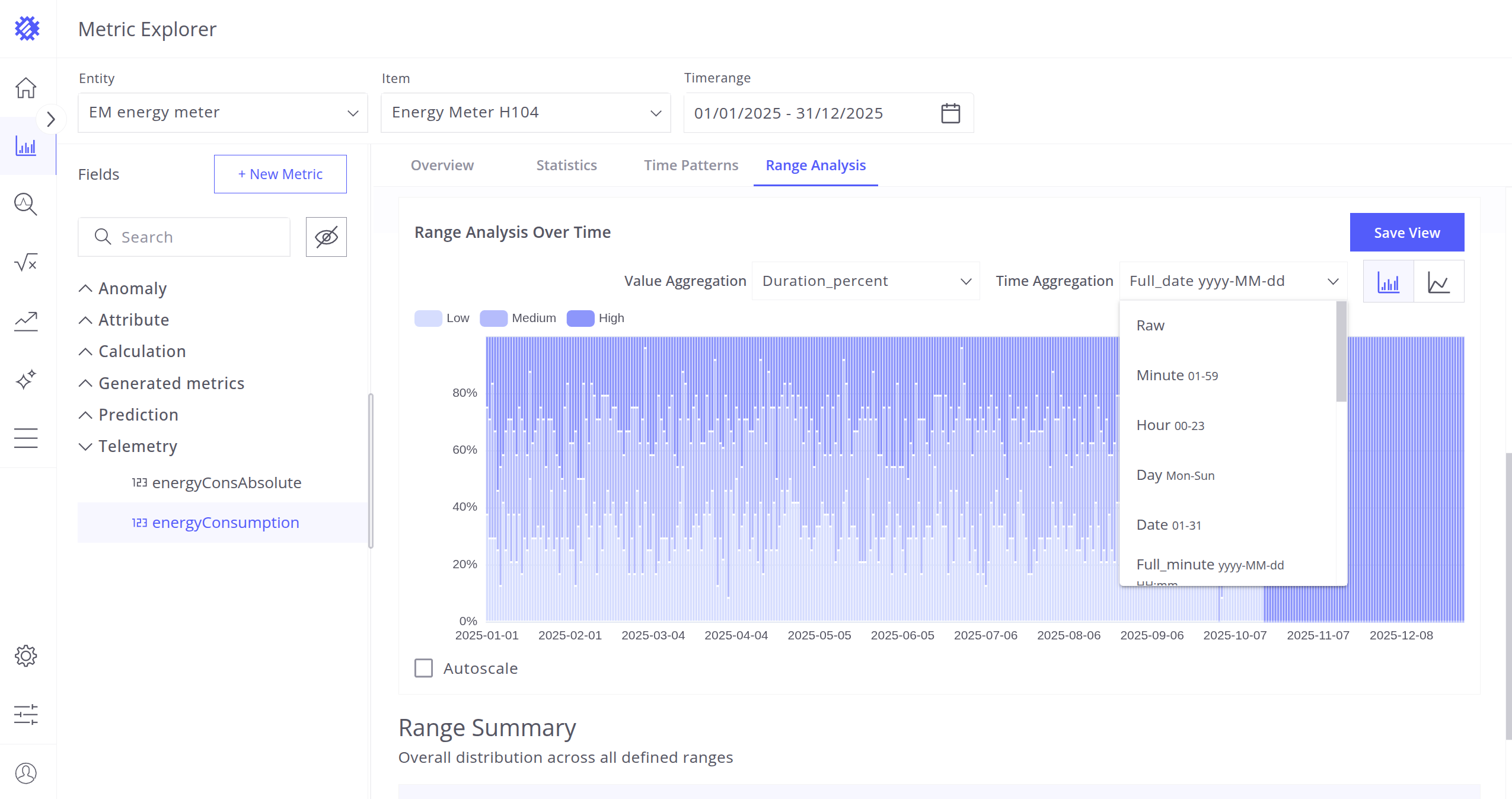
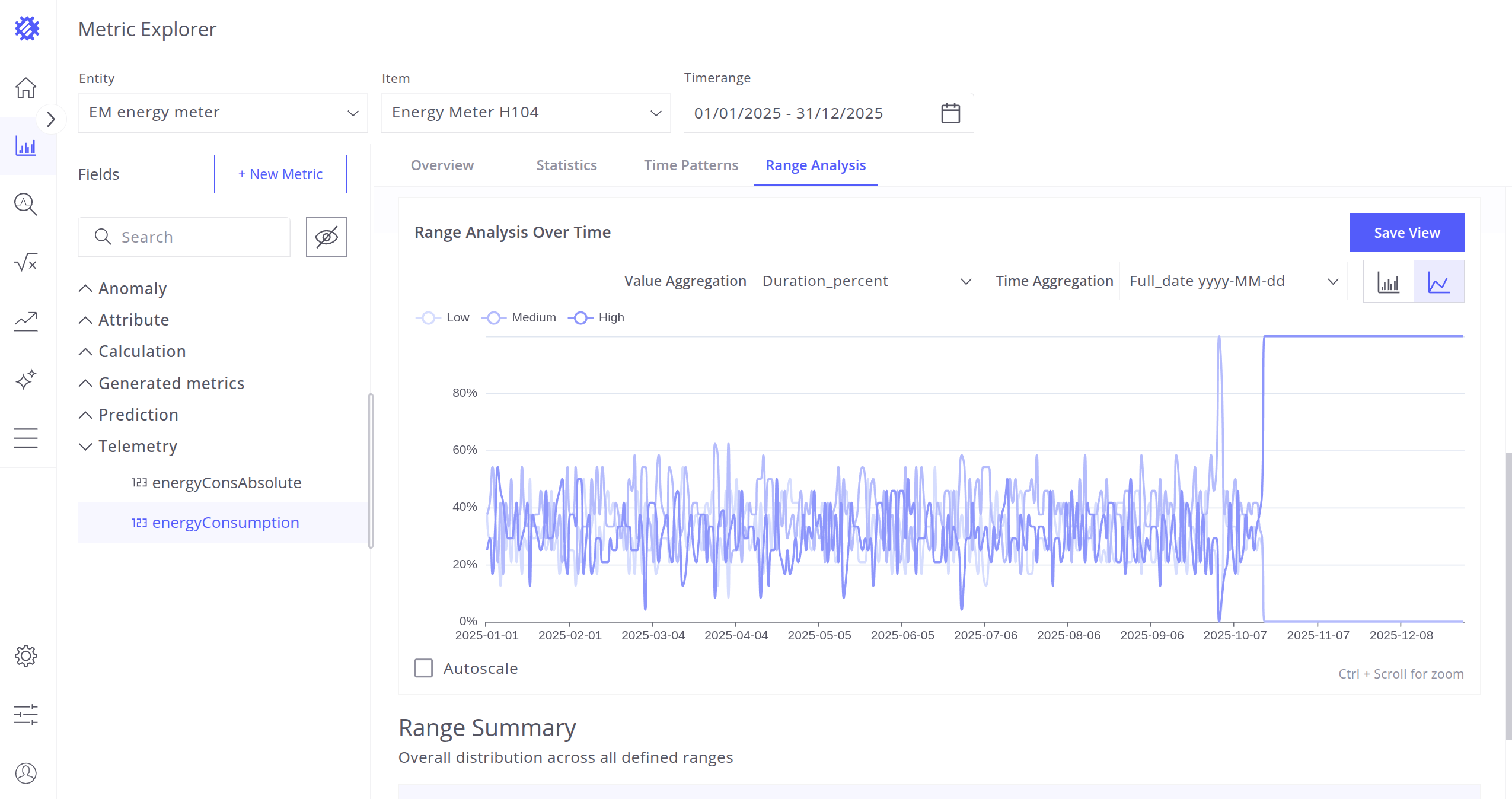
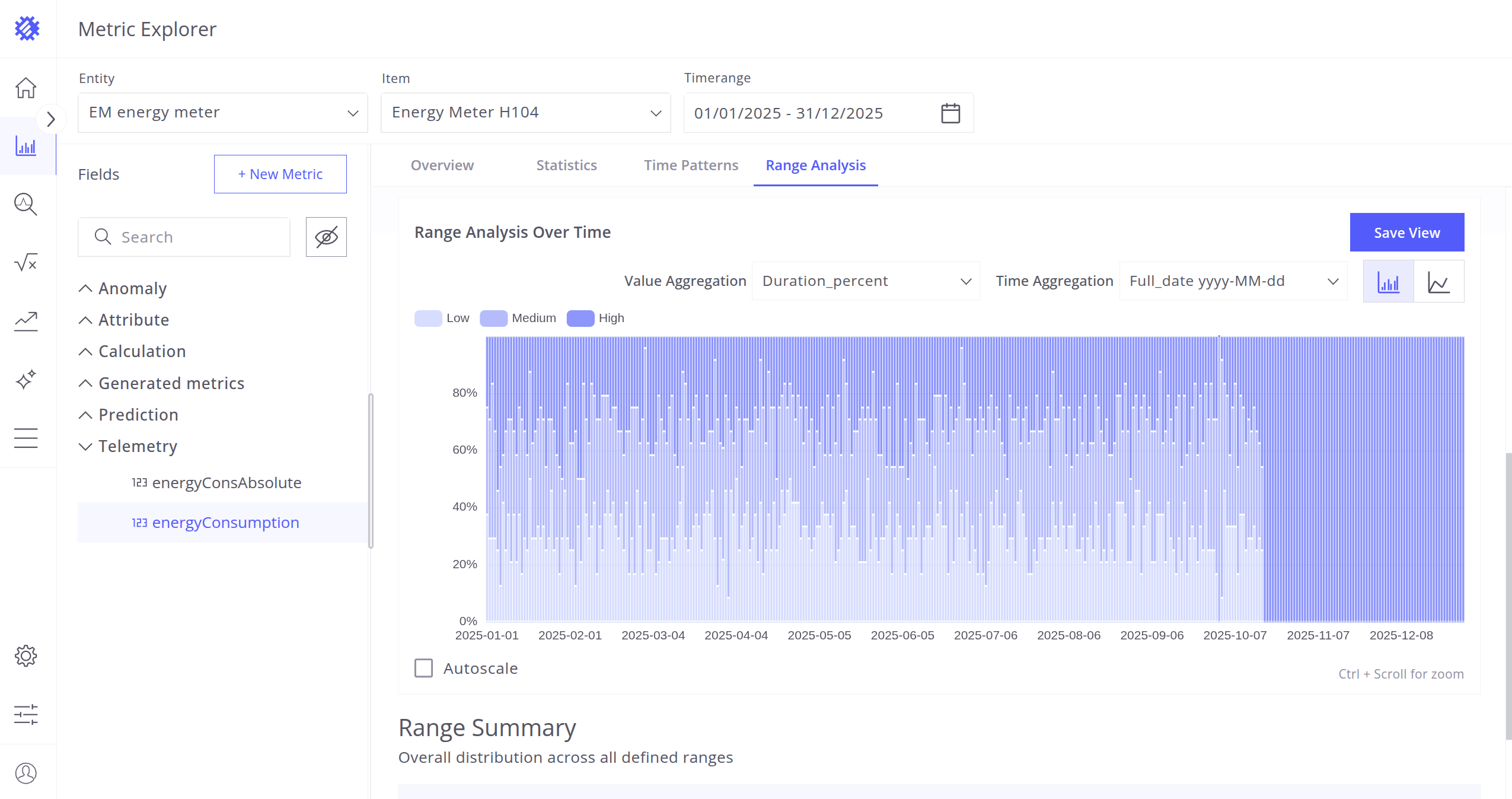
You can save the range configuration as a View using the Save View button, and later embed it into a SENTIENT dashboard. Refer to the documentation on sharing views to SENTIENT for details.
Next Steps
-
Getting started guide - These guide provide quick overview of main SENTIENT ANALYTICS features.
-
Installation guides - Learn how to setup SENTIENT on various available operating systems.
-
Anomaly Detection - Learn how to identify anomalies in the data.
-
Calculated Fields - Learn about Calculated fields and how to use them.
-
States - Learn how to define and analyse states for assets based on raw telemetry.
-
Prediction - Learn how to make forecasts and predict telemetry behavior.
-
Filters - Learn how filter dataset during analysis.
-
Available Visualizations - Learn about visualization widgets available in SENTIENT ANALYTICS and how to configure them.
-
Share and embed Visualizations - Learn how to add SENTIENT ANALYTICS visualizations on SENTIENT dashboard or 3rd party web pages.
-
AI Assistant - Learn how to utilize SENTIENT ANALYTICS AI capabilities.