All metrics created with Metric Explorer can be integrated into SENTIENT. They can be used wherever telemetry is supported:
- Visualizations
- Rule Engine
- Alarm Profiles
SENTIENT ANALYTICS allows you to automatically save metrics as telemetry to SENTIENT or generate metrics from historical data and store them as telemetry. In this guide, we explore how to configure automatic saving of metrics to SENTIENT and how to use this telemetry in SENTIENT.
Save to SENTIENT
Setting up saving a metric to SENTIENT is divided into 3 parts:
- Create a calculation field: an entity that supports telemetry save to SENTIENT.
- Run a reprocess task to process historical data.
- Run a refresh task to automatically update telemetry.
Create Calculation Field
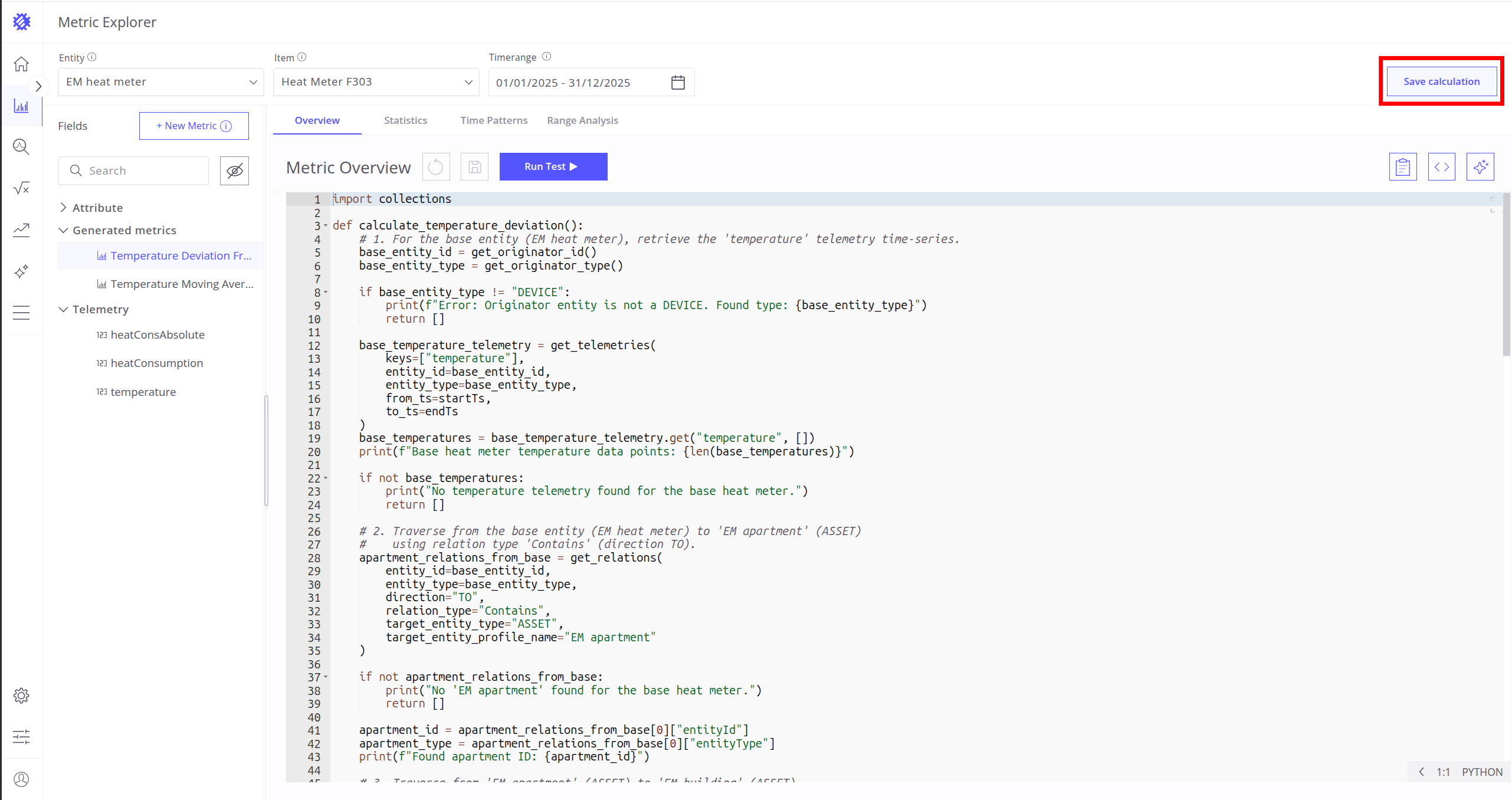
You can create a calculation field from a metric by clicking Save Calculation.
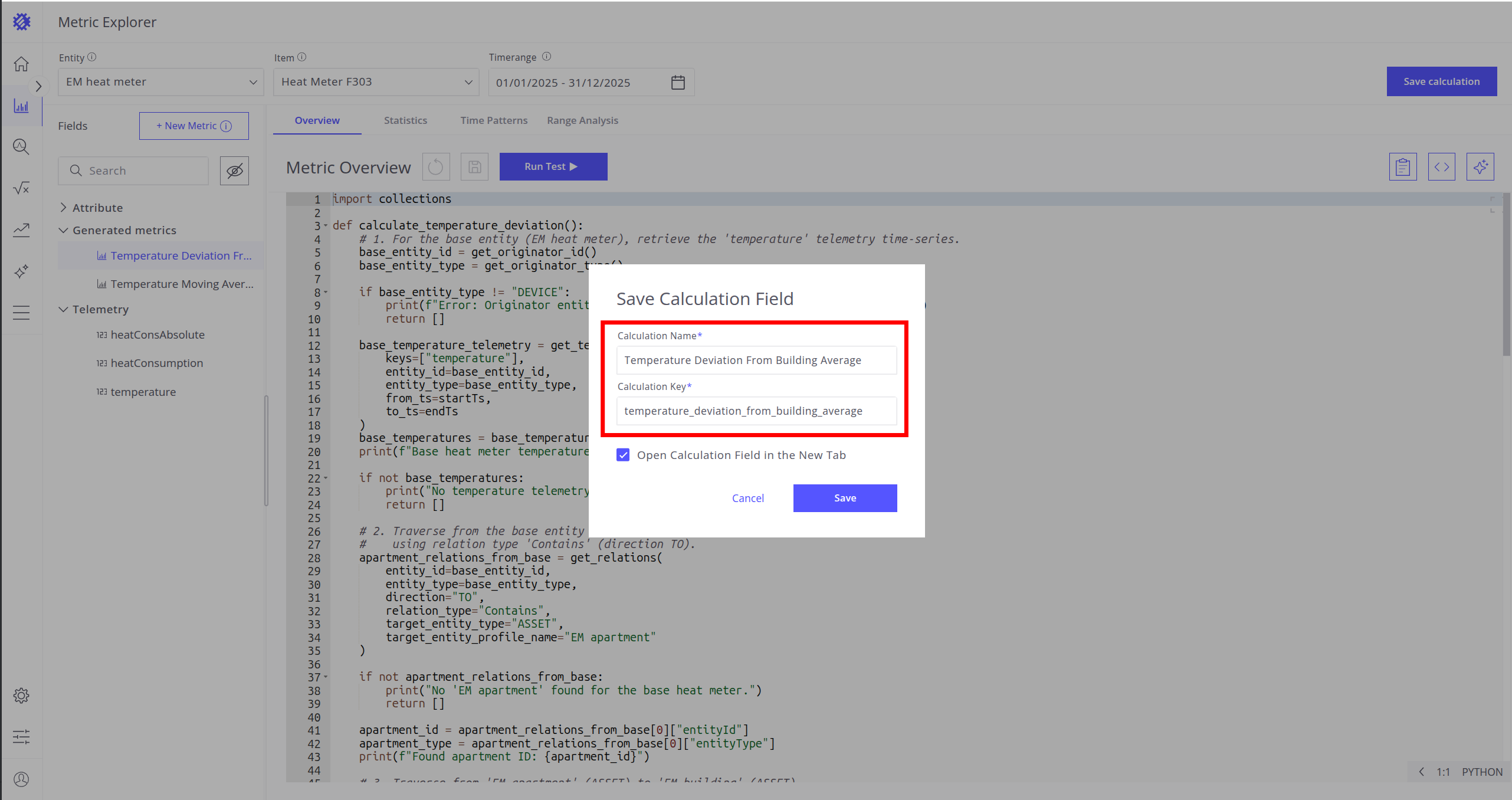
Specify the following parameters:
- Calculation Name – the name displayed in SENTIENT ANALYTICS.
- Calculation Key – the telemetry key used in SENTIENT (prefixed with
_ECD_).
Example:
If you save a calculation named Energy Consumption Rate with the key energy_consumption_rate:
- SENTIENT ANALYTICS will show a new field called Energy Consumption Rate.
- Telemetry will be saved in SENTIENT with the key
_ECD_energy_consumption_rate(once refresh and reprocess jobs are configured).
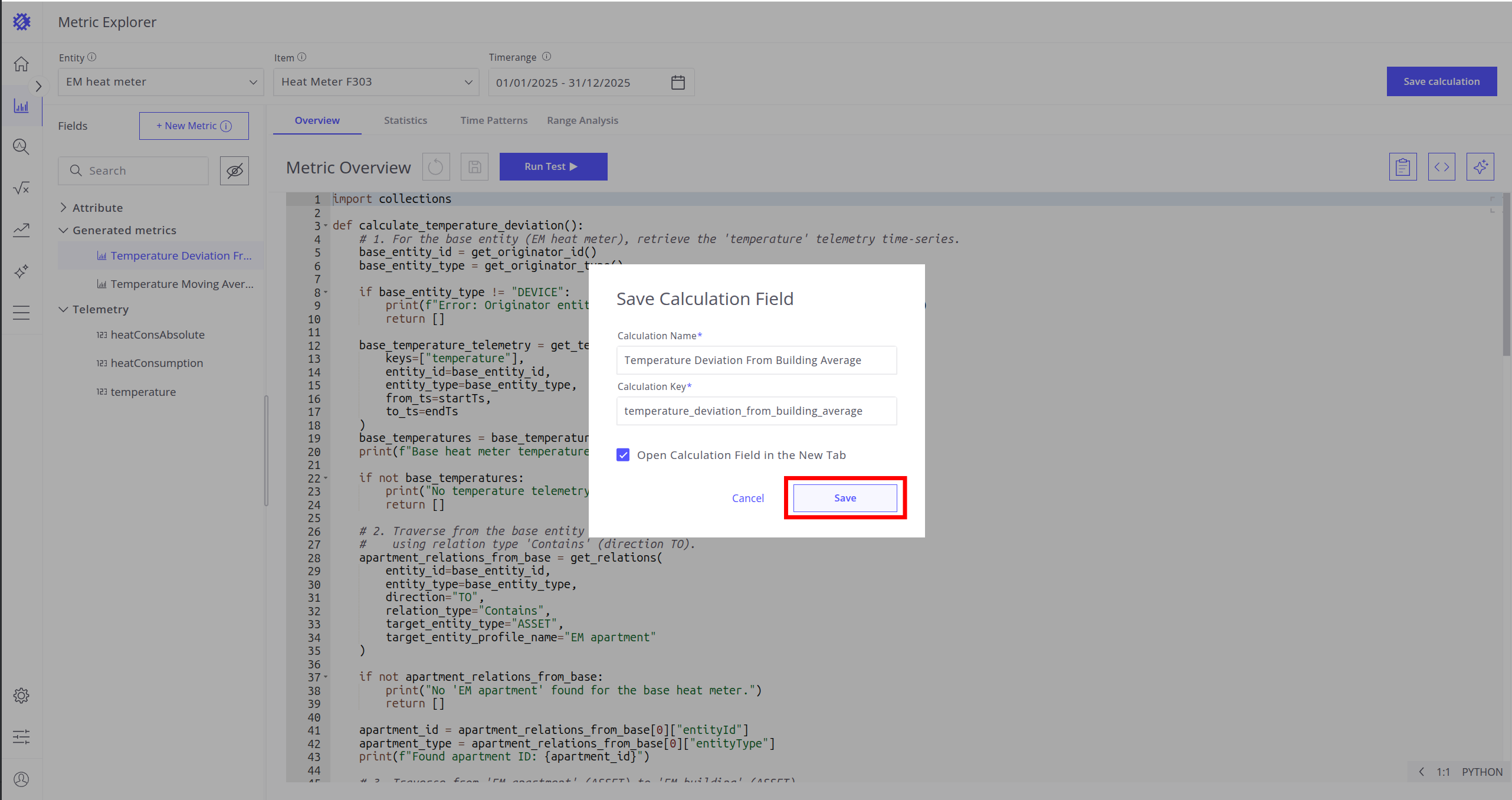
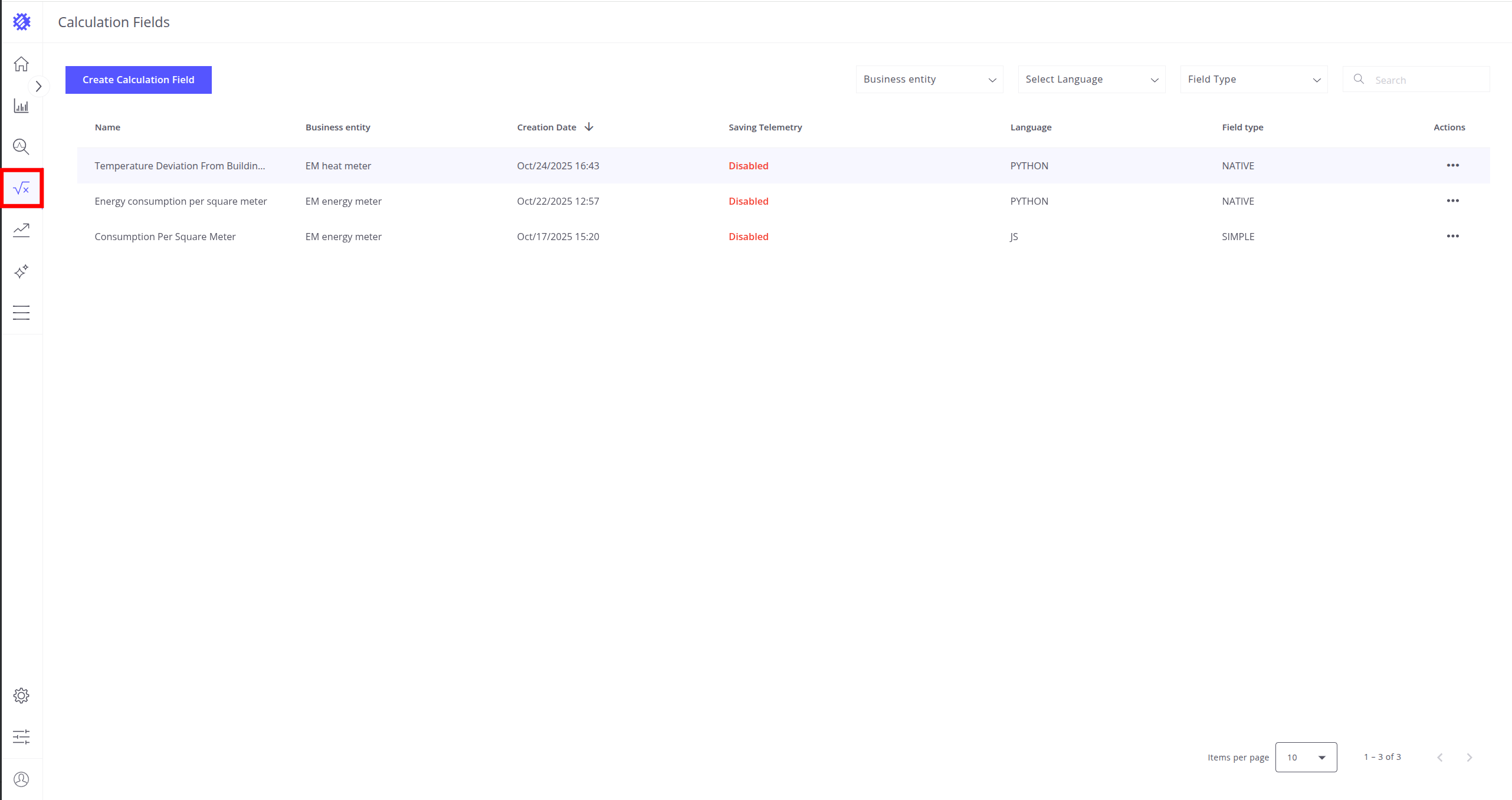
Then click Save — after that, the calculation field appears in the Calculation folder.
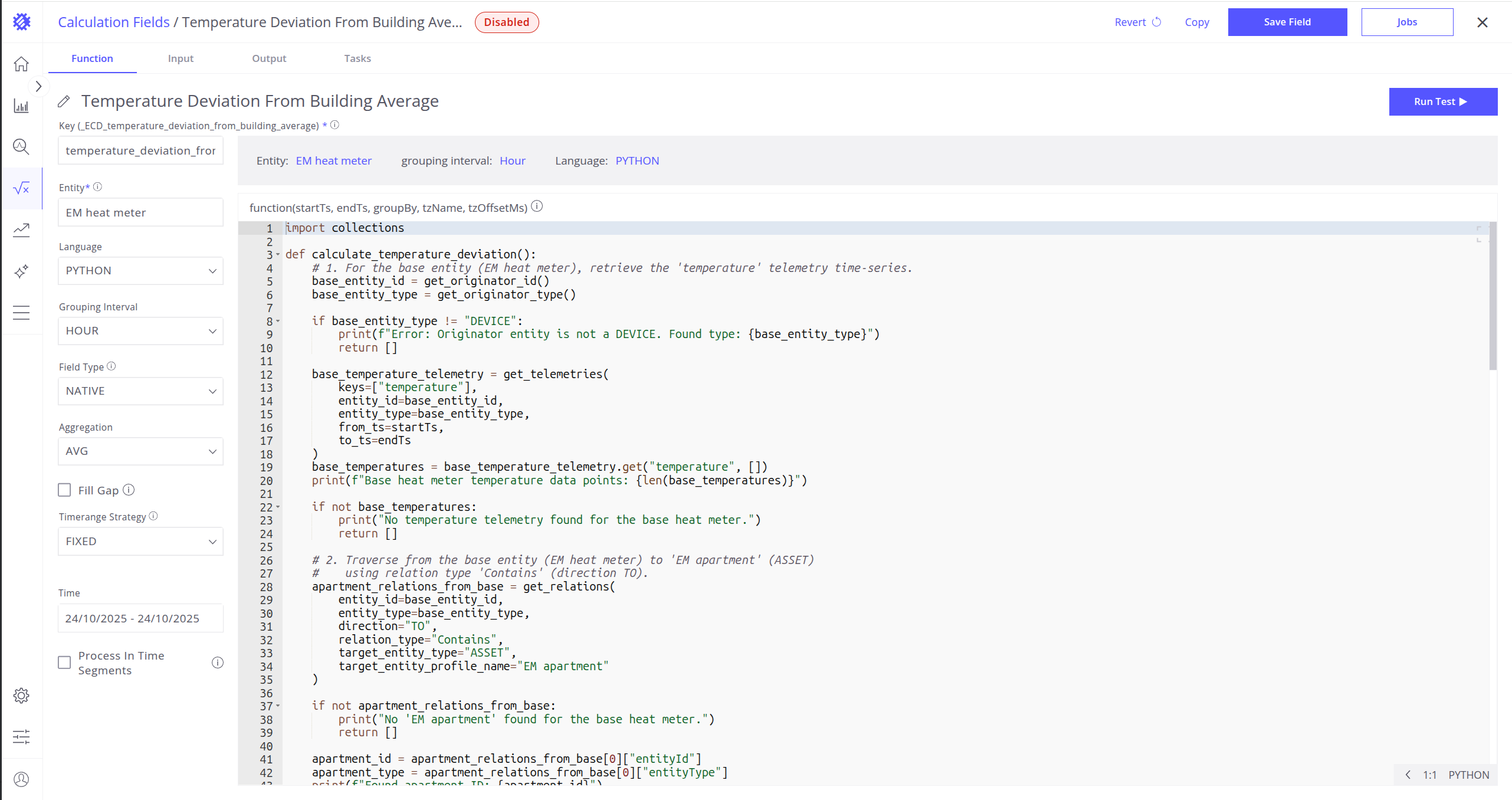
Before saving telemetry to SENTIENT, verify the following parameters:
- Grouping Interval – defines how data is aggregated (e.g., HOUR means one point per hour in SENTIENT).
- Aggregation – specifies how multiple values in the same interval are combined (e.g., SUM aggregates values within the same hour).
- Time – defines the time range used by refresh jobs (e.g., Last 7 Days for daily updates).
Recommended time settings:
- Today – for minute or hourly jobs.
- Last 7 Days – for daily jobs.
- Last 14 Days – for weekly jobs.
- Last 3 Months – for monthly jobs.
You can also adjust additional parameters as needed. Read more about the calculation field interface here.
Click Save Field and confirm saving by clicking the Save button to apply changes.
You will be prompted to enable the calculation field (run refresh task). You can do it right away or later.
The process of running the refresh task is described in another article.
Run Reprocess Task
Once the calculation field is created and all parameters are set up, you can run a Reprocess Job to save historical data to SENTIENT.
Steps:
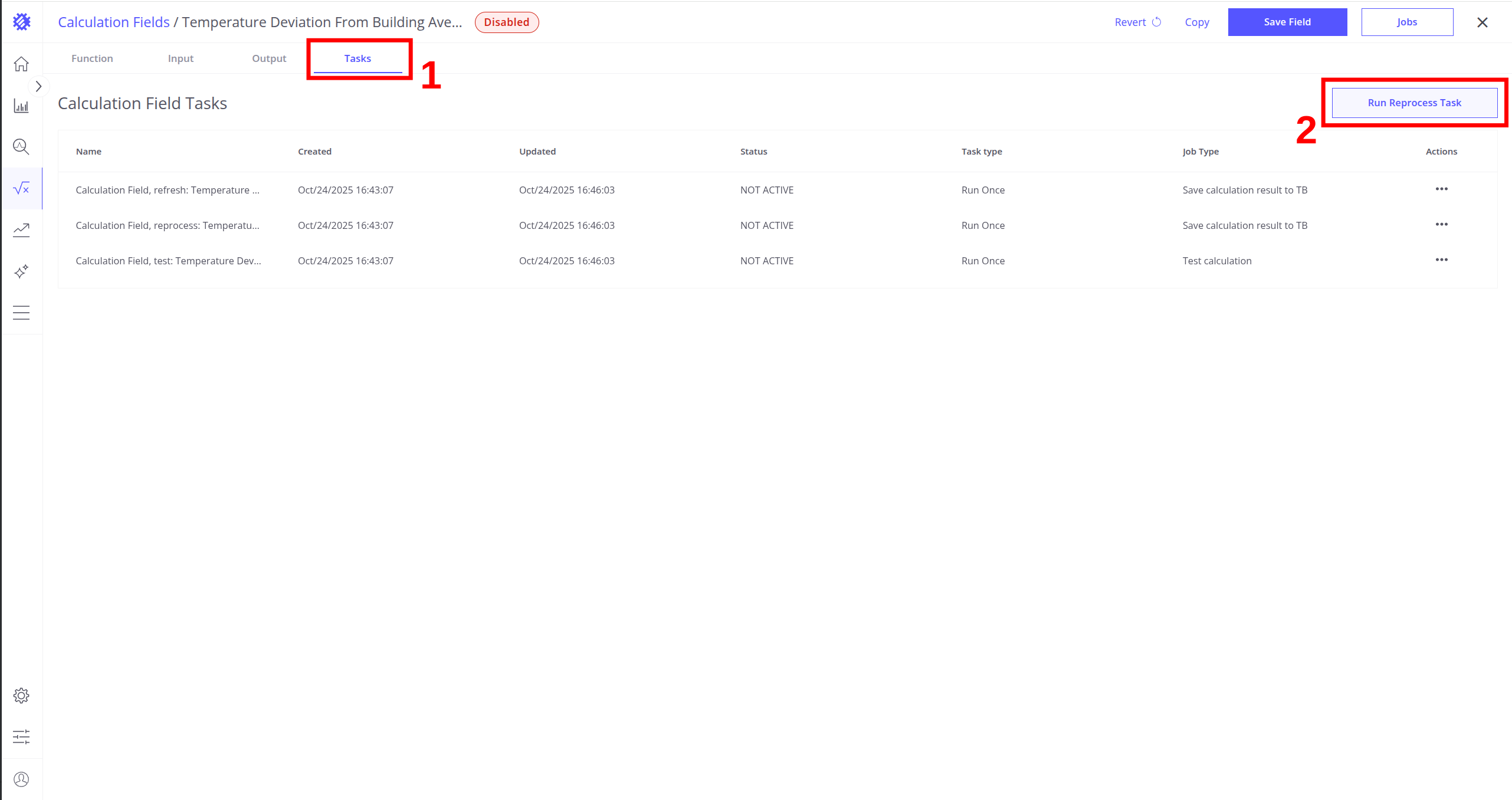
- Open the Tasks tab.
- Click Run Reprocess Task button.
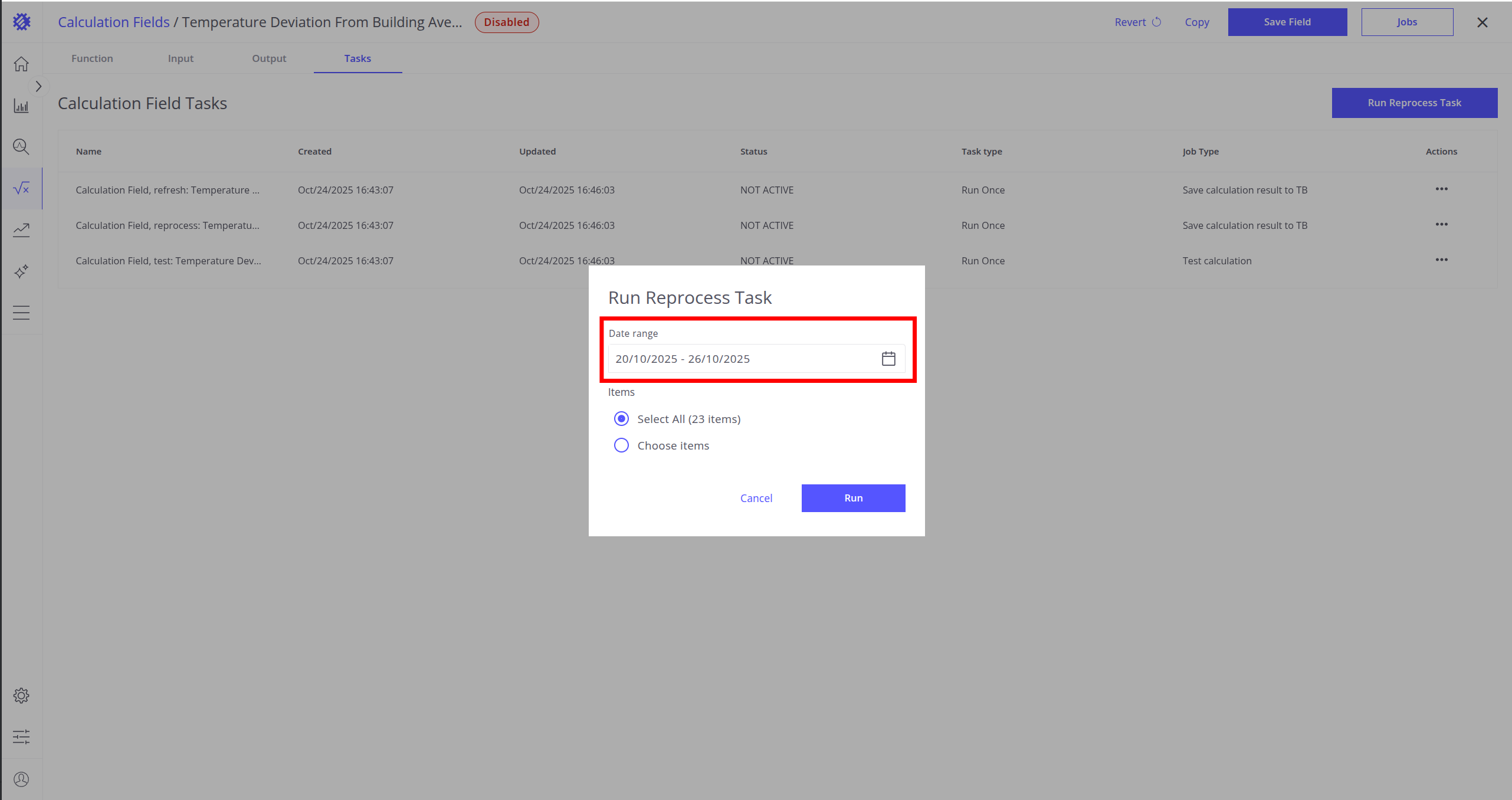
- Select a time range for reprocessing.
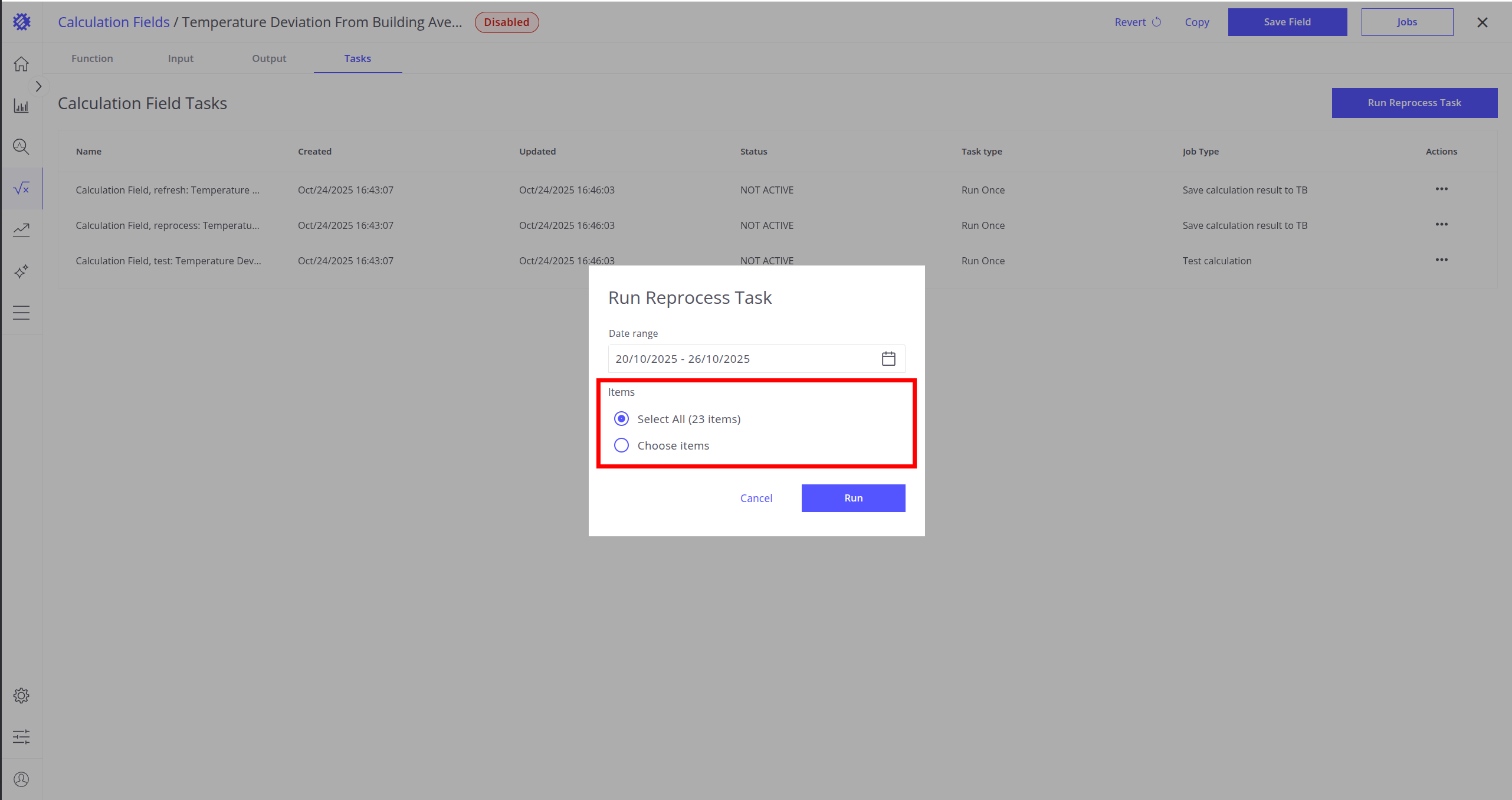
- Choose items to run the job on (you can apply the same calculation to all entities with the same entity profile).
- Click Run button.
After completion, the telemetry will appear in SENTIENT with the appropriate key.
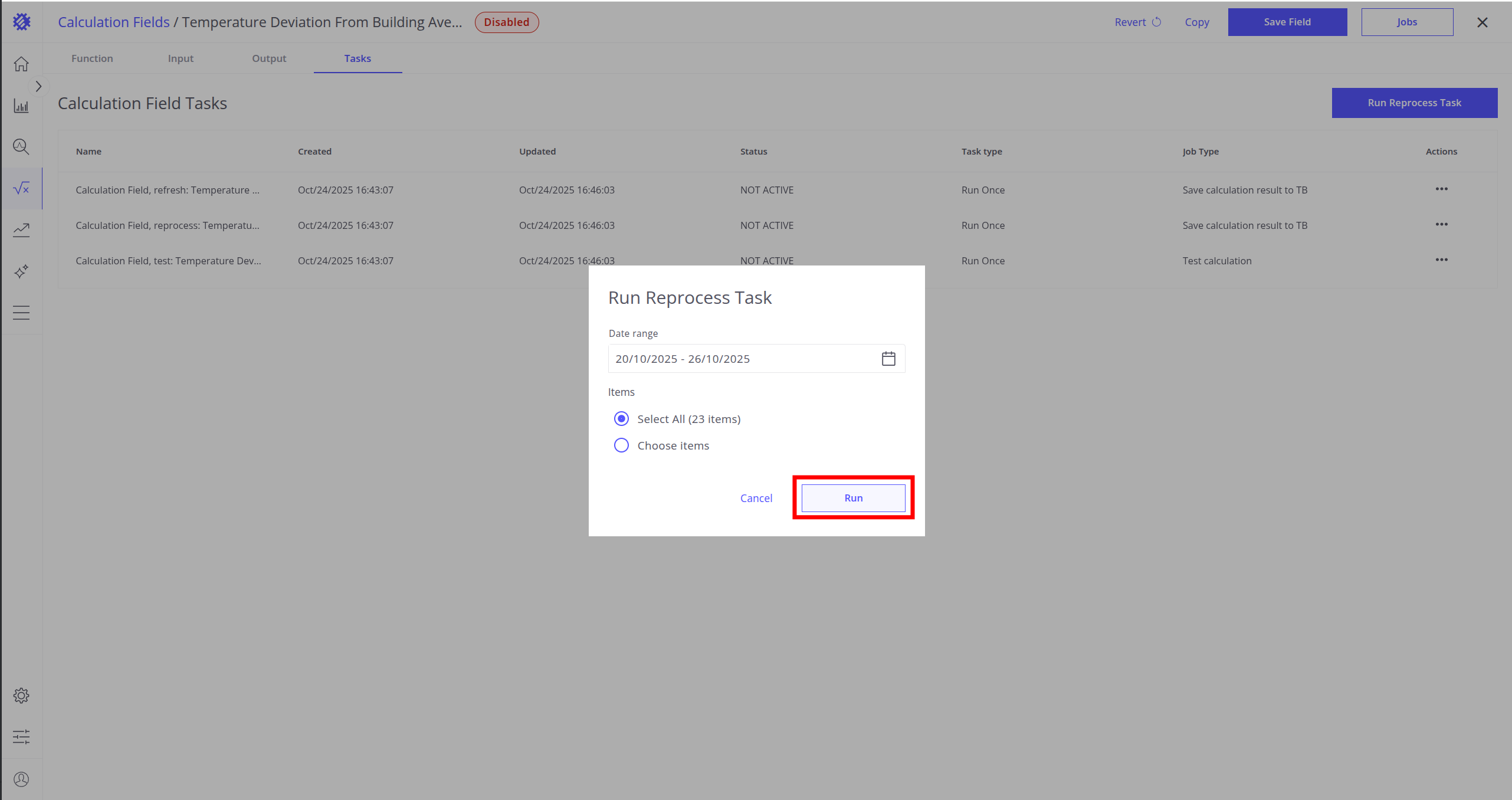
Read more about reprocess task here.
Run Refresh Task
You can automate telemetry updates using a Refresh Job.
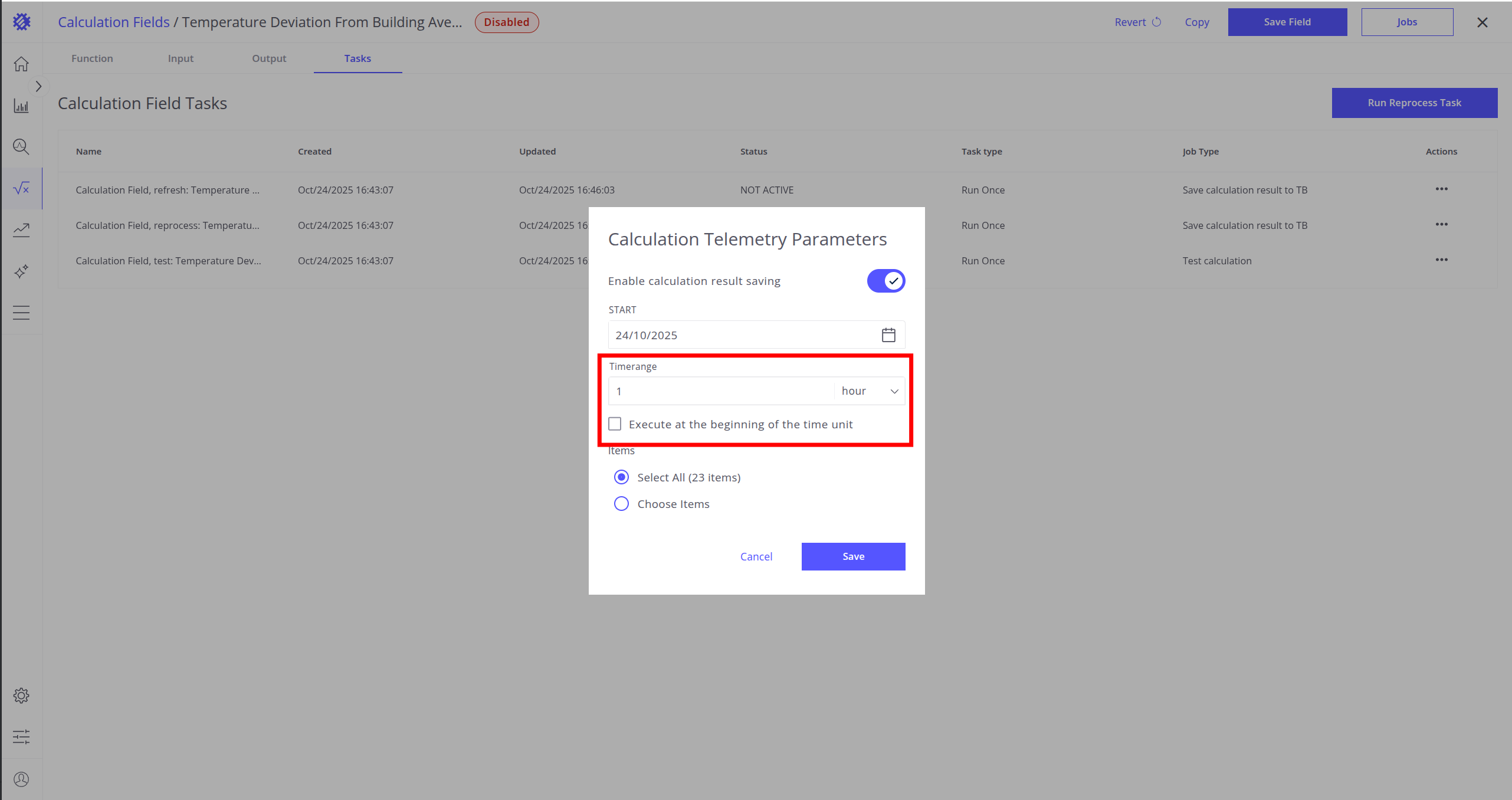
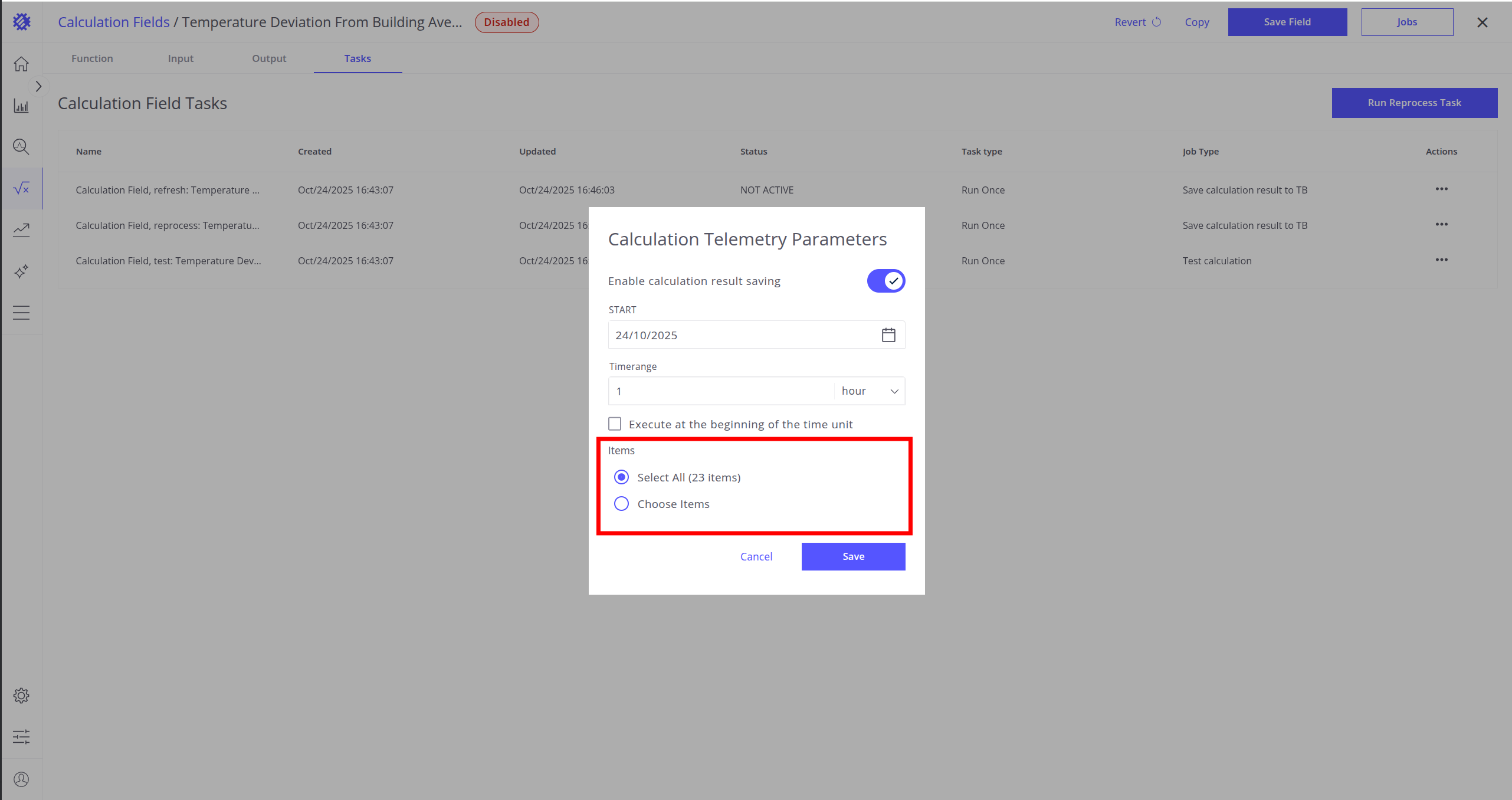
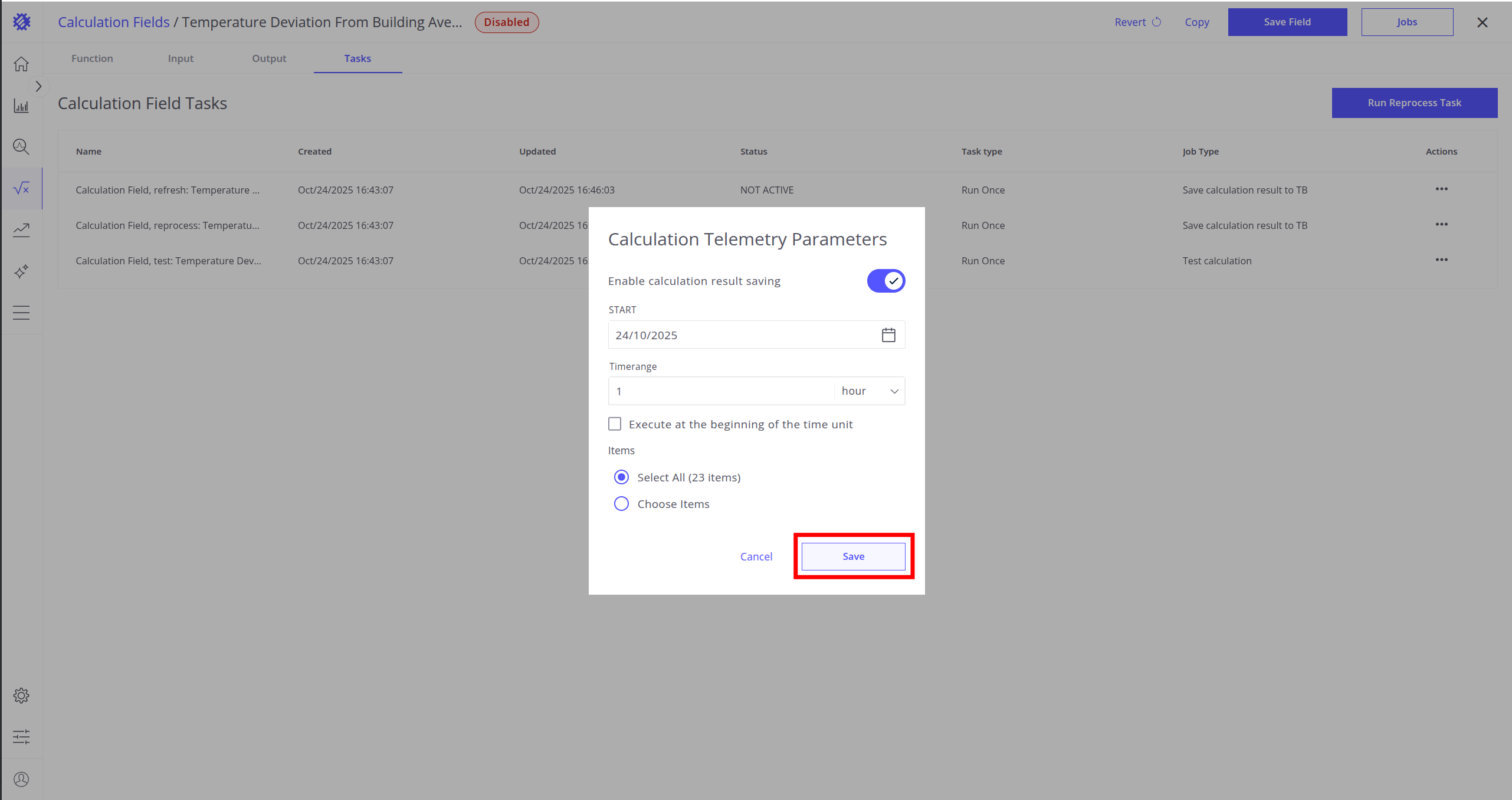
Steps:
- Click the Jobs button.
- Enable calculation result saving.
- Set the start date (from which data will be saved).
- Define the frequency (how often the job runs).
- Choose the target items (entities with the same entity profile) for automatic updates.
- Click Save button.
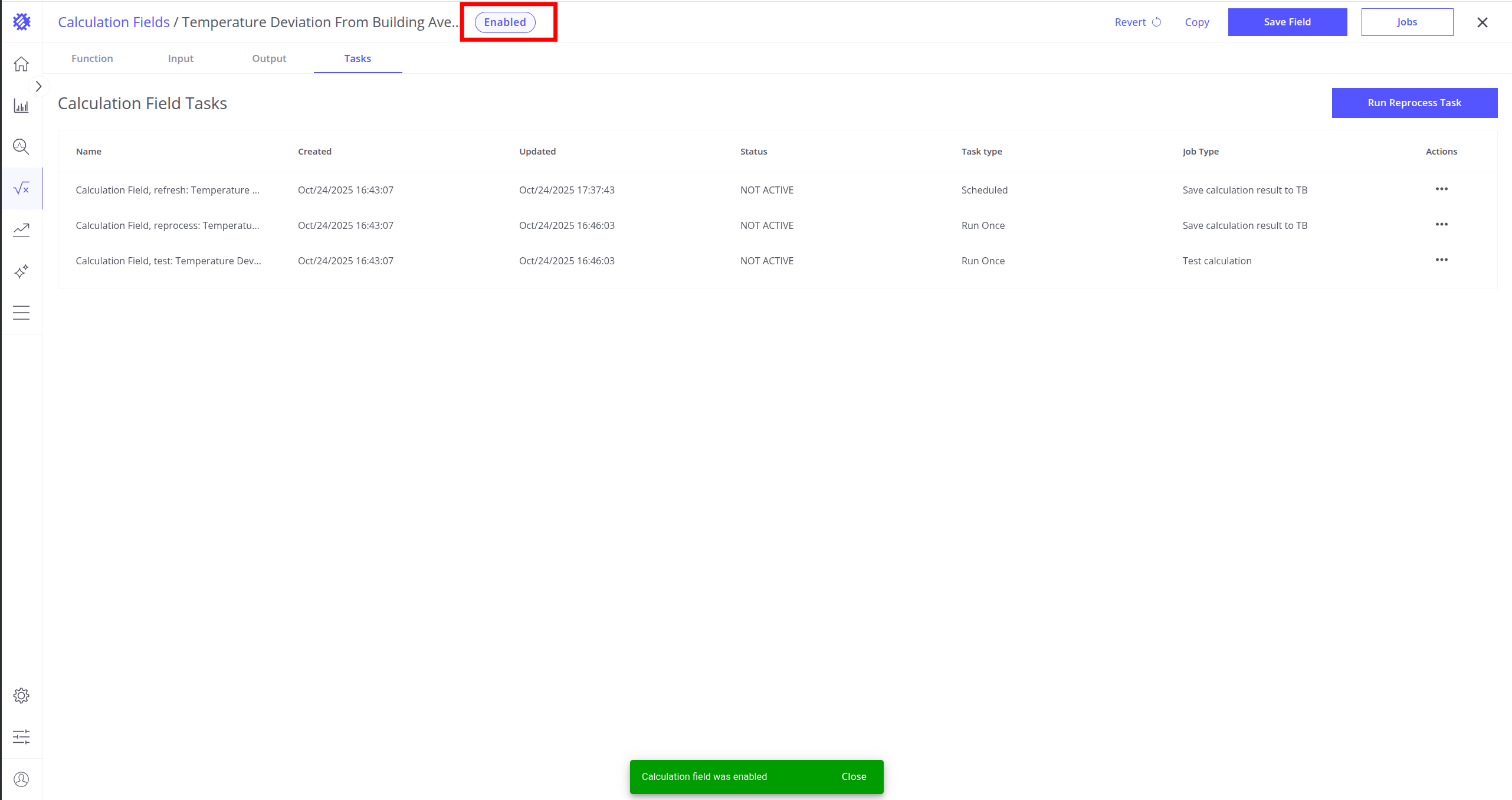
Once the refresh job is set up, you will see the Enabled status next to the calculation name.
From now on, telemetry will update automatically at the specified frequency for the selected items.
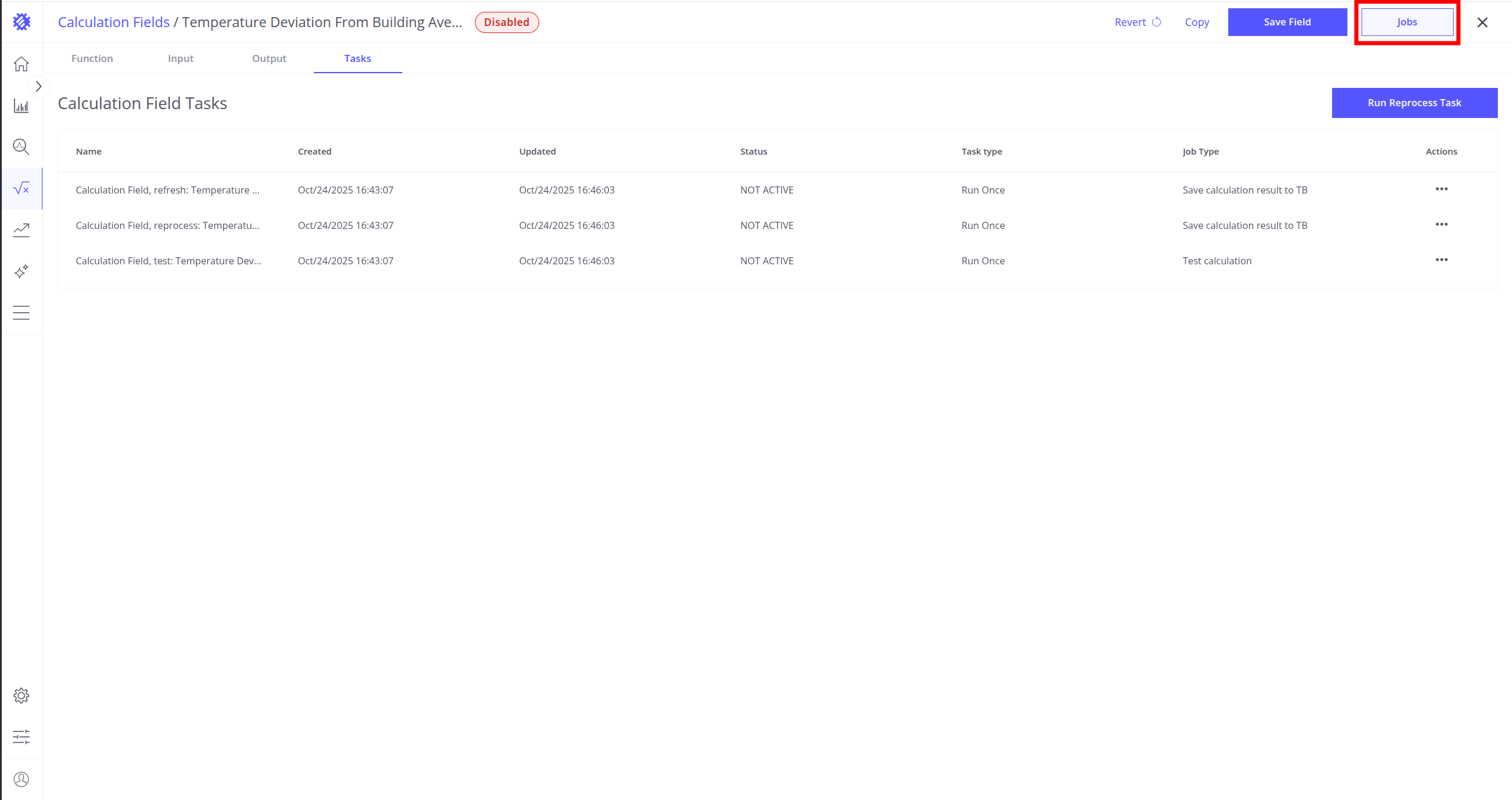
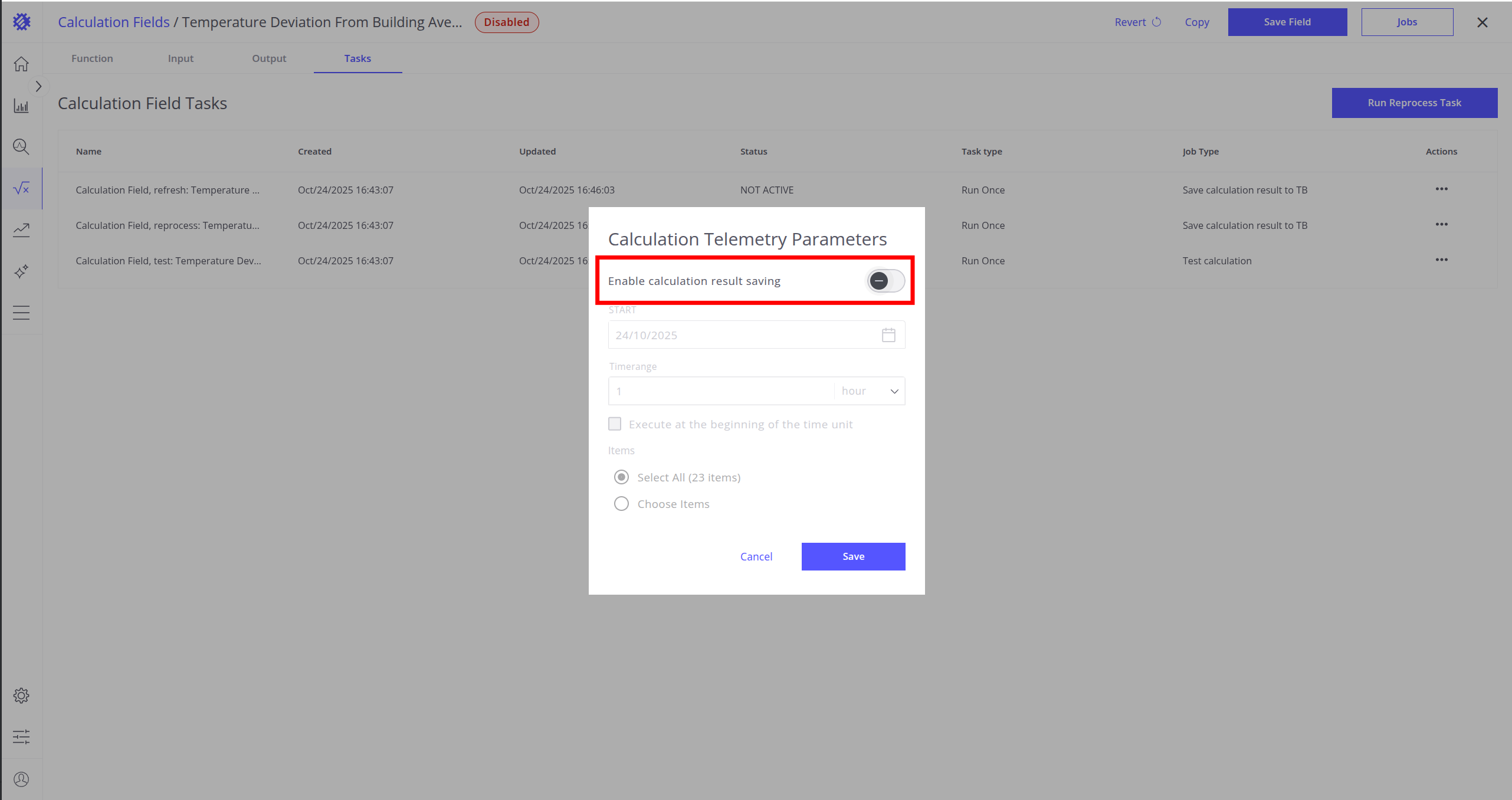
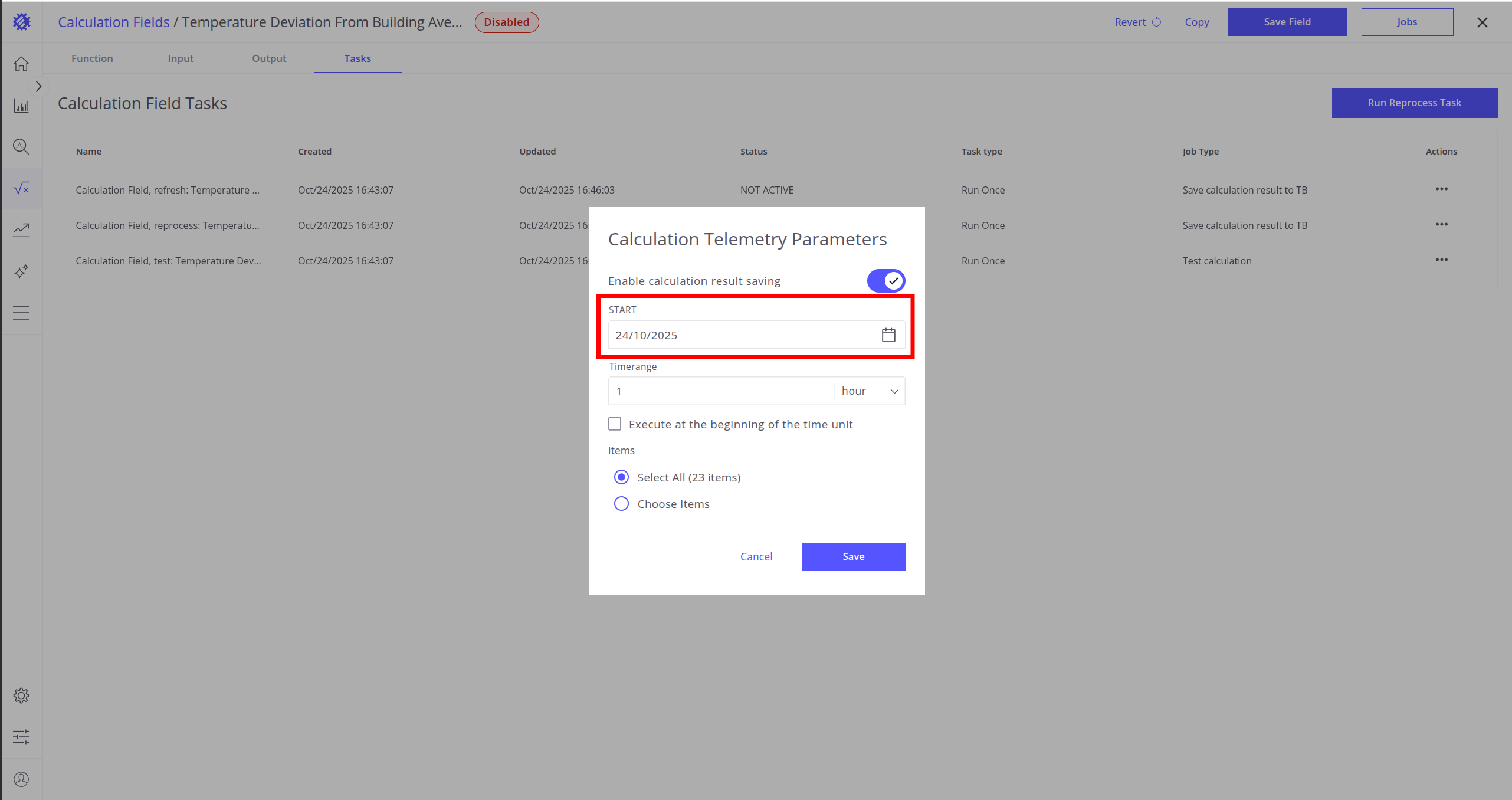
Read more about refresh task here.
Use in SENTIENT
Once the calculation field, refresh job, and reprocess job are configured, the generated telemetry remains continuously updated in SENTIENT.
You can now use the metric in SENTIENT.
Automatic Alarm Creation
Since the telemetry exists in SENTIENT, you can create alarms based on it:
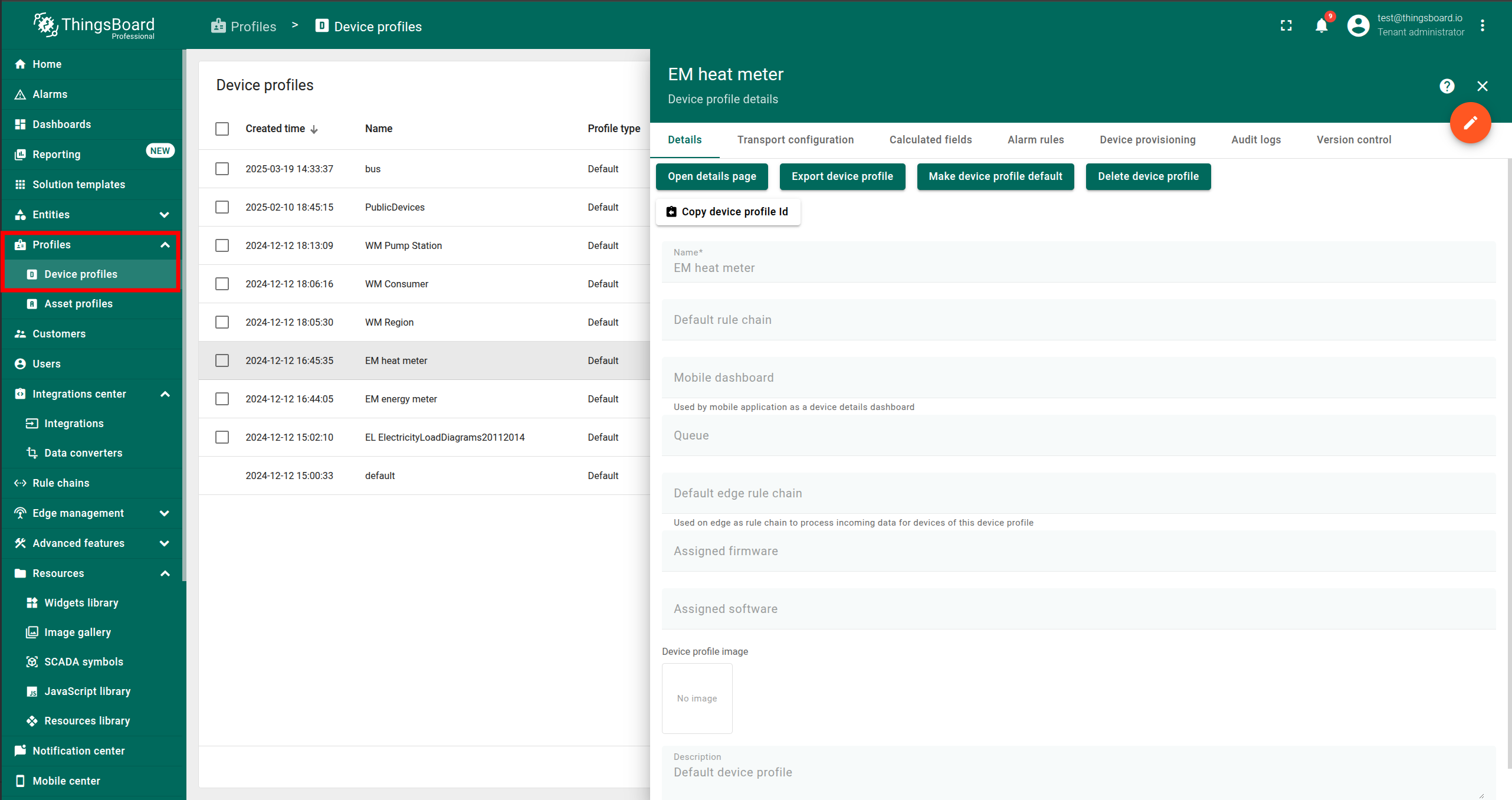
- Open the entity profile where the calculation is created.
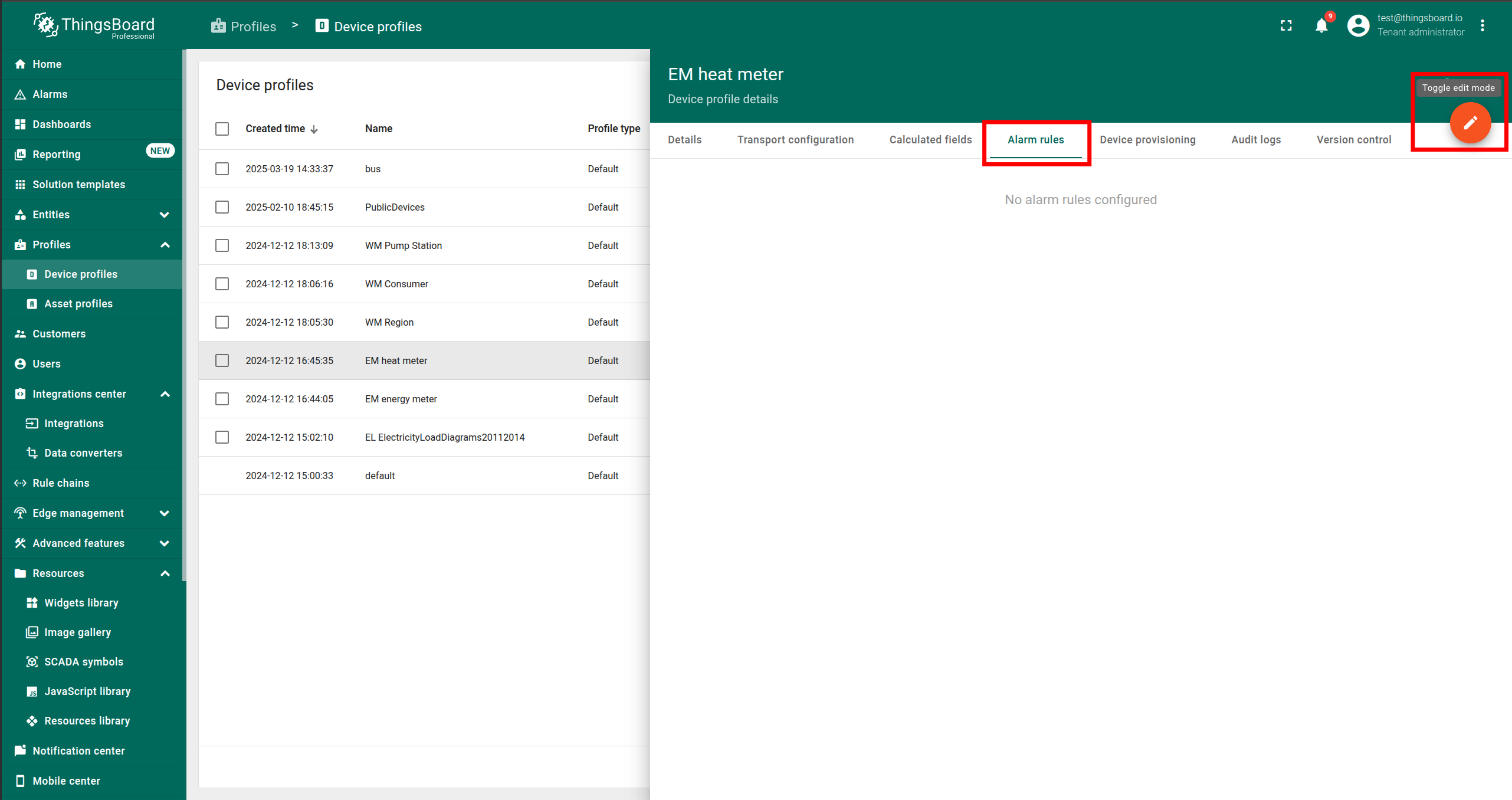
- Navigate to Alarm Rules and toggle Edit mode.
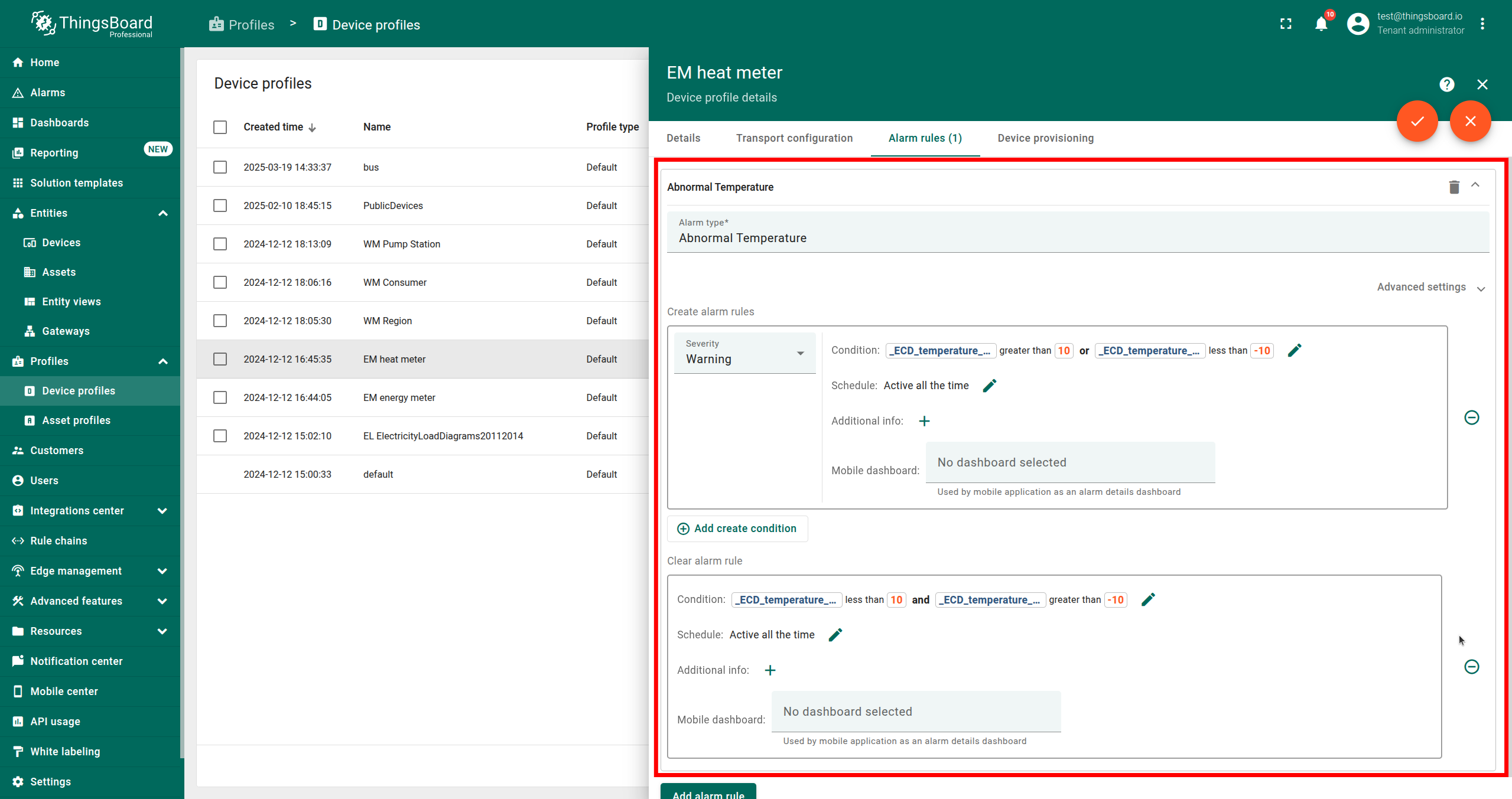
- Click Add alarm rule and set up create and clear alarm rules.
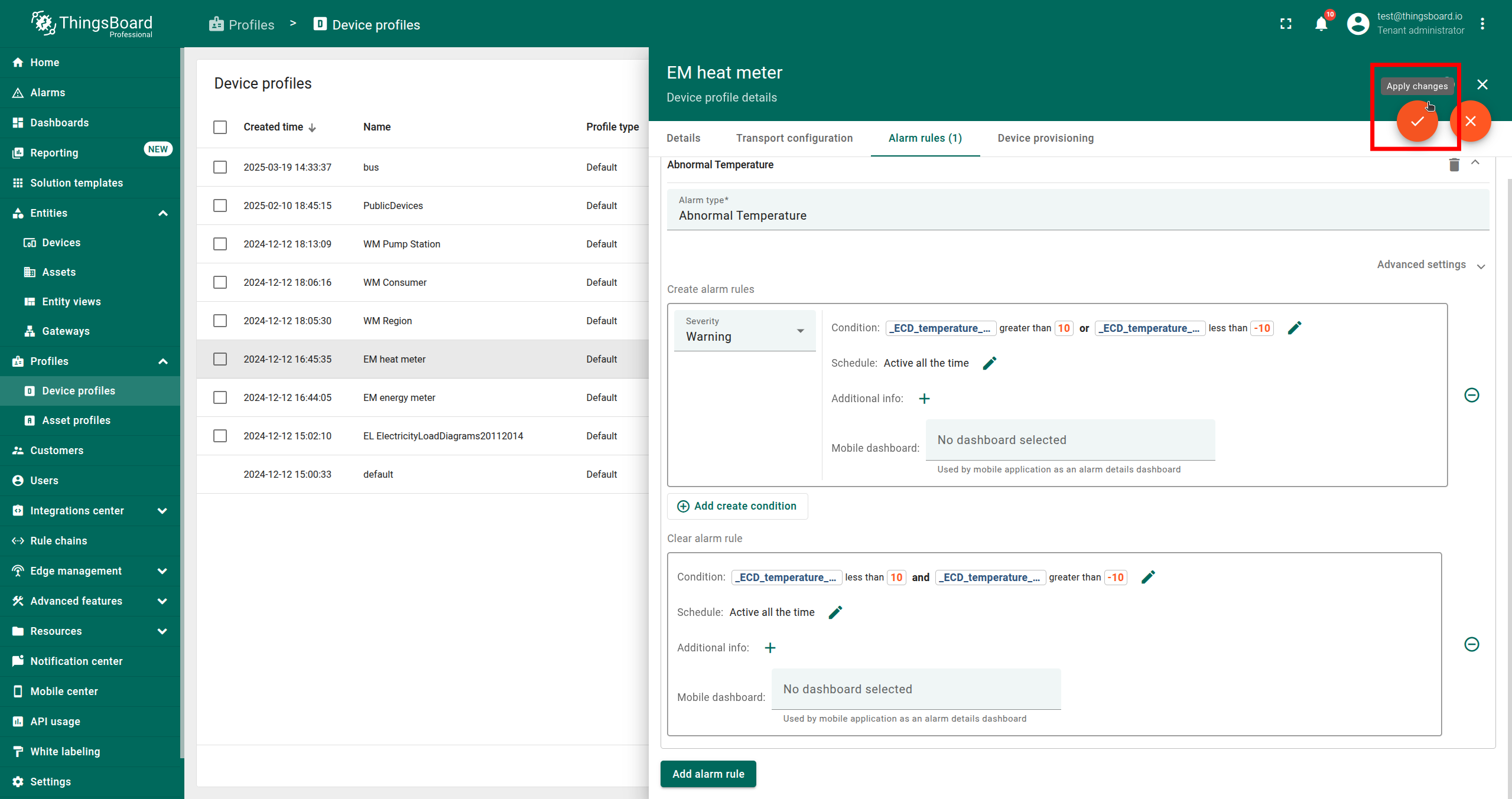
- Click Apply changes.
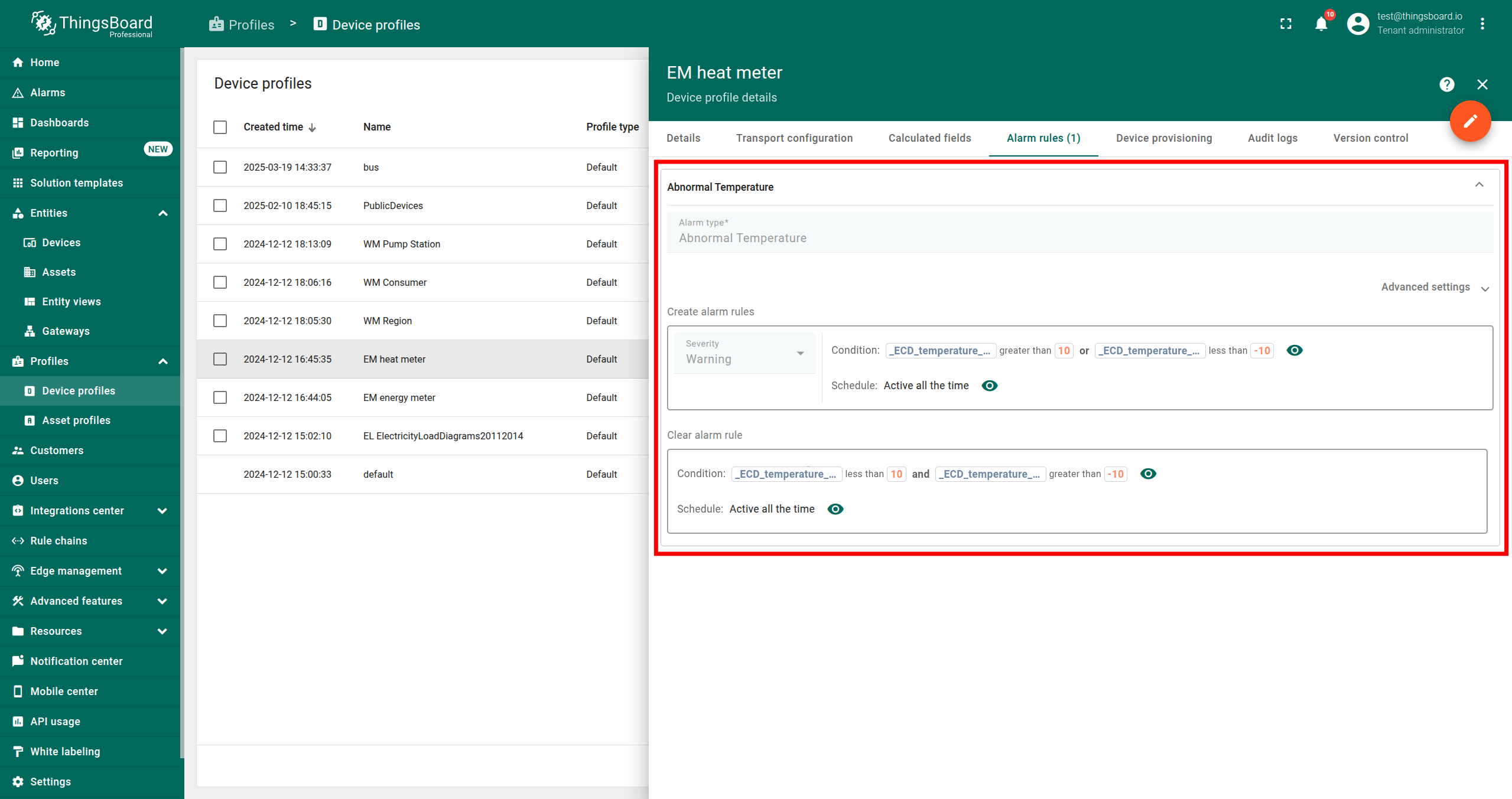
Example: You can create a metric that calculates deviations from the average temperature for sensors in a building.
If the deviation exceeds a threshold, an alarm will be triggered. This can detect device overheating or events such as a
forgotten open window or broken refrigerator.
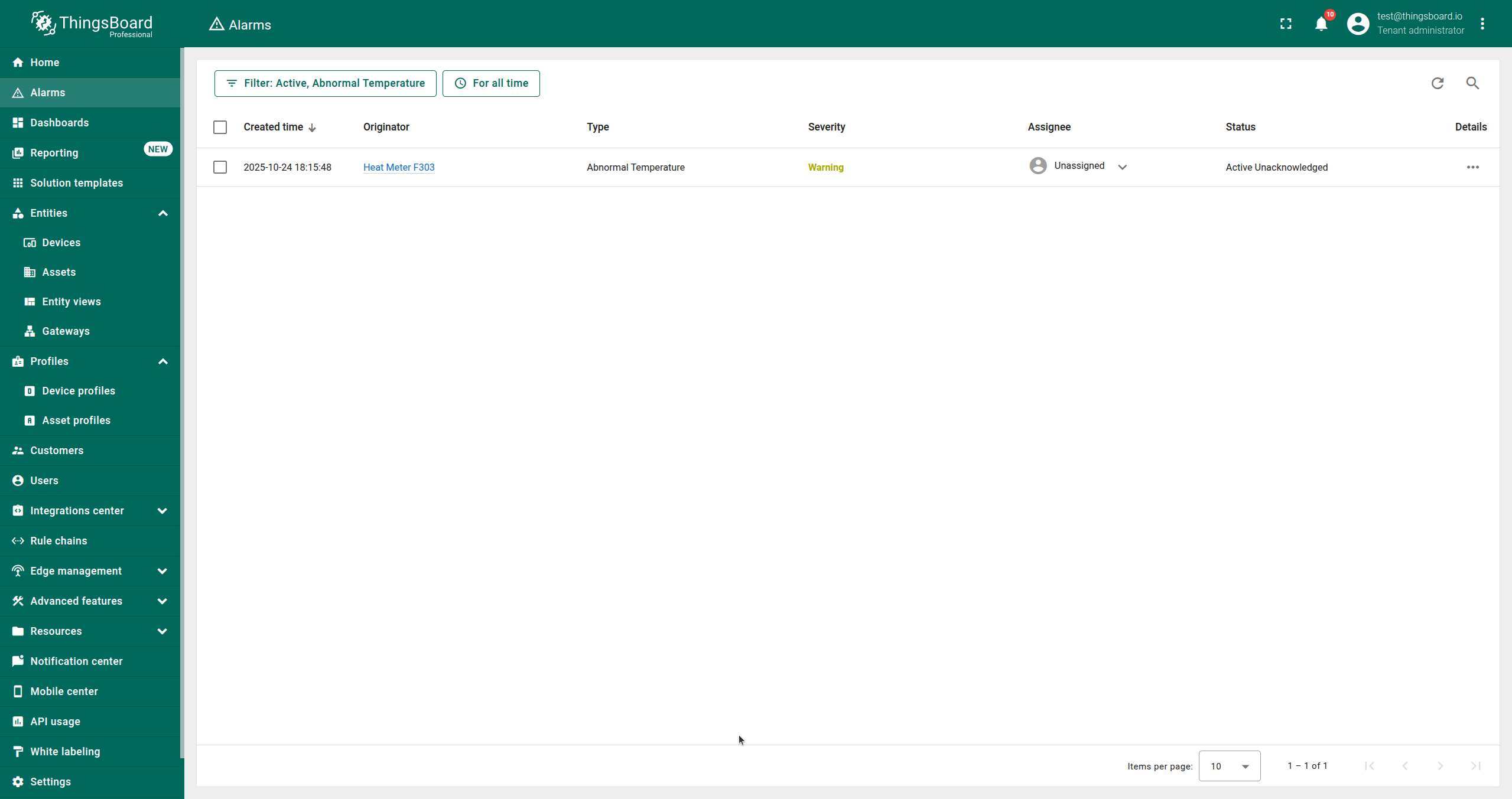
In this example, we created an alarm rule that triggers alarms when the absolute temperature deviation is greater than 10 and clears them when it is not. The alarm type is “Abnormal Temperature” and the severity is “Warning”.
Whenever the calculation refresh produces values that meet the alarm conditions, an alert will be triggered.
SENTIENT ANALYTICS Visualizations
Visualize the generated metric using any SENTIENT ANALYTICS widget, such as a line chart, heatmap, or state view (from the Range Analysis tab). You can also share the view with SENTIENT.
Read about SENTIENT ANALYTICS Visualizations here.
Read about how to share SENTIENT ANALYTICS Views with SENTIENT here.
Predict Future Values
You can use SENTIENT ANALYTICS Prediction Models to forecast future values of the generated metric. You can then visualize them and share this view with SENTIENT.
Learn more about prediction models here.
Detect Anomalies
You can detect anomalies or outages in the generated metric using SENTIENT ANALYTICS Anomaly Models. If an anomaly is found, you can set up automatic alarm creation.
Learn more about anomaly detection here.
Next Steps
-
Getting started guide - These guide provide quick overview of main SENTIENT ANALYTICS features.
-
Installation guides - Learn how to setup SENTIENT on various available operating systems.
-
Anomaly Detection - Learn how to identify anomalies in the data.
-
Calculated Fields - Learn about Calculated fields and how to use them.
-
States - Learn how to define and analyse states for assets based on raw telemetry.
-
Prediction - Learn how to make forecasts and predict telemetry behavior.
-
Filters - Learn how filter dataset during analysis.
-
Available Visualizations - Learn about visualization widgets available in SENTIENT ANALYTICS and how to configure them.
-
Share and embed Visualizations - Learn how to add SENTIENT ANALYTICS visualizations on SENTIENT dashboard or 3rd party web pages.
-
AI Assistant - Learn how to utilize SENTIENT ANALYTICS AI capabilities.